
VPN Management & Access
Overview
Section titled “Overview”The VPN is how you reach your devices. ARROW keeps your appliances and virtual machines off the public internet, so nothing is exposed and there is nothing to port-forward. Instead, everything lives on a private NetBird network, and you get to it by joining that network with a NetBird client. Once you are connected, an ARROW device is just another host you can SSH to, open a VNC session against, or manage as if it were sitting next to you.
You manage the VPN from the VPN section of the Console, a full management view of your network organized into tabs for Overview, Peers, Access Graph, Policies, Groups, Posture Checks, Networks, Reverse Proxy, DNS, Setup Keys, Team, Activity, and Settings. The section is for organization administrators; if you do not see VPN in the sidebar, ask your organization administrator for access.
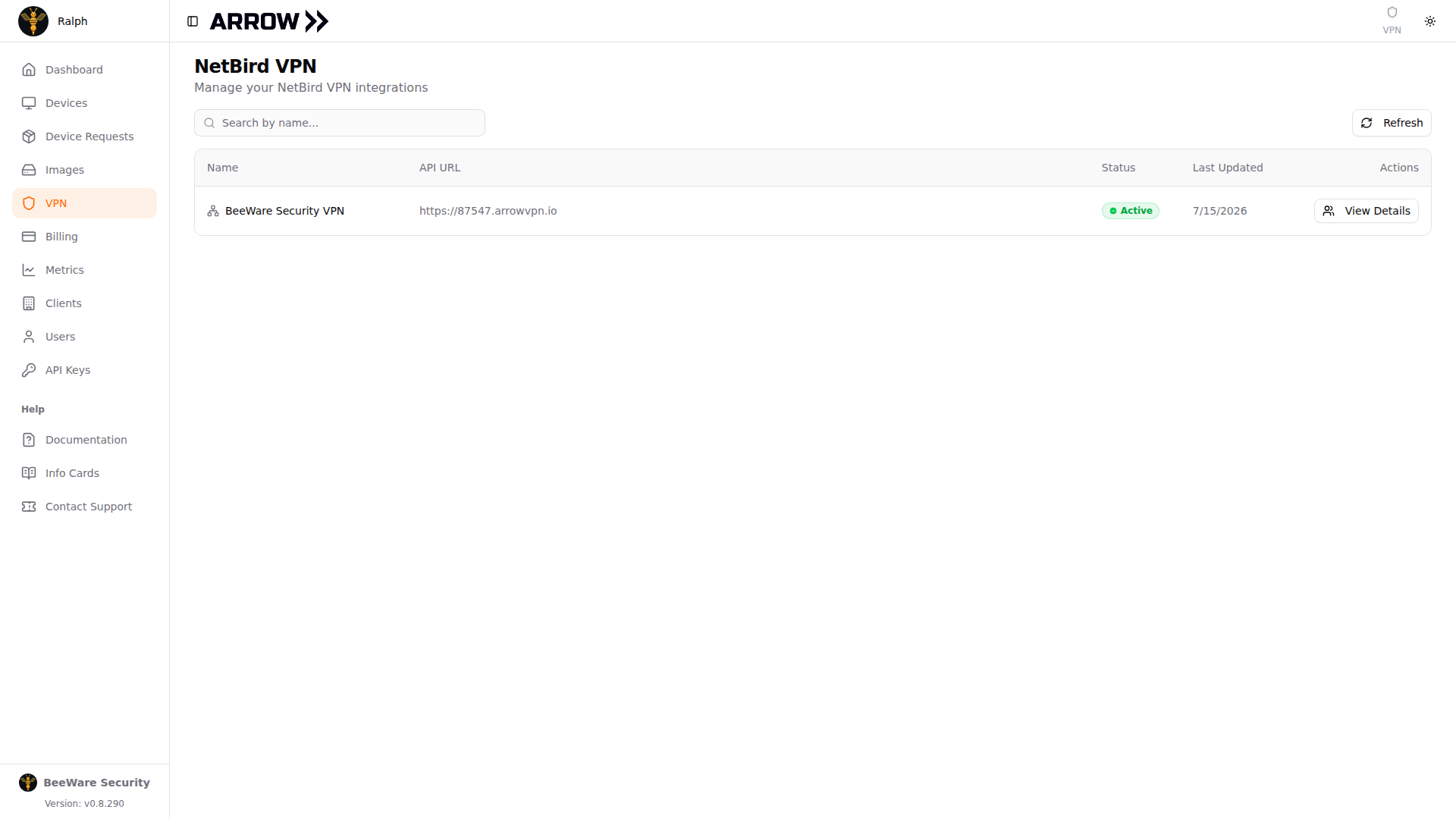
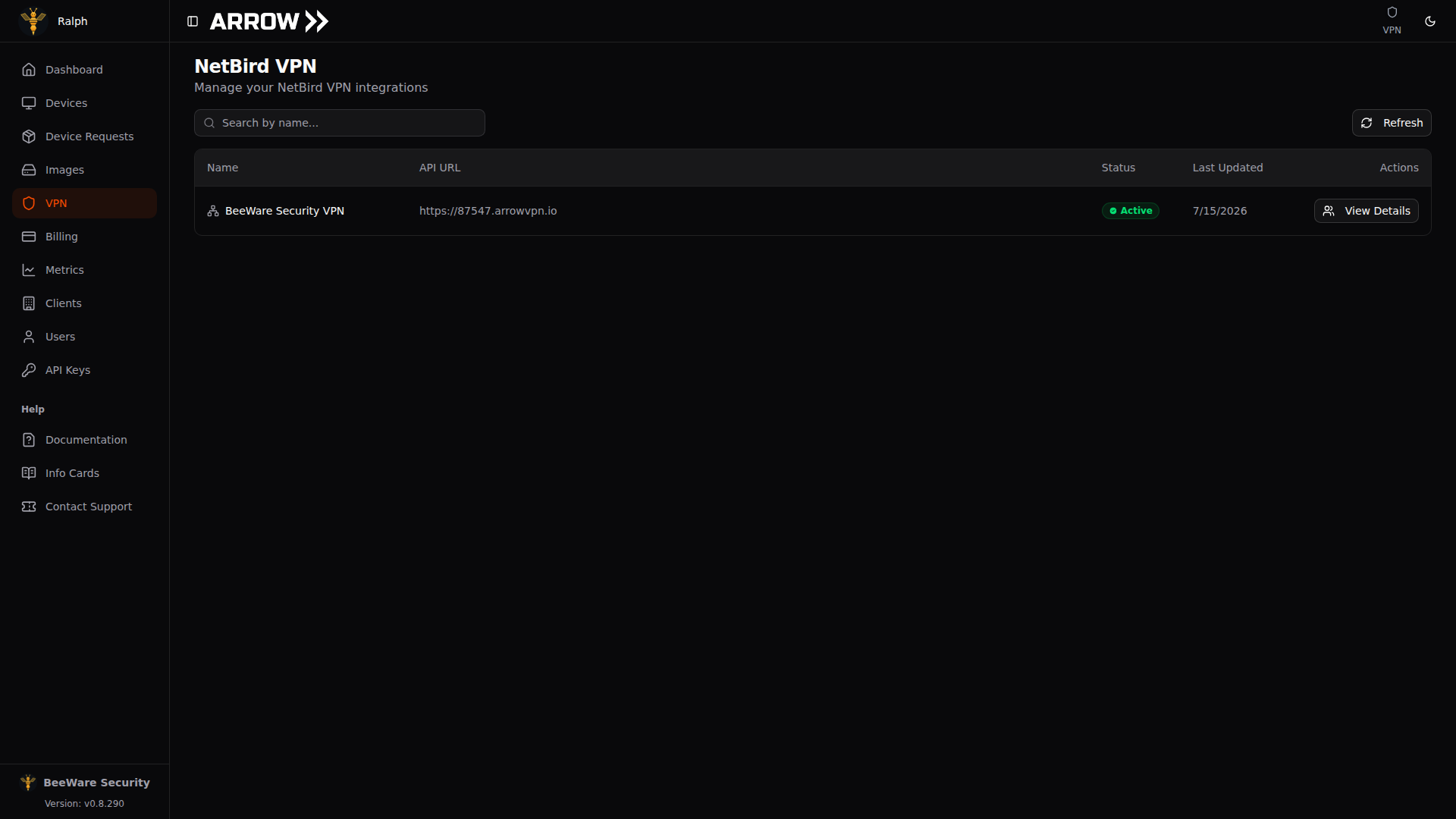
- 1 The peers list, with every device on the network, its overlay address, DNS name, and when it was last seen.
- 2 Search VPN searches the whole section at once, across peers, policies, groups, setup keys, and more.
There are two ways to join the network, and picking the right one matters:
- Identity Provider (IDP) authentication is for your own workstation. You sign in through your organization’s identity provider, exactly as you sign in to the Console, and you land in the
usersgroup with full access to the devices assigned to you. - Setup keys are for headless machines such as servers, VMs, and infrastructure that cannot sit at a browser and log in. A setup key drops the host into a restrictive group that can be reached but cannot reach anything else.
That last point is a real trap:
Do not use a setup key on your own workstation. It isolates the host under a locked-down policy, and you will lose the ability to reach any other system on the VPN. Workstations authenticate through your IDP; setup keys are for headless devices only.
Setting Up the NetBird Client
Section titled “Setting Up the NetBird Client”NetBird ships a desktop GUI and a headless CLI, both from the same installer. Use the GUI on a laptop or workstation and the CLI on a server. For anything platform-specific, the official NetBird installation docs are the source of truth.
Install
Section titled “Install”On Linux or macOS, one command gets you both the GUI and CLI:
curl -fsSL https://pkgs.netbird.io/install.sh | shOn macOS you can also use Homebrew (brew install --cask netbirdio/tap/netbird-ui), and on Windows, download the installer from NetBird.
Connect a workstation (SSO / IDP)
Section titled “Connect a workstation (SSO / IDP)”This is the path for your own machine. The one piece of information you need is your organization’s Management URL, the address you point the NetBird client at (it looks like https://<id>.arrowvpn.io). If you do not have it, contact ARROW support.
The VPN section in ARROW Console, where you manage peers, setup keys, and access
The VPN section in ARROW Console, where you manage peers, setup keys, and access
- Install NetBird if you have not already (see above).
- Point the client at your Management URL. In the desktop GUI, right-click the NetBird tray icon, open Advanced Settings, and set the Management URL to
https://{your-domain}:443/.
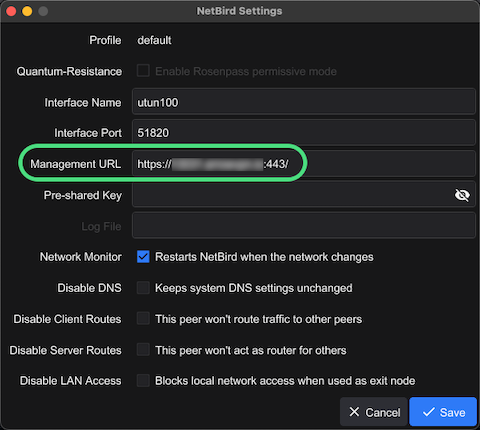 Management URL Configuration
- Click Connect. Your browser opens, you sign in through your IDP, and the tunnel comes up.
On Linux, or any headless machine you still want on SSO, do the same from the command line:
netbird up --management-url https://{your-domain}:443/This opens a browser for authentication. On a truly headless box, copy the URL it prints and open it in a browser elsewhere.
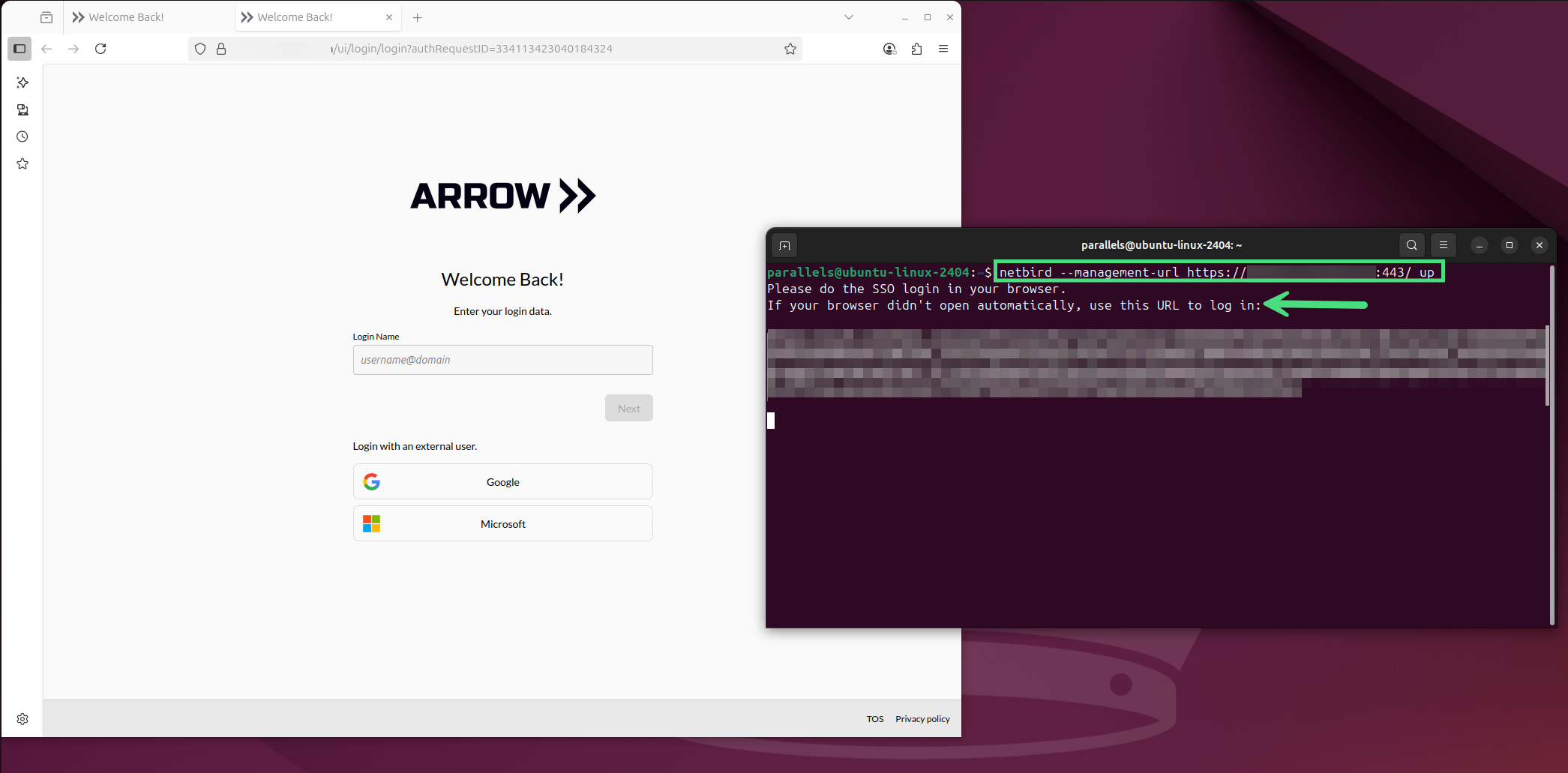 VPN User Connection CLI
Connect a headless device (setup key)
Section titled “Connect a headless device (setup key)”Use a setup key when a machine cannot log in through a browser, such as a password-recovery server, a piece of standing infrastructure, or an automated deployment. Remember that a key-joined host lands in a restrictive group by design, so keep keys off workstations.
First, get a key from the Console:
- Go to VPN and open the Setup Keys tab.
- Click New setup key.
- Give it a descriptive Name (for example, “Password Recovery Server”), choose a Type (one-off for a single machine, reusable for several), and pick how long it stays valid under Expires in. A reusable key can also take a Usage limit (zero means no limit). Either type can add joining devices to your groups and mark them as ephemeral so they are removed automatically after going offline.
- Click Create key and copy the key immediately. It is shown once and never again.
Then bring the device up with it:
netbird up --management-url https://{your-domain}:443/ \ --setup-key YOUR-SETUP-KEY-HERE \ --hostname {device-name}Two flags are worth knowing. --disable-dns stops NetBird from touching /etc/resolv.conf, and --allow-server-ssh lets the device run NetBird’s own SSH service. The flag alone does not open access, because SSH also has to be switched on for the peer in the Console, and an access rule using the NetBird SSH protocol has to cover the connection.
A one-off key can be used exactly once, and every key stops working at the expiry you chose. If a key was already used or has gone stale, create a fresh one from the Setup Keys tab.
Verify the connection
Section titled “Verify the connection”The fastest check is the CLI:
netbird statusA healthy connection reports Connected, your organization’s Management URL, an assigned NetBird IP in the 100.x.x.x range, and a count of reachable peers. In the desktop GUI, the tray icon shows an active state and lists the same details when you click it.
You can also confirm from the Console. Open VPN, find your device on the Peers tab, and check that it shows a green status dot beside its name and Online in the Last seen column. To prove end-to-end reachability, ping another peer:
ping <arrow-device-vpn-ip>When something is wrong
Section titled “When something is wrong”Most connection problems fall into a few buckets:
- The client will not connect. Double-check the Management URL and confirm the machine has outbound internet. Corporate firewalls and proxies are the usual culprits, so try an alternate install method if the download itself fails.
- Authentication fails. Make sure you are signing in to the correct IDP. Clearing the browser cache or using an incognito window clears up stale sessions.
- You signed in but still cannot connect. Your organization may require a VPN administrator to approve new VPN users first. An administrator can see who is waiting on the Team tab and approve them there with Approve access; they also get a VPN user needs approval notification in their inbox whenever someone is waiting.
- A setup key is rejected. It has expired, was revoked, or was a one-off key that has already been used. The Setup Keys tab shows each key’s state; watch for typos, and create a new key if in doubt.
- You are connected but cannot reach a device. This is a policy or group issue, not a client issue. Check that the device shows Online in the Console and that you are in a group with access to it.
netbird statusshows Disconnected or no IP. Restart the NetBird service, re-check the Management URL, and runnetbird status --detailfor the full picture.
If you are still stuck, the NetBird documentation covers client internals, and ARROW support can help if you send along the output of netbird status --detail.
Viewing VPN Status in the Console
Section titled “Viewing VPN Status in the Console”Everything about your network is visible under VPN in the Console, organized into tabs that share one header. The header carries a summary of what the current tab holds and Search VPN (Ctrl+K, or Cmd+K on a Mac), which searches the whole section at once, across peers, policies, groups, posture checks, networks, DNS, setup keys, and team members. Each tab has a Refresh button beside Search VPN in the header; on Peers it sits in a toolbar under the header instead, next to a View menu for choosing which columns the table shows. Most tabs also have a collapsible filter rail on the left that narrows the list without leaving the page. A tab’s search and filters are kept in the page’s address, so a refresh or the Back button brings back the same view, and you can copy the link to share it.
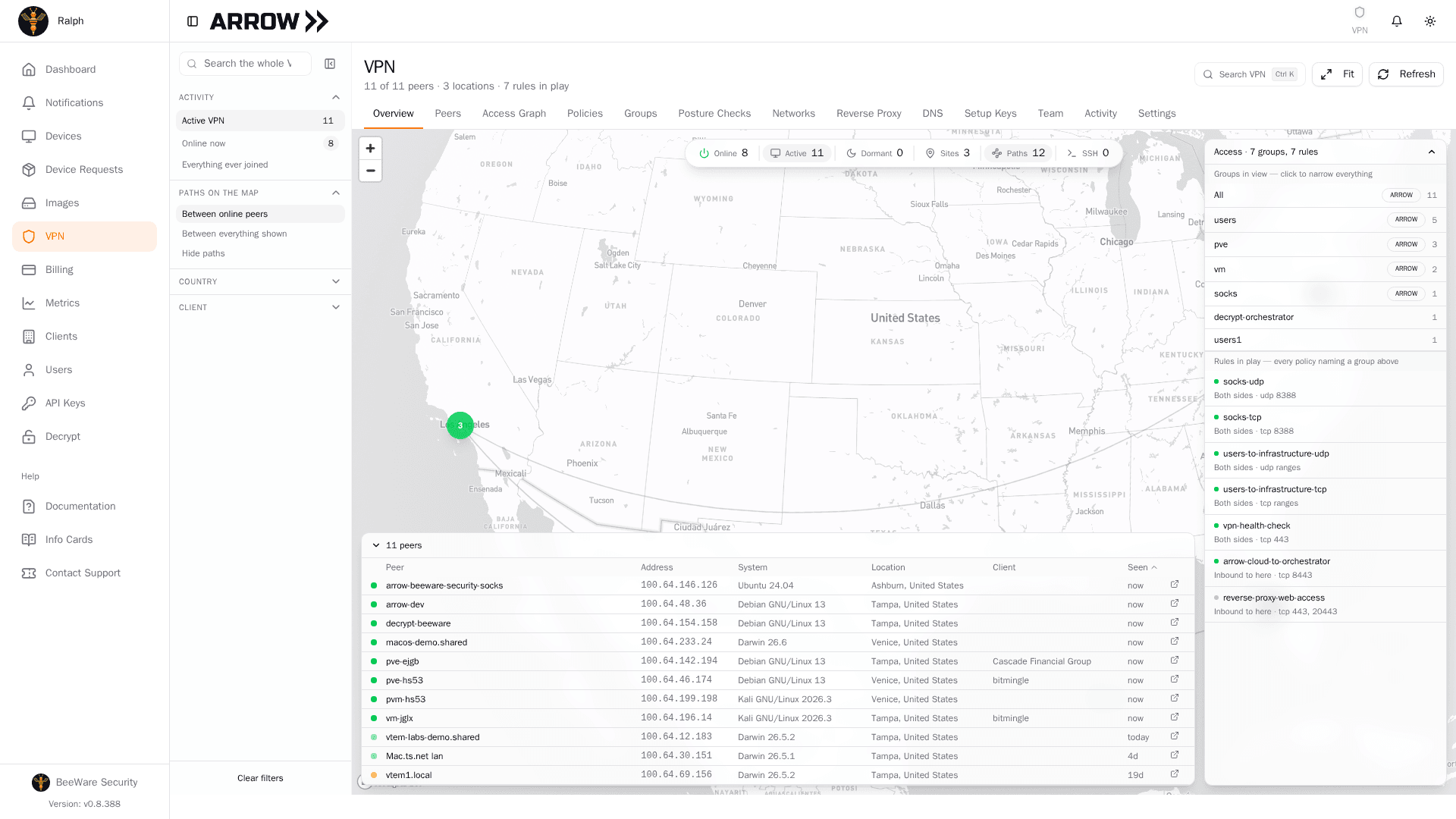
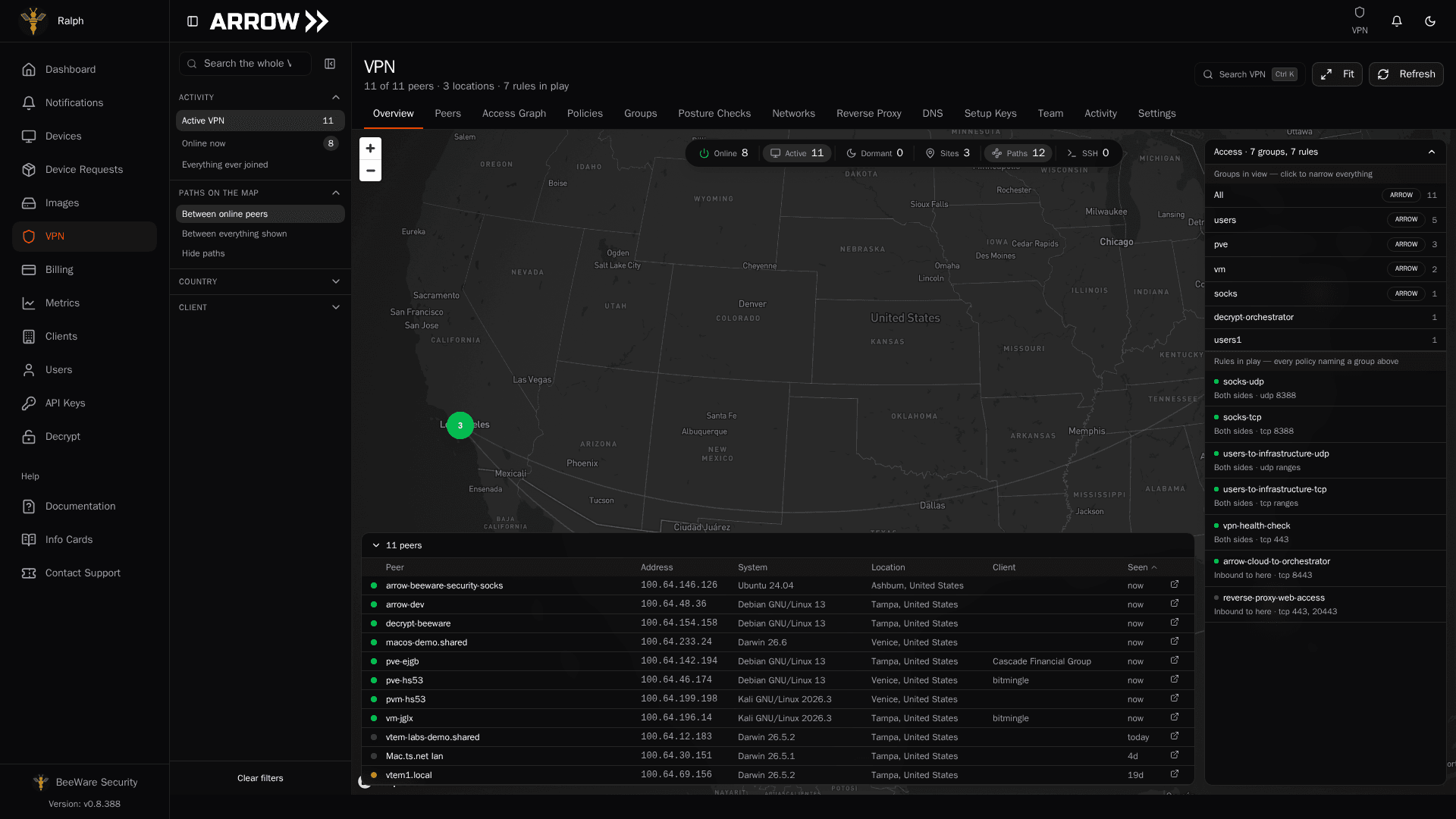
The Overview tab, showing your network on one map, with the peers, groups, and rules behind the current selection
The Overview tab, showing your network on one map, with the peers, groups, and rules behind the current selection
- Overview is your whole network on one world map. Peers are grouped into sites, arcs trace which locations talk to each other, and floating panels list the peers, groups, and access rules behind whatever you have narrowed to. Click a site, a group, or one of the counts along the top and every panel narrows together. It starts from the peers seen within the last month and always tells you how many dormant ones it is hiding.
- Peers is the landing tab, listing every device on the network with its overlay address, DNS name, operating system, agent version, groups, and when it was last seen. This is where you confirm a device actually made it onto the network. Click a peer to open its detail panel, which includes the ARROW device and engagement it belongs to.
- Access Graph answers what a person can reach. Pick a team member to see the devices they sign in from, every peer those devices can reach, and the access rules and engagements behind that reach.
- Policies lists the access rules that decide who can reach what (see Network Access Control).
- Groups shows the peer groups those rules are written against and how many peers each contains.
- Posture Checks holds requirements you can attach to a rule, such as a minimum NetBird version, an operating system minimum, an allowed network range, or an allowed location.
- Networks describes places your peers can reach through the VPN beyond the peers themselves, such as an office LAN or a cloud network, carried by a routing peer.
- Reverse Proxy publishes a service running inside your VPN to people who are not on it. You add a public domain, then map it to the machines on your network that answer behind it. ARROW has to make the proxy available to your organization first, and the tab tells you where things stand if that has not happened; contact support if you need it. Once it is available, the switch is yours. Turn on sets up the proxy so the services you publish are reachable from the public internet, and Turn off removes it and published services stop answering. Nothing is published until you create a service.
- DNS manages the nameservers your peers resolve names through, so peers in the chosen groups send their DNS queries to the servers you list.
- Setup Keys is where you create and revoke the keys that enroll headless devices (see Requesting Setup Keys).
- Team shows who is on the VPN. The list comes from your ARROW accounts, so it is not editable here; what it tells you is whether each person actually reached the VPN and which groups they landed in. The Status column puts a badge on each person: VPN account ready, Needs NetBird approval, VPN blocked, Invitation pending, Approval status unavailable, Not on the VPN, or Not an ARROW user. Anyone who needs attention sorts to the top, a notice above the table counts the people waiting for approval, and the filter rail narrows the list to one status. If you have VPN management permission, an Actions column carries an Approve access button beside anyone who is waiting on approval, blocked, or whose status could not be read; click it to approve them for VPN access. Whenever someone is waiting, ARROW also puts a VPN user needs approval notification in the inbox of everyone who can approve, and it links straight to this tab.
- Activity is the recent event feed for the network, so you can see who changed what and when.
- Settings covers account-wide behavior such as whether people must periodically re-authenticate, whether regular users can see other peers, and the overlay address range.
What you can change depends on your permission. Anyone with access to the section can review all of it, while creating, editing, or removing anything requires VPN management permission. Objects marked with a lock icon are maintained by ARROW and cannot be changed here.
Requesting Setup Keys
Section titled “Requesting Setup Keys”If you need to attach a custom device to the network, such as a password-recovery server or a piece of standing infrastructure, request a setup key from the Console. This is the right tool whenever a machine authenticates as itself rather than as a logged-in user.
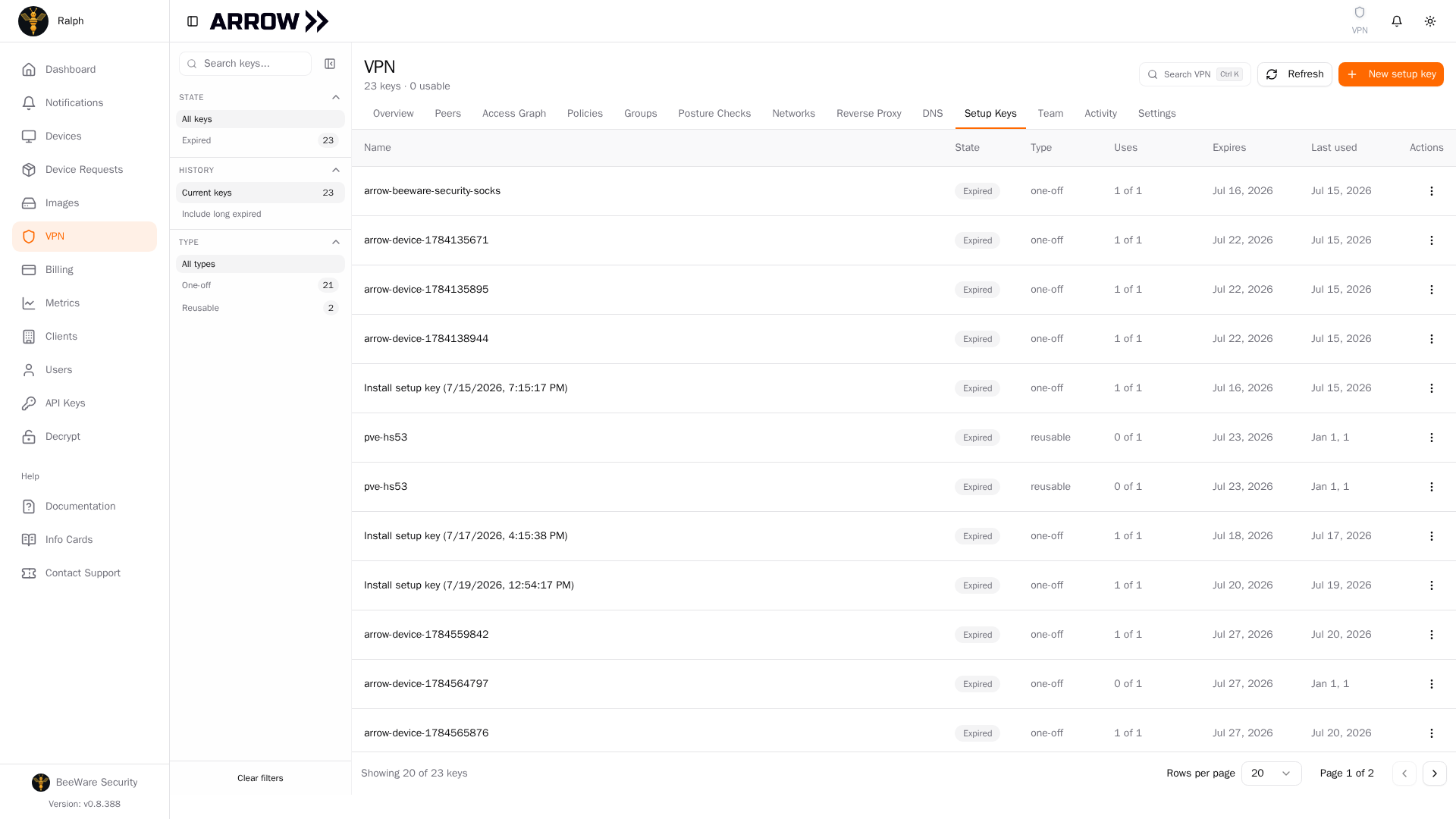
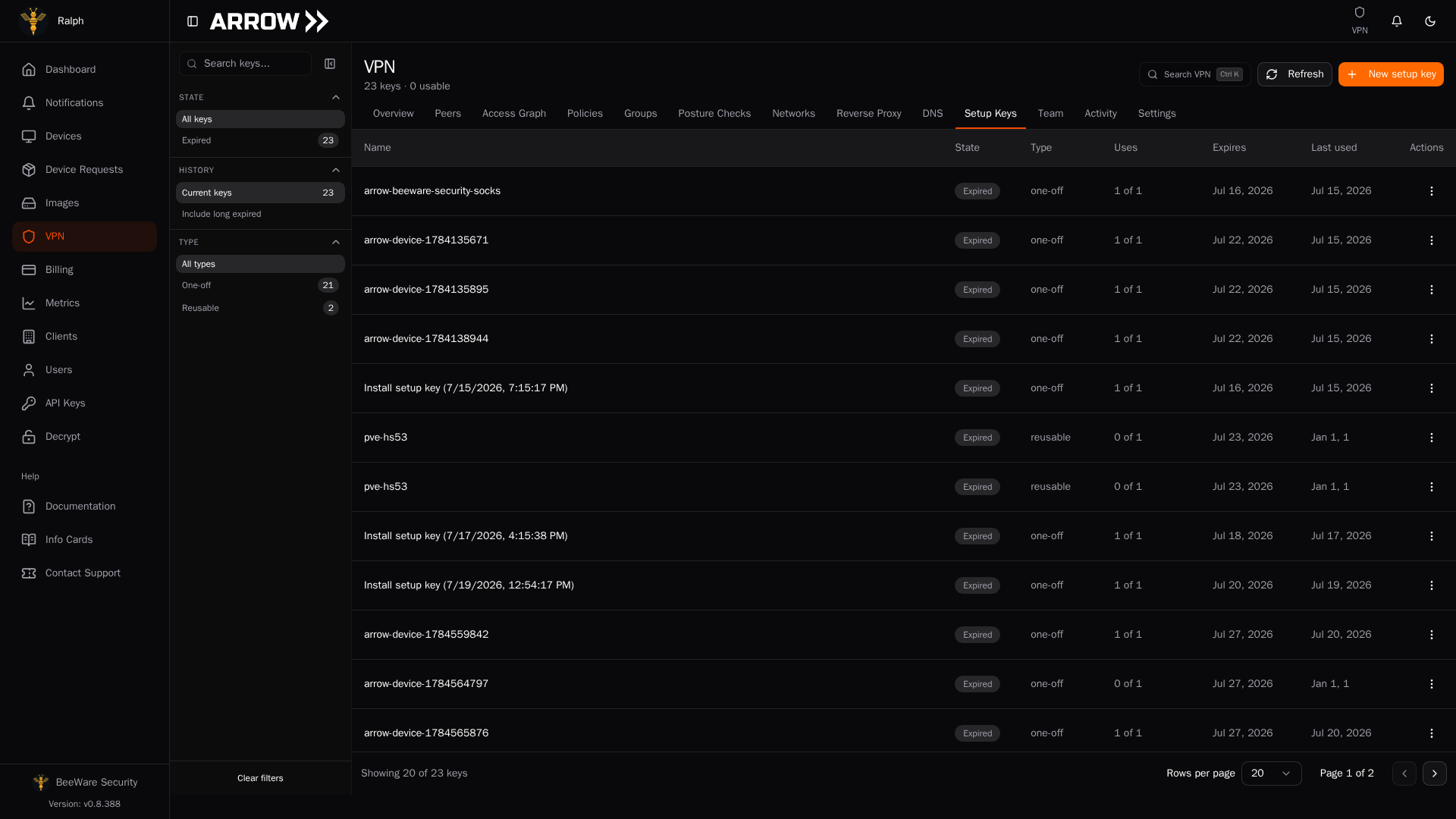
The Setup Keys tab, listing each key with its state, type, uses, and expiry
The Setup Keys tab, listing each key with its state, type, uses, and expiry
- Go to VPN and open the Setup Keys tab.
- Click New setup key.
- Give it a descriptive Name, choose the Type and Expires in, and optionally add joining devices to one of your groups.
- Click Create key.
Copy the key the moment it appears; it is displayed only once, along with the exact netbird up command to enroll a device with it. A one-off key is single-use, and every key stops working at its expiry. For using the key on the device, see Connect a headless device (setup key) above.
If a key leaks or is no longer needed, revoke it from its row menu on the Setup Keys tab. Revoking stops new enrollments immediately, but devices already enrolled with the key stay on the VPN; remove those from the Peers tab if that is what you want.
VM VPN Access
Section titled “VM VPN Access”You almost never touch any of this for VMs, because ARROW handles it. When a VM is provisioned, it is registered as a peer, dropped into the right group (pvm on ARROW hardware, vm elsewhere), and covered by a policy that lets the consultants assigned to it connect in. Access is deliberately one-way, so you can reach into a VM, but the VM cannot open connections back out to you.
To use a provisioned VM, make sure your own VPN client is connected, find the VM’s hostname or IP in its device details in the Console, and connect over SSH, VNC, or whatever protocol fits.
When a VM is marked complete, ARROW tears all of this down automatically, removing the peer registration, the access groups, and the policies, so nothing lingers on your network.
How a Connection Comes Together
Section titled “How a Connection Comes Together”When you connect a workstation, NetBird hands you off to your identity provider to prove who you are, and once your IDP returns a valid token the tunnel establishes and you can reach any ARROW device your policies allow. For headless devices the setup key stands in for that browser login. In both cases the result is the same, an authenticated peer on a private network, reachable only within the access rules ARROW maintains for you.
Status Indicators
Section titled “Status Indicators”| Status | Meaning |
|---|---|
| Online | A peer is connected right now, shown with a green status dot |
| Offline | A peer is not connected; the Last seen column shows how long ago |
| Valid | A setup key that can still enroll devices |
| Revoked | A setup key that was cancelled and can no longer enroll devices |
| Expired | A setup key past its expiry date |
| disabled | An access rule that is currently not applied |
Troubleshooting
Section titled “Troubleshooting”Client install and connection problems are covered in When something is wrong above. A few issues are specific to the Console side:
- You cannot connect to the VPN at all. Confirm you are using the exact Management URL from the Console, that you are signed in to the right IDP, that outbound traffic to that URL is allowed through your firewall, and that your NetBird client is current.
- A device shows Offline. Check that NetBird is actually running on it and that the device has internet, then hit Refresh in the Console.
- You can connect but cannot reach a specific device. Verify the device is Online in the Peers tab, that you are in a group with access to it, that the access policies allow your connection, and that the device’s own VPN service is up.
Related Documentation
Section titled “Related Documentation”- Network Access Control - Understanding automatic access control
- Authentication - User authentication and identity management
- Device Management - Managing devices that connect to VPN
- ARROW Manager Network Settings - On-device network status
- NetBird Official Documentation - Detailed NetBird client documentation
Contractor VPN approval
Section titled “Contractor VPN approval”For a contractor who is waiting for VPN access, open VPN > Team in ARROW and select Approve access beside the correct person. The VPN user needs approval notification links to this page. Contractors also see a pending-approval message above their assigned devices.
Approval is managed in ARROW, without opening the NetBird administration site. It does not replace device assignments or connect the contractor’s workstation to the VPN. See Managing Contractors for the complete approval workflow and Contractor Getting Started for workstation setup.