
Cloud GPUs
When your own rigs cannot finish an attack in time, ARROW Decrypt can rent GPUs by the hour from vast.ai and fold them into the same job. The Cloud screen is where you watch those rentals, track what they cost, and read their logs.
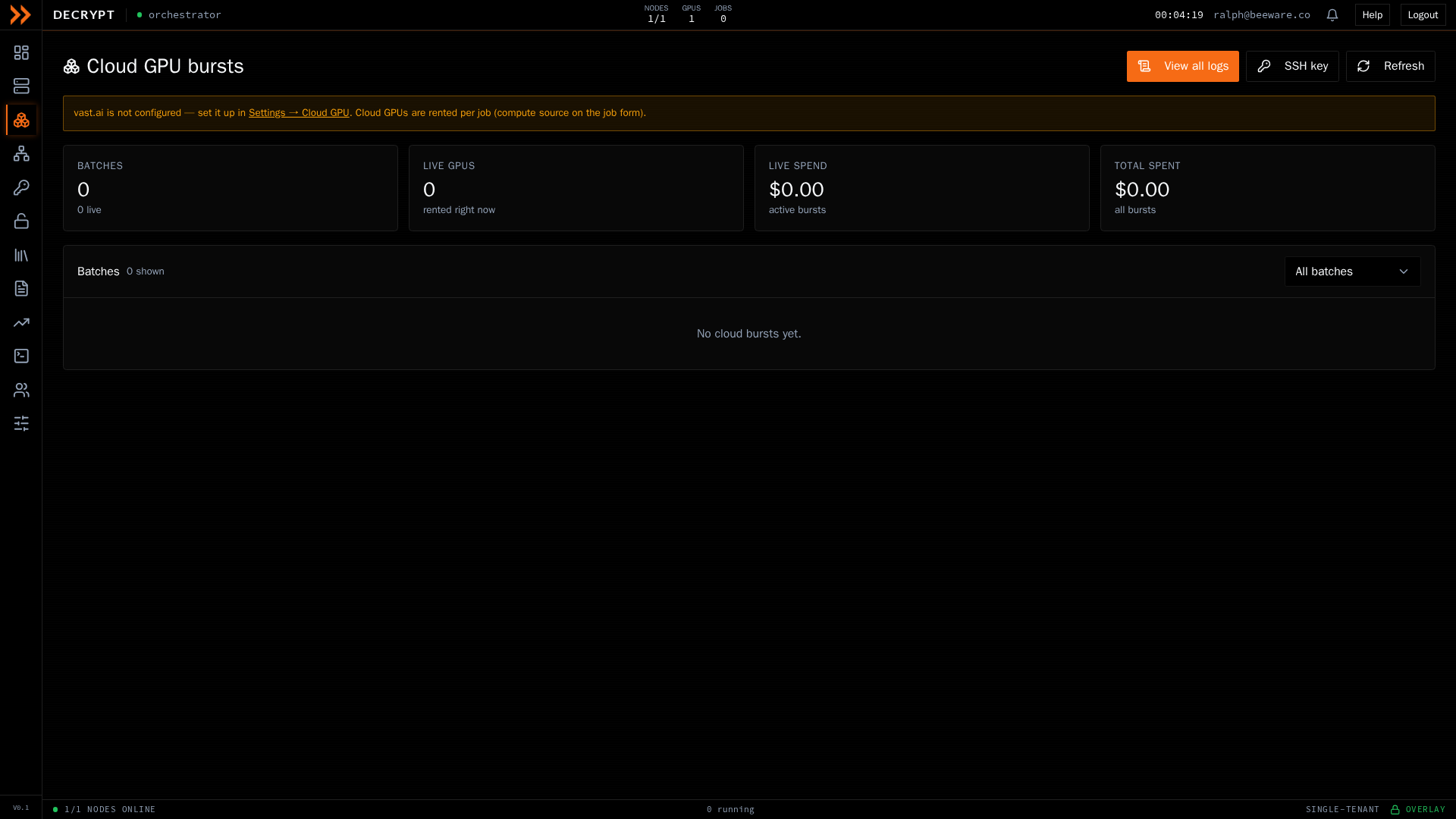
Cloud bursts, with batches, live spend, and the lifecycle of each rented host
Cloud bursts, with batches, live spend, and the lifecycle of each rented host
Before you can burst
Section titled “Before you can burst”Cloud GPUs are configured once in Settings, under Cloud GPU. Until vast.ai is set up there, the Cloud screen shows a prompt pointing you to it. You start a burst from the job builder, not from this screen. On the Build a crack job panel, choose a cloud target under Speed & cost target or Compute source. See Crack Jobs.
Watching a burst
Section titled “Watching a burst”Summary tiles across the top show the number of batches, GPUs live right now, live spend on active bursts, and total spent across all bursts.
The batches table lists every burst with its state (requesting, booting, joining, working, done, failed, or destroyed), a GPU summary, how many GPUs filled out of those requested, live node count, spend against estimate, and the current lifecycle stage. A batch that had underperforming or throttled hosts swapped out is marked as replaced.
Expand any batch to see its full detail:
- A lifecycle stepper that walks from renting the GPU, through building and joining the overlay, to syncing wordlists and cracking.
- Per-node health, with the overlay address and a button to pull that node’s live agent logs.
- Wordlist sync progress per node, including transfer size and speed.
- Durable captured logs that survive the host being destroyed, so you can review a burst after it ends.
For a live batch, Kill tears it down immediately. For a finished one, Details opens the same expanded view.
Cloud node logs
Section titled “Cloud node logs”Click View all logs to open the full log console for cloud nodes. It keeps the complete boot and agent logs from every burst, even after the hosts are gone, so you can troubleshoot a rental that failed to come up.
- Filter by batch and by source (agent ring, container, or host), and type in the search box to grep the selected log.
- Pick a source from the list on the left to view its full output on the right.
- Auto-refresh keeps a live log tailing; Download saves the selected log to a file.
Related documentation
Section titled “Related documentation”- Crack Jobs - Start a burst from the job builder
- Settings - Configure vast.ai and object storage
- Wordlists - Offload lists to storage for cloud rigs