
Settings
Settings is where you configure the device itself, rather than what runs on it. When you need to change how the device connects, decide whether it should update automatically, check on its health, or reboot it, this is the screen you open. Everything is organized into sections in a left rail, and selecting one shows its controls on the right. The sections are grouped so that connectivity comes first, then observability, then the low-level device concerns you touch less often.
Network
Section titled “Network”Network is where you decide how the device gets its wired address. Most deployments leave the primary ethernet interface (eth0) on DHCP, which lets the device pick up an address from your network automatically. Choose Static IP instead when the device needs a fixed, predictable address, and you can then enter the IP, subnet mask, gateway, and DNS by hand. This same section also shows the ARROW Network Manager service version and lets you refresh or upgrade it, so you can confirm the networking stack is current before you troubleshoot anything else.
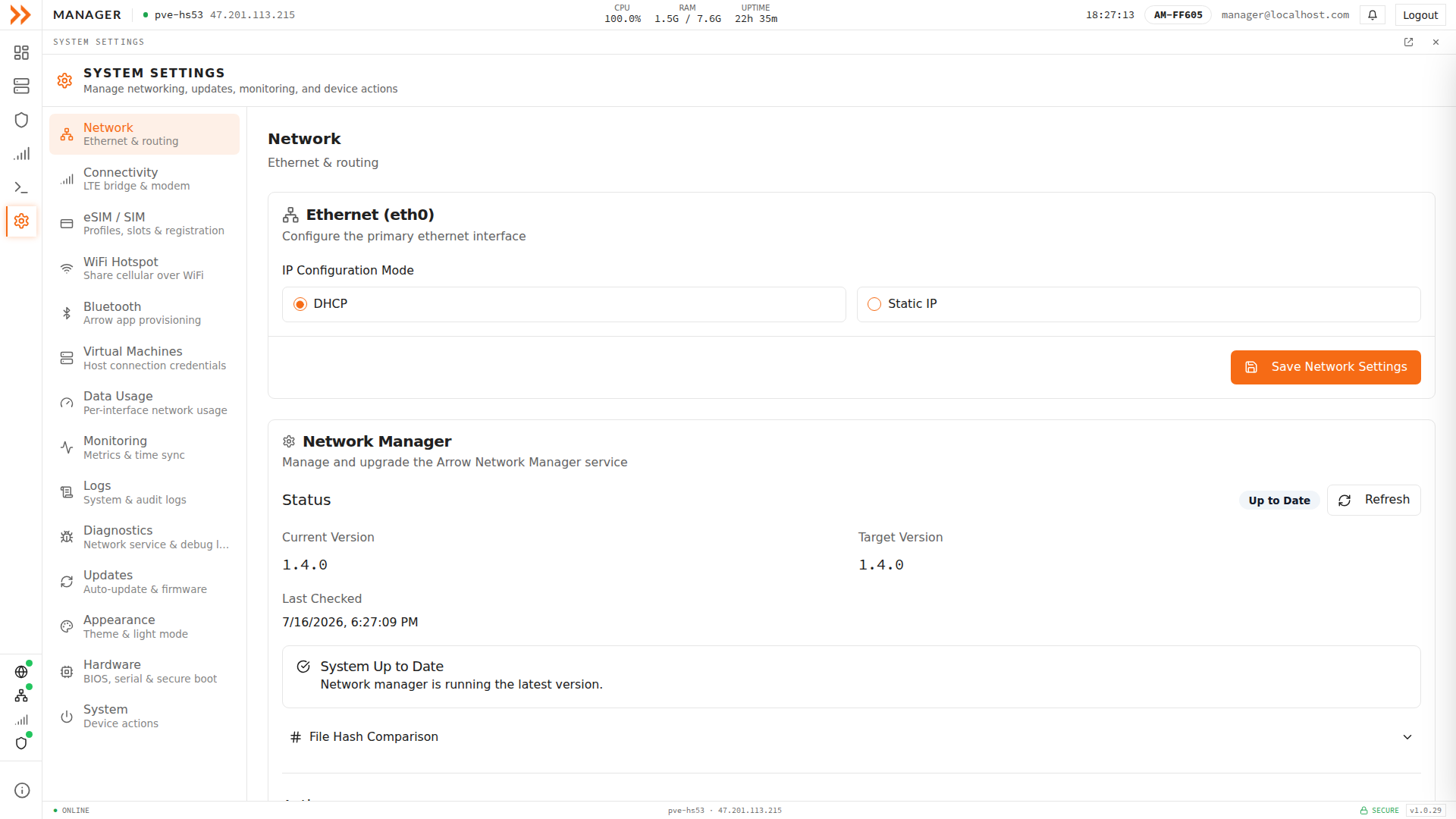
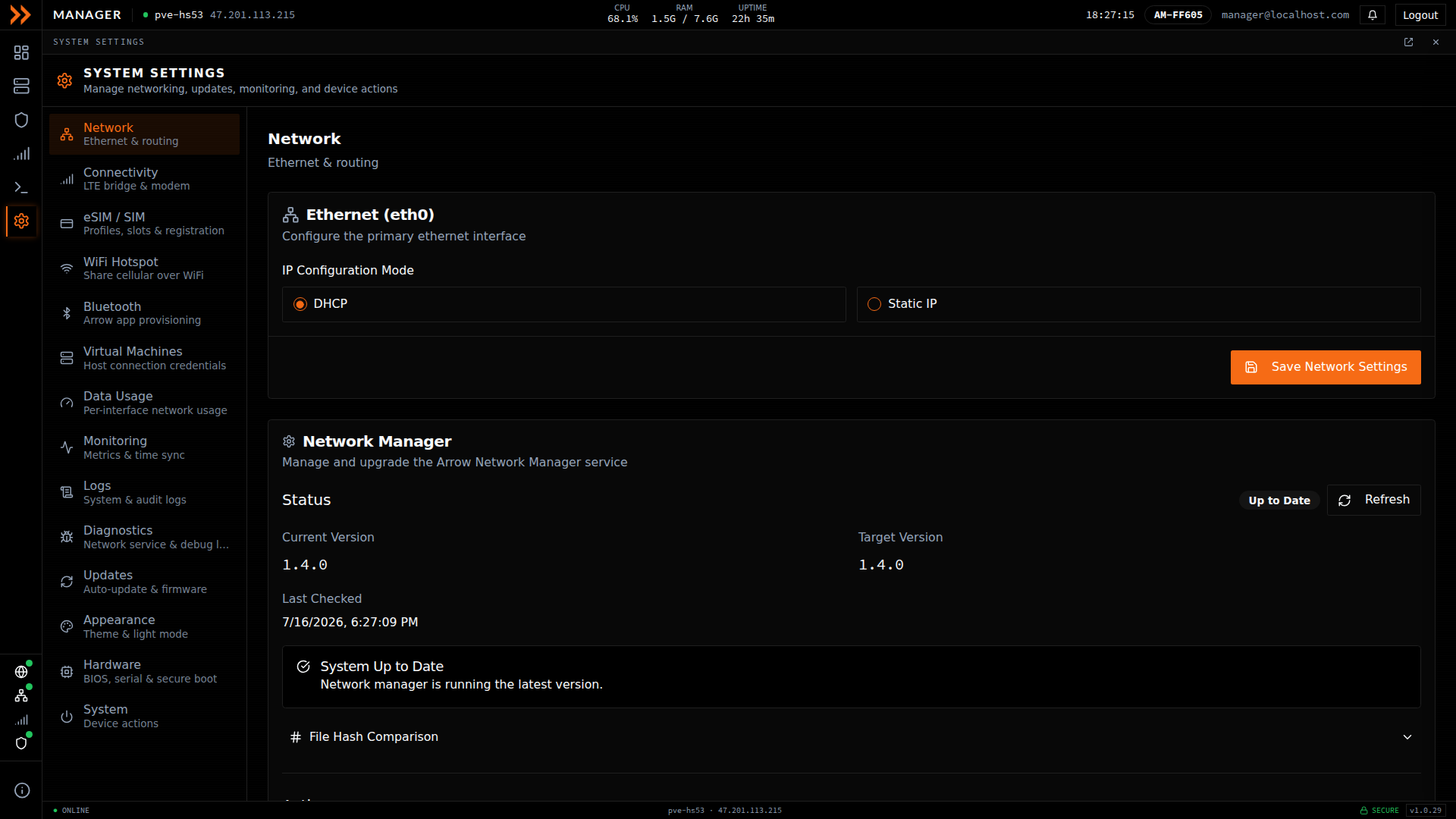
Network lets you choose DHCP for automatic addressing or Static IP to set the address, mask, gateway, and DNS by hand
Network lets you choose DHCP for automatic addressing or Static IP to set the address, mask, gateway, and DNS by hand
Connectivity
Section titled “Connectivity”Connectivity controls LTE Bridge Mode, an advanced option that routes VM or bridged traffic out through the device’s LTE connection instead of ethernet. It is meant for temporary testing or emergency access when wired connectivity is unavailable, not for everyday use, because cellular data is metered and expensive. The page makes that clear with a cost warning and keeps the bridge disabled until you explicitly enable it and an LTE connection is active. This is also where the cellular modem firmware (for example the EM7565) is reported, so you can confirm which modem the device is using.
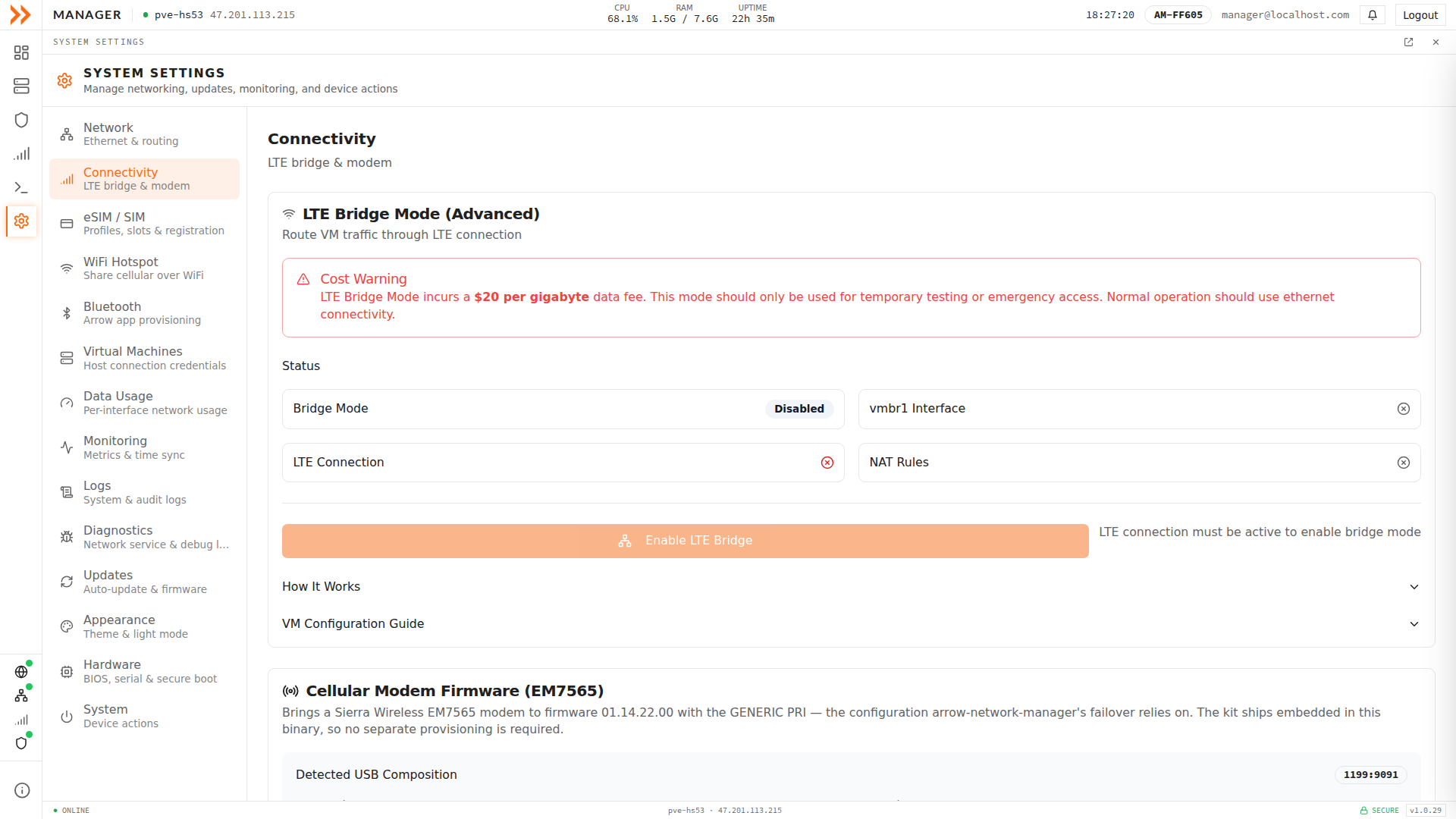
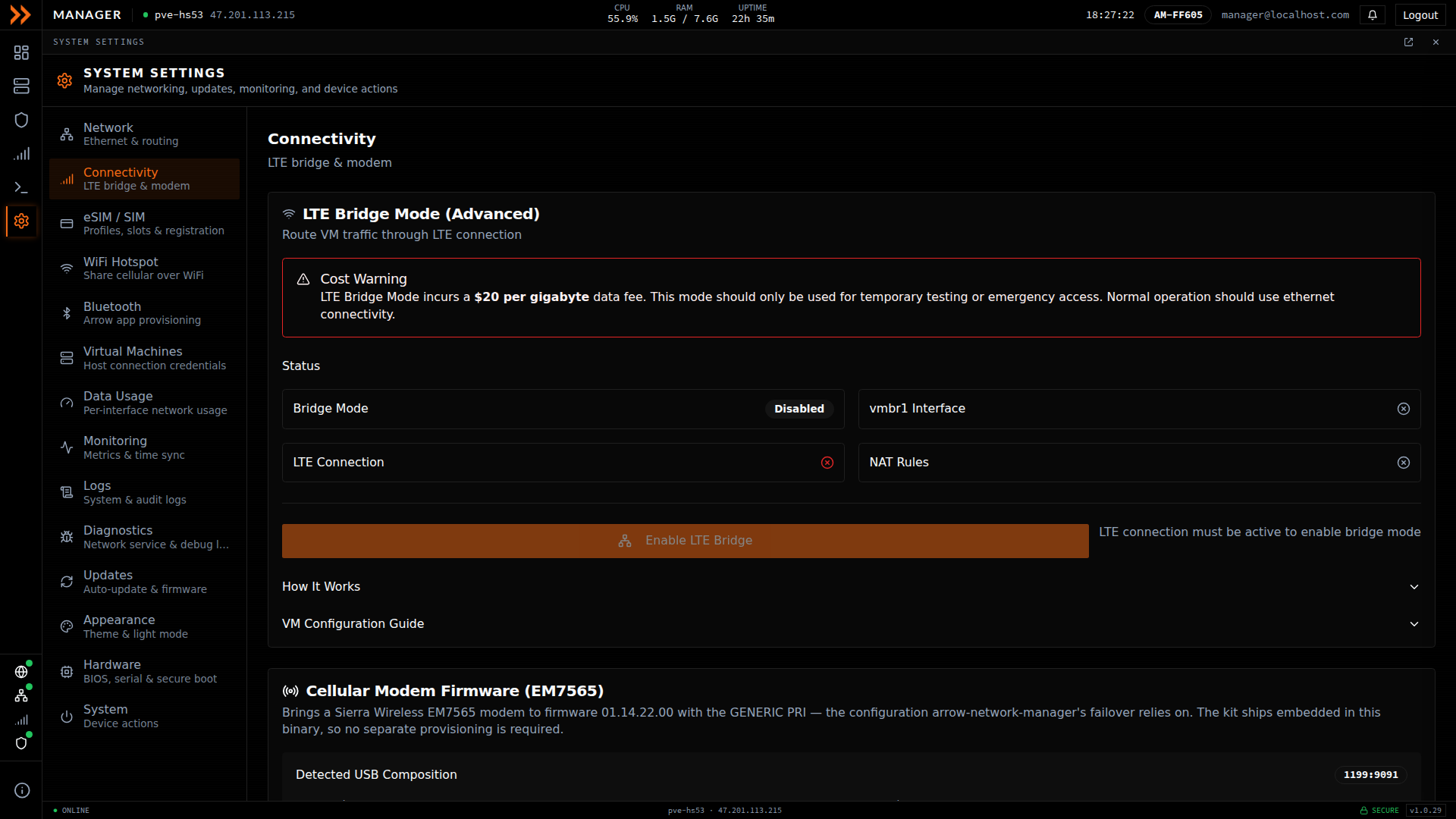
Connectivity is where you enable LTE Bridge Mode for temporary or emergency access, with a cost warning since cellular data is metered
Connectivity is where you enable LTE Bridge Mode for temporary or emergency access, with a cost warning since cellular data is metered
eSIM / SIM
Section titled “eSIM / SIM”This section is where you manage the device’s cellular identity, covering which SIM slot is powering the modem, what carrier and IMSI it registered with, and the eUICC (eSIM) card details. The device has two physical slots, either of which may hold a plain SIM or an eSIM-capable eUICC card, and only one slot is powered at a time. Use it to check the active connection and registration status, switch which slot is in use, or re-detect the SIM after you swap a card.
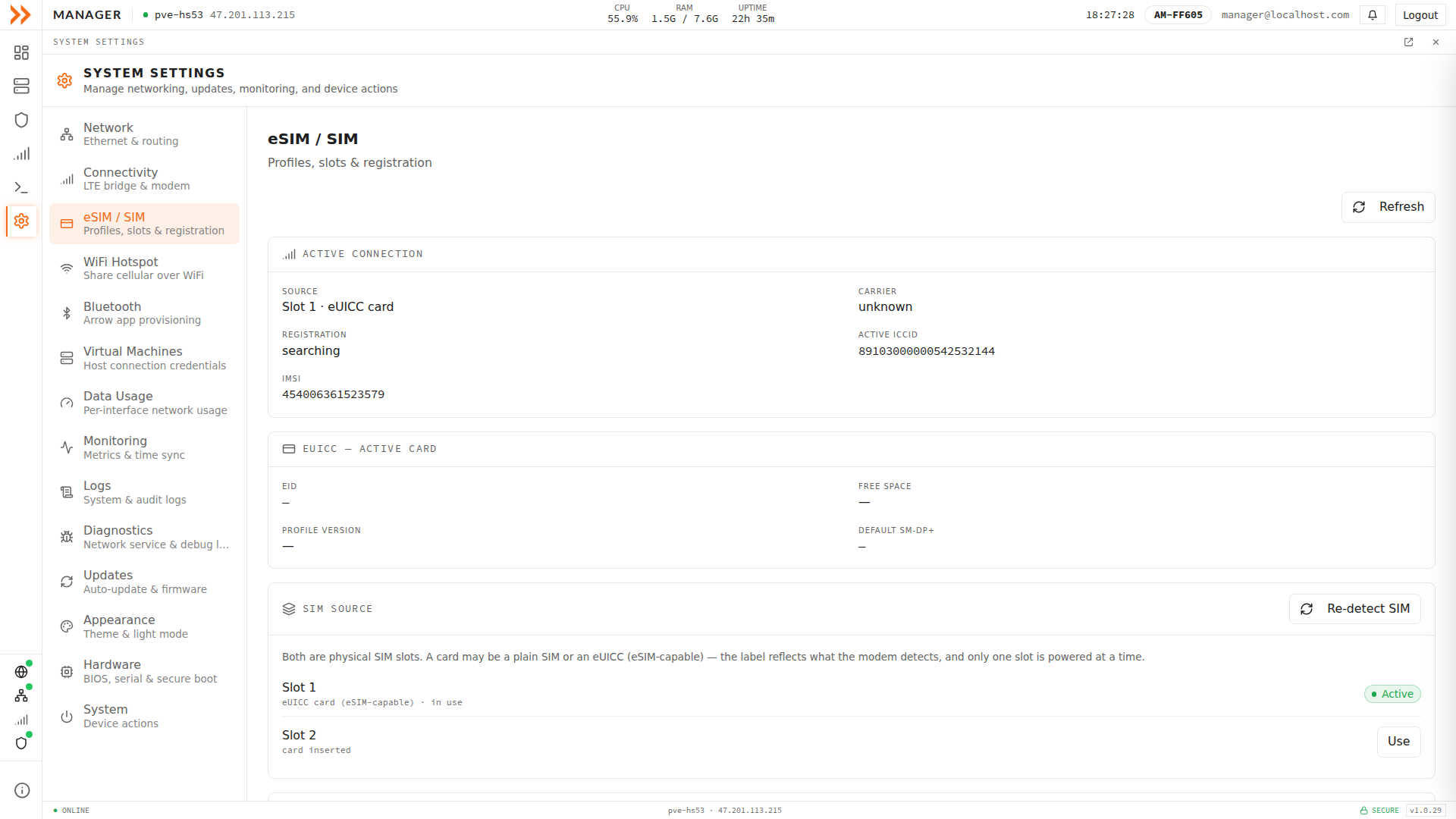
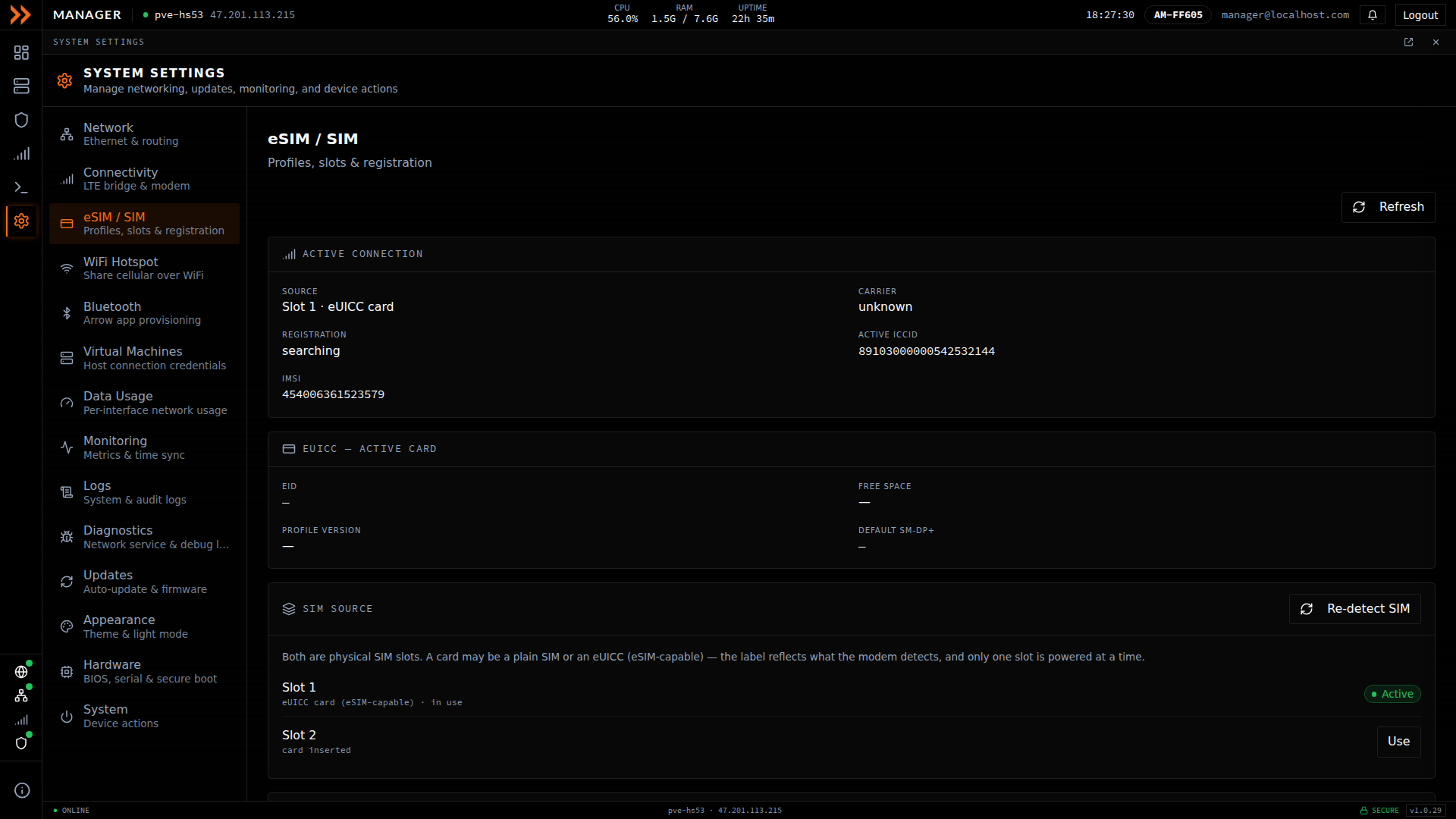
eSIM / SIM shows the active connection and registration, and lets you switch between the two physical SIM slots
eSIM / SIM shows the active connection and registration, and lets you switch between the two physical SIM slots
WiFi Hotspot
Section titled “WiFi Hotspot”The WiFi Hotspot turns the device into an access point that shares its cellular internet over WiFi, with client traffic routed through the VPN by default. This is handy in the field when you need to get a laptop or phone online through the device. You set the network name, passphrase, security mode, and DNS here, and choose whether the uplink is the VPN proxy or a direct connection. One thing to keep in mind is that enabling the hotspot repurposes the WiFi radio, so while it is active the device cannot also connect to WiFi as a client, though NetBird stays connected.
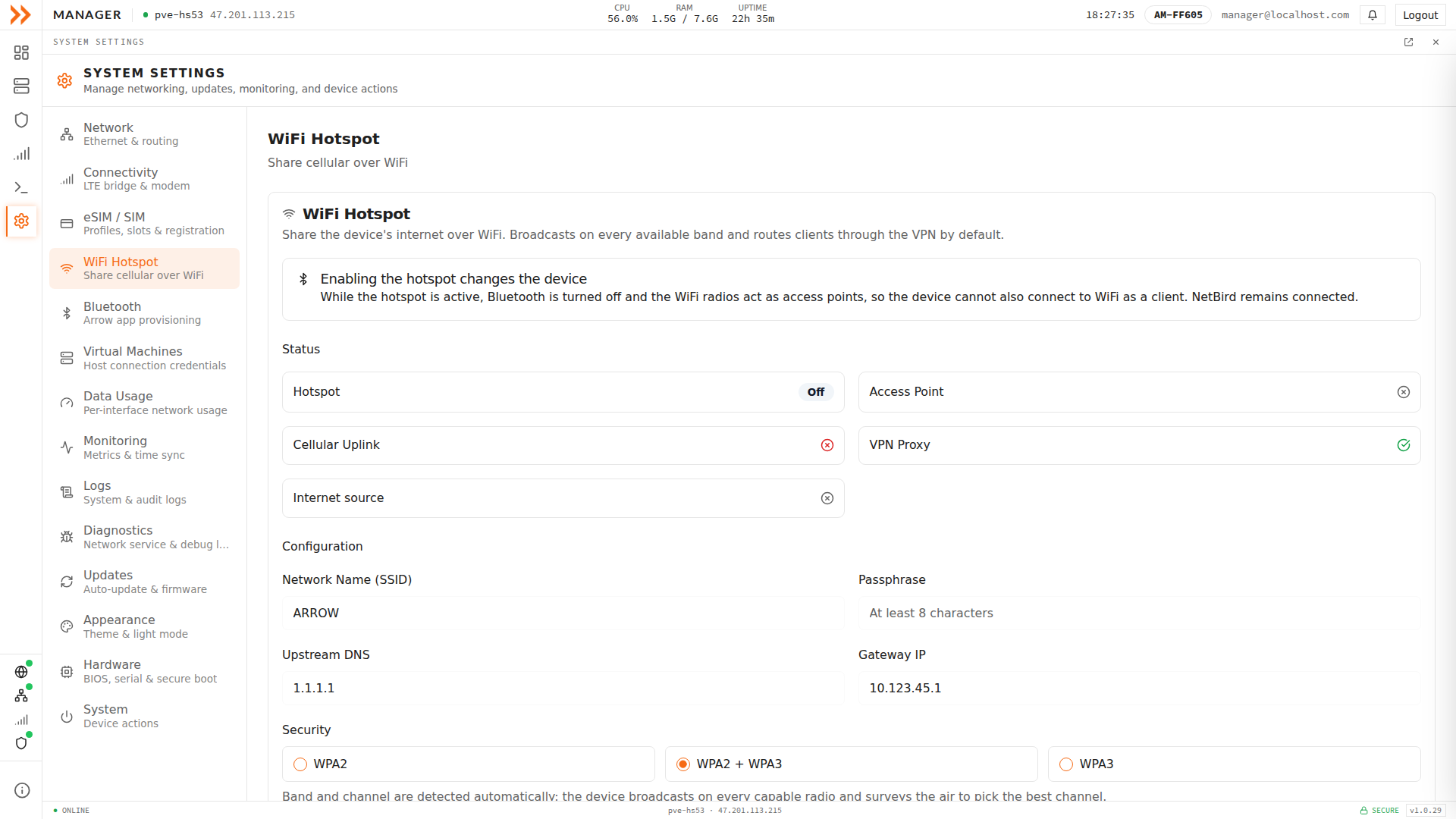
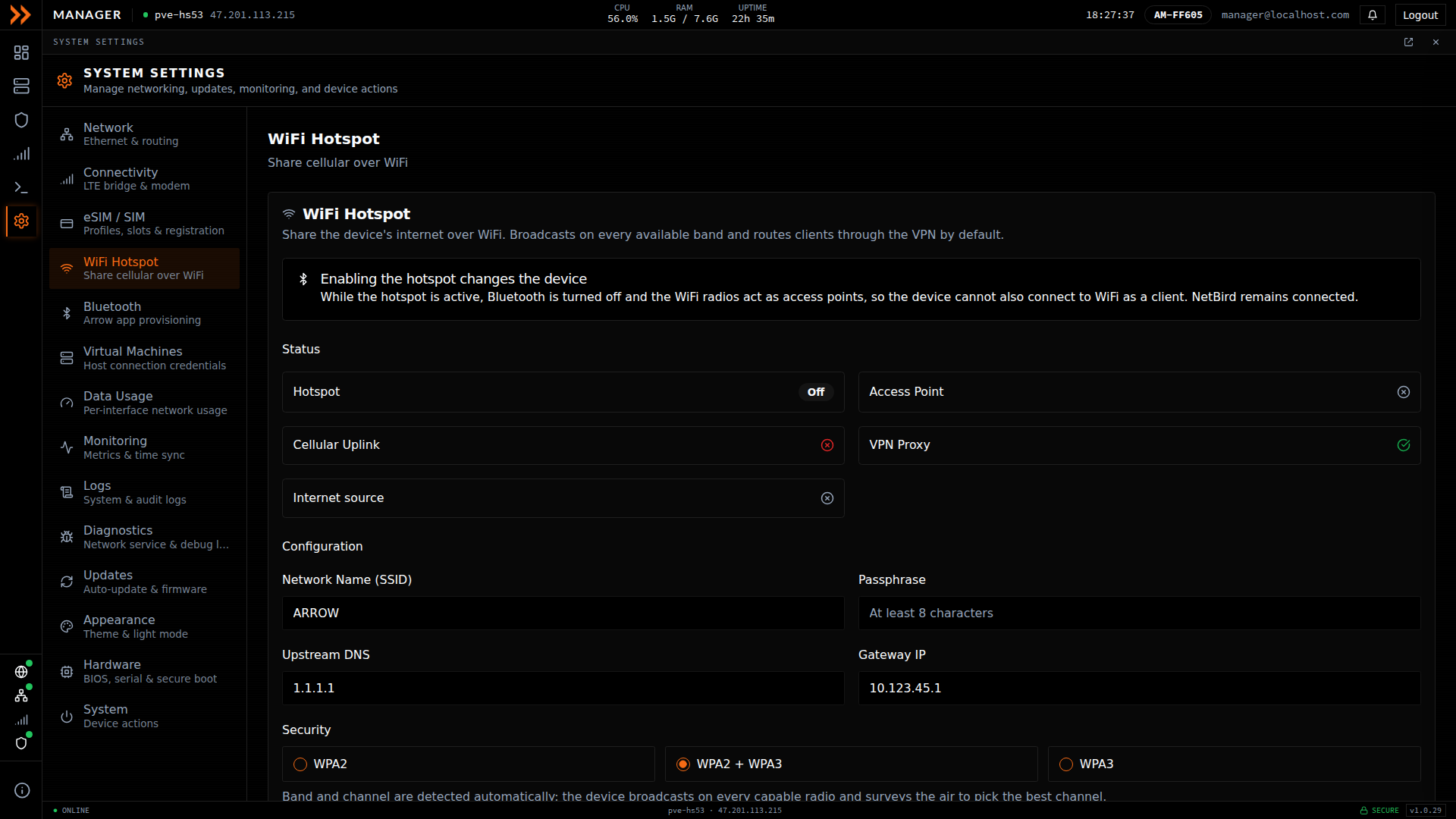
WiFi Hotspot shares the device's cellular connection over WiFi, with traffic routed through the VPN
WiFi Hotspot shares the device's cellular connection over WiFi, with traffic routed through the VPN
Bluetooth
Section titled “Bluetooth”Bluetooth here is not for headsets or peripherals. It advertises the device over Bluetooth Low Energy so the ARROW mobile app can discover and set it up before the device has any network connection at all. That is what makes first-time provisioning in the field possible. The status shows whether the device is advertising and whether the ARROW app has paired; when you are done provisioning, you can disable Bluetooth from this screen.
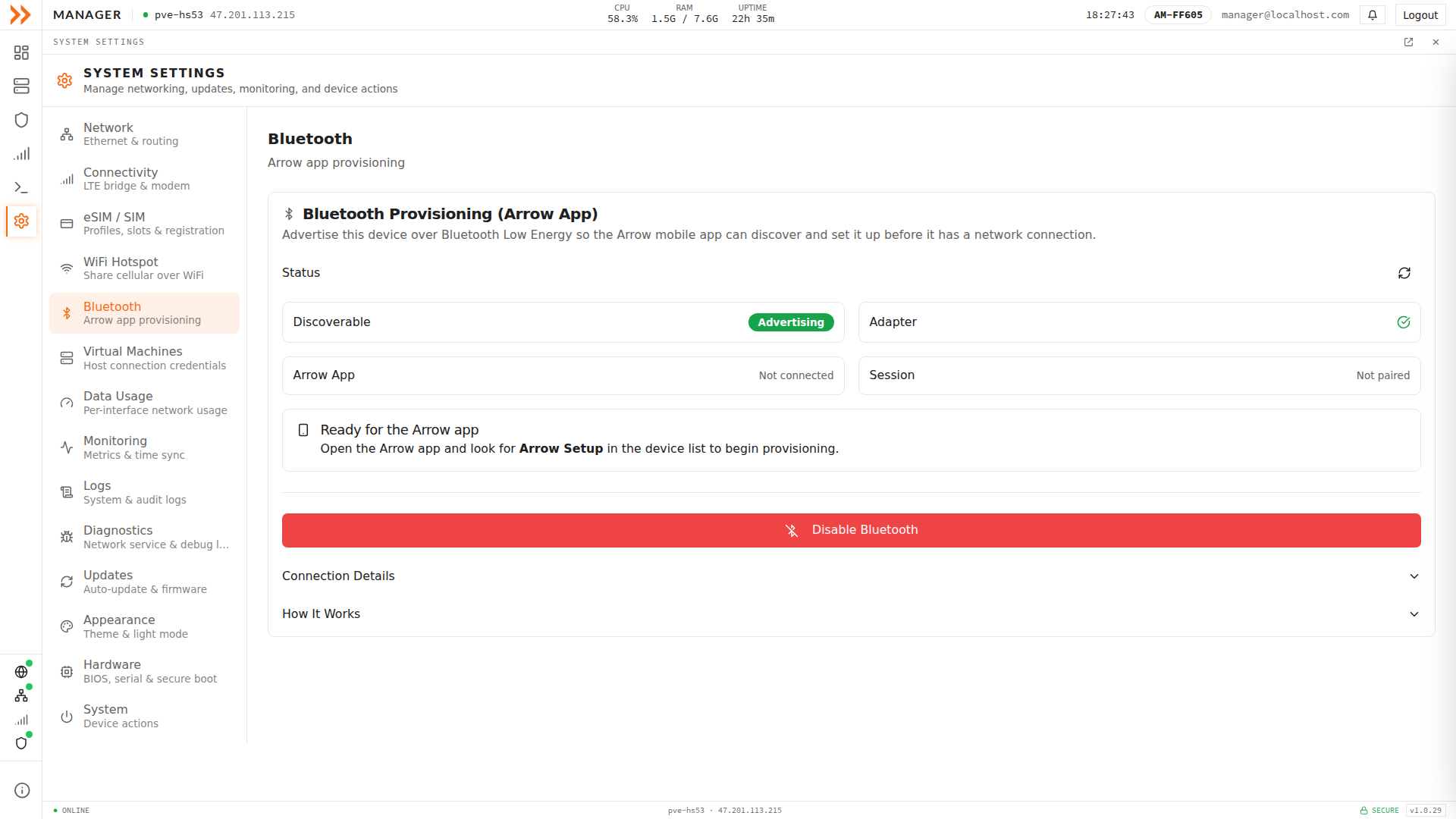
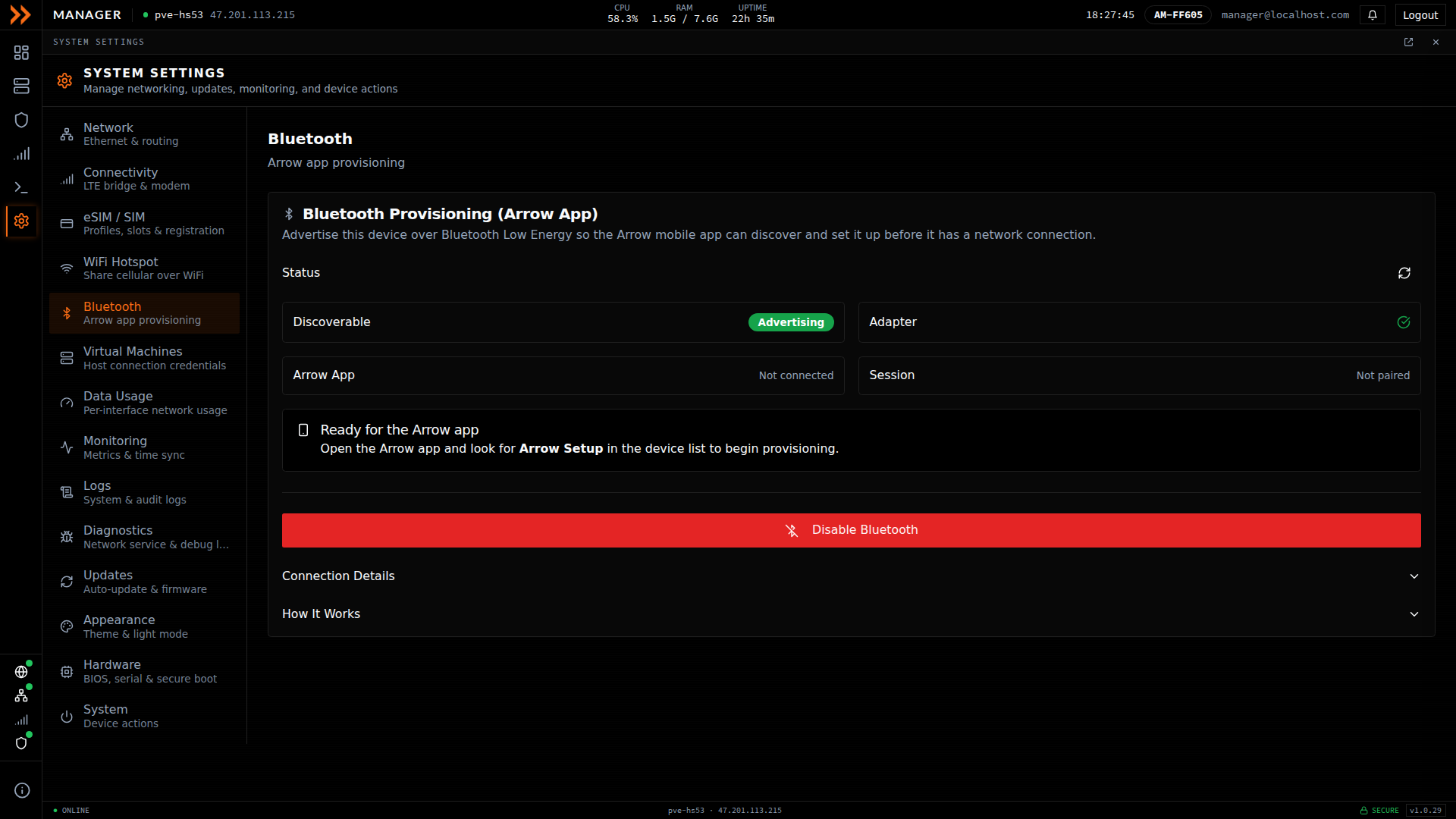
Bluetooth advertises over BLE so the ARROW mobile app can find and provision the device before it has a network
Bluetooth advertises over BLE so the ARROW mobile app can find and provision the device before it has a network
Virtual Machines
Section titled “Virtual Machines”This section holds the connection credentials for the Proxmox host that actually runs your virtual machines. It shows the host name, node, API endpoint, and the username ARROW Manager uses to talk to it, along with whether SSL verification is on. You normally leave this alone, but it is where you would edit the credentials, jump straight to the Proxmox web interface, or remove the connection if the host changes.
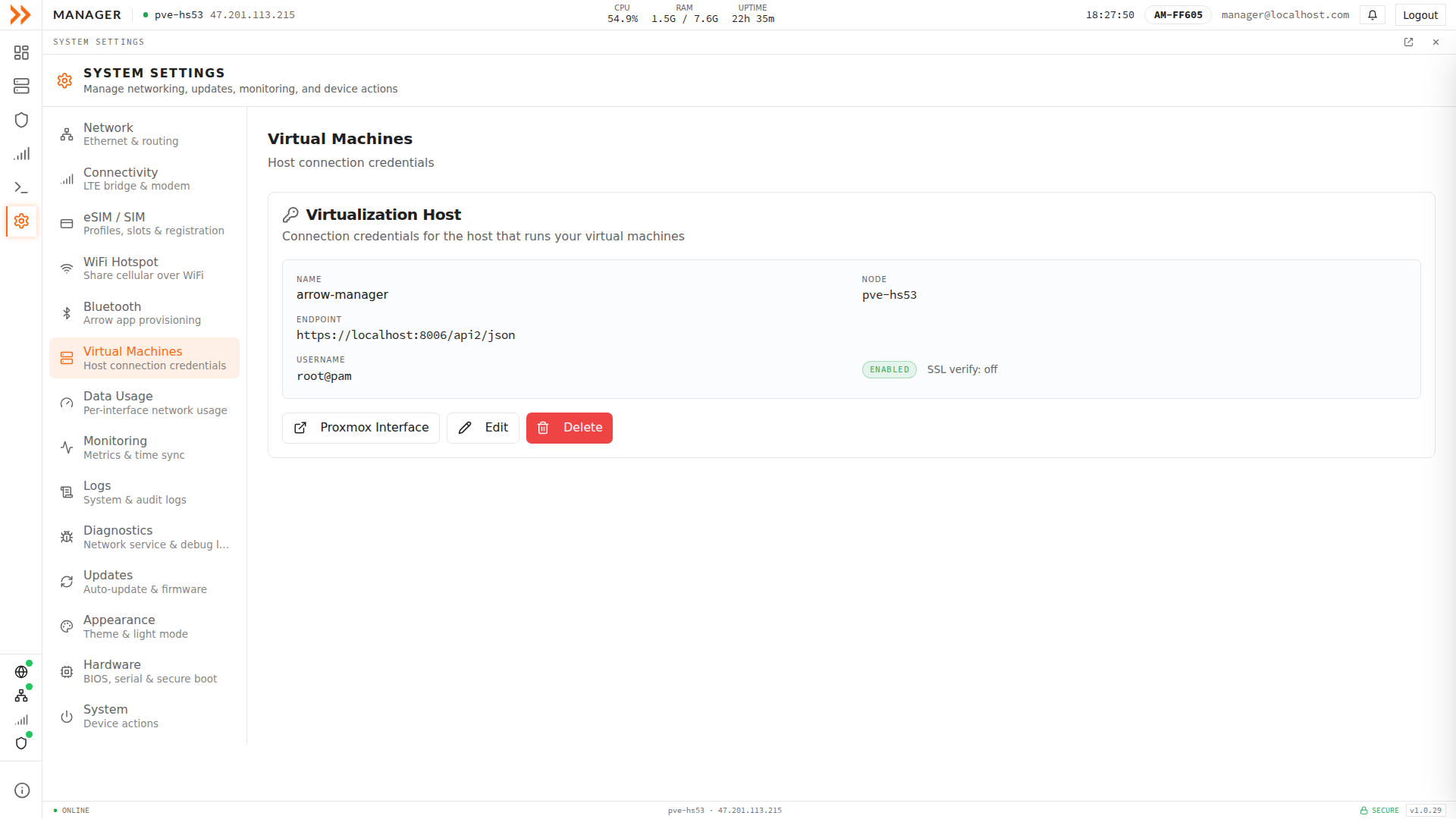
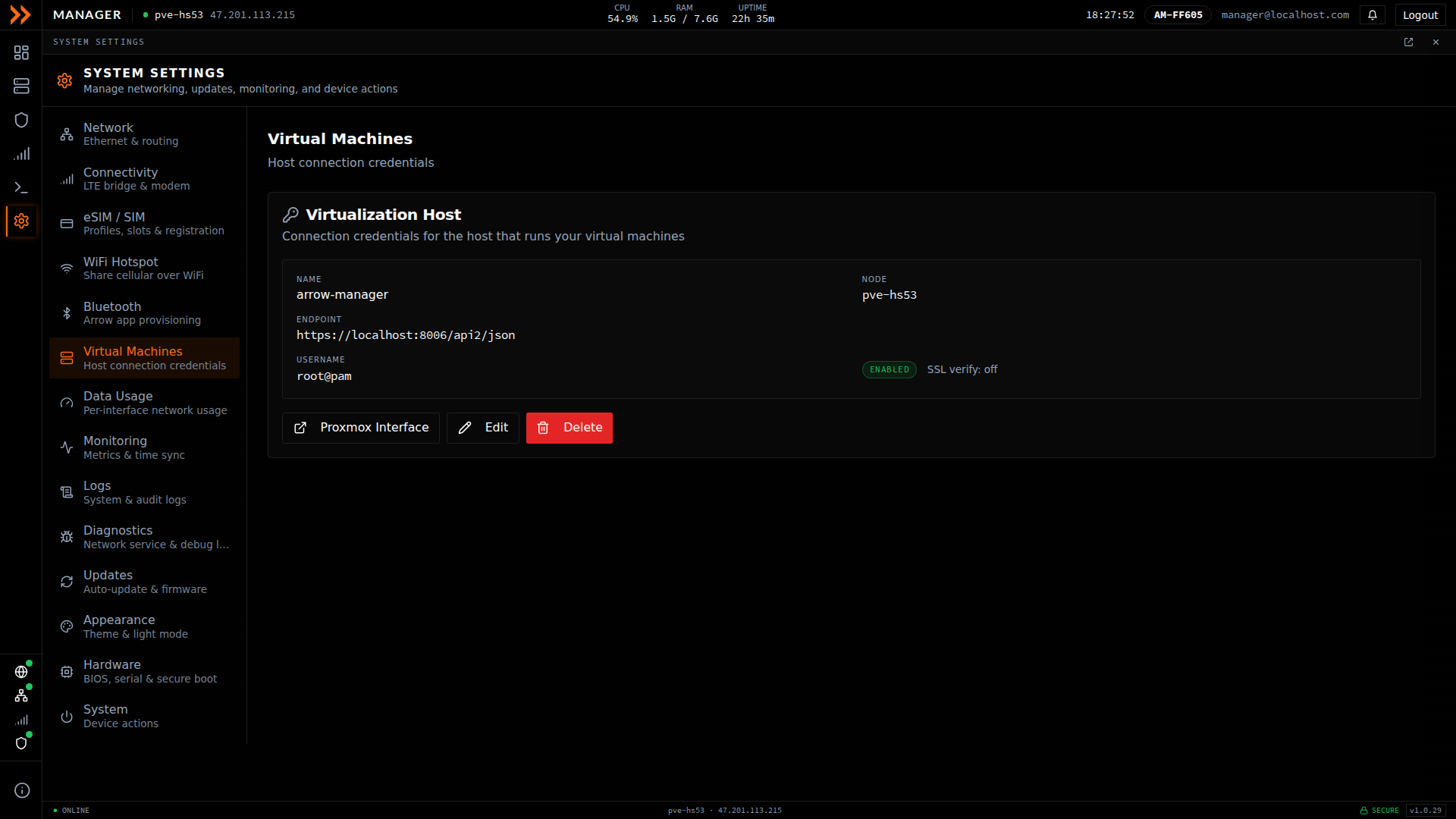
Virtual Machines holds the Proxmox host credentials ARROW Manager uses to deploy and manage VMs
Virtual Machines holds the Proxmox host credentials ARROW Manager uses to deploy and manage VMs
Data Usage
Section titled “Data Usage”Data Usage shows how much traffic each network interface has moved, broken out per interface such as the LTE modem (wwan0) and the ethernet bridge (vmbr0). It is powered by ntopng for real-time monitoring, refreshes on its own, and can export a CSV. Reach for it when you want to understand where the device’s bandwidth is going, or to keep an eye on metered cellular usage before it becomes a surprise.
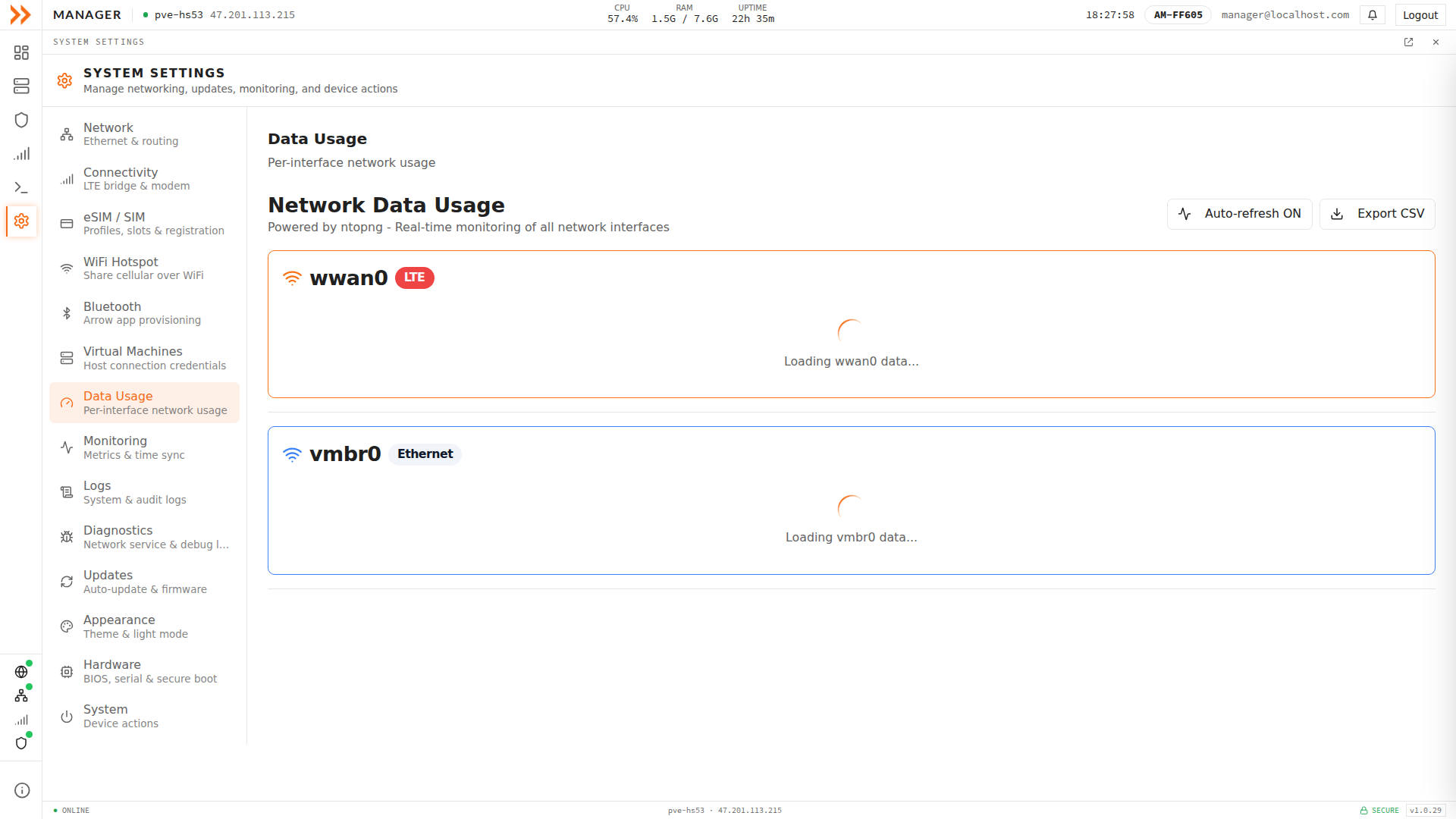
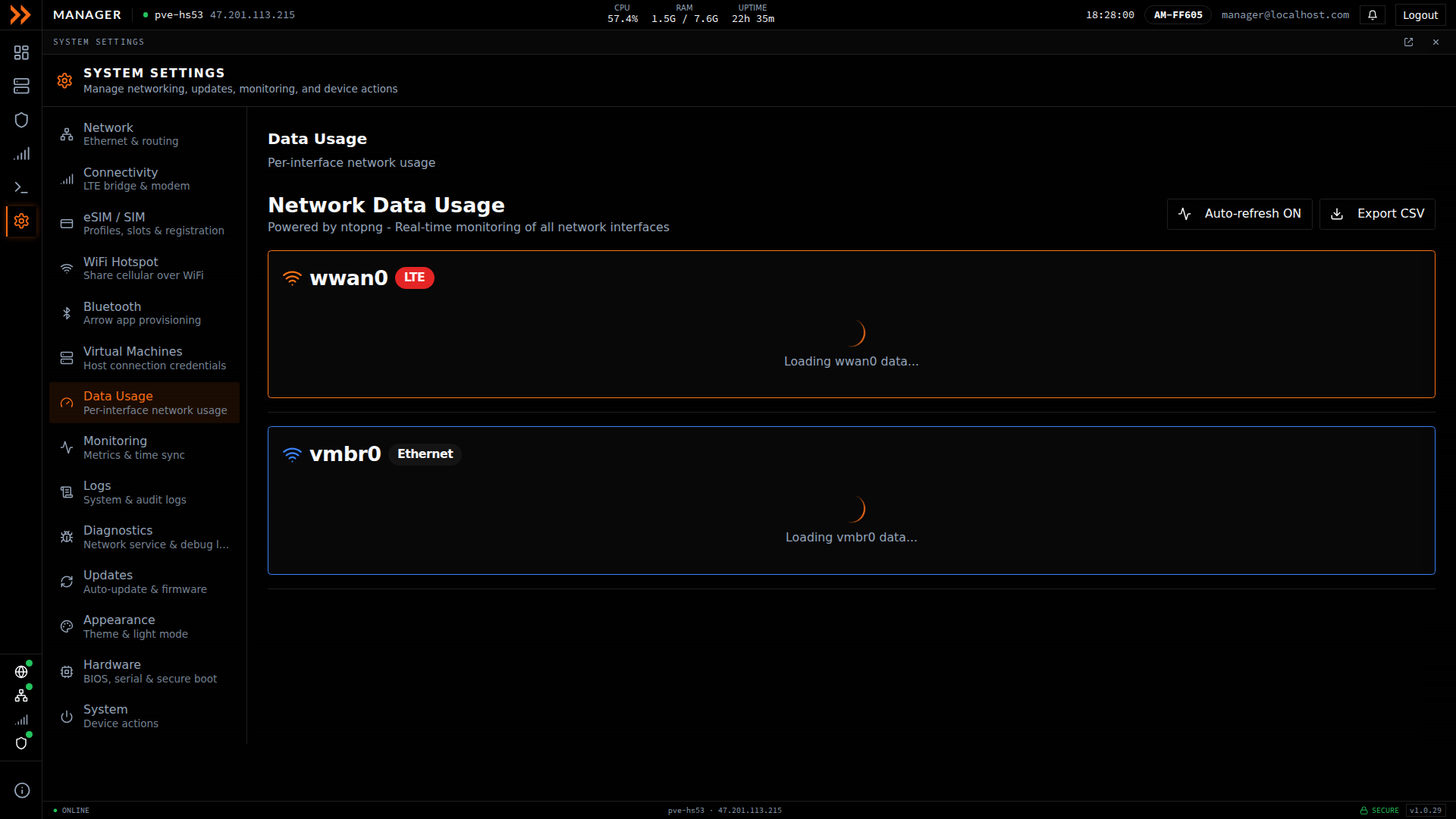
Data Usage shows real-time, per-interface traffic so you can watch bandwidth and metered cellular usage
Data Usage shows real-time, per-interface traffic so you can watch bandwidth and metered cellular usage
Monitoring
Section titled “Monitoring”Monitoring is the health check for the device’s own telemetry pipeline. It confirms that metrics collection is running, that the connection to InfluxDB is healthy, and that the device’s clock is synchronized. Time sync matters more than it sounds, because if the clock drifts, metrics and logs line up incorrectly, so the page shows the NTP service, the average difference, and external reachability checks. When something looks off in the dashboards, this is where you confirm the plumbing behind them is actually working.
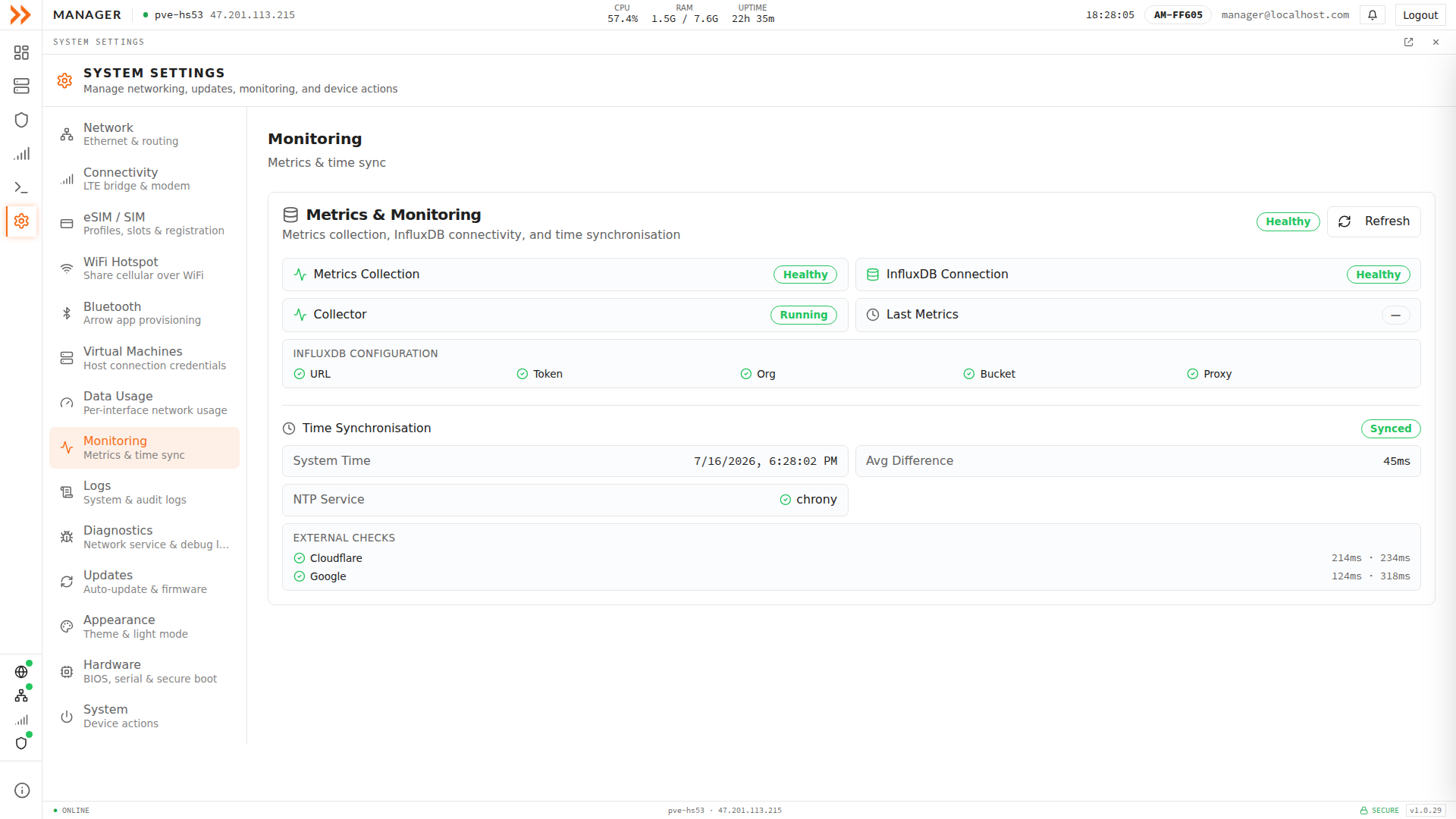
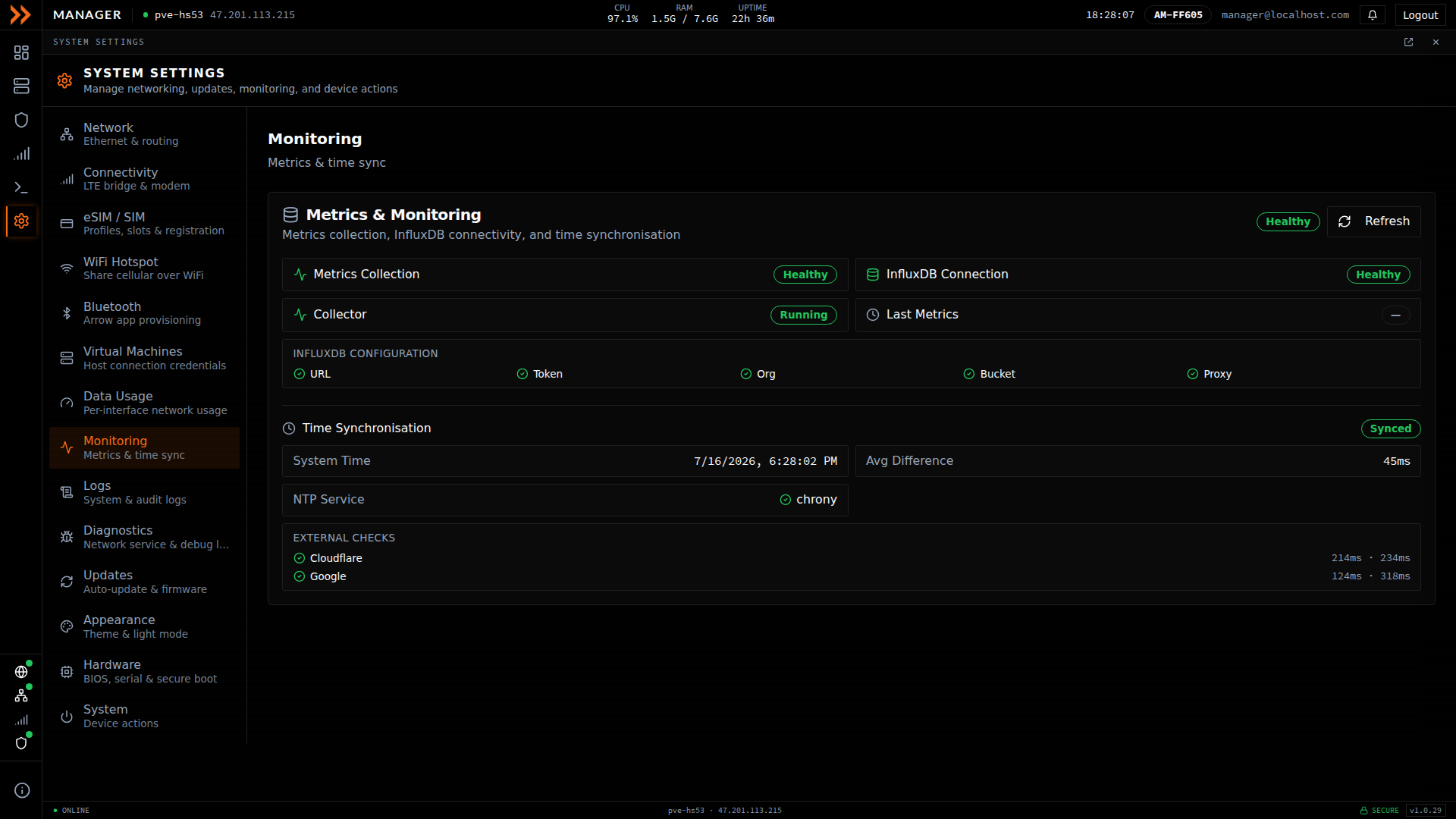
Monitoring confirms metrics collection, the InfluxDB connection, and clock synchronization are all healthy
Monitoring confirms metrics collection, the InfluxDB connection, and clock synchronization are all healthy
Logs is a searchable, filterable view of the device’s system and audit events, covering HTTP requests, configuration retrievals, version checks, and administrative actions, each stamped with a time and category. Use it to trace what the device has been doing and to answer “when did that happen” questions. You can tail the log live, apply filters, and export to CSV for a record you can keep.
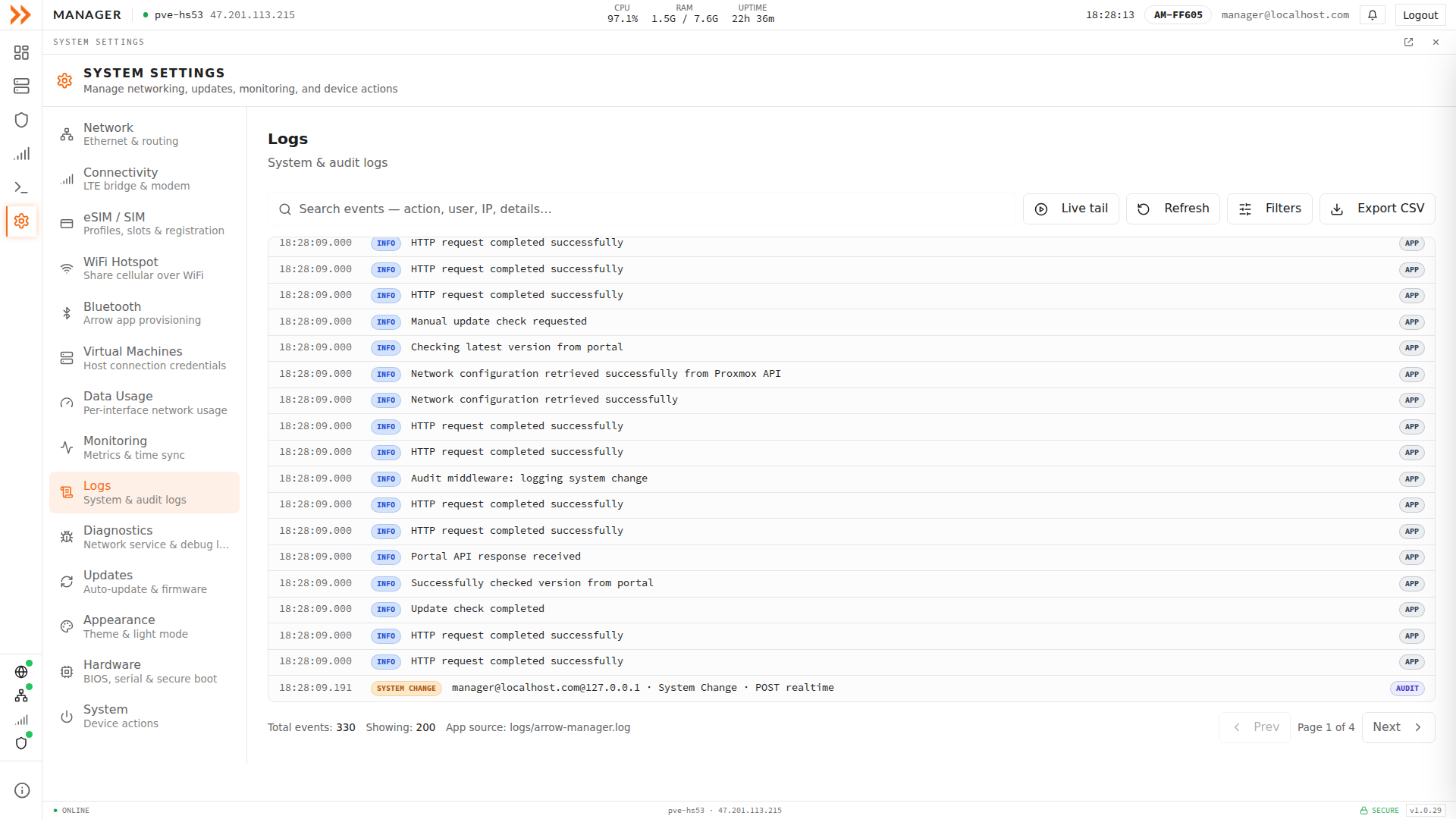
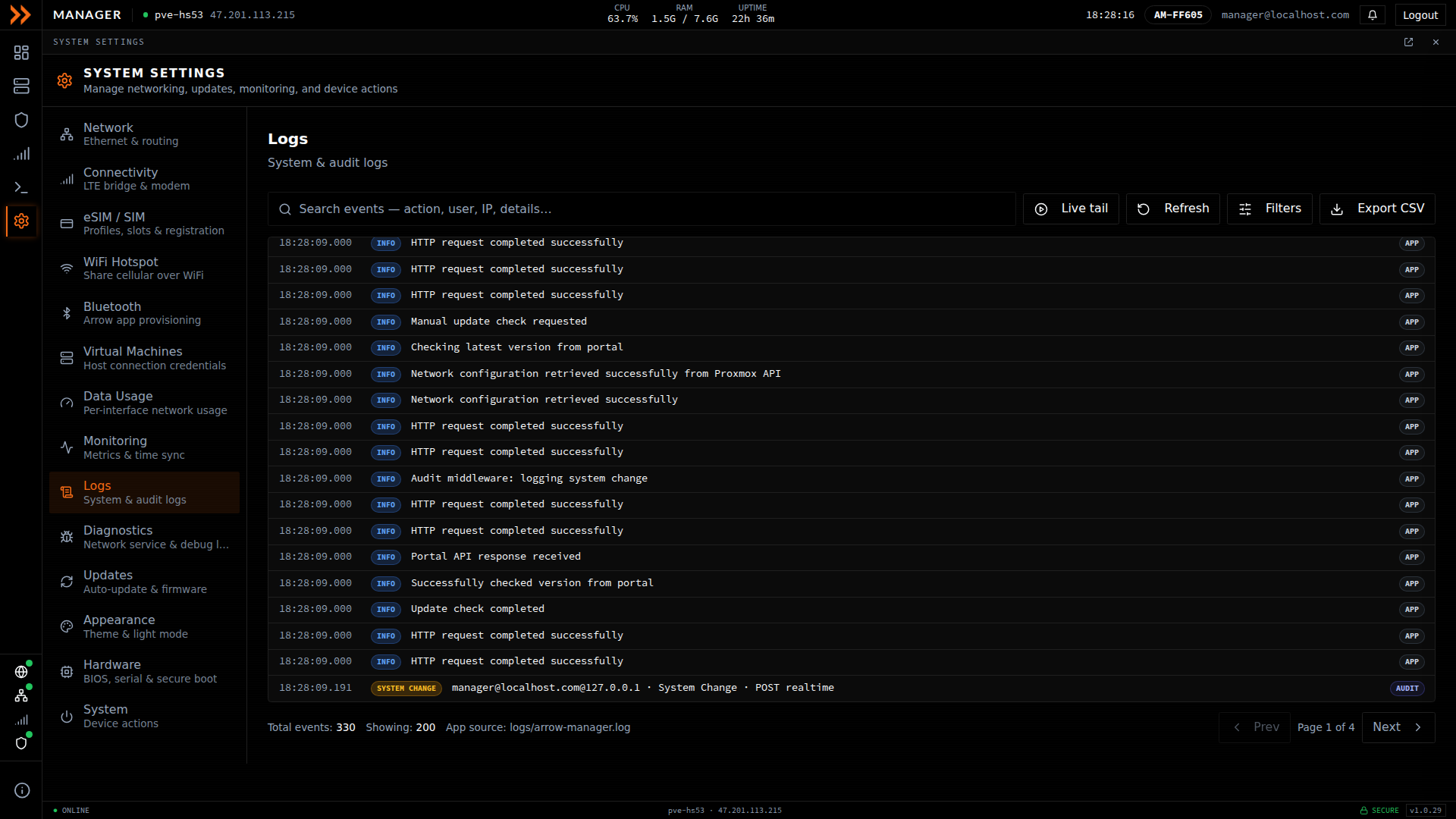
Logs lets you search, filter, live-tail, and export the device's system and audit events
Logs lets you search, filter, live-tail, and export the device's system and audit events
Diagnostics
Section titled “Diagnostics”Where Logs covers the whole system, Diagnostics zooms in on the ARROW Network Manager service and its low-level debug output. It shows whether the service is active and lets you turn on a verbose debug mode when you are chasing a hard problem. The service log can be streamed live, cleared, or downloaded, which is exactly what you want to hand to support when a connectivity issue will not explain itself.
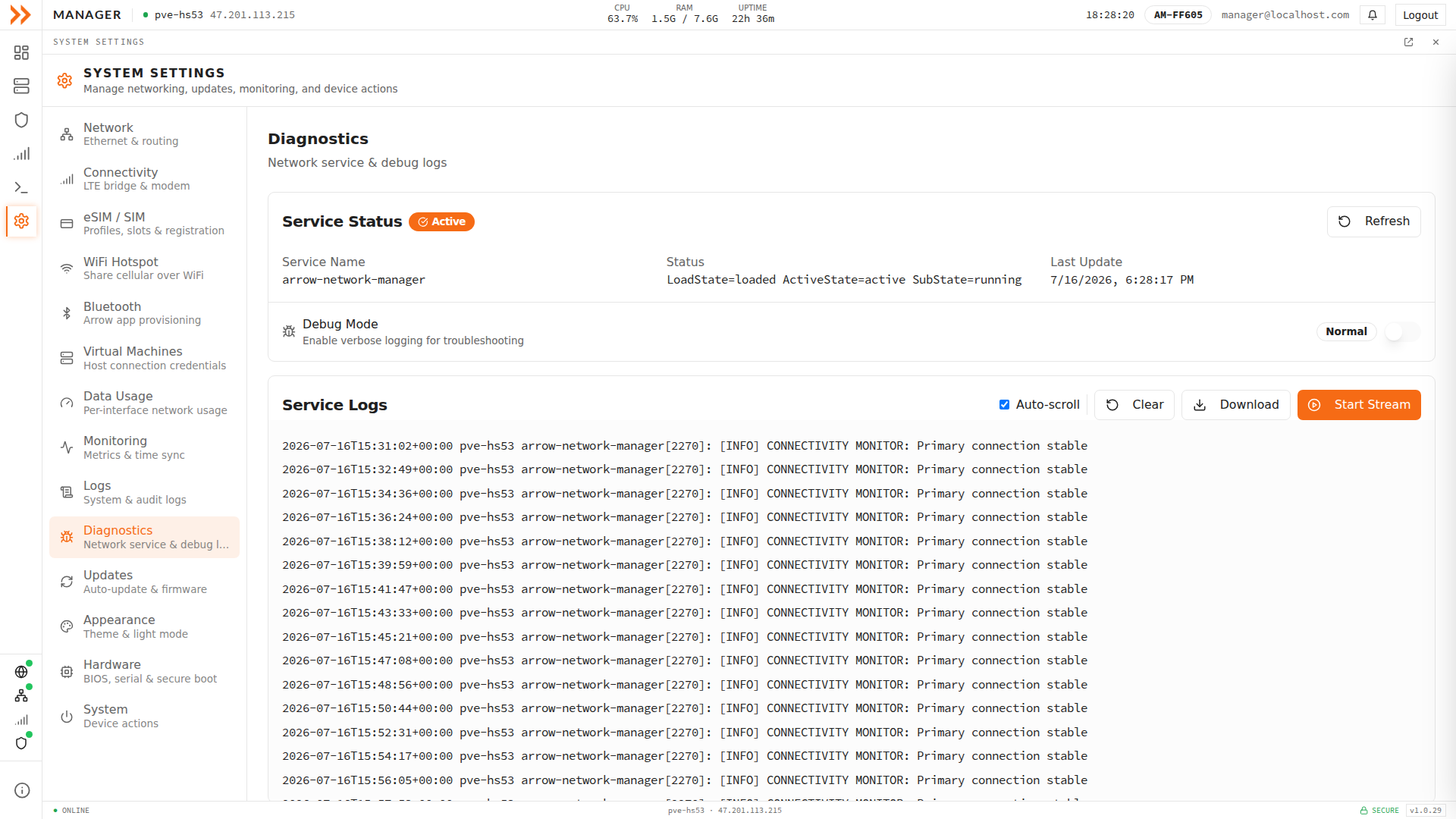
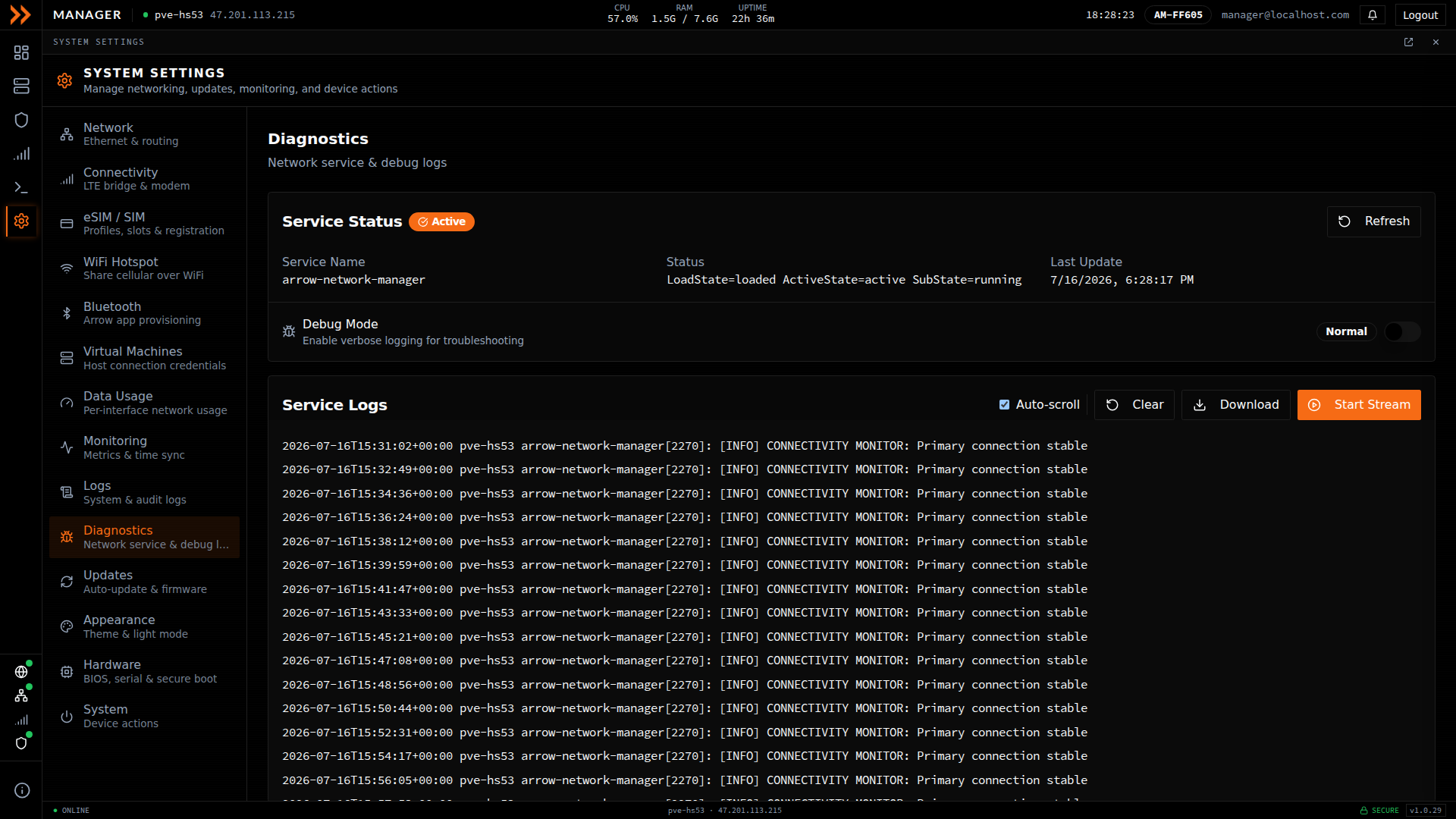
Diagnostics covers service status, verbose debug mode, and a live-streamable service log for deeper troubleshooting
Diagnostics covers service status, verbose debug mode, and a live-streamable service log for deeper troubleshooting
Updates
Section titled “Updates”Updates is deliberately hands-off. Updates are controlled by the ARROW Portal so that an entire fleet stays on consistent, vetted versions rather than drifting device by device, and the system checks the portal roughly every hour to see whether an update should be applied under your fleet’s policies. The main control you have here is the Update Channel, where Stable delivers vetted builds, while Beta receives the newest builds including pre-releases, which may be less stable. If you need to change the auto-update behavior itself, that is a portal and administrator decision, not a per-device toggle.
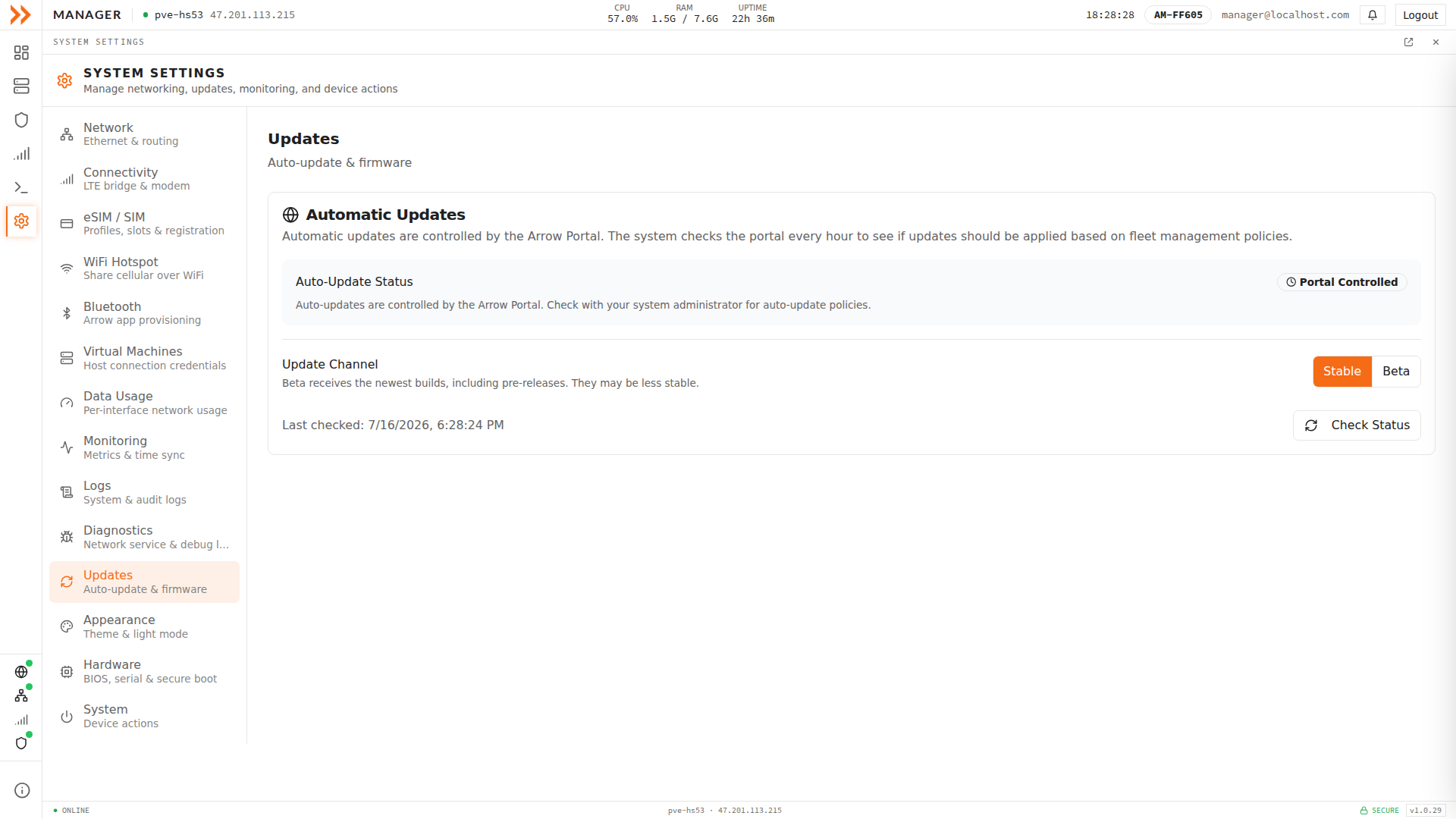
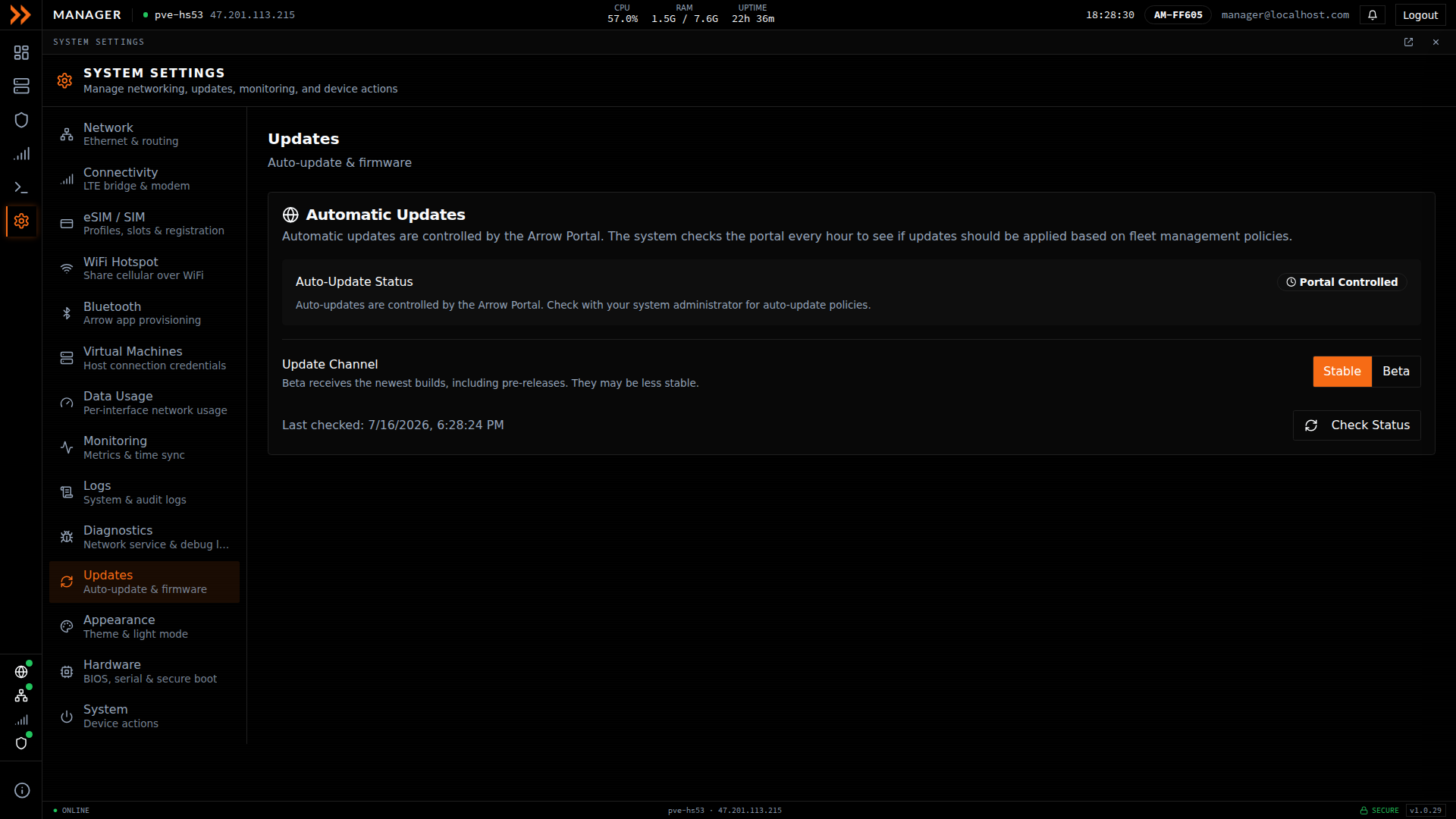
Updates are Portal-controlled for fleet consistency; Stable and Beta select the update channel
Updates are Portal-controlled for fleet consistency; Stable and Beta select the update channel
Appearance
Section titled “Appearance”ARROW Manager is designed for a dark interface, so Appearance is a small section with one switch, where enabling light mode brings back the light theme and shows the dark/light toggle in the top bar. Most people should leave it off and stay on the dark theme the interface was built around. It is here for the situations, bright field conditions or personal preference, where a lighter view reads better.
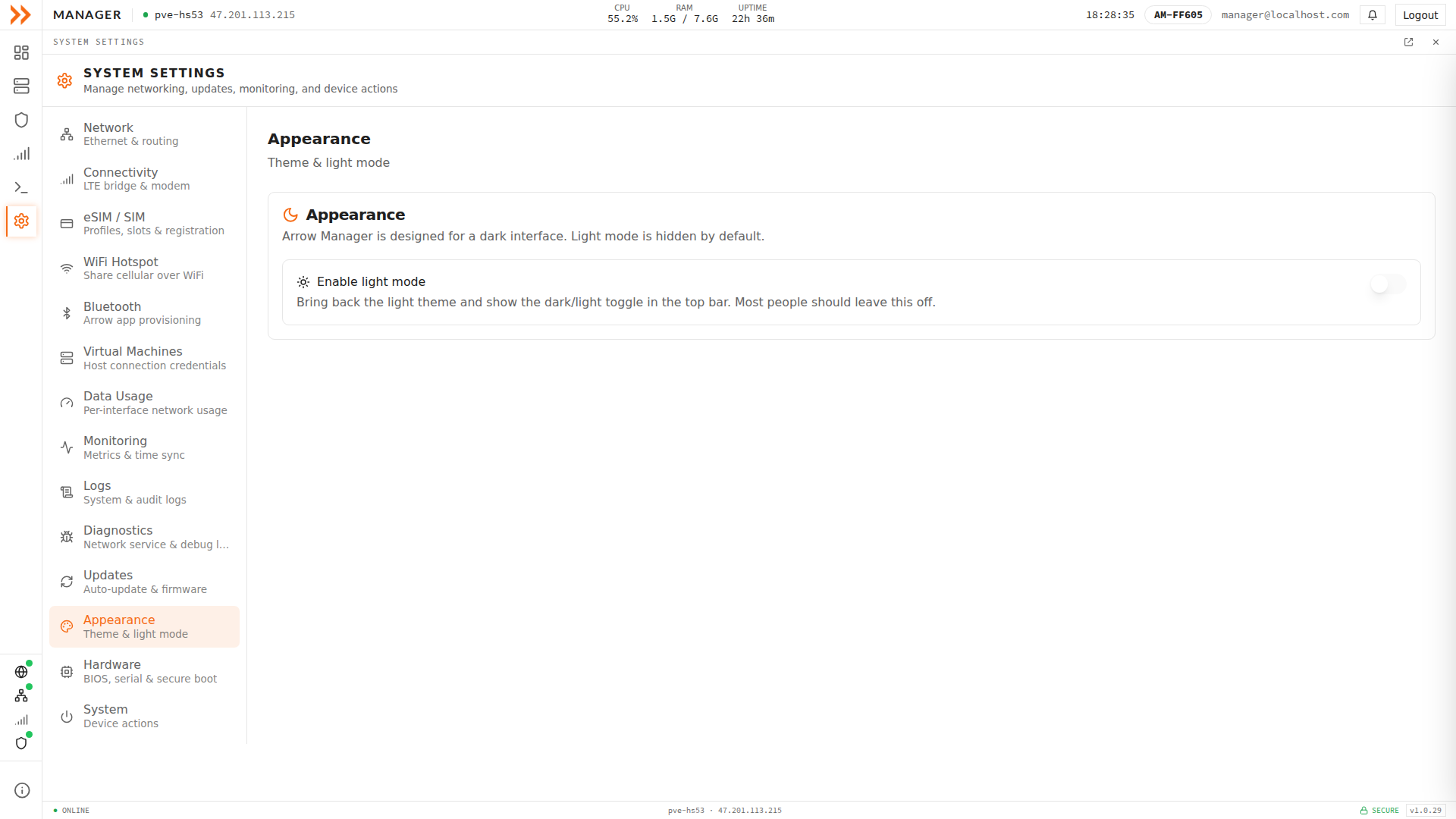
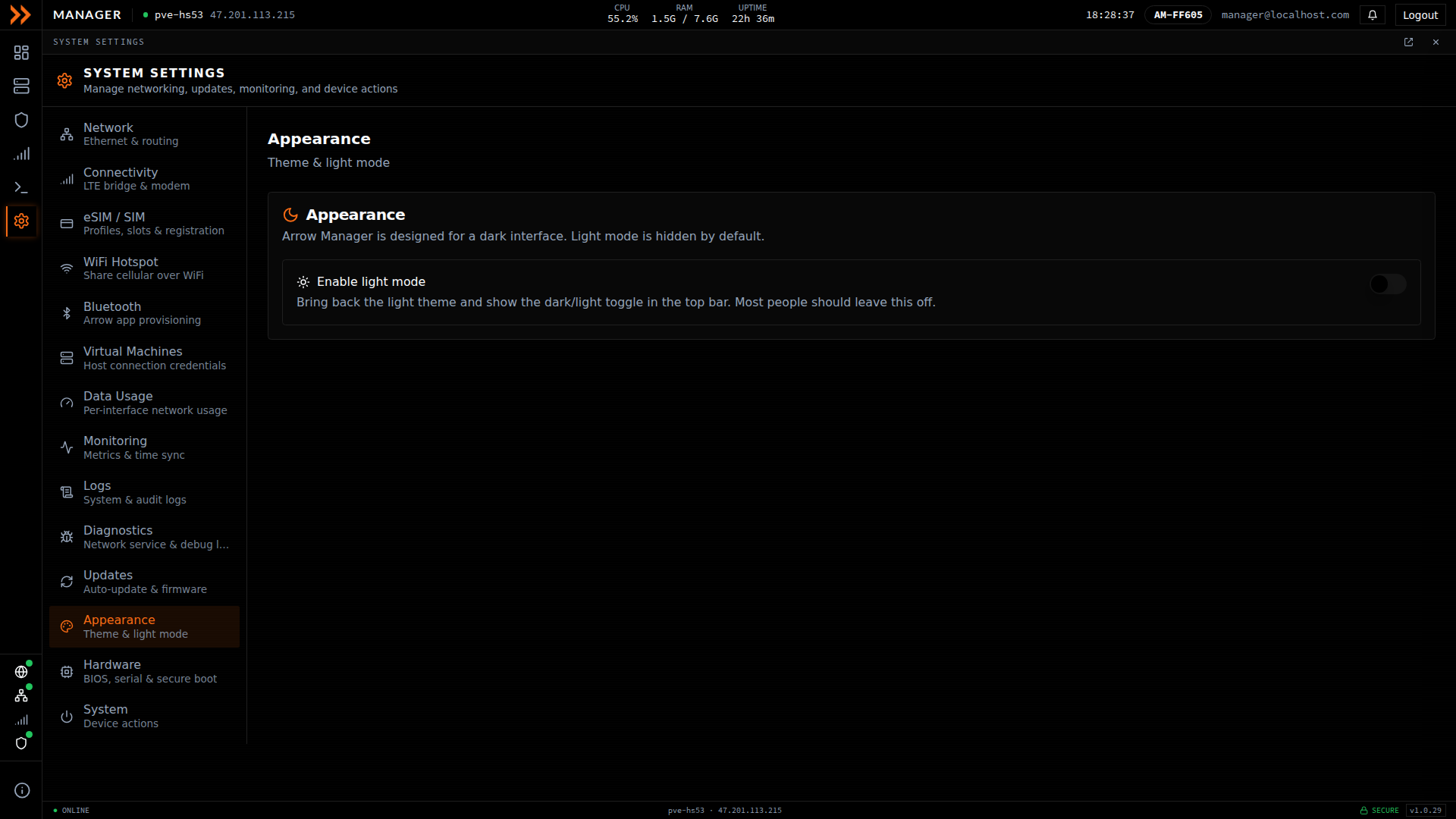
Appearance controls the theme; the device runs dark by default, and you enable light mode only if you prefer it
Appearance controls the theme; the device runs dark by default, and you enable light mode only if you prefer it
Hardware
Section titled “Hardware”Hardware is a read-only report of what the physical device is made of, listing manufacturer and model, hardware serial number, BIOS vendor, version, and date, whether Secure Boot is enabled, and the cellular modem model and firmware. You will not change anything here, but it is the fastest way to confirm the exact hardware and firmware you are working with, which matters when you file a support case or verify a device’s identity.
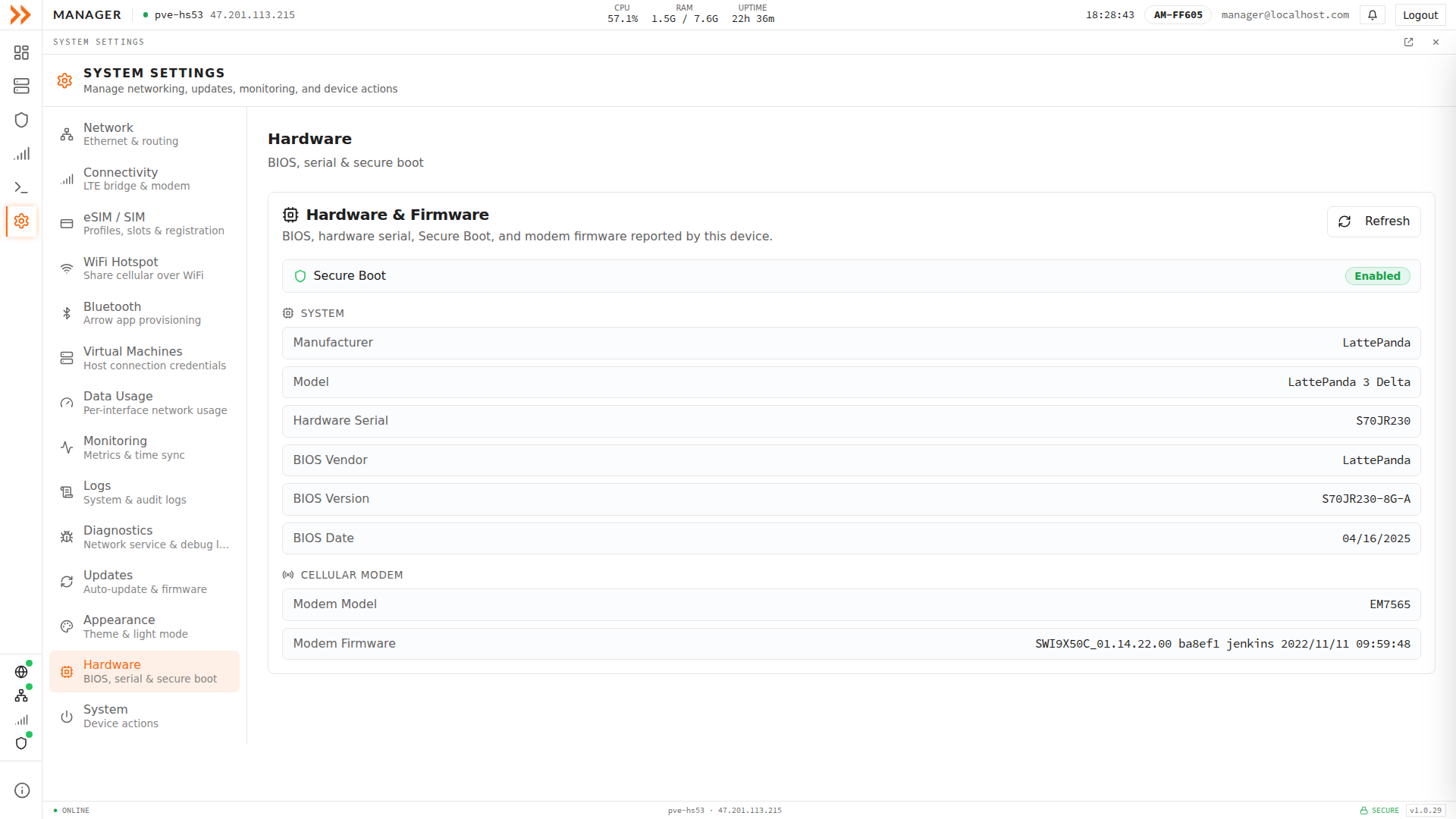
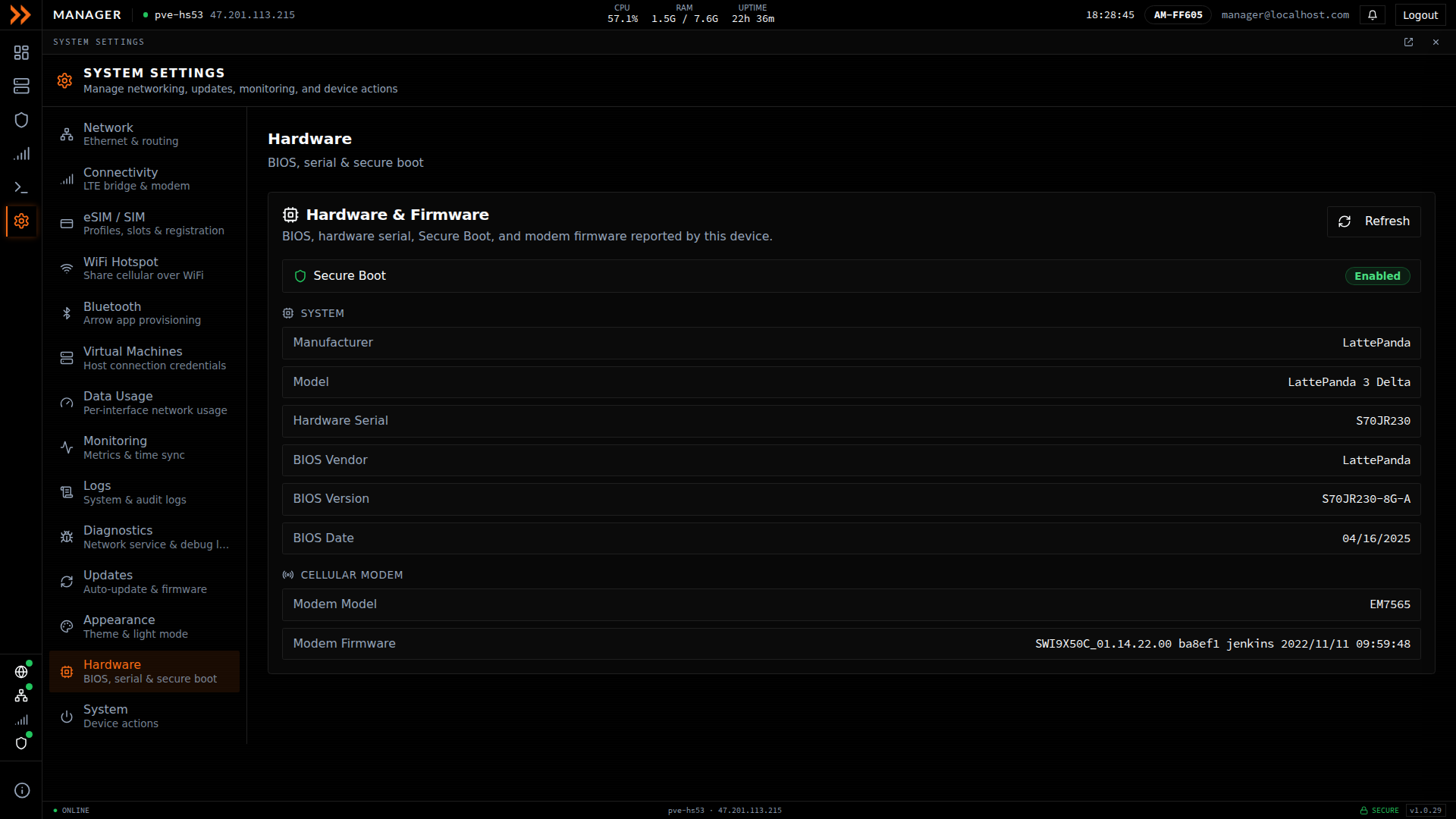
Hardware is a read-only view of BIOS, serial number, Secure Boot, and modem firmware reported by the device
Hardware is a read-only view of BIOS, serial number, Secure Boot, and modem firmware reported by the device
System
Section titled “System”System holds the device actions, and it is the section to treat with the most care. Reboot and power off are real actions on the physical device. They interrupt anything running on it and, in the case of power off, take the device fully offline until someone can bring it back up, which may mean an on-site visit if the device is remote. Use these deliberately, and confirm you have another way to reach the device before you power it down.
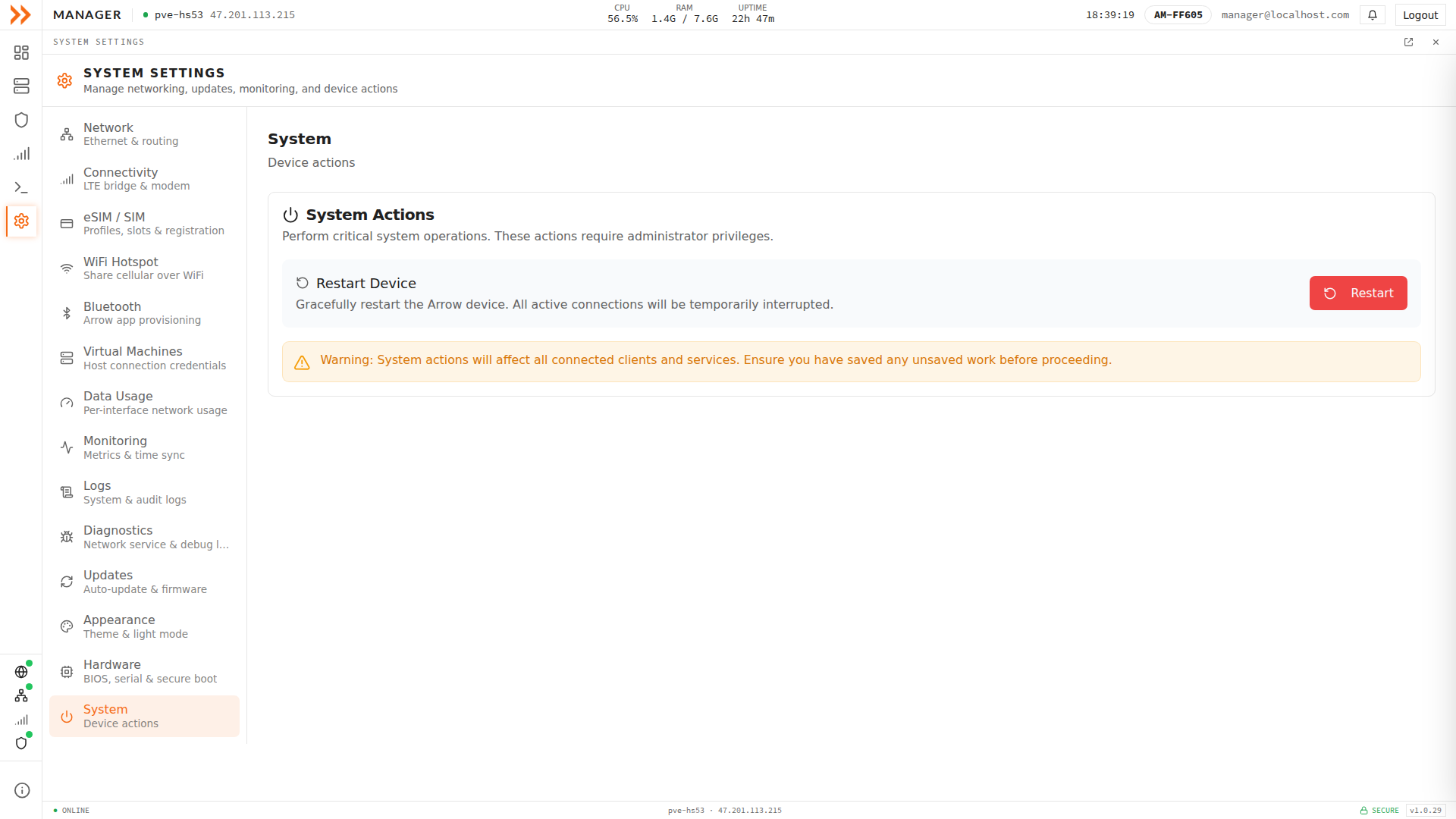
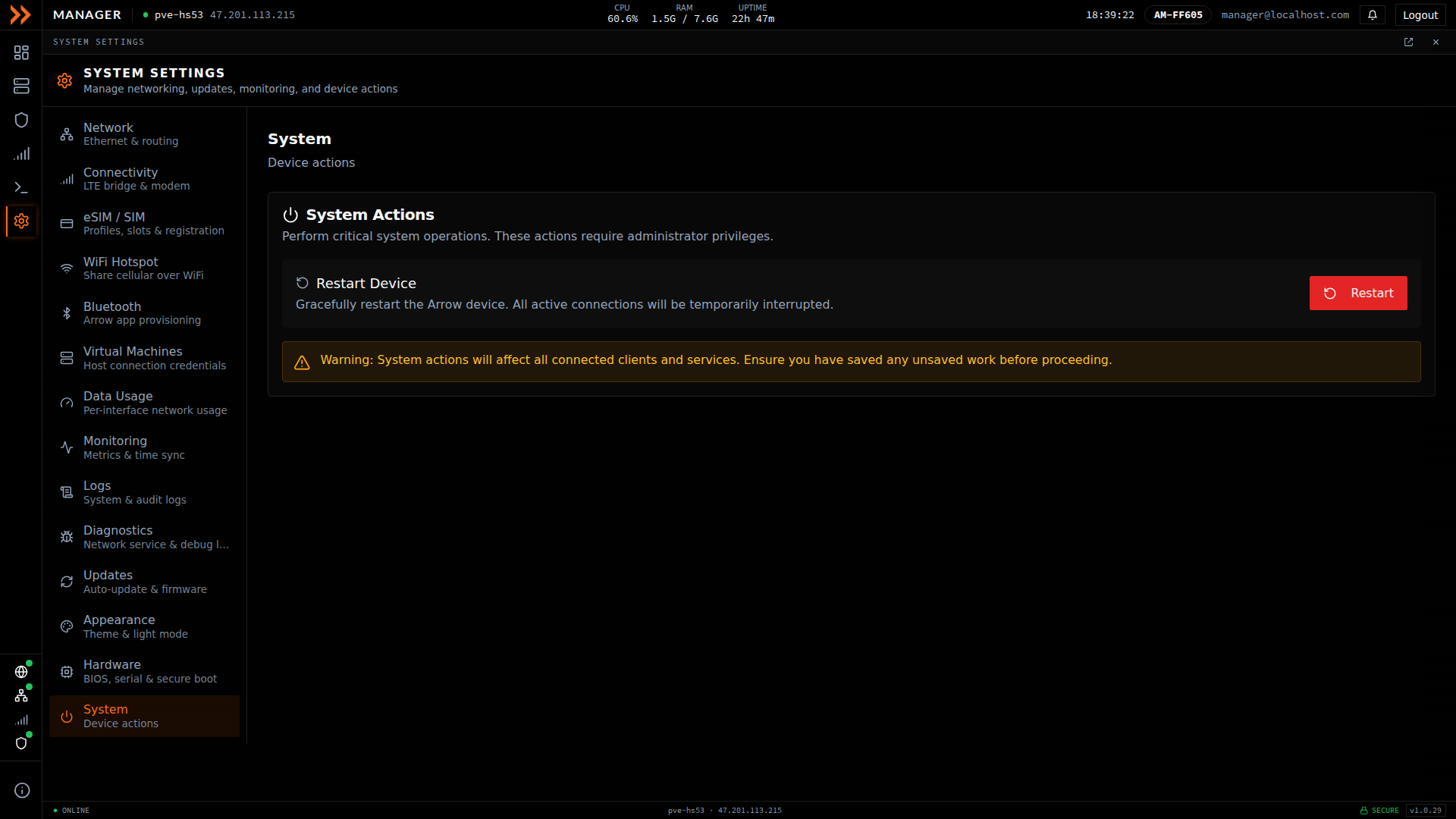
System holds reboot and power off, which are real device actions; use them with care, especially on remote devices
System holds reboot and power off, which are real device actions; use them with care, especially on remote devices
Related Documentation
Section titled “Related Documentation”- ARROW Manager Overview - The dashboard and navigation
- Deploying a VM - Run virtual machines on your device
- Software Updates - How updates reach your device
- Troubleshooting - Common issues and solutions