
Application Management
The software catalog is a curated list of security and penetration testing tools you can add to the VM with a single click. The point is that you should not have to remember apt incantations, chase down dependencies, or clone and build repos by hand. Pick the tool, click Install, and ARROW Control does the setup for you. When you no longer need something, removing it is just as quick.
Opening it
Section titled “Opening it”- Sign into ARROW Control.
- Click Software in the left rail.
- The Software catalog opens with the available tools.
At the top you get a search box, category filters, and a Sync catalog button that pulls the latest list. The header also shows when the catalog was last synced.
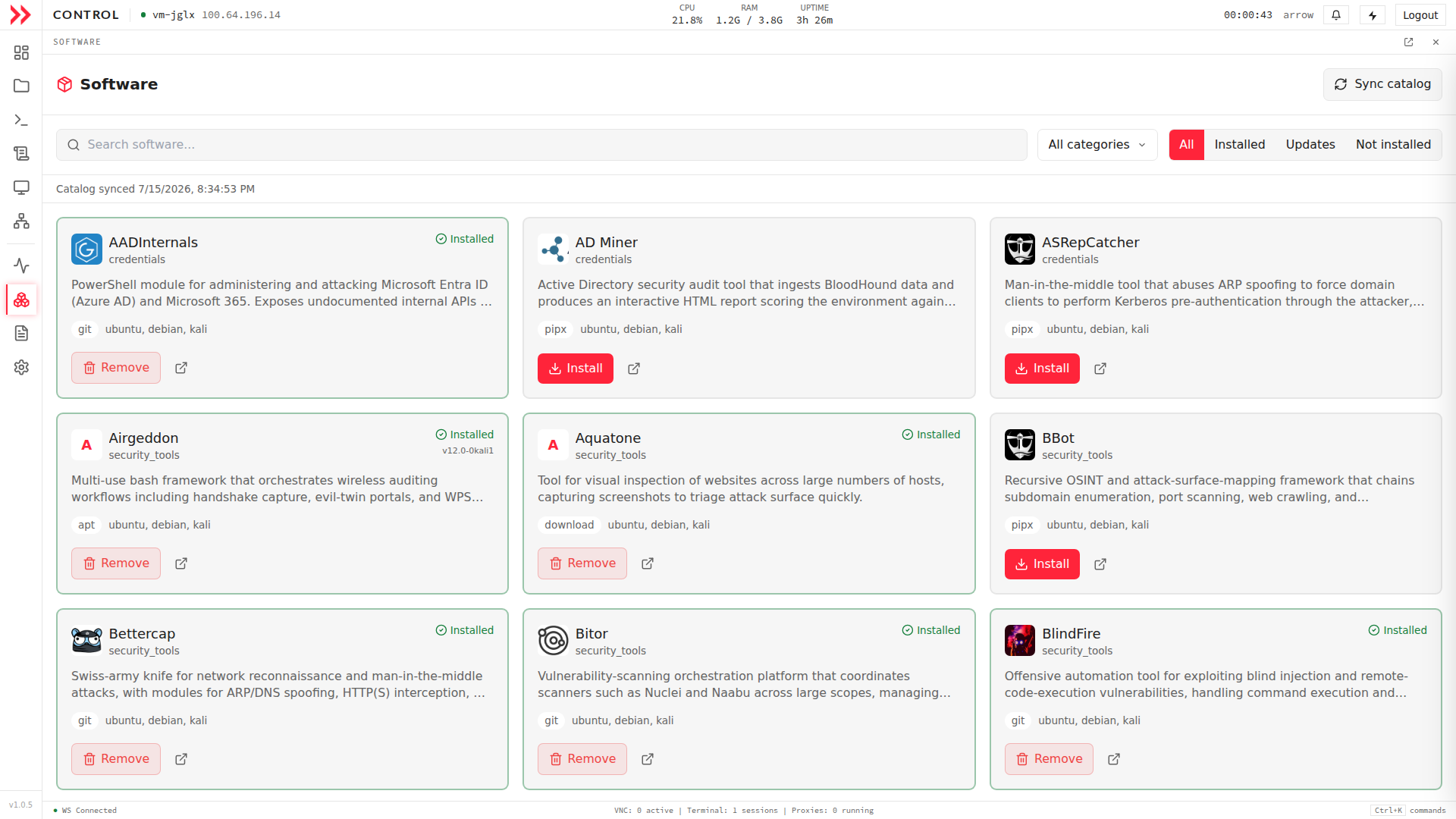
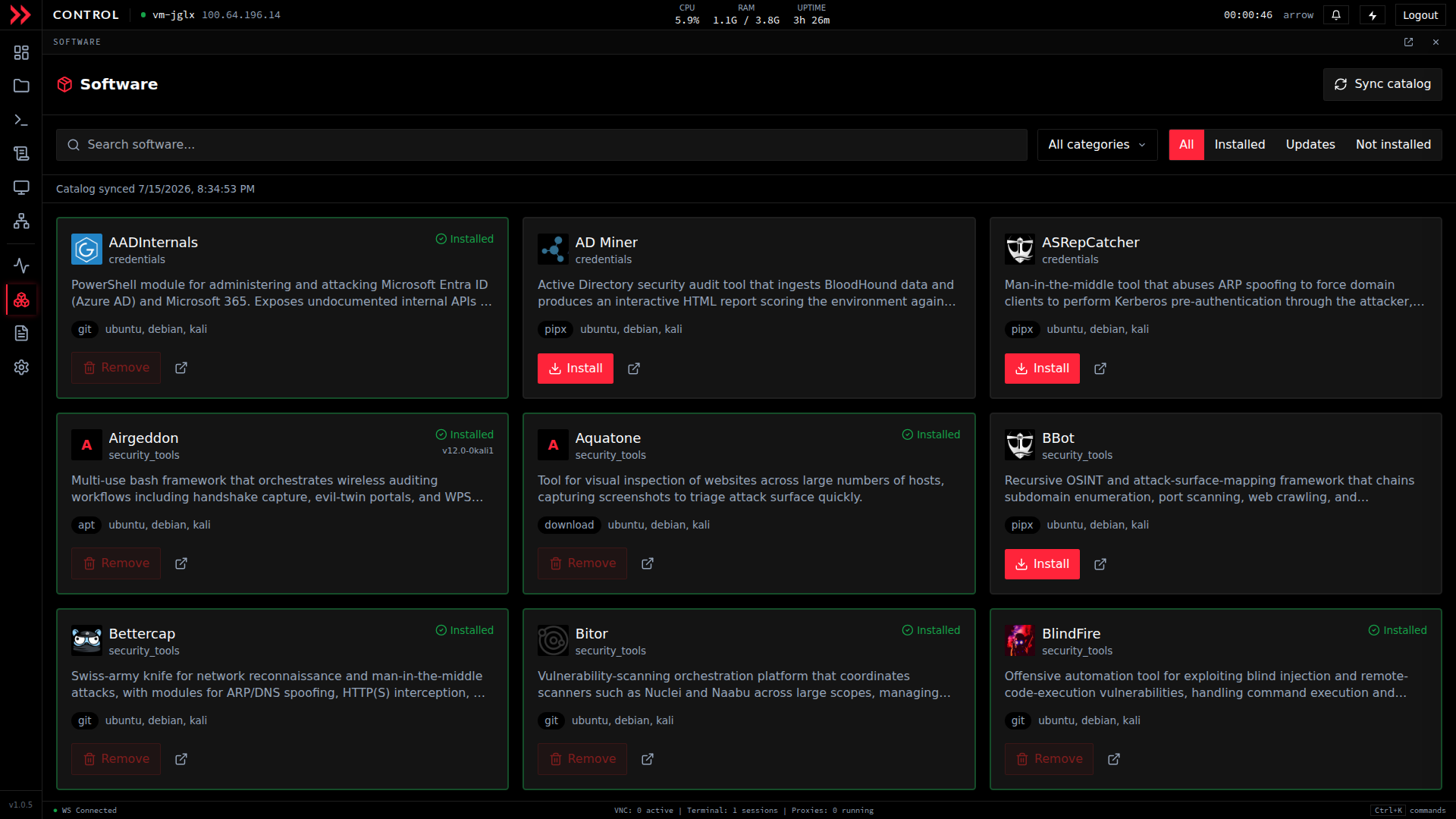
- 1 Search the catalog and filter by category or by what is installed, updatable, or not yet installed.
- 2 Each card describes a tool and offers a one-click Install, or an Update when a newer version is available.
Finding a tool
Section titled “Finding a tool”Each tool is a card showing its name and a short description, a set of badges describing how it installs and where it applies (the install method and target distributions), and either an Install button or, for tools already on the VM, a Remove button and an Installed marker.
To cut the list down, type in the search box to match on name or description, or use the filters:
| Filter | Shows |
|---|---|
| All categories | Every tool in the catalog |
| Installed | Only what is already on the VM |
| Updates | Tools with a newer version available |
| Not Installed | Tools available to add |
If the catalog looks stale or you are expecting a tool that is not there, click Sync catalog to refresh it and pick up anything newly published. The last-synced time sits next to the page title.
The filter tabs
Section titled “The filter tabs”The tabs on the right of the toolbar cut the catalog down to the view you want. All is the default and shows every tool. The other three answer the questions you actually ask when you sit down at a fresh box. What is already here, what needs updating, and what could I add?
Switch to Installed to see only the tools that are already on the VM. This is the quick inventory, so at a glance you know what you have to work with without scrolling the whole catalog.
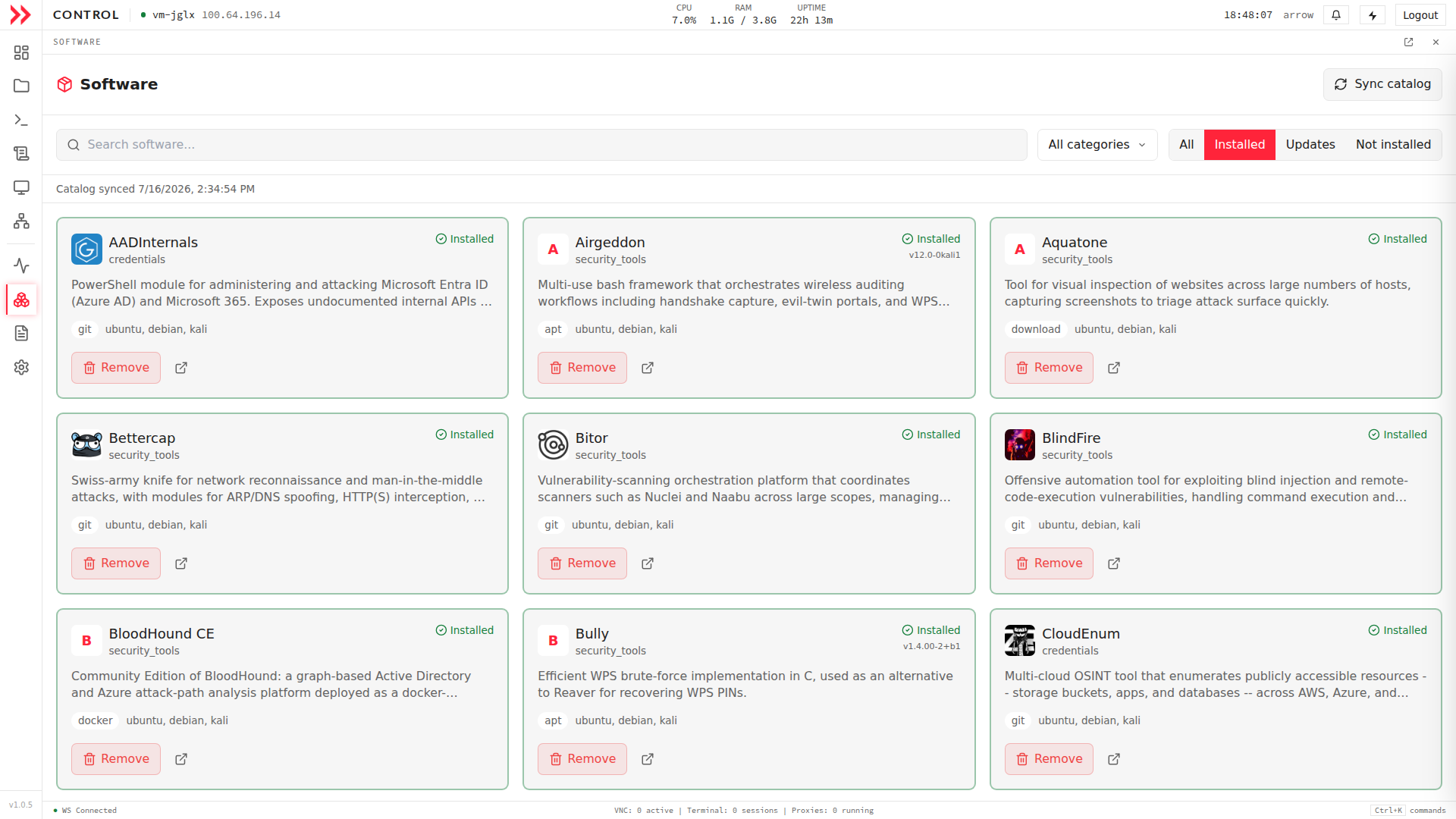
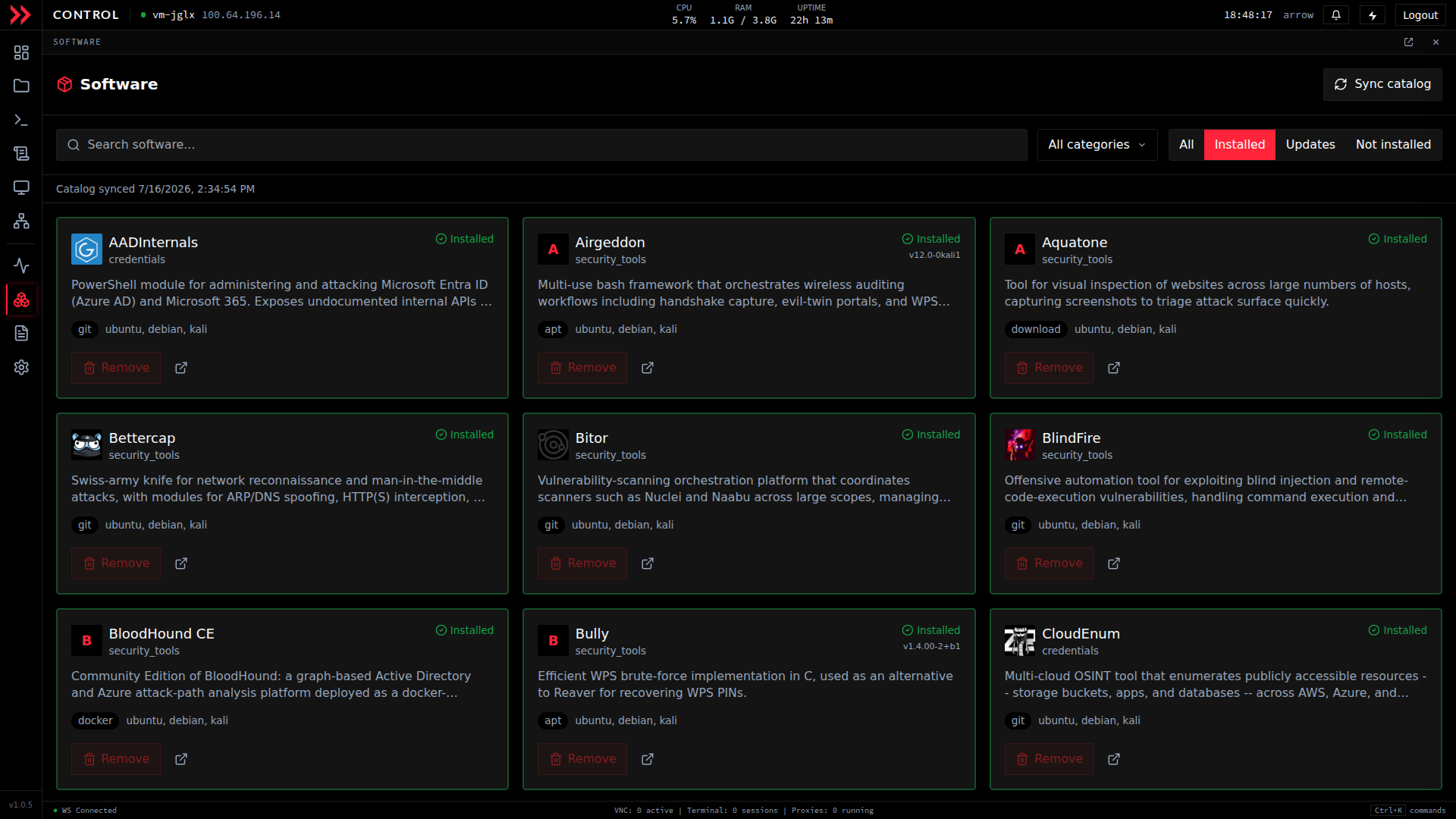
The Installed tab lists only the tools already on the VM, each with a Remove button, so you can take stock of what is on the box.
The Installed tab lists only the tools already on the VM, each with a Remove button, so you can take stock of what is on the box.
Switch to Updates to see only the tools that have a newer version available. When the list is empty, as it is here, everything installed is current and there is nothing to do. When a tool does appear, click Update on its card to bring it up to date.
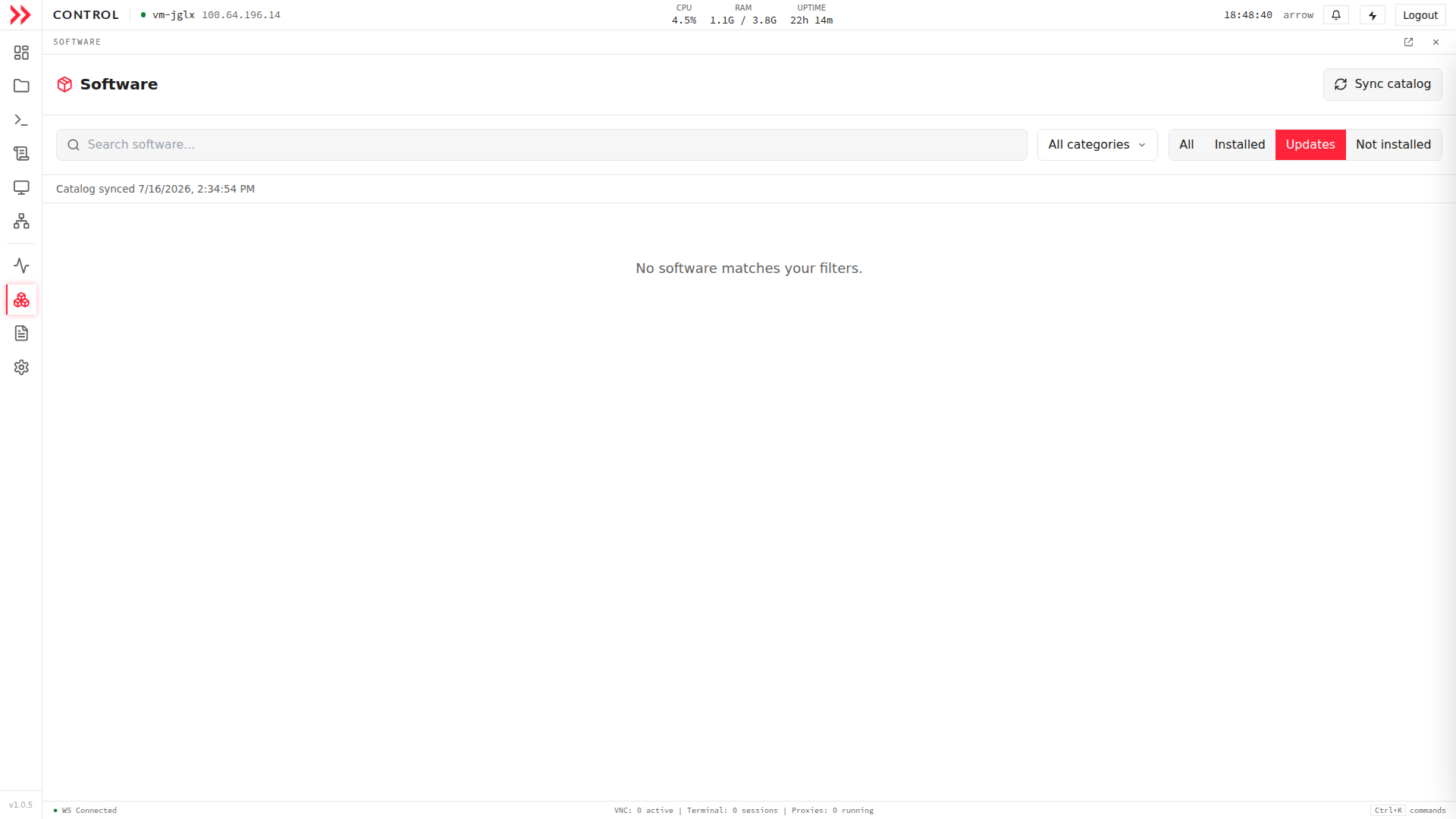
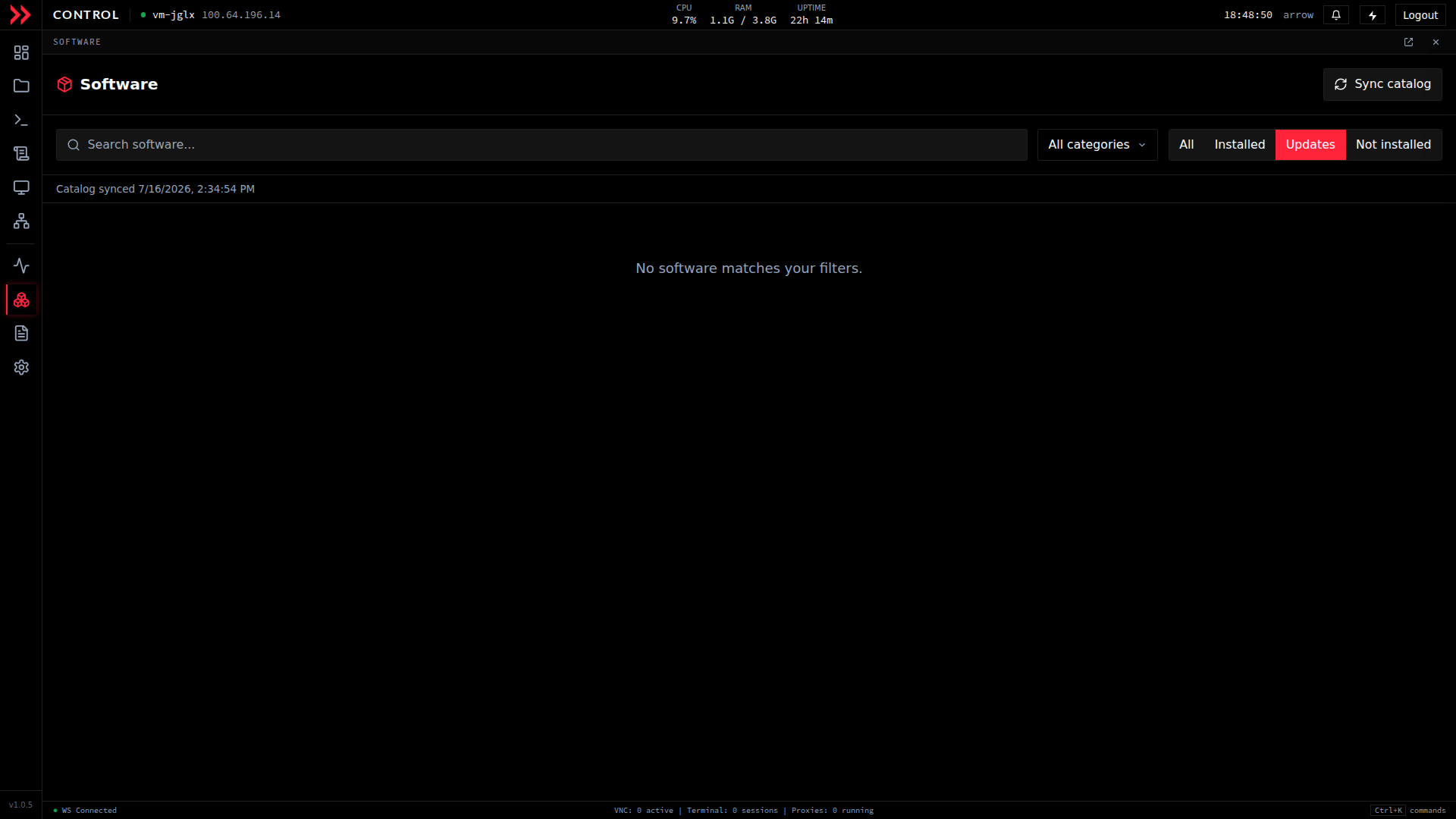
The Updates tab shows only tools with a newer version available. An empty list means everything installed is current.
The Updates tab shows only tools with a newer version available. An empty list means everything installed is current.
Switch to Not installed to see only the tools you could still add. This is the browse-and-shop view, where everything offers an Install button, so it is the fastest way to find something new without the installed tools cluttering the page.
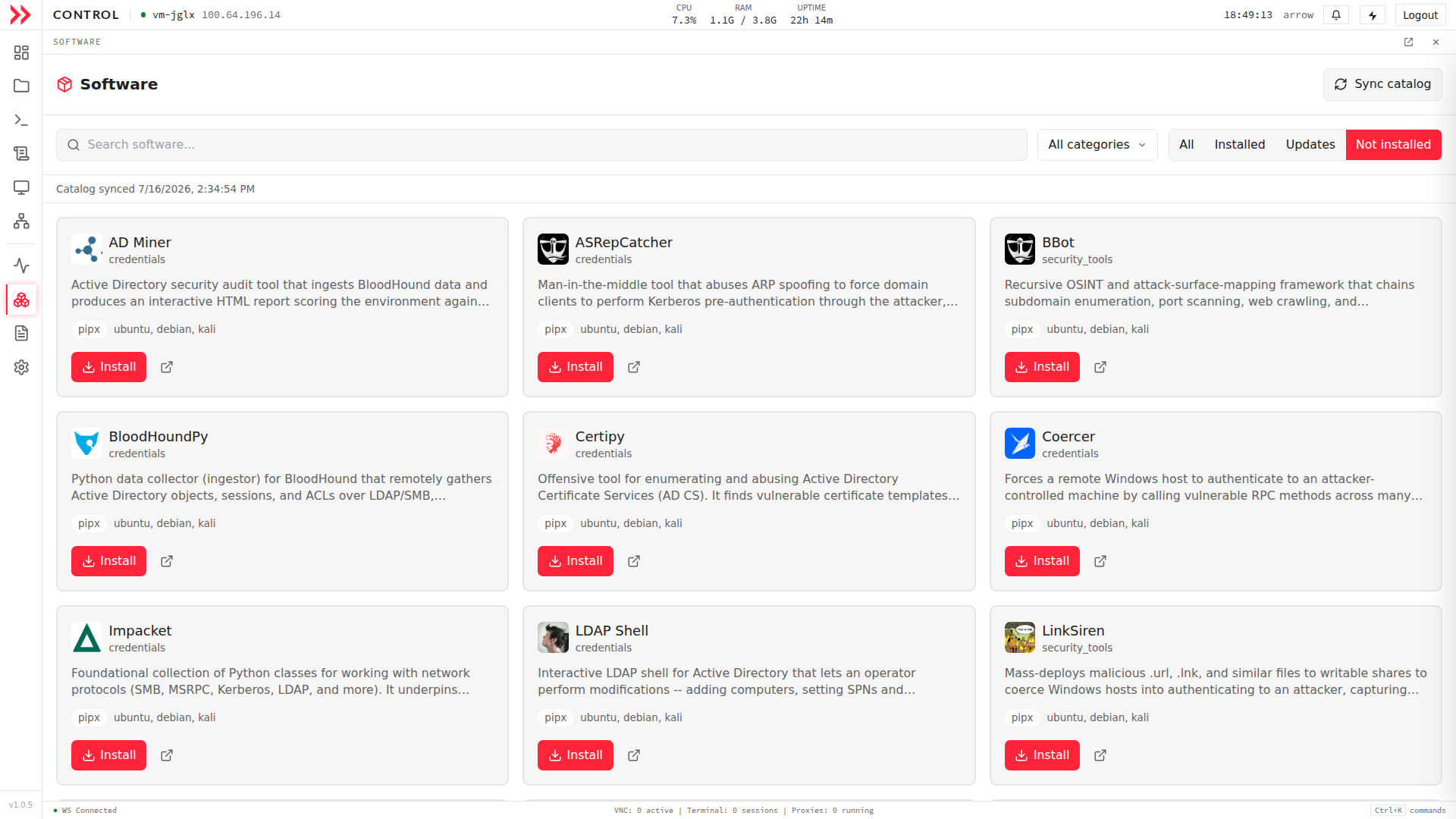
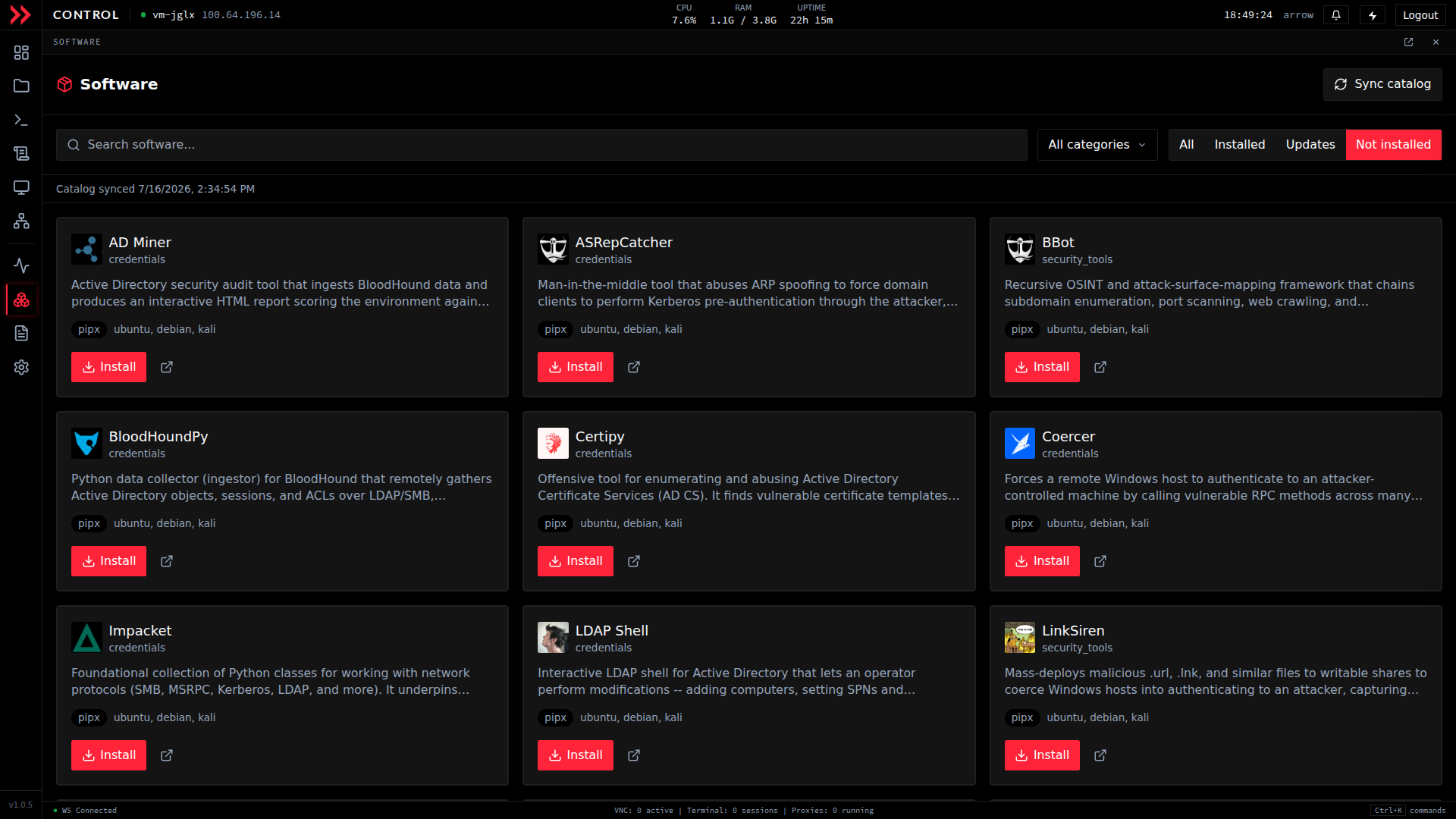
The Not installed tab shows only tools available to add, each with an Install button.
The Not installed tab shows only tools available to add, each with an Install button.
The tabs stack with the search box and the category dropdown, so you can, for example, filter to Not installed and then search within just those results.
Installing
Section titled “Installing”Find the tool with search or the filters, glance at its description and method badges, and click Install. The card updates as the install runs, and when it finishes it shows the Installed marker with the button now reading Remove.
The nice part is that you never touch the mechanics. Tools install in different ways under the hood, some as system packages, some through a language package manager, some from a Git repo or a direct download, but every one is automated and handles its own dependencies. You click Install and let ARROW Control sort it out.
Managing what is installed
Section titled “Managing what is installed”To see everything currently on the VM, switch to the Installed filter. To find tools with a newer version, use the Updates filter and click Update on the card. To take a tool off the box, click Remove and confirm.
Running a tool once it is installed
Section titled “Running a tool once it is installed”Installed tools run from a terminal session:
- Open the Terminal.
- Type the tool’s command.
- It runs.
Where a tool lands depends on how it was installed. System packages go on your PATH, language-based tools go under your user directory (for example ~/go/bin for Go tools or ~/.local/bin for Python tools), and repo or download-based tools usually install under /opt. If the command is not found right after installing, open a fresh terminal session so the shell picks up the updated PATH.
Troubleshooting
Section titled “Troubleshooting”| What you see | What to try |
|---|---|
| Install fails | Check disk space (df -h) and network connectivity, then try again. |
| Tool not found after install | Open a new terminal session so the shell picks up the updated PATH. |
| Permission errors | Some tools need sudo to run. Check the tool’s own documentation. |
| Install seems stuck | A network timeout is possible. Retry, and confirm connectivity. |
| Catalog looks out of date | Click Sync catalog to refresh the list. |
A few good habits
Section titled “A few good habits”Install only what you actually need, since some tools and their wordlists are large and a lean VM is easier to live with. Read a tool’s description before adding it so you know what you are getting, keep an eye on disk space, check the Updates filter now and then, and remove anything you have finished with to reclaim space.
Use these tools responsibly
Section titled “Use these tools responsibly”Penetration testing tools are powerful and can do real harm if pointed at the wrong target. Only use them on systems you own or have explicit written permission to test. Unauthorized access to computer systems is illegal in most jurisdictions, so stay within the boundaries of your authorized engagement and follow the ethical guidelines and industry standards your work is held to. When in doubt, confirm your authorization before you start.
Related Documentation
Section titled “Related Documentation”- ARROW Control Overview - Complete feature overview
- Terminal & VNC Access - Running tools from the command line
- File Management - Managing tool output and files
- Troubleshooting - General troubleshooting guide