
Crack Jobs
The Jobs screen is your operations console. It is where you launch a recovery attack against a set of hashes, watch it run across the cluster, and go back through everything that has run before. The header shows live counts of running and queued jobs.
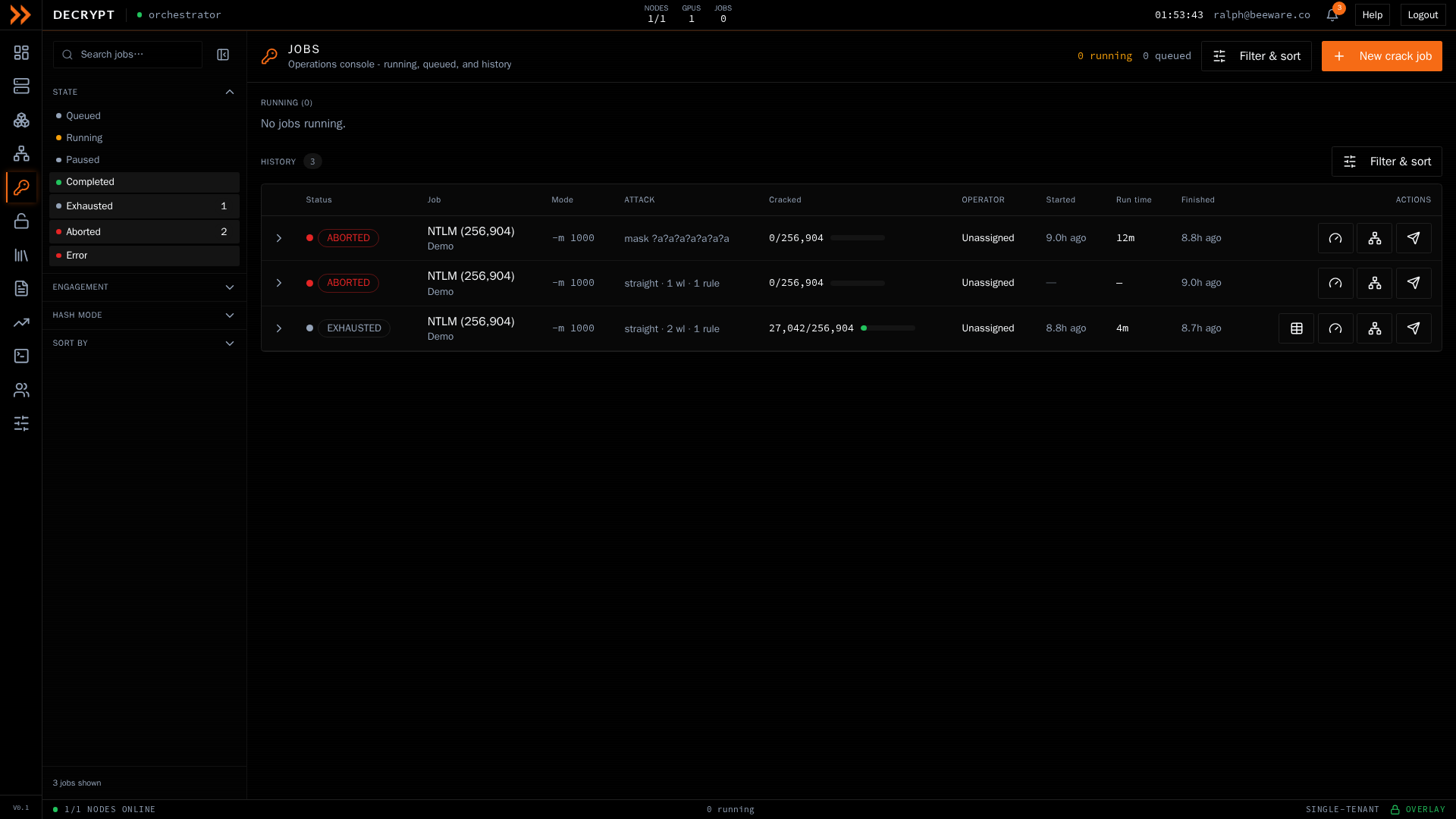
The Jobs console, with running jobs, the queue, and searchable history
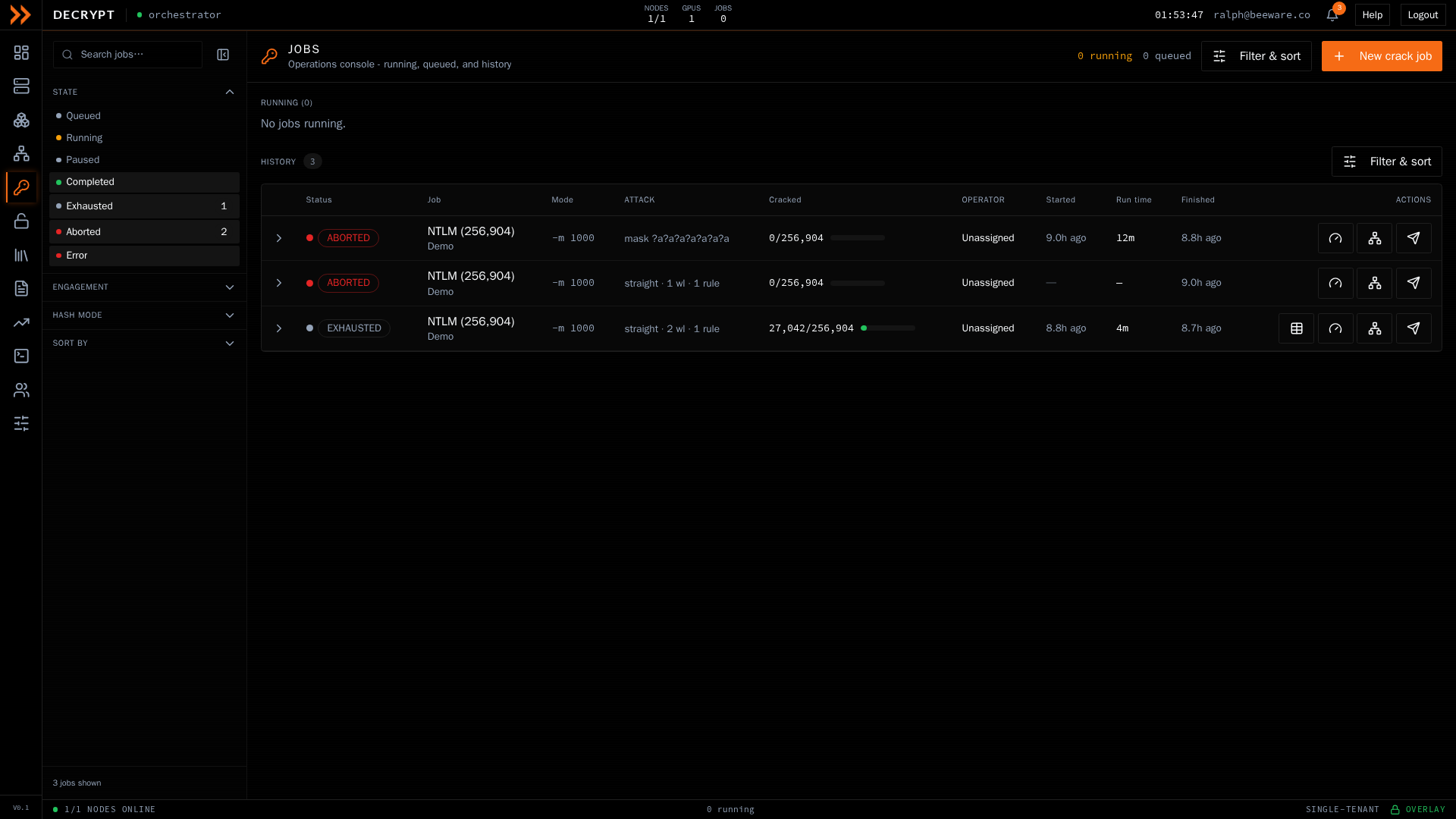
The Jobs console, with running jobs, the queue, and searchable history
How the screen is laid out
Section titled “How the screen is laid out”- Running lists jobs that are executing right now, each with a progress bar, recovered count, ETA, elapsed time, and hashrate. Distributed jobs also show a per-rig chunk breakdown.
- Queue lists jobs waiting to run, in priority order, with the operator, the assigned node, and any approval gate verdict.
- History is a searchable table of finished jobs. Columns cover status, job name and engagement, hash mode, attack type, cracked count, operator, and timing. Click any row to expand its full detail, including a GPU performance chart and re-run actions.
Use Filter & sort to open the left rail, where you can search jobs and filter by state, engagement, operator, and hash mode, then sort the results. Clearing the filters returns the history to finished jobs only.
Acting on a job
Section titled “Acting on a job”The buttons available depend on the job’s state:
| Action | What it does |
|---|---|
| Estimate | Ask the scheduler for a cost, time, and expected-cracks estimate before running |
| Run now | Dispatch a queued job to start immediately |
| Approve / Reject | Clear or deny a job that is waiting on the approval gate |
| Pause / Resume | Pause a running job at a checkpoint, or resume it from one |
| Stop | Terminate a running job |
| Cancel | Remove a job from the queue |
| Delete | Permanently remove a job and everything recorded for it; it is stopped first if still running, and cannot be undone |
From a running job you can also open a live terminal to watch its output, and open the recovered credentials once it has cracked anything.
Building a crack job
Section titled “Building a crack job”Click New crack job in the top right to open the Build a crack job panel. It takes you from raw hashes to a queued attack in two numbered steps, with a guided attack profile and a live estimate as you go.
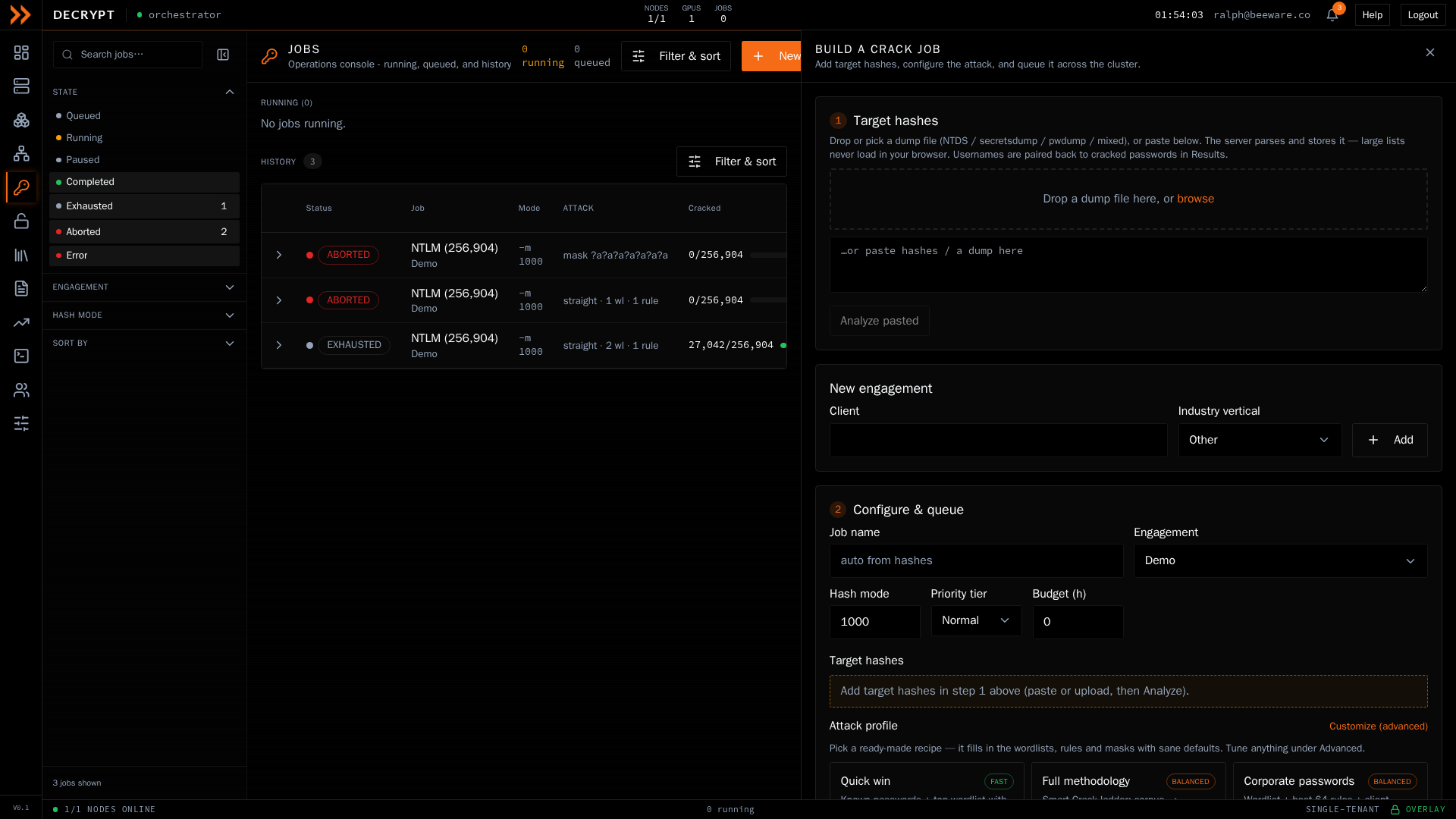
The crack-job builder, where you add hashes, pick an engagement, and configure the attack
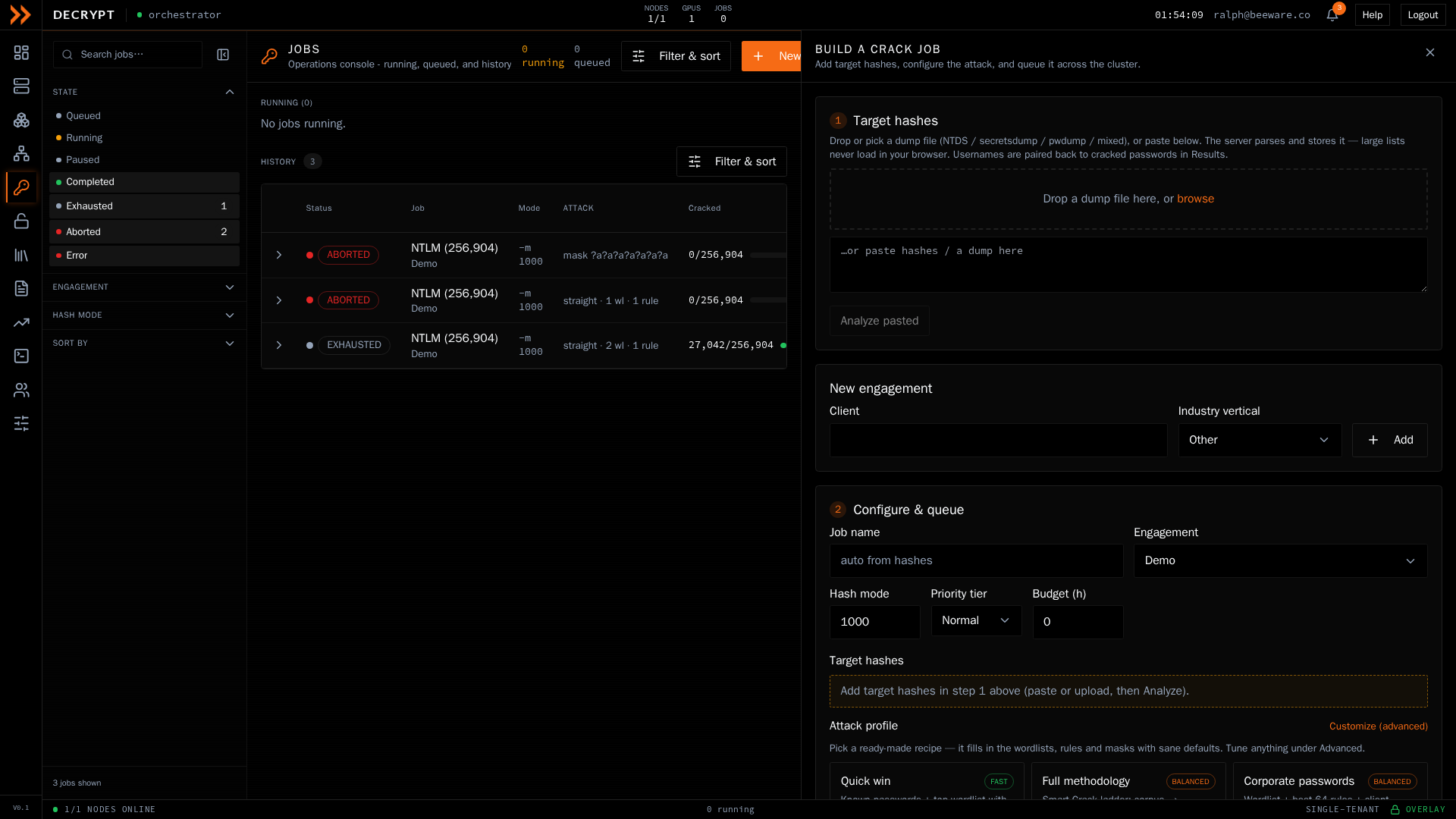
The crack-job builder, where you add hashes, pick an engagement, and configure the attack
Step 1: Target hashes
Section titled “Step 1: Target hashes”Give the builder the hashes to attack. You can drag a dump file onto the drop zone, click to browse for one, or paste hashes directly and click Analyze pasted. The server parses the dump, so even very large lists never load in your browser. It handles common formats such as NTDS, secretsdump, pwdump, and mixed dumps.
If the dump contains more than one kind of hash, the builder shows the detected groups and asks you to pick which one to crack. It fills in the hash mode automatically when it recognizes the type with confidence. Usernames are paired back to their cracked passwords later, in Results.
New engagement (optional)
Section titled “New engagement (optional)”Every job belongs to an engagement (a client). If you have not created one yet, use the inline New engagement form. Enter the client name, pick an industry vertical, and click Add. You can also select an existing engagement in step 2.
Step 2: Configure and queue
Section titled “Step 2: Configure and queue”| Field | What it does |
|---|---|
| Job name | A label for the job; defaults to a name derived from the hashes |
| Engagement | The client this job belongs to (required) |
| Hash mode | The hashcat mode; pre-filled from the detected hashes |
| Priority tier | Low, Normal, High, Urgent, or Critical; capped to what your role allows |
| Budget (h) | An optional time budget for the job, in hours |
Attack profile
Section titled “Attack profile”Rather than wiring up wordlists and rules by hand, start from a ready-made Attack profile. Each profile card carries a depth badge (Fast, Balanced, Deep, or Exhaustive) and a short description, and fills in sensible wordlists, rules, and masks. Team-saved profiles appear alongside the built-in ones. Click Customize (advanced) to fine-tune anything.
Speed and cost target
Section titled “Speed and cost target”Choose how you want the job sized:
- On-prem fleet runs on your own rigs at best effort.
- Cloud - finish by time works out how many cloud GPUs to rent to finish by a deadline you set, and shows the estimated finish and cost.
- Cloud - budget cap sets a maximum spend and shows how much of the keyspace that buys. Rented GPUs shut themselves down automatically when the cap is reached.
For cloud targets, click Refresh rates to pull current GPU market prices. Renting more GPUs shortens the wall-clock time but does not change the total bill, which is set by the amount of work.
Advanced options
Section titled “Advanced options”Opening Customize (advanced) exposes the full attack configuration:
- Compute source - on-prem, cloud, or a mix of both.
- Wordlists - pick from the registry, and optionally include the house corpus or client-name permutations. Optimized kernel is on by default.
- Rules - stack hashcat rules (for straight attacks) from the cluster rule library, upload your own
.rulefile, or paste a rule line. Stacked rules multiply, so watch the estimate. - Attack mode - Straight (wordlist plus rules), Mask or brute-force, either Hybrid mode, or Combinator.
- Mask - for mask and hybrid modes, build a mask with the reference guide and presets shown in the panel.
- Save as profile - save the current configuration for your team to reuse.
The live estimate
Section titled “The live estimate”As you build the attack, the estimate panel keeps a running readout of candidates to test, effective compute speed, exhaust time, GPU-hours, and cost. Because the raw number does not include rule overhead, click Measure this attack to run a short real-world speed test for a realistic ETA, or Benchmark for the raw mode speed.
Queue it
Section titled “Queue it”A short checklist confirms you have target hashes, an engagement, and a valid attack configured. When all three are met, click Queue job. If you have more than one rig, the job is distributed across them automatically.
Related documentation
Section titled “Related documentation”- Wordlists - Manage the lists your attacks draw from
- Cloud GPUs - Rent GPUs by the hour for a burst
- Recovered Passwords - Everything the cluster has cracked
- Reports & Trends - Turn results into a deliverable