
File Management
The file manager is the fastest way to get files on and off your VM without setting up SSH or an FTP client. It is ideal for the everyday moves like dropping a wordlist onto the box, pulling down a scan report, or opening a config file to make a quick edit. When you need something the browser cannot do, the terminal is one click away, and the two work well together.
Opening it
Section titled “Opening it”- Sign into ARROW Control.
- Click File Manager in the left rail.
- It opens at your home directory, for example
/home/arrow.
Across the top you get a navigation bar with back, forward, and up-one-level buttons, the current path, a Filter box, and a count of the items in the folder. The main area lists everything in the current directory.
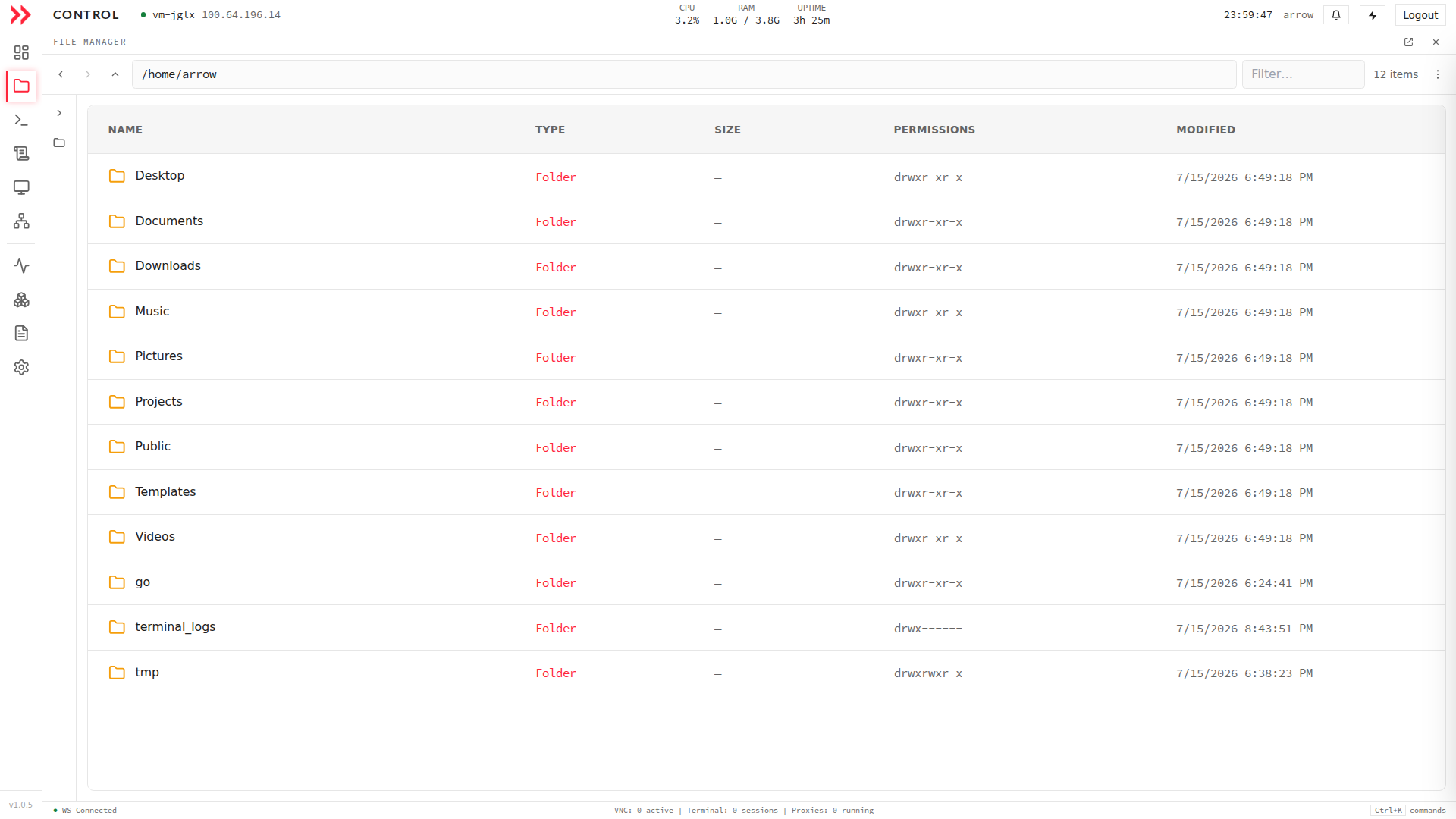
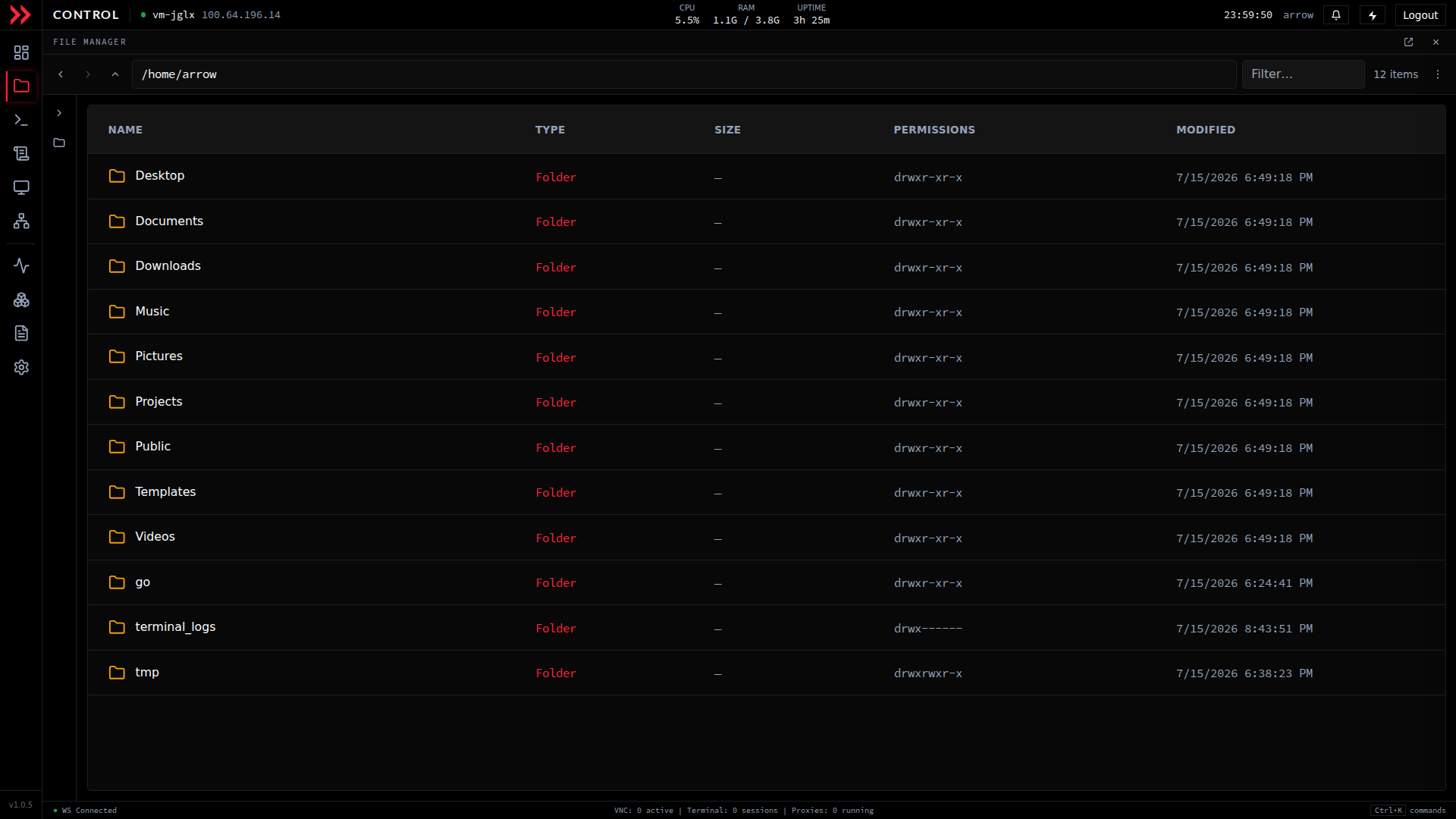
- 1 Move around the device's filesystem with the back, forward, and up buttons, or type a path directly.
- 2 Filter the current folder by name.
- 3 Every entry shows its type, size, permissions, and modified time. Upload, download, and edit files right here.
Browsing
Section titled “Browsing”Each row tells you what you are looking at, with the Name and a type icon, the Type (folder or file type), the Size (folders show a dash), the Linux Permissions string such as drwxr-xr-x, and when it was last Modified. Click a folder to open it, and use the back, forward, and up buttons to move around. The path bar always shows where you are.
To narrow a crowded directory, start typing in the Filter box and the listing trims to matching names. The count in the top right reflects what is in the current folder.
Uploading
Section titled “Uploading”The quickest way to upload is to open the destination folder and drag files from your computer straight onto the listing; release to start the transfer. If you would rather pick files with a dialog, use the file manager’s upload action and confirm.
Uploads run in the browser, so leave the tab open until they finish. A large file over a VPN can take a while depending on your connection.
Downloading
Section titled “Downloading”To pull a file down, open the actions menu for its row and choose download; it lands in your browser’s default download location. You can grab a whole folder too, as a compressed archive.
Editing text files
Section titled “Editing text files”ARROW Control has a built-in editor for text, which is exactly what you want for scripts, config files, and logs. Open the file, make your change, and save, without round-tripping through the terminal. It is meant for text, so skip it for binaries and very large files.
Other file operations
Section titled “Other file operations”Beyond browsing and transferring, you can create new files and folders, rename things, move or copy them elsewhere, and delete them. Deletes are permanent, so double-check the selection before you confirm. One handy touch is that you can copy the full path of any file or folder to your clipboard, which saves retyping when you switch to the terminal.
Permissions and where things live
Section titled “Permissions and where things live”The file manager respects the VM’s Linux permissions, so you can see and change only what your system account is allowed to. If a folder will not open or a file will not save, permissions are the usual reason; drop into the terminal and use sudo when that is appropriate.
Your home directory (for example /home/arrow) is the default view. Alongside the usual Desktop, Documents, Downloads, and similar folders, ARROW VMs typically also have go, terminal_logs, and tmp.
Troubleshooting
Section titled “Troubleshooting”| What you see | What to try |
|---|---|
| Upload fails | Check disk space and your write permission in the target folder, then try a smaller file. |
| Permission denied | Your account lacks permission for this. Use the terminal with sudo, or ask your administrator. |
| A large upload times out | Keep the tab active, check your connection, or split the file into smaller parts. |
| A file does not appear after upload | Refresh the listing and confirm the upload actually finished. |
| Cannot edit a file | It may be binary or too large for the editor. Check its permissions too. |
| Download does not start | Check your browser’s download settings, try another browser, or clear the cache. |
A few good habits
Section titled “A few good habits”Keep a sensible folder structure and clear file names so you can find things later, clean out temporary files as you go, and copy anything important somewhere safe rather than trusting it to a single VM. When an operation errors out, permissions are worth checking first.
Related Documentation
Section titled “Related Documentation”- ARROW Control Overview - Complete feature overview
- Terminal & VNC Access - Command-line and desktop access
- Troubleshooting - General troubleshooting guide