
Account & Security
The Account screen is where you manage your own login, covering your display name, your password, and two-factor authentication. Reach it from the account control in the top bar.
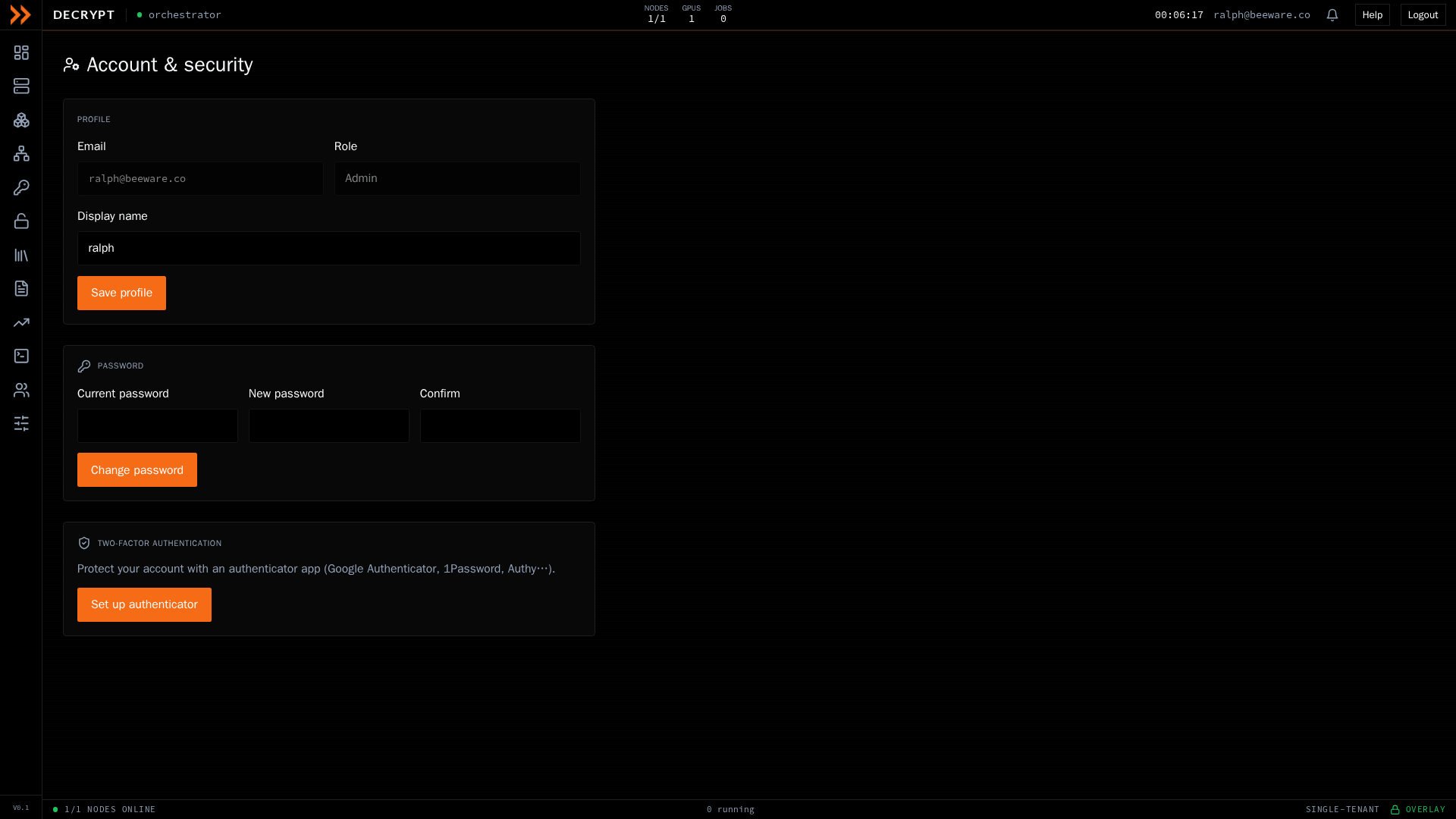
Manage your profile, password, and two-factor authentication
Manage your profile, password, and two-factor authentication
Profile
Section titled “Profile”Your email and role are shown for reference and are set by your administrator. You can change your Display name and click Save profile.
Password
Section titled “Password”To change your password, enter your current password, then your new password and a confirmation. Passwords must be at least 8 characters and the two entries must match. Click Change password to apply it.
Two-factor authentication
Section titled “Two-factor authentication”Two-factor authentication protects your account with a one-time code from an authenticator app on top of your password.
To turn it on:
- Click Set up authenticator.
- Scan the QR code with an app such as Google Authenticator, 1Password, or Authy, or enter the secret key by hand.
- Enter the 6-digit code and click Verify & enable.
- Save the backup codes you are shown. Each works once if you lose your device, and they are not displayed again. Use Copy codes to grab them, then click Done.
If two-factor is already on, you can turn it off with Disable two-factor, unless your administrator requires it for your account, in which case the screen tells you it cannot be disabled.
Related documentation
Section titled “Related documentation”- Signing In - The sign-in and two-factor flow
- Team & Roles - What administrators manage for the whole team