
Wordlists
Attacks draw their candidate passwords from wordlists. The Wordlists screen is a shared registry. Add a list once and ARROW Decrypt syncs it to every rig automatically, so it is ready the moment a job needs it. You never manage file paths - lists are referenced by their content and materialize on each rig on their own.
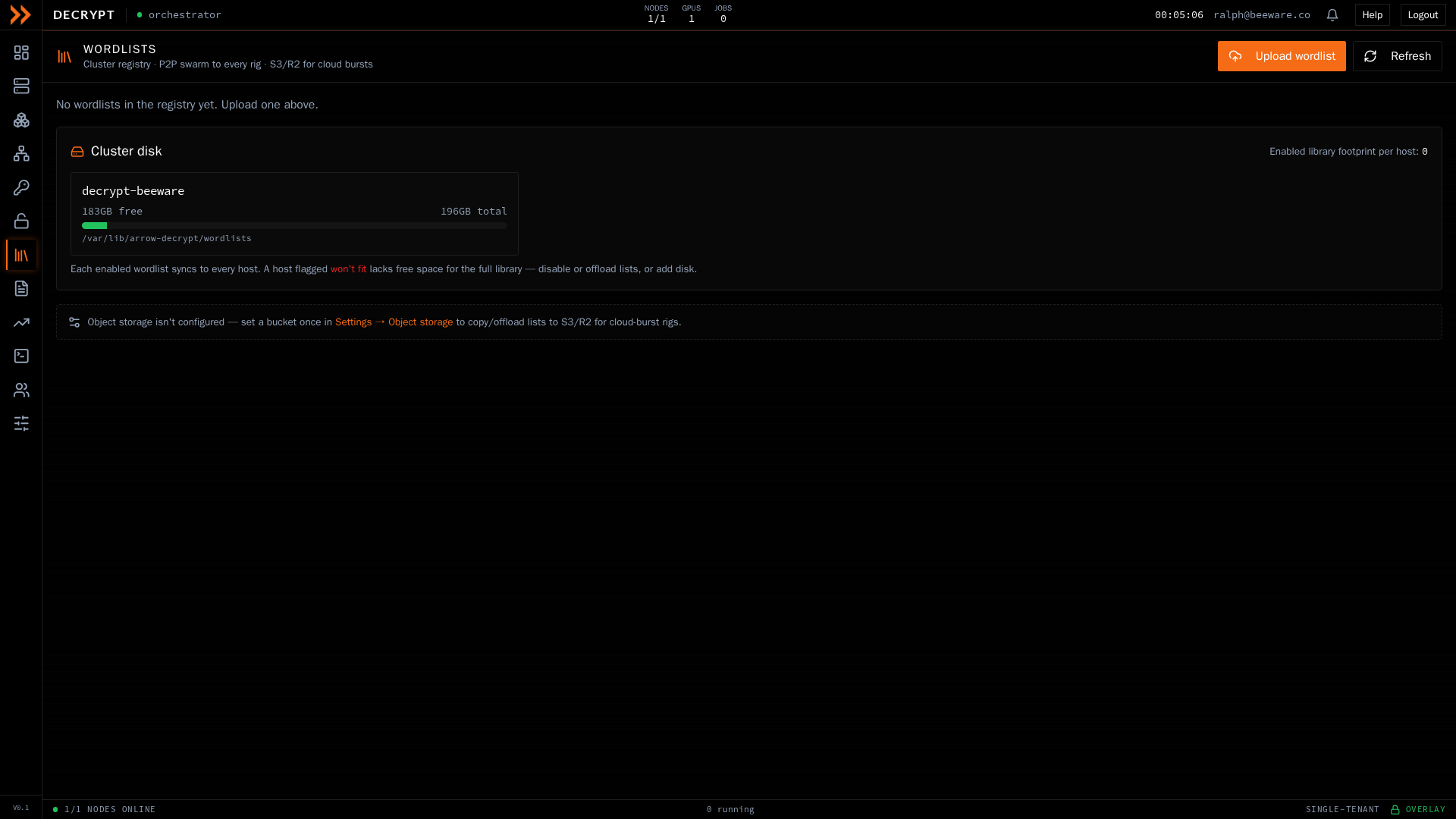
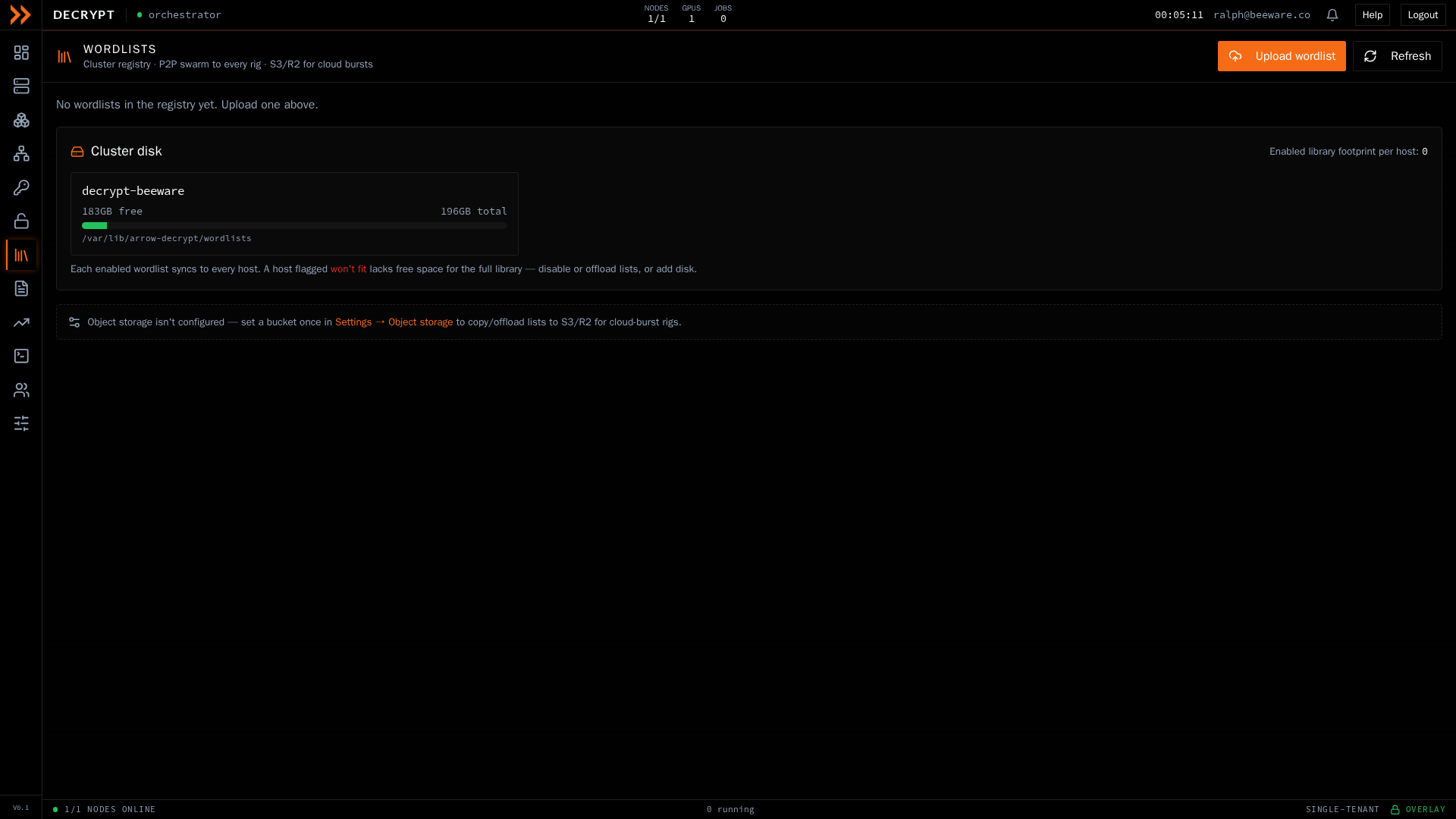
The wordlist registry, per-rig sync status, and cluster disk headroom
The wordlist registry, per-rig sync status, and cluster disk headroom
The registry
Section titled “The registry”Each row in the registry shows a list’s name, size, where it is stored (cluster, storage bucket, or both), and how many rigs have it ready. Per-list actions let you:
- Disable or Enable a list. Disabling stops it syncing to rigs but leaves copies already there in place.
- Copy to S3 to also keep it in your storage bucket, which makes it available to cloud rigs.
- Offload to move it to storage and free local disk on the leader.
- Delete it from the registry with the trash control. Existing rig copies are left in place.
At the bottom, the Cluster disk panel shows free space on each host and warns with a won’t fit badge if the full enabled library is too big for a rig. Every enabled list syncs to every host, so if a rig runs low on space, disable or offload some lists, or add disk.
Uploading a wordlist
Section titled “Uploading a wordlist”Click Upload wordlist to open the upload dialog.
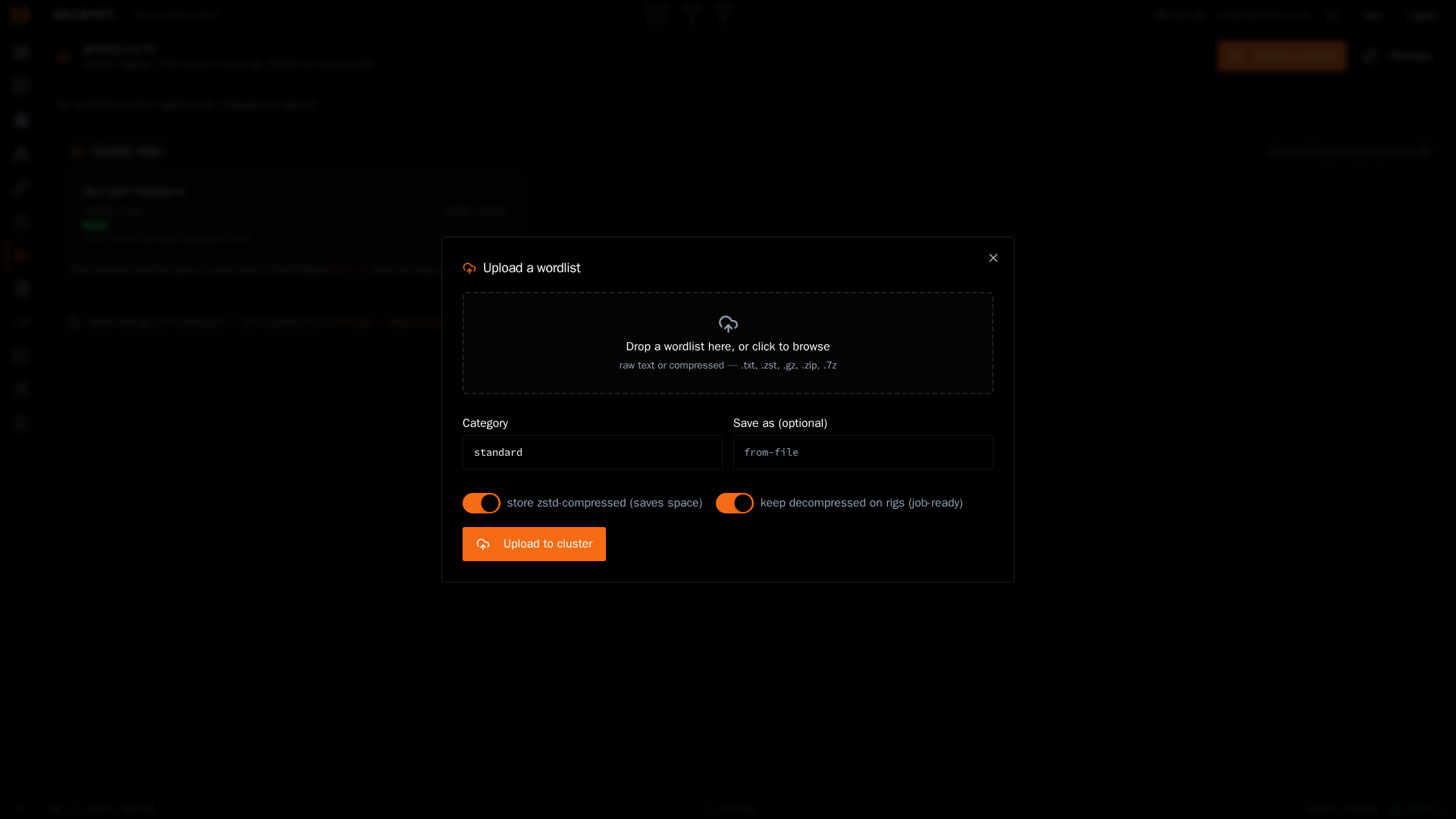
Uploading a list, where you drop a file, name it, and choose how it is stored
Uploading a list, where you drop a file, name it, and choose how it is stored
- Drop a file onto the zone or click to browse. Plain
.txtfiles work, and compressed archives (.zst,.gz,.zip,.7z) are extracted for you on the server. - Set a Category and, optionally, a Save as name (it defaults to the file name).
- Leave store zstd-compressed on to save disk and make the list ready to offload to storage. Leave keep decompressed on rigs on to keep a job-ready copy on each rig for a faster start.
- Click Upload to cluster. A progress bar tracks the upload and then the server processing it, after which the list starts syncing to your rigs.
Importing from a bucket
Section titled “Importing from a bucket”If object storage is configured, Import from bucket lets you pull an existing list straight from your storage into the registry. Click List objects, then Import next to the object you want. Object storage is set up once in Settings, under Object storage; until it is, the copy, offload, and import options are hidden.
Related documentation
Section titled “Related documentation”- Crack Jobs - Choose wordlists when building an attack
- Cloud GPUs - How offloaded lists reach rented rigs
- Settings - Configure object storage