
Pivot
Pivot is where you turn the compromised host into a doorway. A VM often sits on networks you cannot reach directly from your own machine, but the VM can, and Pivot lets you borrow that reach, so you can stand up a SOCKS proxy to run your own tools through the host, forward a specific port with a tunnel, or scan to discover what is actually reachable. It is the difference between “I have a shell on one box” and “I can work the whole internal network from my laptop.”
The header counters give you the shape of what is running at a glance (total proxies or tunnels, plus active and idle connections), and three tabs, Proxies, Tunnels, and Discovery, split the work into the three things you do here.
Proxies
Section titled “Proxies”The Proxies tab lists every SOCKS5 or HTTP proxy you have stood up, with its status, and a search box and status filters (All, Running, Stopped, Error) to find one fast when you have several. Create Proxy stands up a new standalone proxy, which is the move when you want to point your own tools, such as a browser or a scanner, through the VM and out onto a network only the VM can see. On a fresh VM the list is empty and prompts you to create your first proxy to get started with network pivoting.
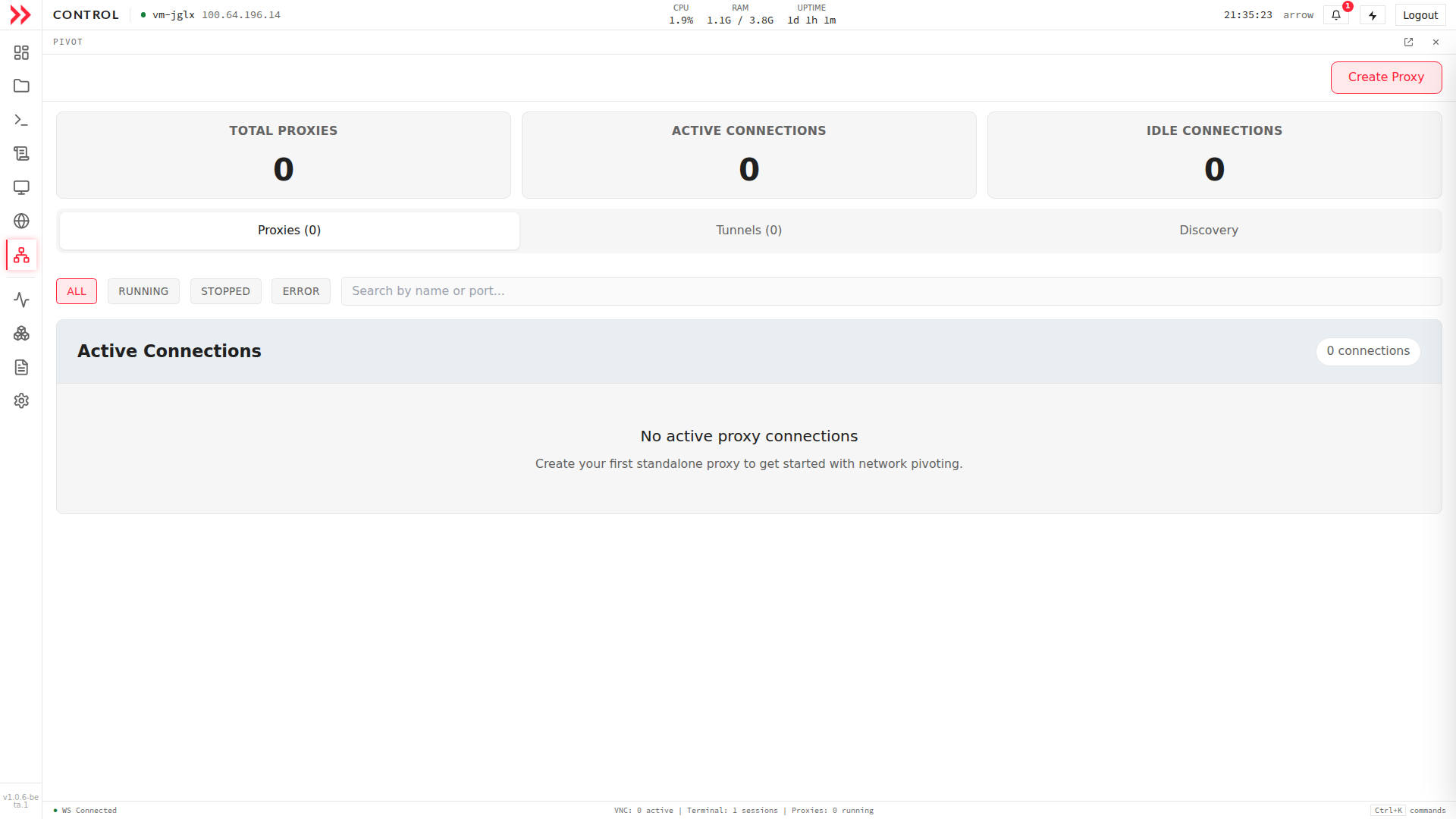
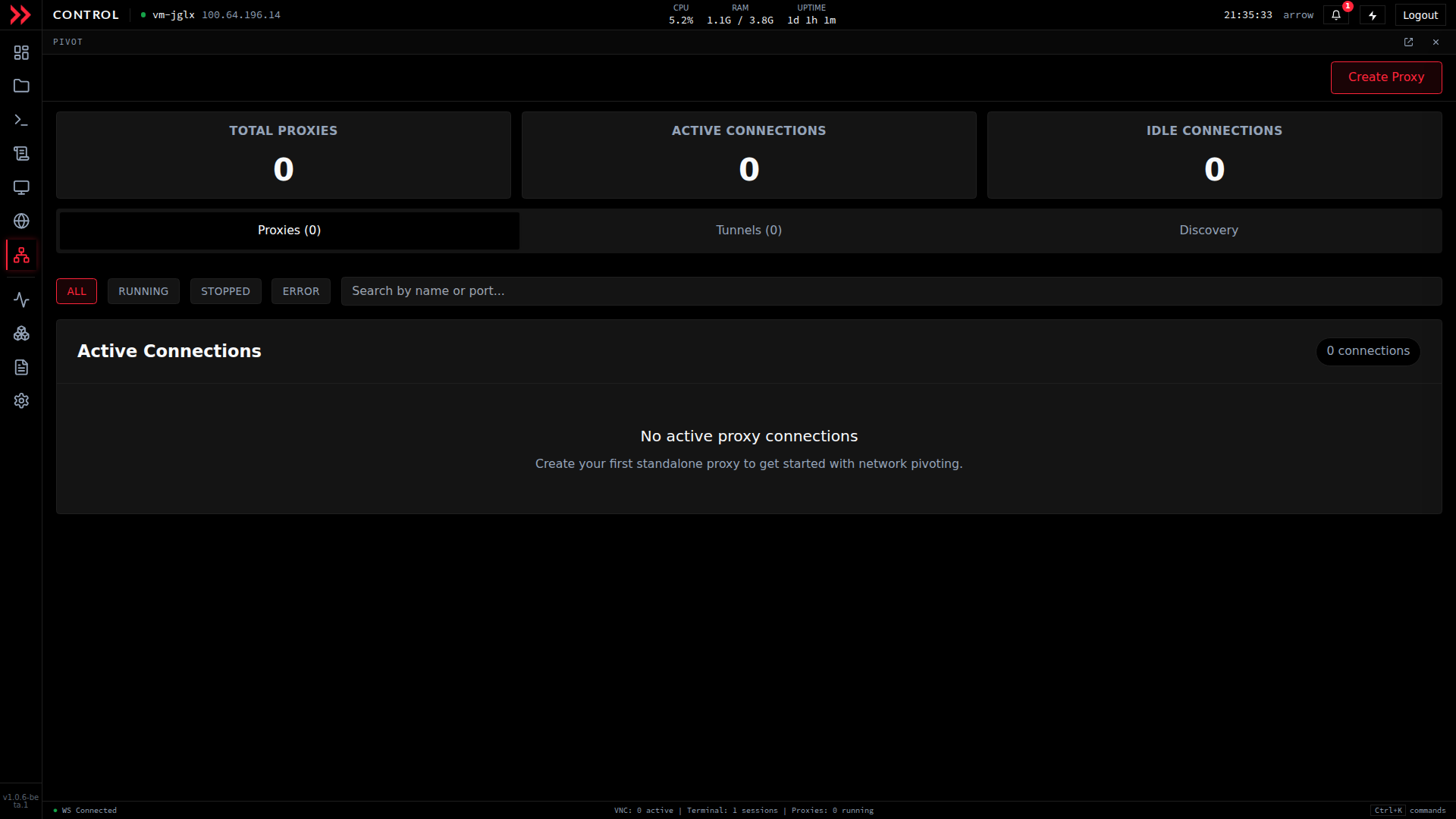
Proxies lists your SOCKS5 and HTTP proxies with status, filters, and a Create Proxy button.
Proxies lists your SOCKS5 and HTTP proxies with status, filters, and a Create Proxy button.
Create Proxy opens a short wizard. The first step is a Template picker so you do not start from scratch. Pick a common starting point such as Dynamic SOCKS5, Authenticated SOCKS5, HTTP CONNECT, or a Remote Proxy Chain, or choose Build your own for a blank configuration. Whatever you pick, the following steps let you change every detail before it goes live, so the template is just a head start.
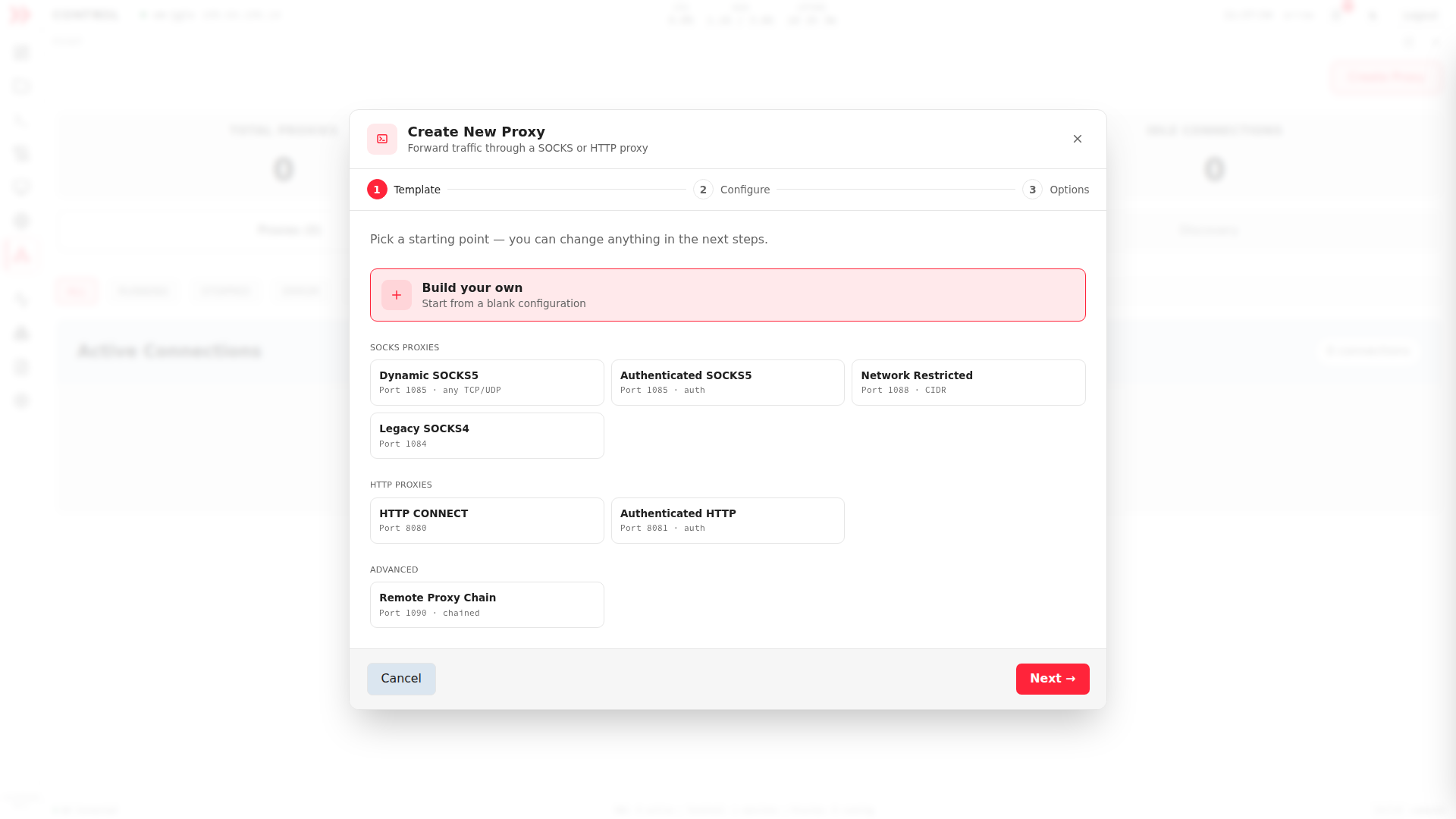
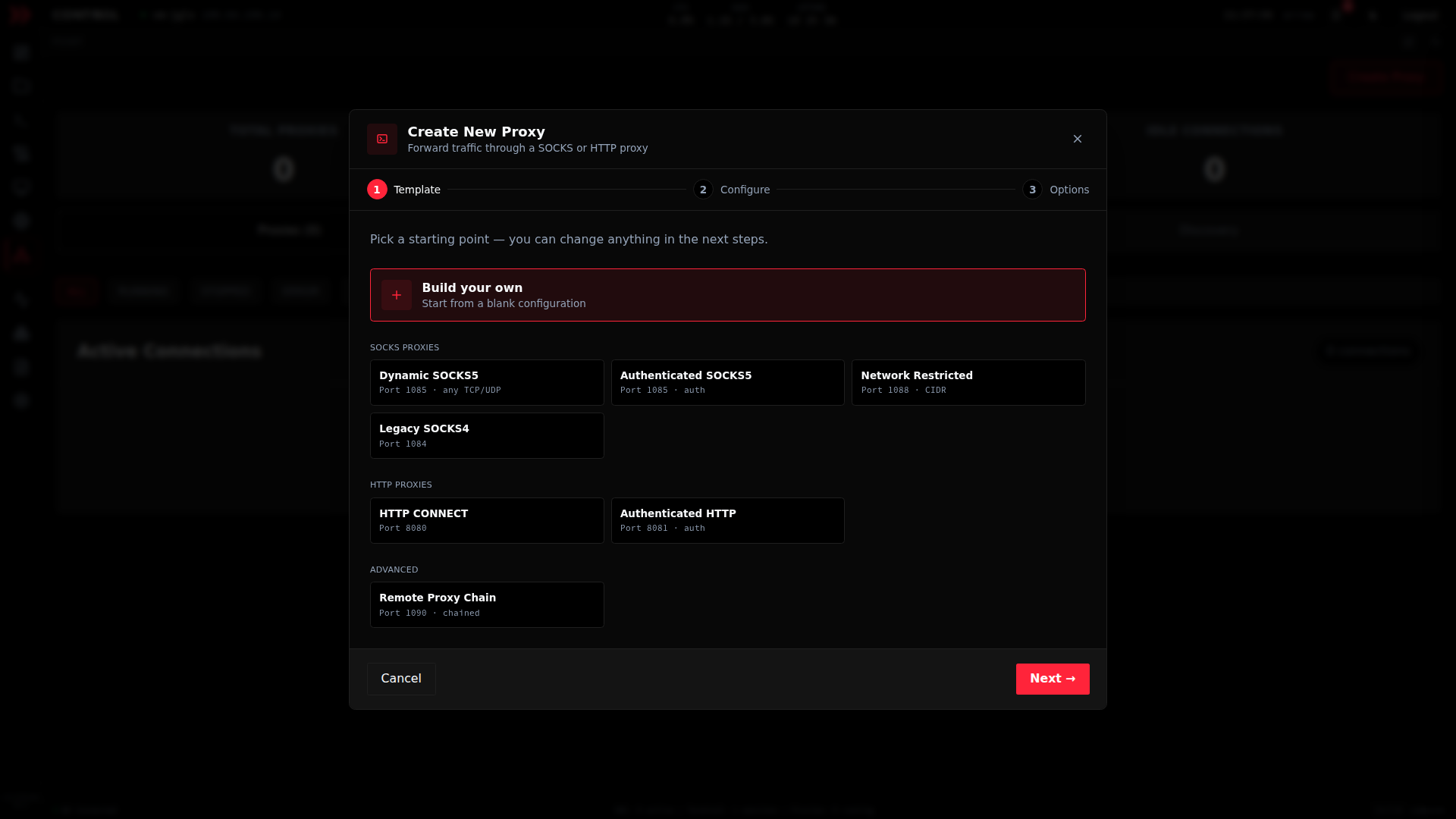
The Create New Proxy wizard opens on a template picker, with SOCKS5, HTTP, and proxy-chain starting points.
The Create New Proxy wizard opens on a template picker, with SOCKS5, HTTP, and proxy-chain starting points.
Tunnels
Section titled “Tunnels”The Tunnels tab handles point-to-point forwarding rather than a general-purpose proxy. Use a tunnel when you want to reach one specific service through the host, for example forwarding a remote database or web port back to a local port you can hit directly. Create Tunnel sets up a new SSH or TCP tunnel, and Manage Keys opens SSH key management so you have the credentials the tunnel needs. As with proxies, the same status counters and filters keep things organized once you have more than one running.
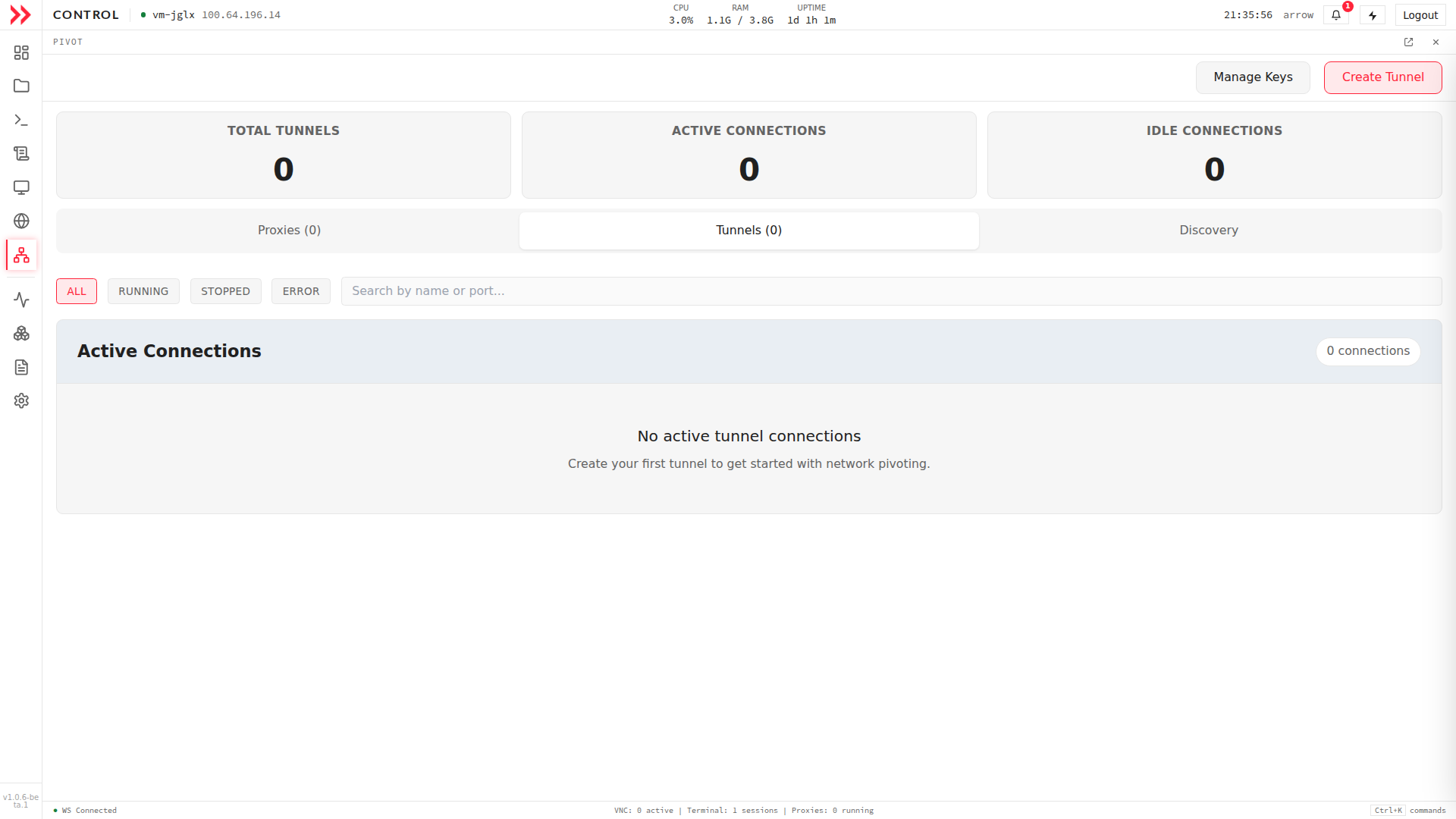
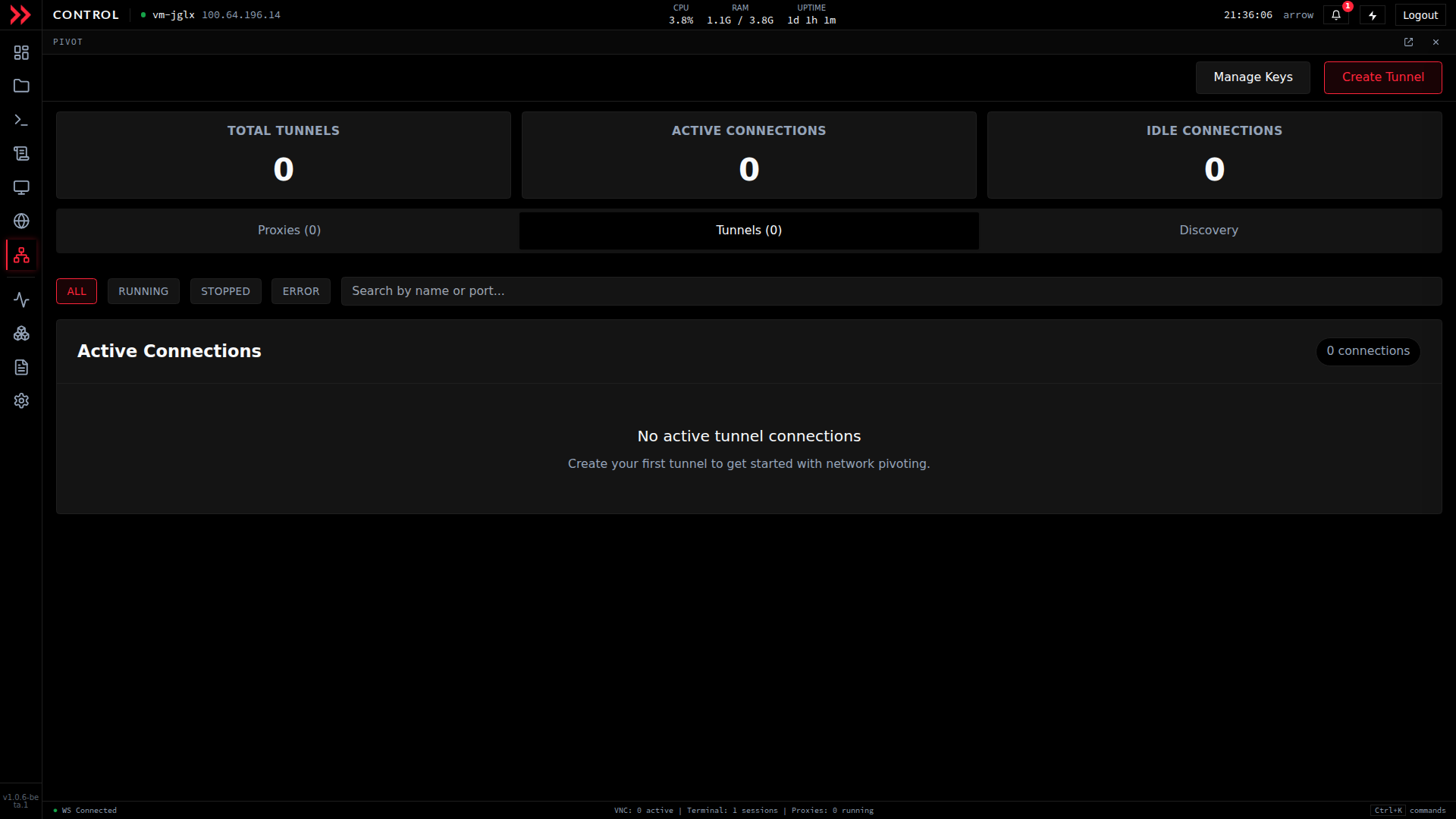
Tunnels forwards specific ports through the host, with Create Tunnel and Manage Keys controls.
Tunnels forwards specific ports through the host, with Create Tunnel and Manage Keys controls.
Create Tunnel opens the same style of wizard, with templates grouped by what you are trying to do, covering Access Remote Services (a remote database, RDP, an internal web app, or SMB file shares), Dynamic Proxying, Expose Local Services, and Reverse Connections (a reverse shell or callback). Each template is prefilled with sensible ports you can adjust in the next step, so common tasks like forwarding a database port are a couple of clicks.
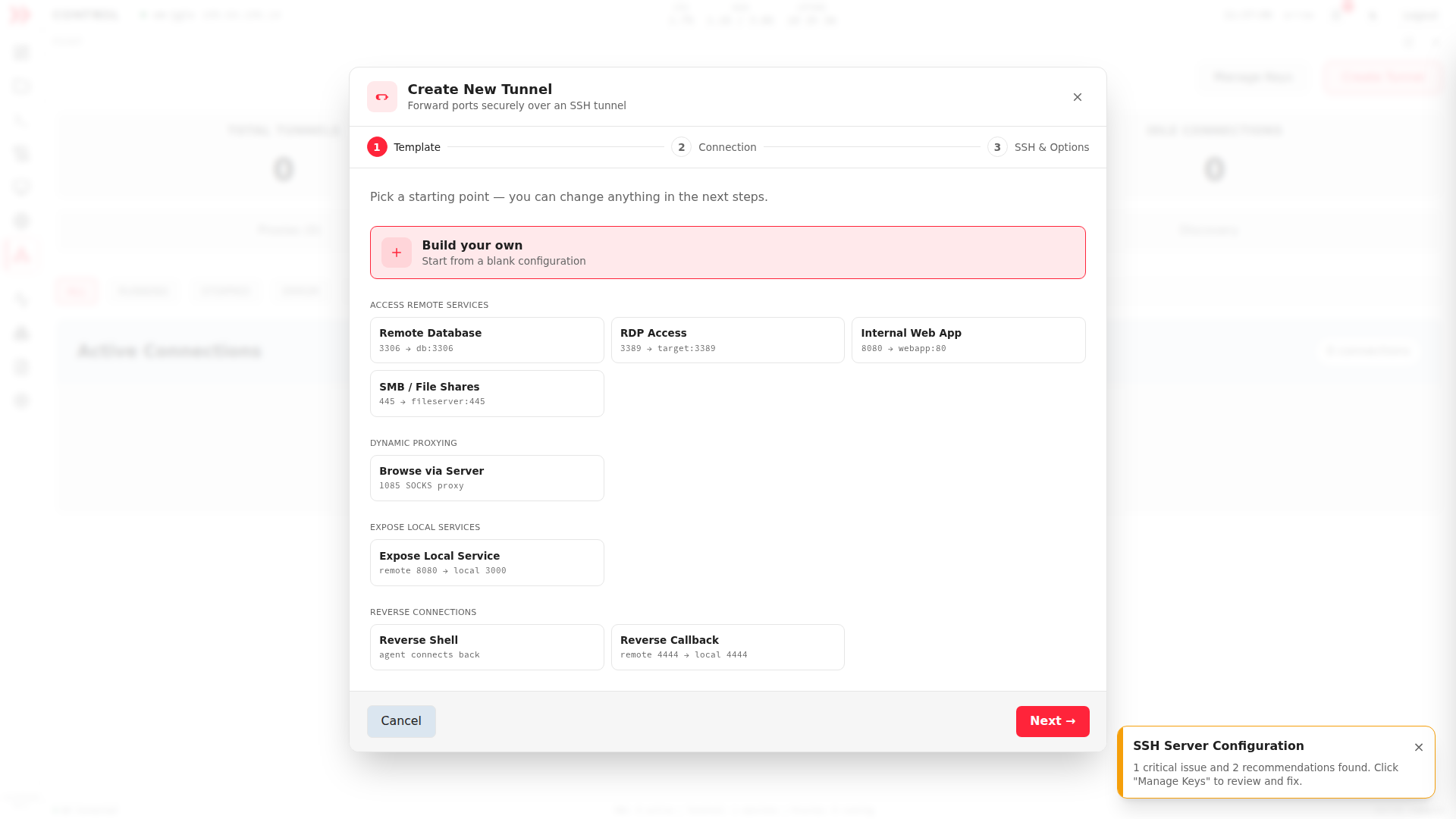
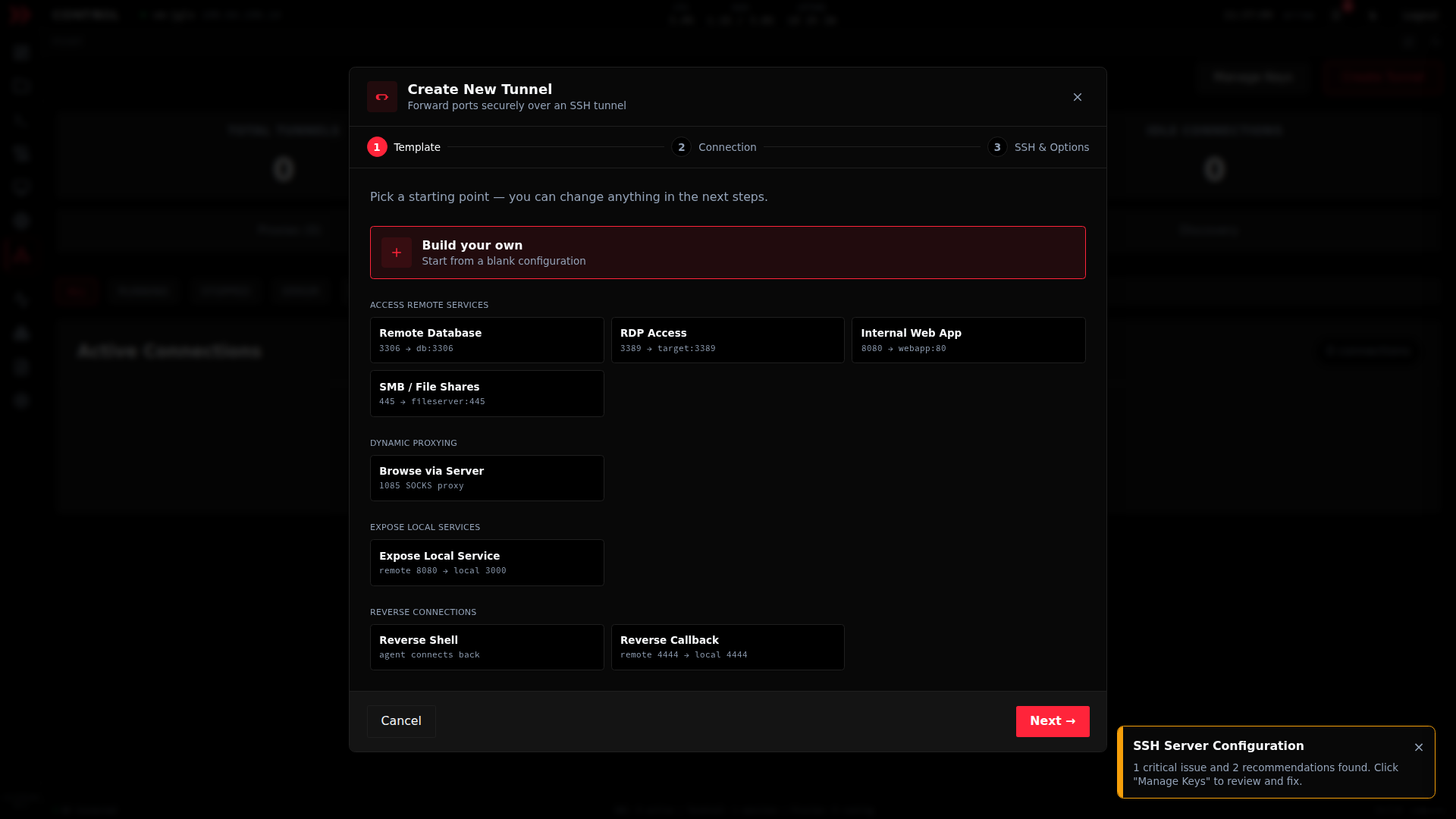
The Create New Tunnel wizard groups templates by task, whether that is access remote services, proxy, expose local services, or reverse connections.
The Create New Tunnel wizard groups templates by task, whether that is access remote services, proxy, expose local services, or reverse connections.
Discovery
Section titled “Discovery”Discovery answers the question you ask before you pivot anywhere. What can this VM actually see? It reads the VM’s own network interfaces and maps them into a Network Topology view, lists each interface with its address and type (VPN, Ethernet, Loopback, and so on), and surfaces Suggested Networks, ranked candidate subnets the VM can reach, each with a confidence rating and the interface or neighbor that hints at it. Scan Networks actively probes to find live hosts and services. Start here to pick your targets, then come back to Proxies or Tunnels to reach them.
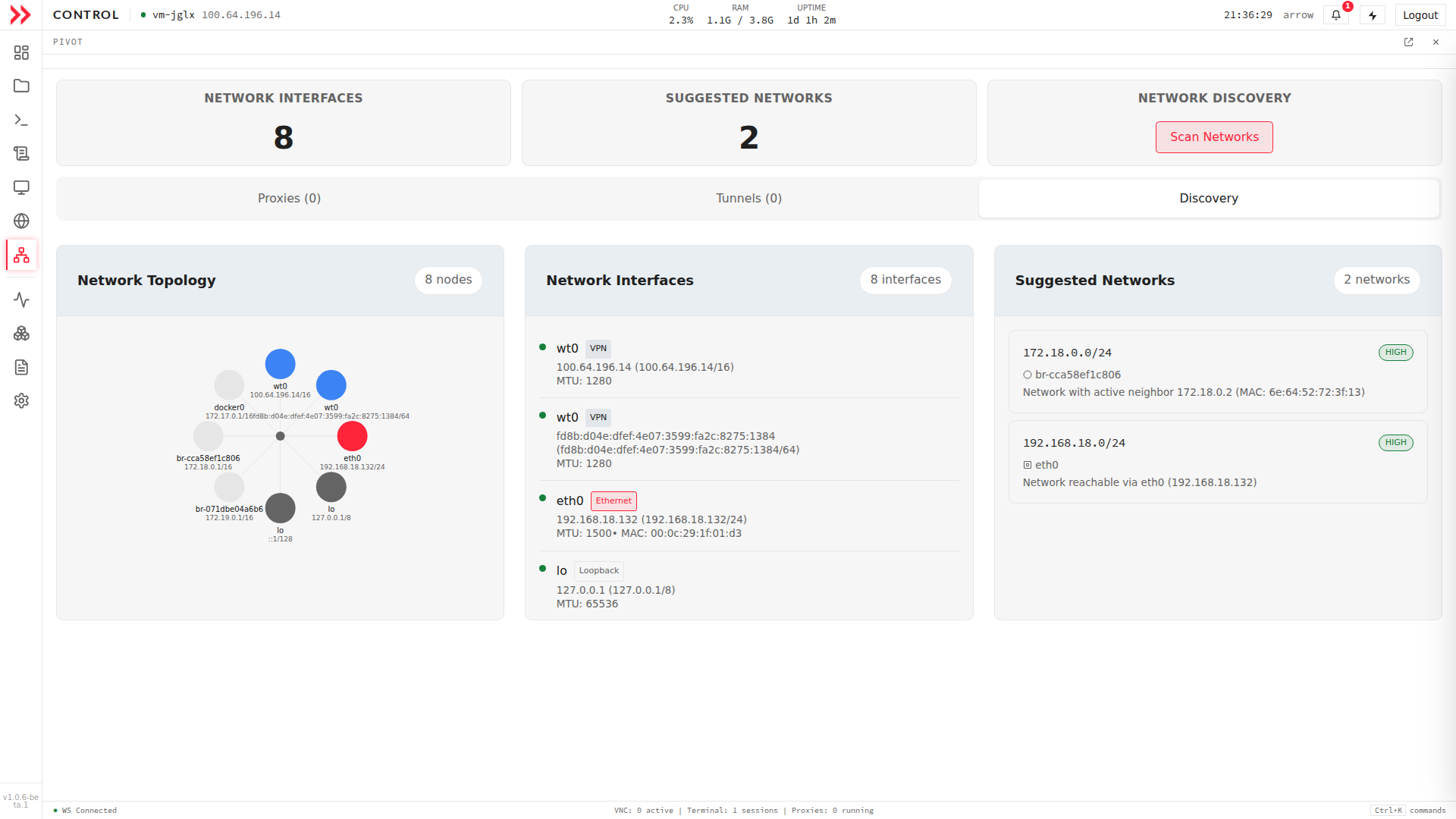
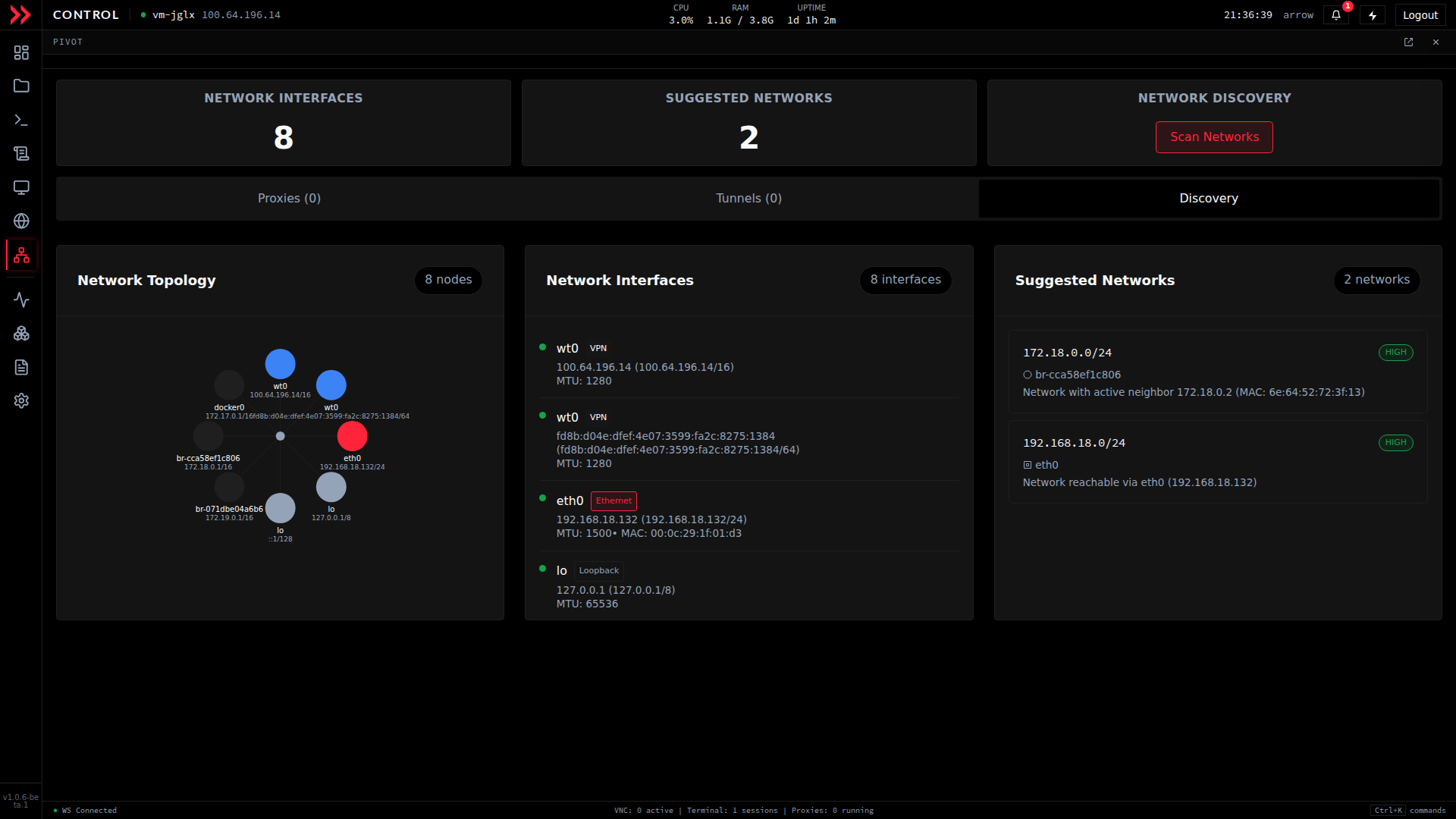
Discovery maps the VM's interfaces, suggests reachable networks, and scans to find live hosts and services.
Discovery maps the VM's interfaces, suggests reachable networks, and scans to find live hosts and services.
Related Documentation
Section titled “Related Documentation”- ARROW Control Overview - Complete feature overview
- Settings - SSH keys, license, and device configuration
- Terminal & VNC Access - Run your tools through the host
- System Monitoring - Watch the VM’s health while you pivot