
Network Access Control
Overview
Section titled “Overview”Being on the VPN does not mean you can reach every device on it. Access is scoped to the people who are supposed to have it, and ARROW keeps that scoping in sync with your consultant assignments so you never have to write firewall rules by hand. Assign a consultant to a device in the Console, and their VPN access to that device follows automatically. Unassign them, and it goes away.
You do not manage any of this directly, but you can review all of it. Open the VPN section and use the Policies and Groups tabs to inspect the rules and groups that back your access, or the Access Graph tab to see the result per person.
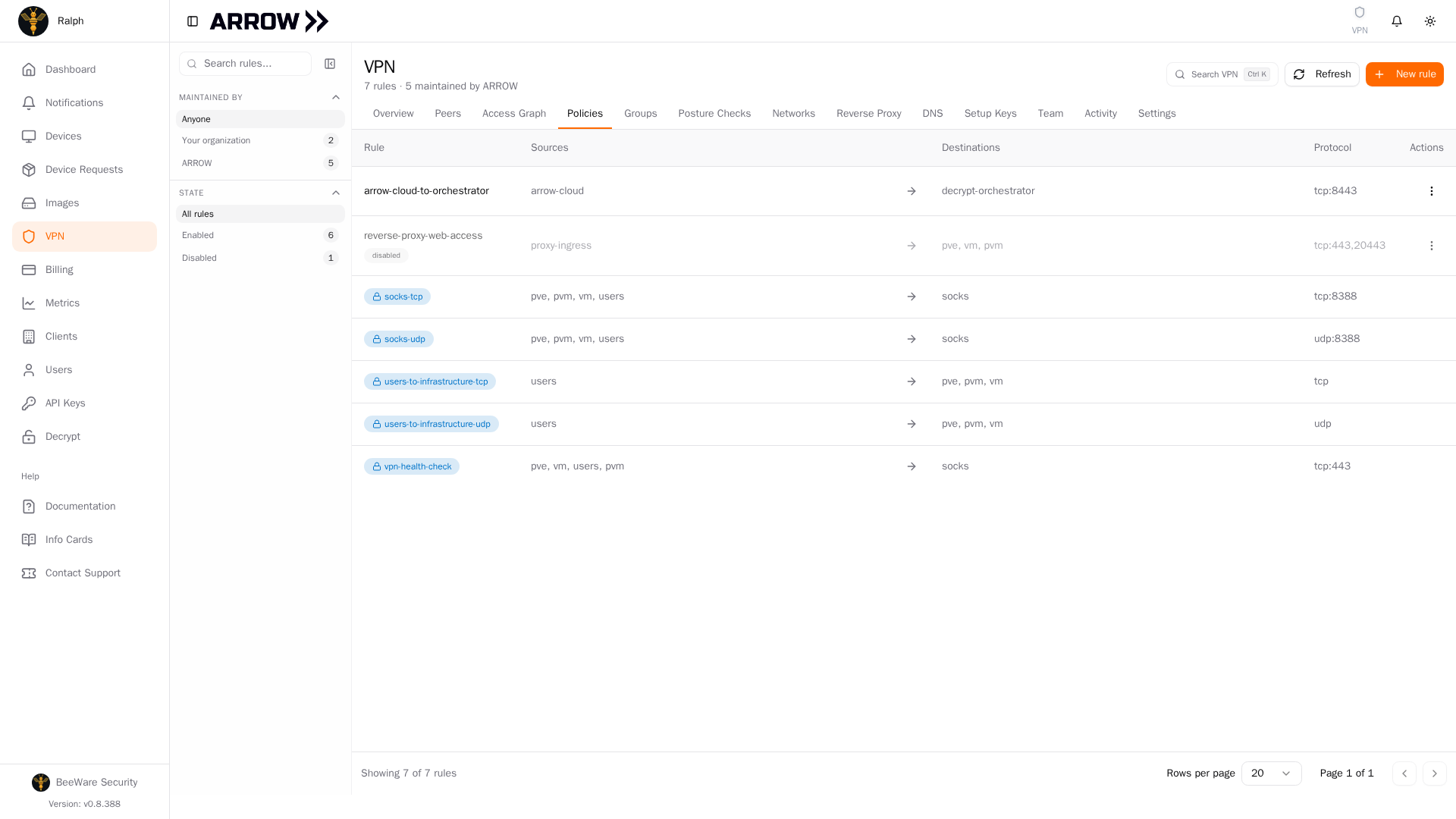
The Policies tab, where the access rules that control device access are listed with the ones ARROW maintains marked by a lock
The Policies tab, where the access rules that control device access are listed with the ones ARROW maintains marked by a lock
How It Works
Section titled “How It Works”When you assign a consultant to a device, ARROW creates the VPN groups and access policy that let that consultant connect to it, and the access takes effect within a few minutes. When you remove the consultant, ARROW revokes the access just as automatically. There is nothing to configure on the VPN itself; the device assignment is the control.
One-Way by Design
Section titled “One-Way by Design”Access policies are intentionally one-way. Consultants can reach devices over SSH, VNC, and other management protocols, but devices can never open connections back toward consultant workstations. This matters most in exactly the situation ARROW is built for. If a device you are testing from gets compromised, it cannot turn around and pivot into your own machines or the rest of your infrastructure.
What You See in the Console
Section titled “What You See in the Console”Under VPN, the Policies, Groups, and Access Graph tabs show the access model in action.
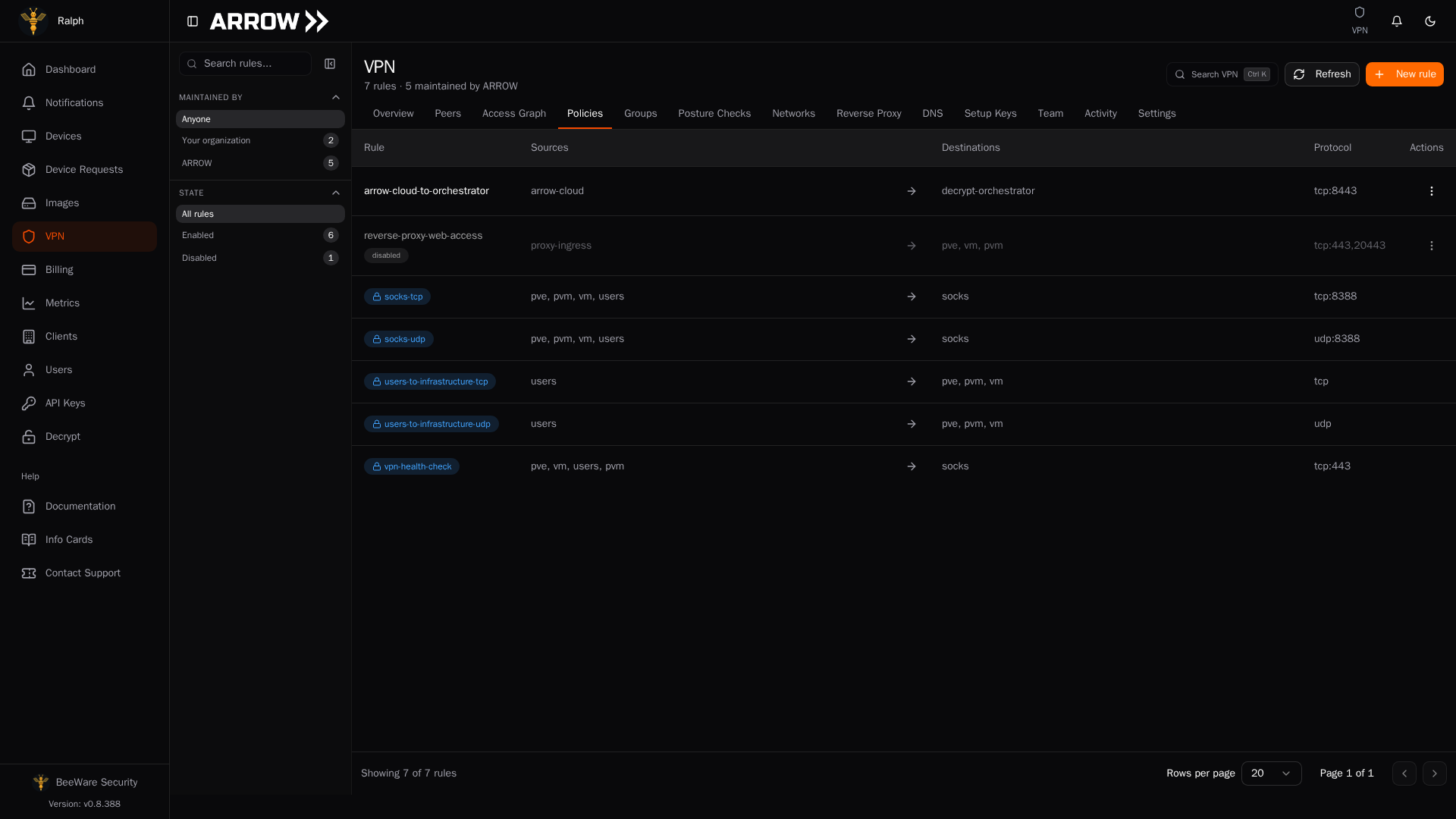
The Policies tab lists every access rule on your network with its sources, destinations, and protocol. The rules ARROW maintains for you carry a lock badge and cannot be edited here, but they are worth understanding. The users-to-infrastructure-tcp and users-to-infrastructure-udp rules let consultants reach ARROW devices, per-device rules grant access to specifically assigned consultants, and separate rules cover virtual machines. Rules your organization creates itself sit in the same list and stay fully editable (see VPN Management).
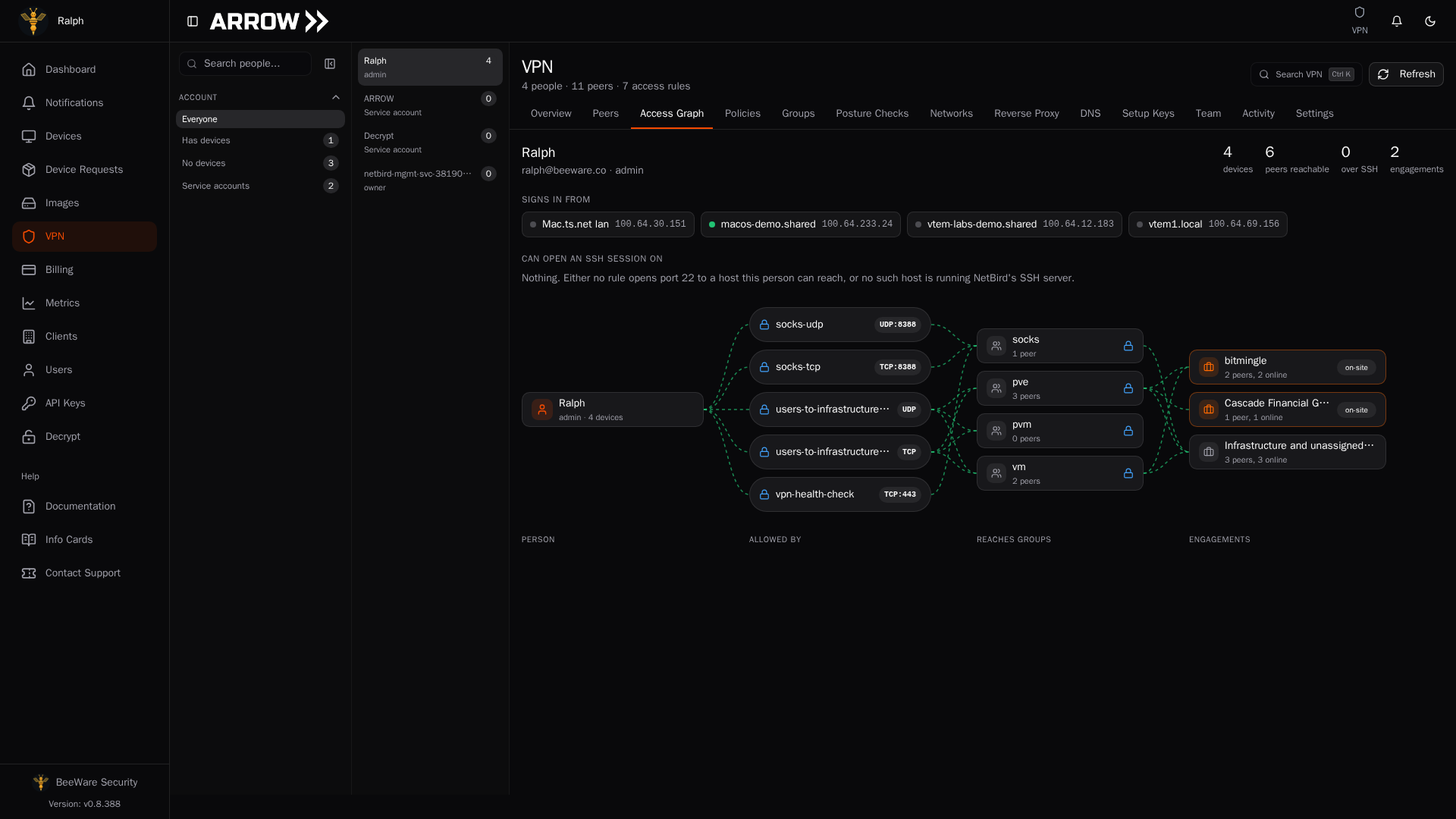
The Access Graph tab turns those rules into an answer per person. Select a consultant to see the devices they sign in from, every peer those devices can reach, and the rules and engagements behind that access.
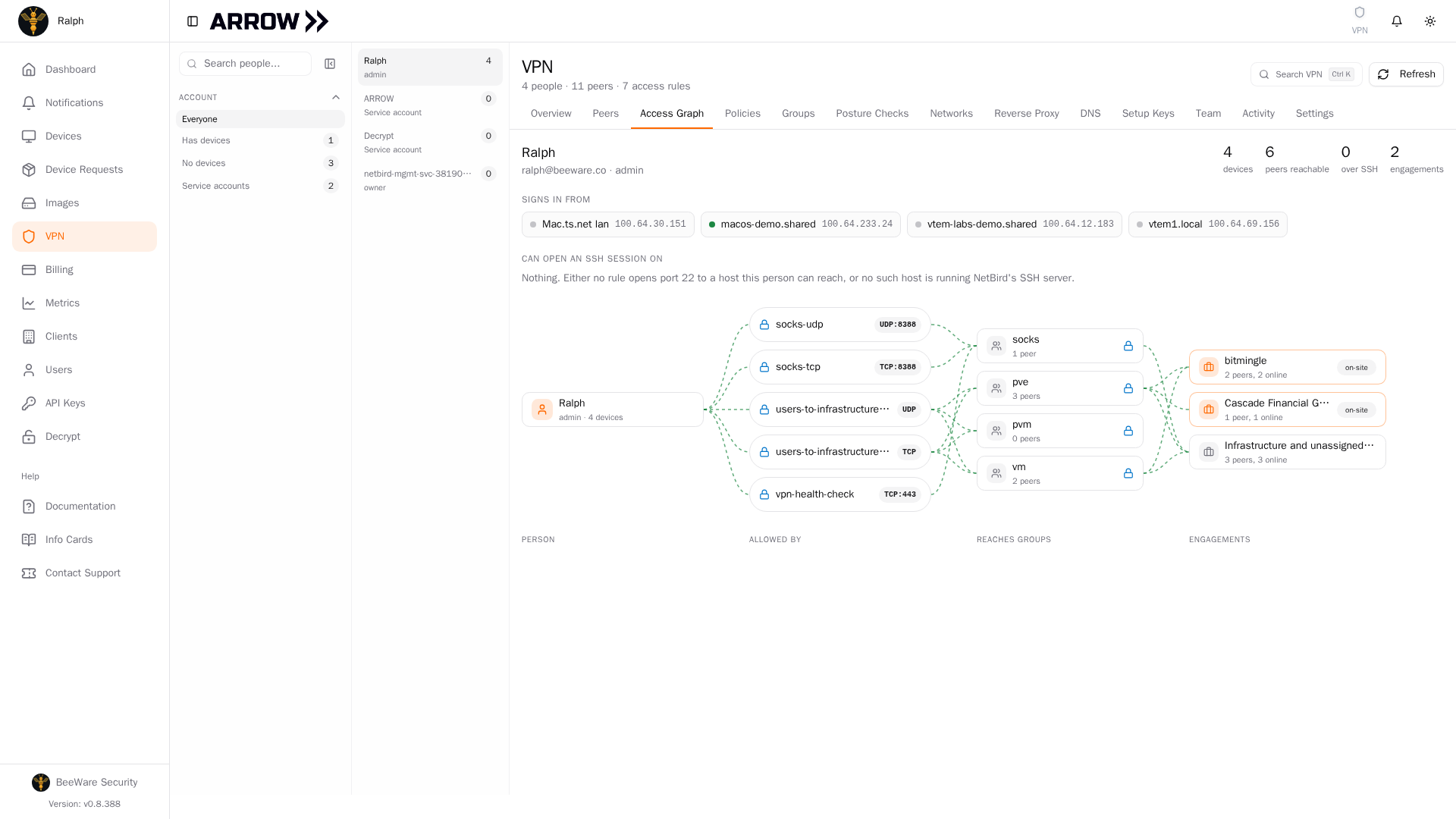
The Access Graph, tracing one person through the rules that allow them to the groups and engagements they reach
The Access Graph, tracing one person through the rules that allow them to the groups and engagements they reach
The graph is also the fastest way to check that someone is enrolled correctly. A workstation that signed in through your identity provider appears under Signs in from for that person; a machine that joined with a setup key does not, because it carries no identity. If a consultant reports that they are connected but cannot reach anything, look here first (see VPN Connection Troubleshooting).
The Groups tab shows how peers are organized:
| Group | Description |
|---|---|
| users | User workstations authenticated via IDP |
| pve | Physical ARROW devices (Proxmox hosts) |
| pvm | Virtual machines on physical ARROW hardware |
| vm | Virtual machines on other infrastructure |
| socks | SOCKS proxy hosts |
Groups maintained by ARROW carry the same lock badge as the managed rules. You can create and manage your own groups alongside them.
Managing Access
Section titled “Managing Access”Access is driven entirely by device assignments, so you manage it the same way you manage a device. To grant access, open the device in the Console, edit its request or settings, add the consultant to the assignment list, and save; access appears within minutes. To revoke it, remove the consultant from that same list and save, and their access is pulled immediately.
VM-Specific Access Control
Section titled “VM-Specific Access Control”Virtual machines follow the same model, set up for you when the VM is provisioned. ARROW creates a group for the VM, a group for its assigned consultants, and a one-way policy connecting the two. When the VM is marked complete, all of it is cleaned up automatically, including the peer registration, both groups, and the policy.
Requirements
Section titled “Requirements”For this to work, each consultant needs an ARROW account in your organization. You do not create a separate VPN account for them, because when you add the user in the Console, ARROW gives that account VPN access at the same time. Consultants then sign in through your organization’s identity provider with the same email address they use for the Console. If a consultant is assigned but cannot connect, a mismatched email is the first thing to check.
Best Practices
Section titled “Best Practices”Because access tracks assignments, keeping assignments honest is what keeps access tight. Review consultant assignments periodically, remove people promptly when they roll off a project, and note in the device request why a given consultant is assigned so the reasoning is not lost.
Related Documentation
Section titled “Related Documentation”- VPN Management - VPN connection and status
- Device Management - Managing devices and assignments