
Software Updates
Keeping the device current is handled for you, which matters on a device you may never physically touch again after it ships. This guide explains how updates reach the device, where to check on them in ARROW Manager, and how to install one yourself when you do not want to wait for the schedule.
How Updates Work
Section titled “How Updates Work”Most of the time you do not manage updates on an ARROW device, and that is by design. The device checks for updates on its own and installs them on a schedule your organization sets in the ARROW Portal. In practice that means the portal schedules an update, the device picks it up on its next check, downloads and installs it in the background, and keeps running the whole time.
When waiting for that schedule is not what you want, ARROW Manager also lets you check for a new build and install it on the spot. The automatic schedule still belongs to the portal either way.
Checking Update Status
Section titled “Checking Update Status”Open Settings in ARROW Manager and choose Updates in the left nav. The Software Update card covers the ARROW Manager build running on this device and shows four values, which are Installed version, Latest available, Built, and Last checked. A badge in the corner of the card gives the short version of where the device stands, and Check for updates re-checks on demand. When a newer build is available, a Release notes panel opens below the version values with what that release contains, and its GitHub link takes you to the full release.
The Network section has a separate Network Manager panel for the device’s network service, showing its current version, target version, when it last checked, and a plain-language status like “System Up to Date”. Click Refresh to re-check it. That service ships inside each ARROW Manager build, so Target Version is the version your installed build carries, and ARROW Manager brings the service up to date on its own the next time it starts after an update. If the panel still reports Upgrade Available, click Upgrade to install it now; the service restarts and may briefly interrupt connectivity. A File Hash Comparison section lets you confirm the installed files match the expected release, which is the check to run if you suspect an update did not land cleanly.
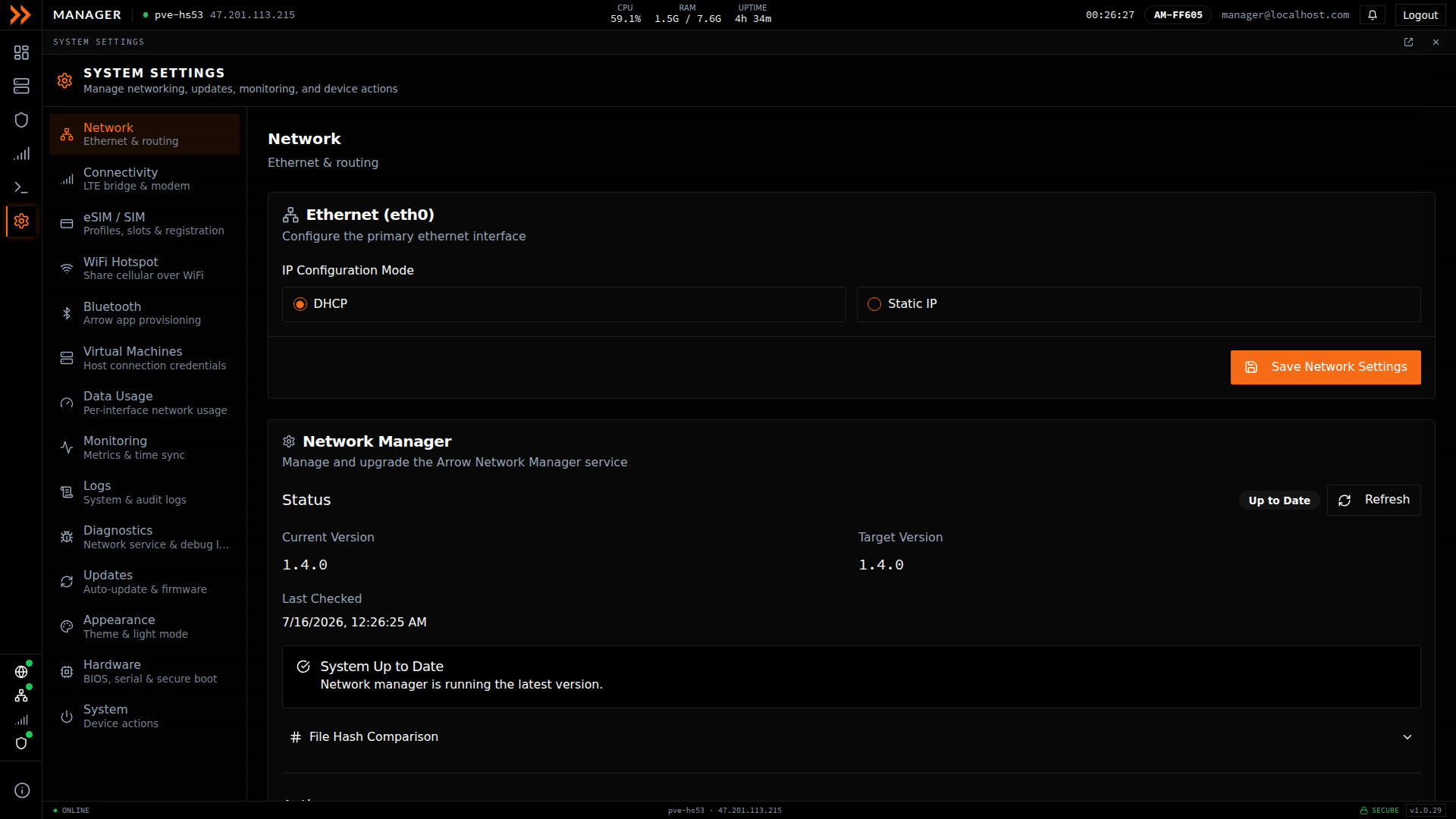
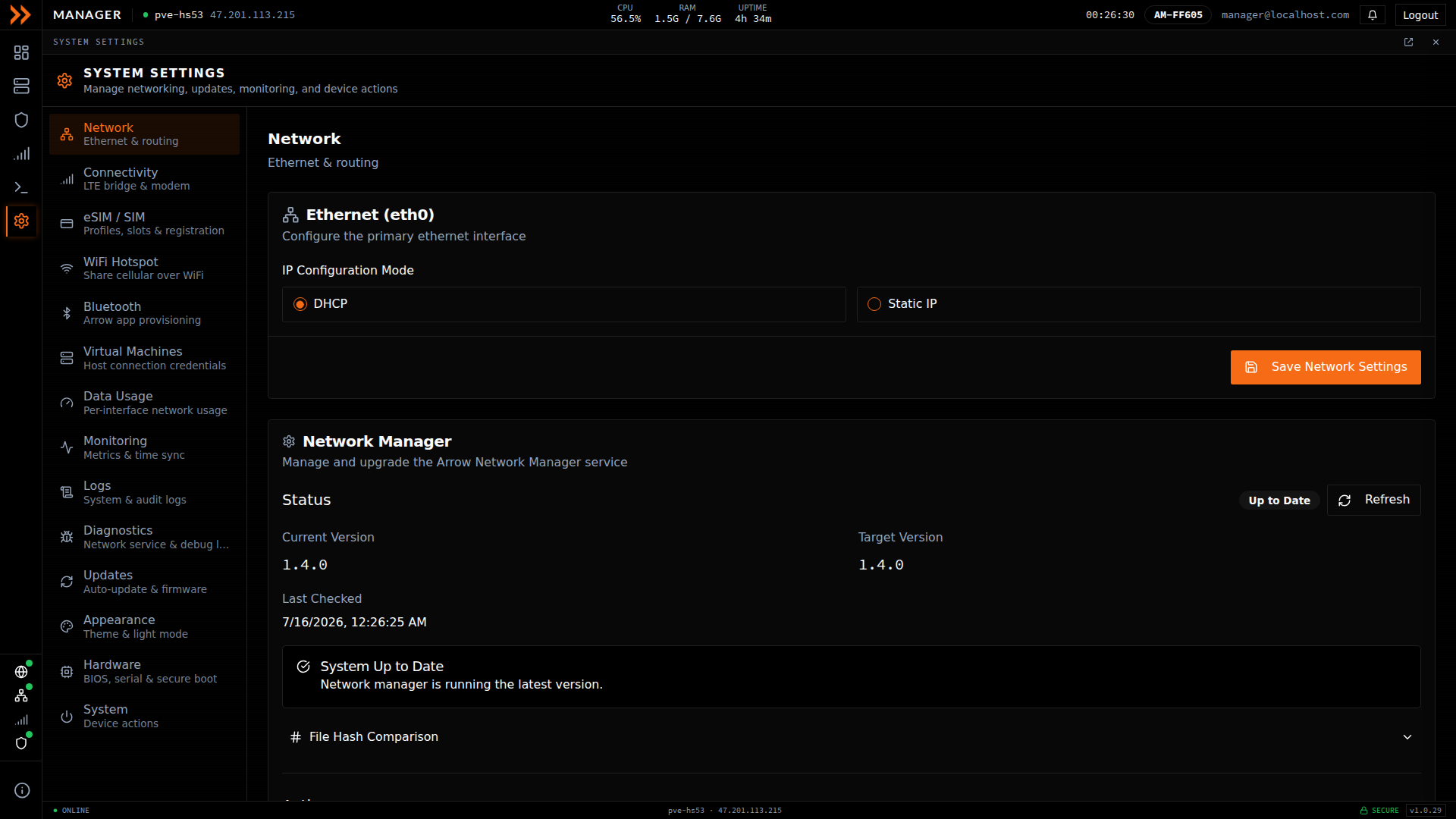
Settings shows the current and target versions, last-checked time, and update status
Settings shows the current and target versions, last-checked time, and update status
Status Indicators
Section titled “Status Indicators”These are the states the Software Update badge can show.
| Status | What It Means |
|---|---|
| Up to date | The device is running the newest build on its update channel |
| Update available | A newer build is ready to install |
| Restart required | The new build is in place, but the running service is still the old one |
| Update in progress | An update is installing right now |
| Unknown | ARROW Manager could not read the update status; try Check for updates |
Update channel and Automatic updates sit in the same card, below the version values. Update channel is a pair of buttons, Stable and Beta, and you can switch between them on the device. Beta receives the newest builds, including pre-releases, and those may be less stable, so stay on Stable unless someone has asked you to run a beta. Switching re-checks immediately, so Latest available reflects the channel you picked. Automatic updates is read-only and shows whether the portal has turned automatic updates on for this device, so the badge reads Portal enabled when it has, and Portal controlled when installing is left to you.
If your organization has pinned the fleet to a version, a Fleet pin notice appears below the version values while the device is on Stable, naming the pinned version. Releases past the pin are not offered on Stable, so Latest available can sit behind the newest release on purpose; your administrator can raise the pin or push a version to this device from the portal, and the Beta channel is not pinned. The notice also tells you when the pin is disabled and the device is holding its installed version, when the fleet update window is closed, and when the portal has queued a specific version for this device that overrides the pin.
What You Can and Cannot Do
Section titled “What You Can and Cannot Do”From ARROW Manager you can check for an update, install one, finish an update that is waiting on a restart, and move the device between the Stable and Beta channels. Check for updates pulls the current status. Install update is only clickable when a newer build is actually available. Restart service takes its place when the new build is already on the device but the running process is still the old one. Comparing Installed version against Latest available tells you at a glance whether anything is pending.
What you cannot do from the device is change the automatic schedule, or skip or postpone an update the portal has scheduled. That control lives in the portal on purpose, so a fleet stays consistent. If the timing needs to change, your administrator can adjust the schedule, push an update sooner, or hold one back, and tell you when it will land.
What Happens During an Update
Section titled “What Happens During an Update”A scheduled update downloads in the background, installs automatically, restarts any services it touched, and the device carries on. Most of the time you will not notice. The one thing you may see is the VPN briefly dropping and reconnecting if the update restarts it, and the status in Settings moving along as it progresses.
If you start one yourself, Install update opens a confirmation that shows the version you are moving from and to, the release notes for the build it is about to install, and what to expect. The service is briefly unavailable, you may lose your connection for 10 to 30 seconds, the page reconnects on its own, and you should leave the browser tab open until it finishes. Click Start update to go ahead. Installing downloads the new build, keeps a backup of the current one, and restarts the service, and the dialog tracks it through Download, Apply, and Restart.
Once it is done, your settings carry over untouched and the device runs as normal. If the new build carries a newer version of the network service, ARROW Manager installs that as it comes back up and restarts the service, which can interrupt connectivity for a moment. If you want to confirm it worked, check Installed version in the Software Update card.
Troubleshooting Updates
Section titled “Troubleshooting Updates”The version has not changed after an update you expected. Give it a little time, since the update may still be processing or the download may have been slowed by the network, then click Check for updates in the Software Update card. If a newer build shows under Latest available, install it from there. If the version is still old a day later, contact your administrator.
The card says Restart required. The new build is already on the device, but the service is still running the old one. Click Restart service to finish the job; the dashboard reconnects on its own once the new build is up.
The VPN dropped after an update. Some updates restart the VPN, so wait a few minutes for it to reconnect on its own. If it stays down, check the VPN section in ARROW Manager and contact your administrator.
The device feels slow right after an update. Wait a few minutes and refresh the page. It usually settles once the update fully finishes.
Related Documentation
Section titled “Related Documentation”- Overview - ARROW Manager features
- Troubleshooting - More solutions