
Accessing ARROW Manager
ARROW Manager runs on the device, so reaching it is a matter of getting your browser onto the same network as the device. There are a few ways to do that, and which one you use depends on where you and the device are. Almost always, VPN is the answer.
Finding Your Device’s Address
Section titled “Finding Your Device’s Address”However you connect, you need the device’s IP address or hostname. Look on the device card in the ARROW Portal, ask your network administrator, or read it off the device’s own display if it has one.
Connection Methods
Section titled “Connection Methods”Via VPN (Recommended)
Section titled “Via VPN (Recommended)”The VPN is the way you will reach the device most of the time, because it works from anywhere and the connection is encrypted end to end. Once your NetBird VPN client is connected, open a browser, enter the device’s VPN address, and the ARROW Manager login screen appears.
If you are unsure whether the device is even on the VPN, the VPN section inside ARROW Manager confirms it. A green CONNECTED badge, along with the device’s VPN IP, its peer and relay counts, and its NetBird identity (including its FQDN on the arrowvpn.io domain), means VPN access is available.
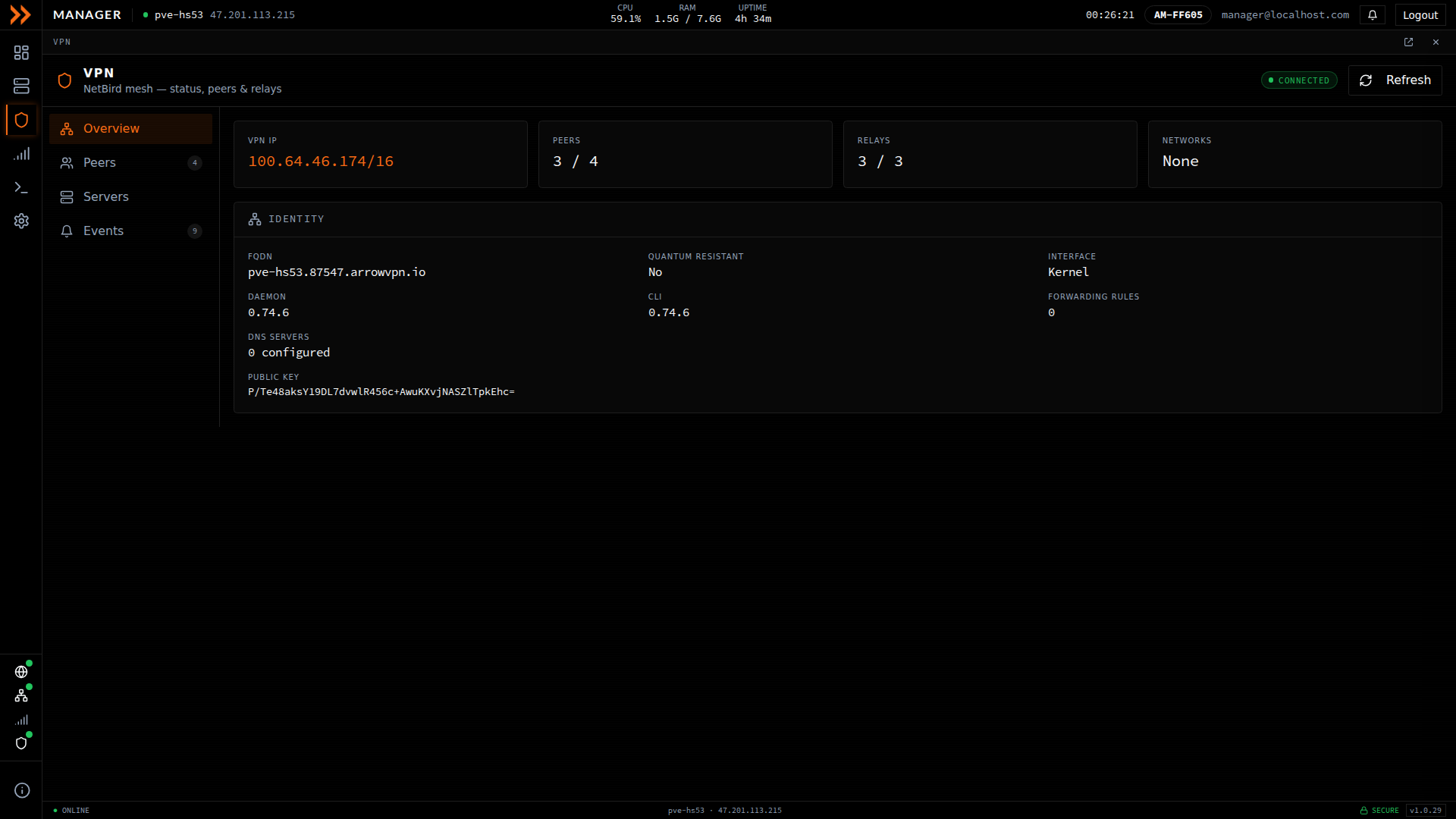
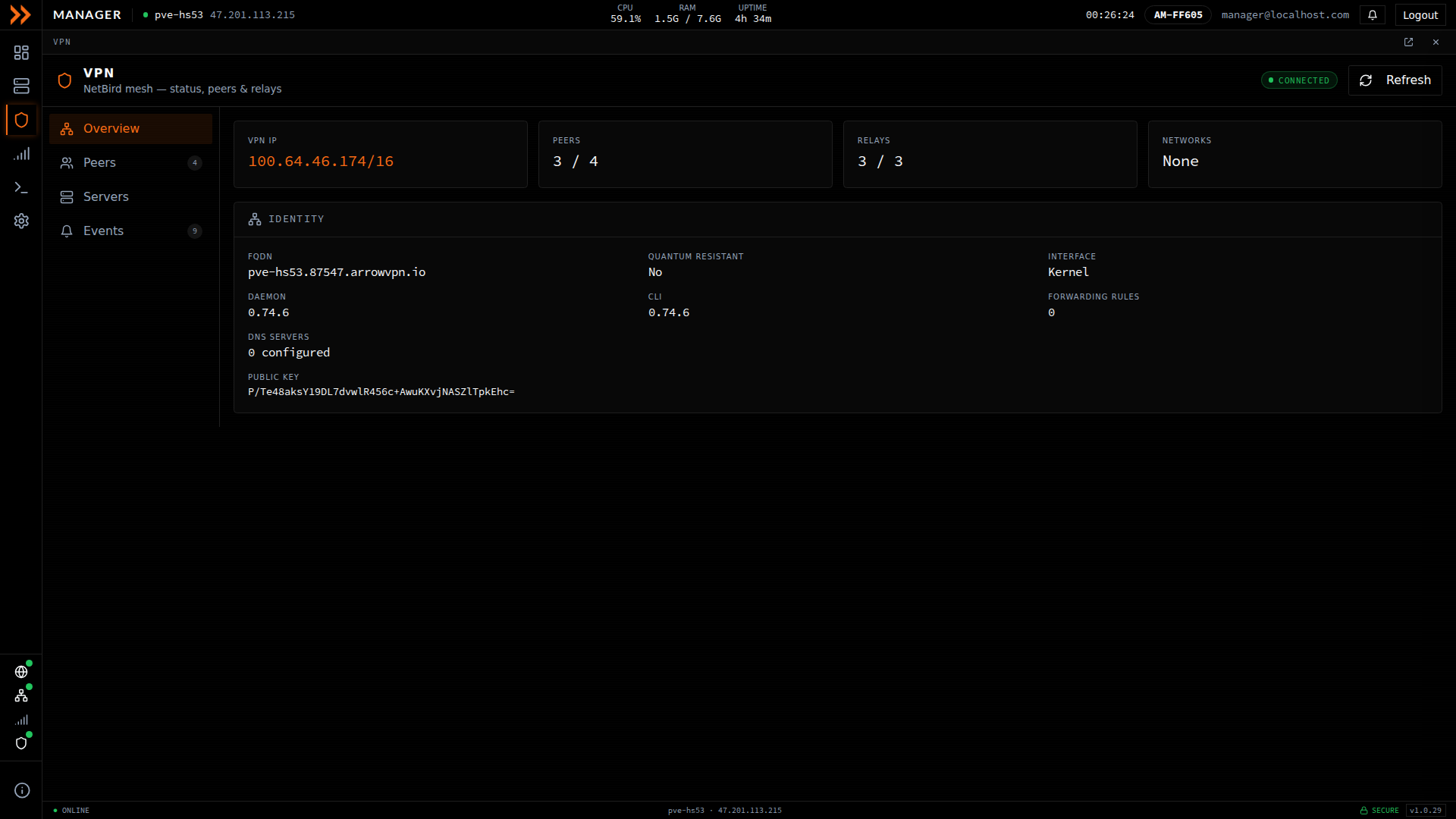
The VPN section confirms the device is connected to the NetBird mesh
The VPN section confirms the device is connected to the NetBird mesh
VPN Status on the Device
Section titled “VPN Status on the Device”The VPN section has a left rail of four sub-views named Overview, Peers, Servers, and Events. Together they answer the question you actually have when a device is unreachable, which is not just “is the VPN up?” but “where exactly is it breaking?”
Overview
Section titled “Overview”Overview is the first place to look. It is the at-a-glance summary, with the device’s VPN IP, how many peers are connected out of the total, how many relays are up, and any networks it routes. Below that, the Identity panel confirms who the device is on the mesh, showing its FQDN on the arrowvpn.io domain, the NetBird interface (Kernel or userspace), the daemon and CLI versions, the configured DNS servers, and its public key. If the FQDN and VPN IP look right and peers are connected, VPN access is healthy.
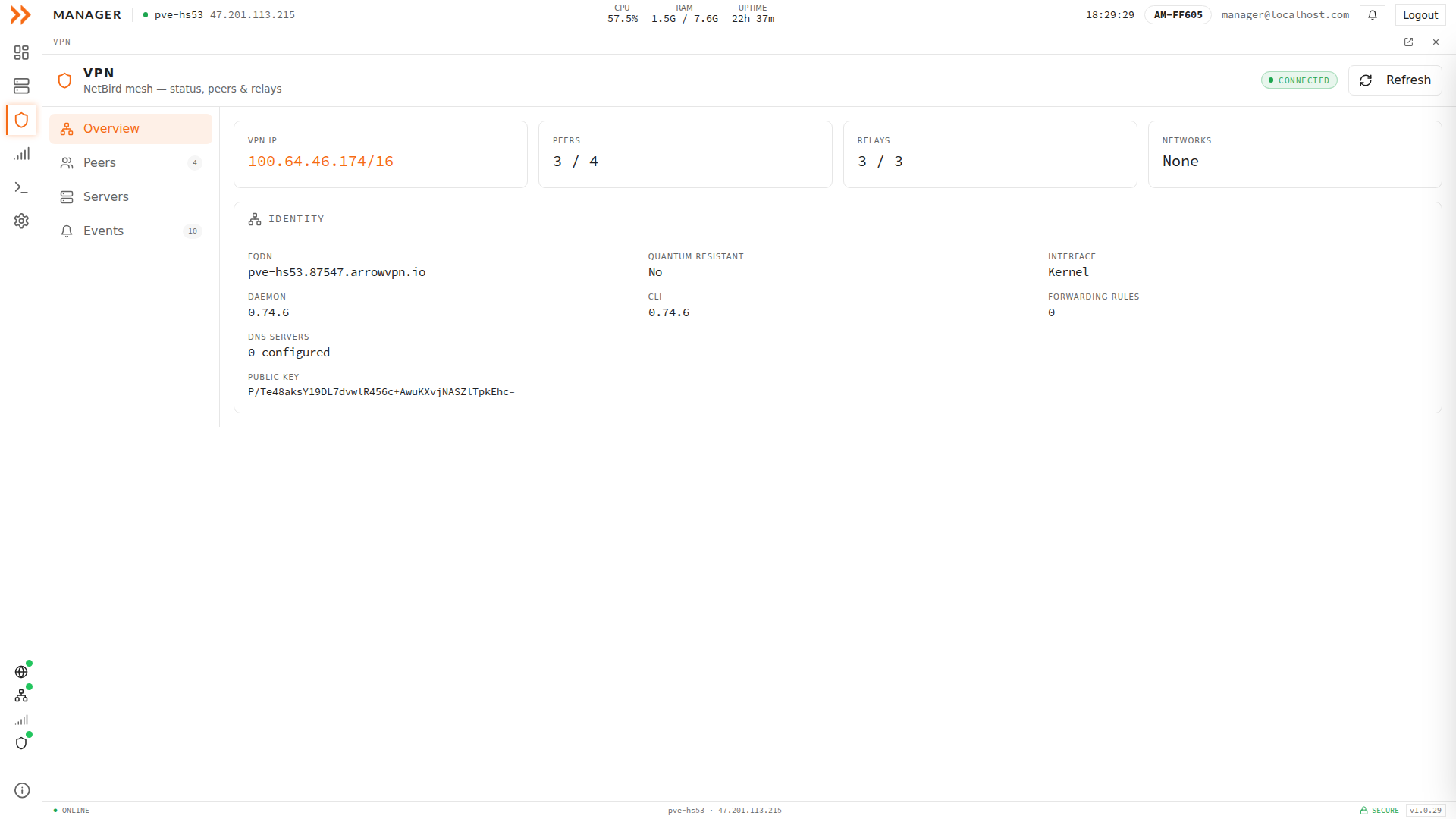
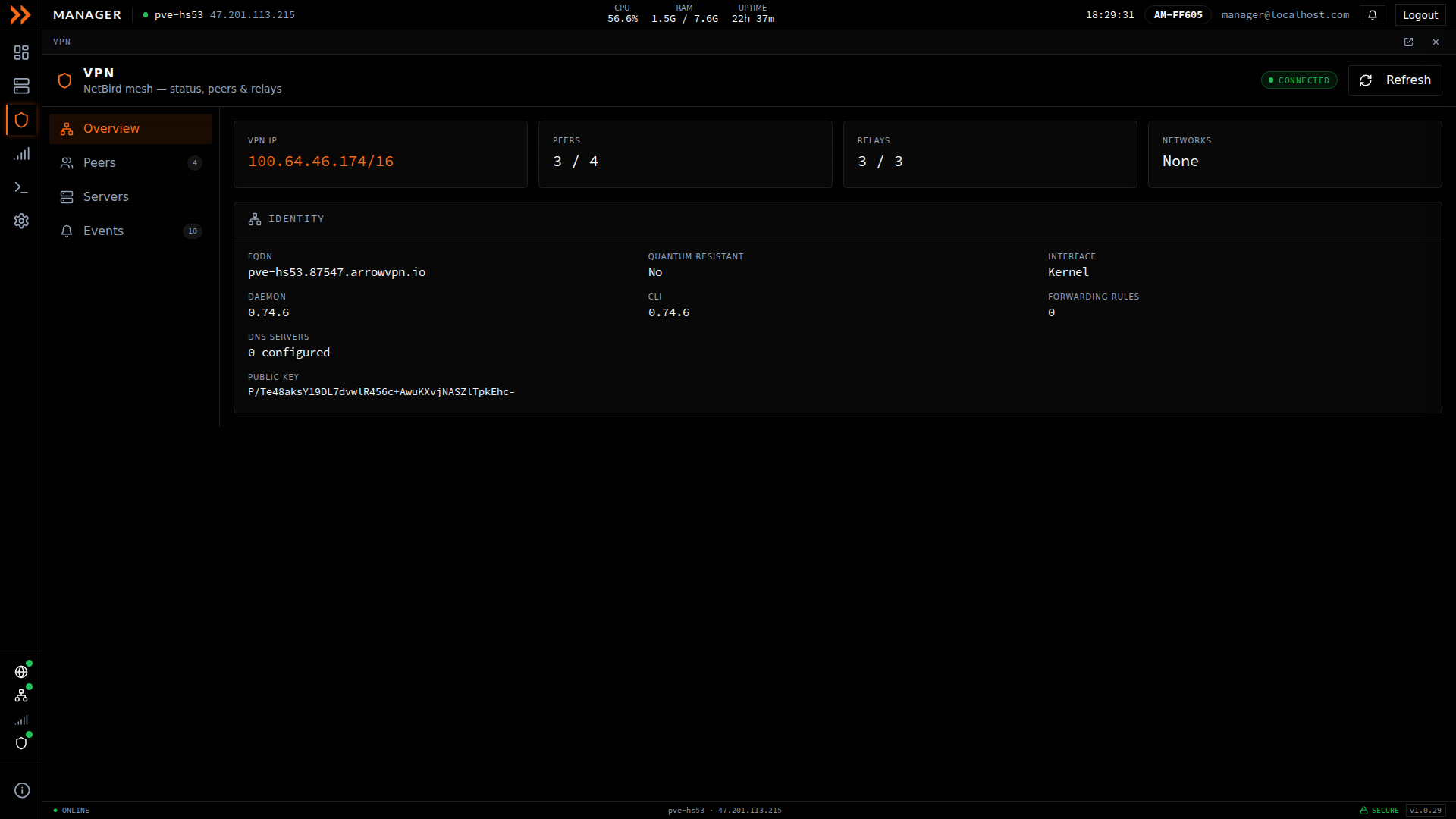
Overview summarizes the VPN IP, peers, relays, and the device's NetBird identity
Overview summarizes the VPN IP, peers, relays, and the device's NetBird identity
When Overview shows fewer peers connected than expected, Peers tells you which one is missing. It is a table of every peer on the mesh with its hostname, NetBird IP, status (connected or idle), connection type (P2P or relayed), latency, RX/TX totals, and when it last checked in. This is where you confirm the device can actually see the machine you are trying to reach it from, and whether that path is a direct P2P connection or falling back to a relay.
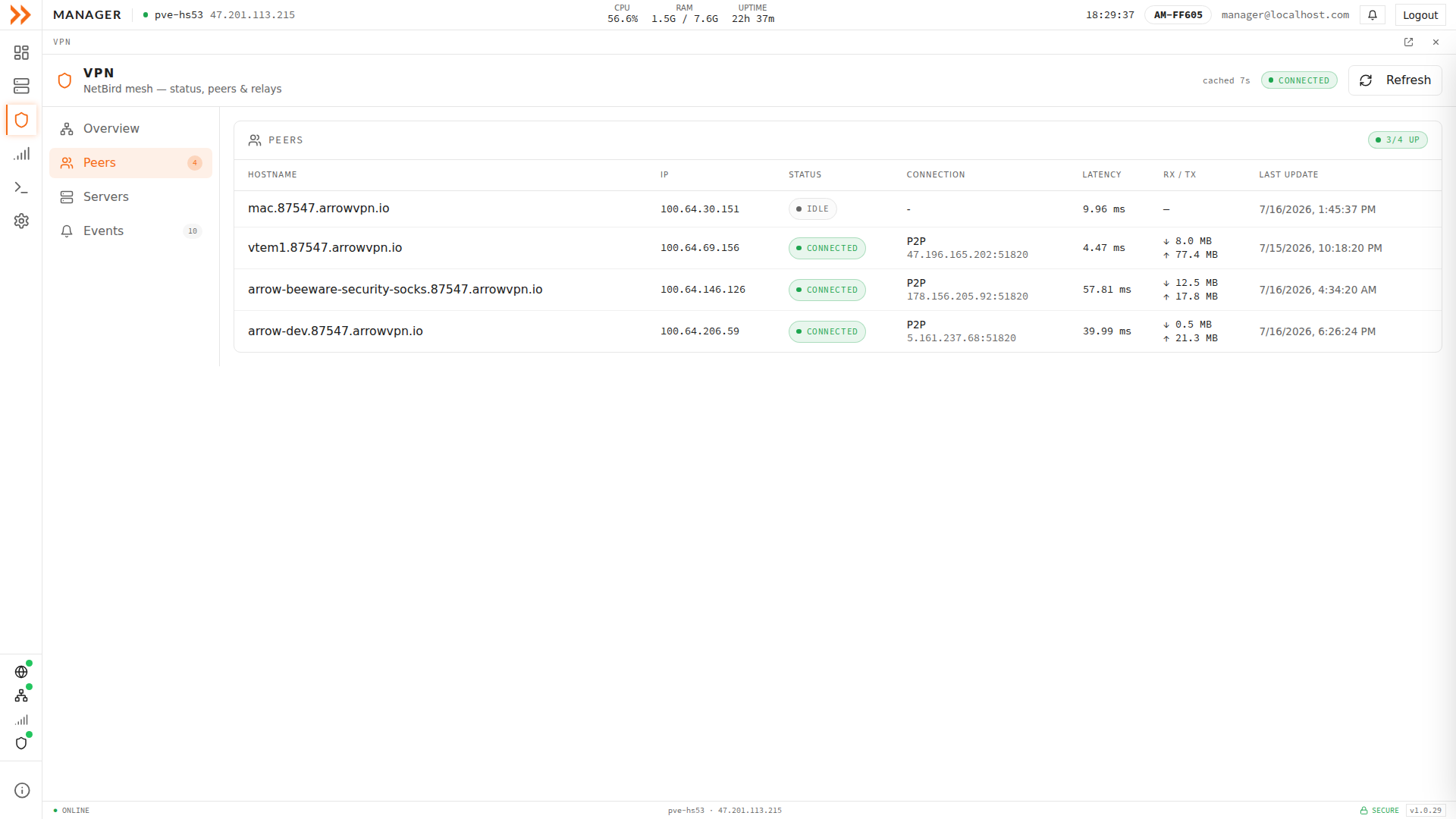
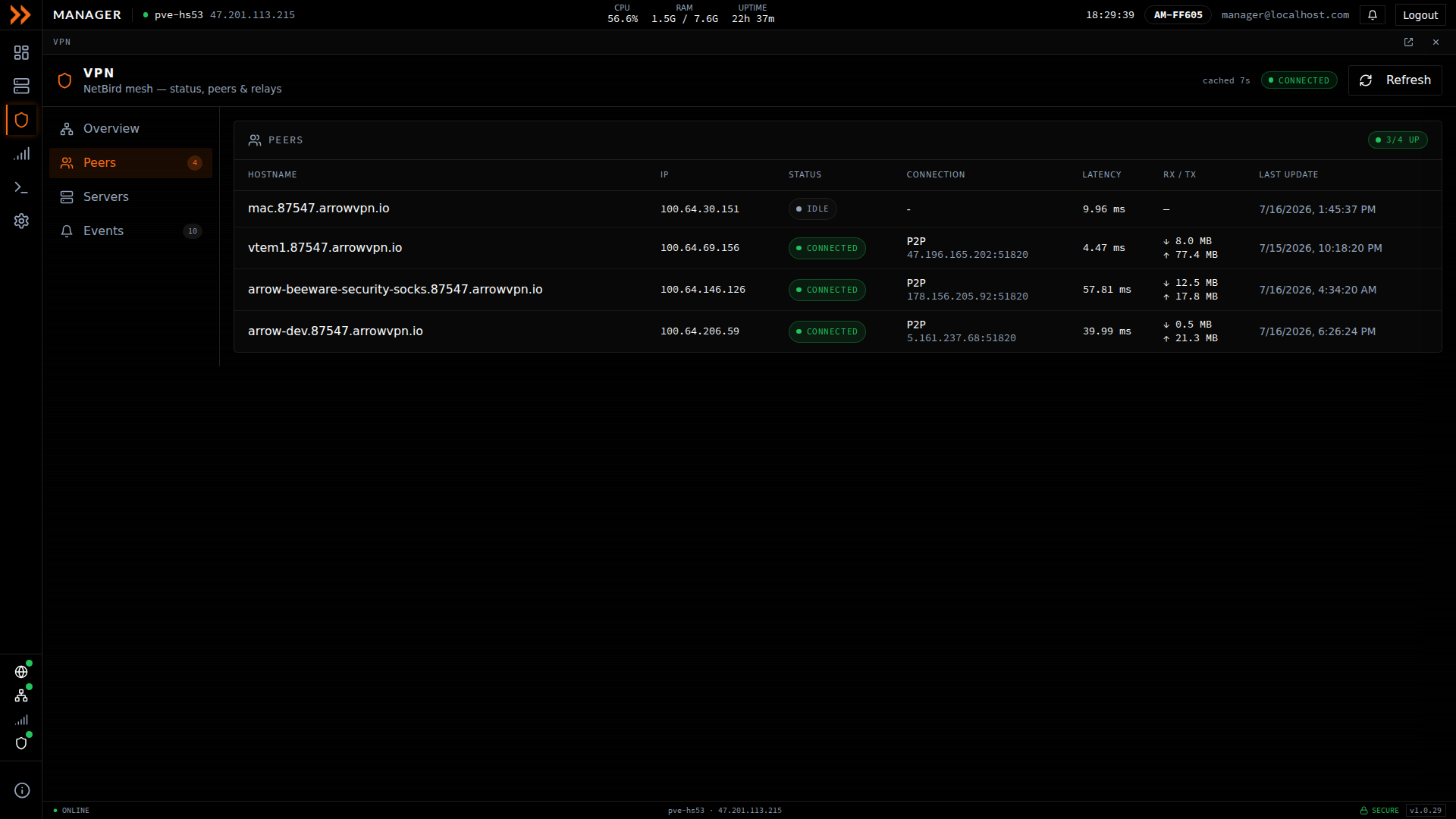
Peers lists every peer with its status, connection type, latency, and traffic totals
Peers lists every peer with its status, connection type, latency, and traffic totals
Servers
Section titled “Servers”If the device itself cannot reach the mesh, the problem is usually upstream, and this is the view that shows it. It lists the Management and Signal server URLs with their connection status, and the relay servers (STUN, TURN, and the relay endpoint) with an up or down indicator for each. When peers will not connect at all, a Management or Signal server that is not connected is the thing to escalate.
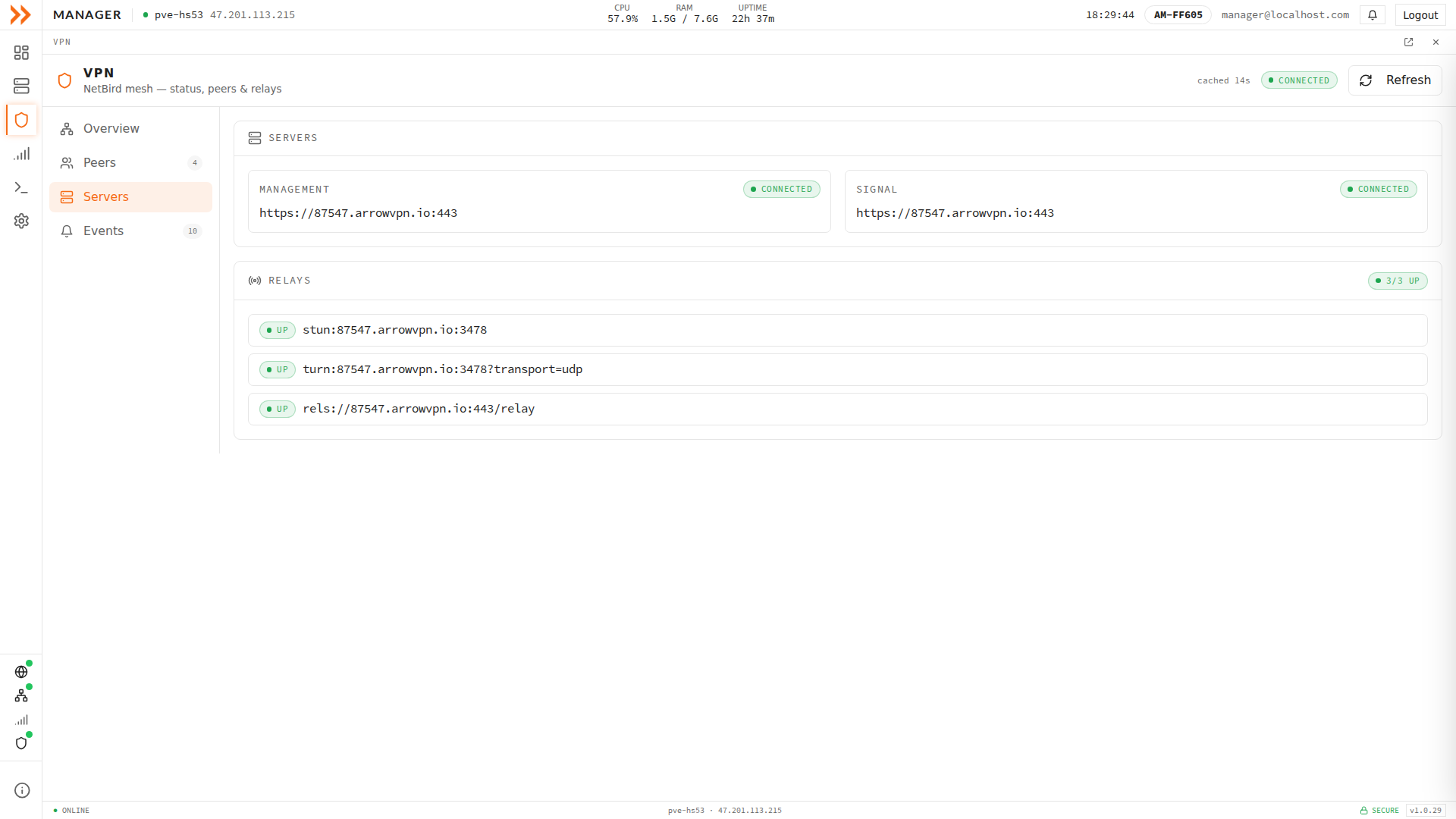
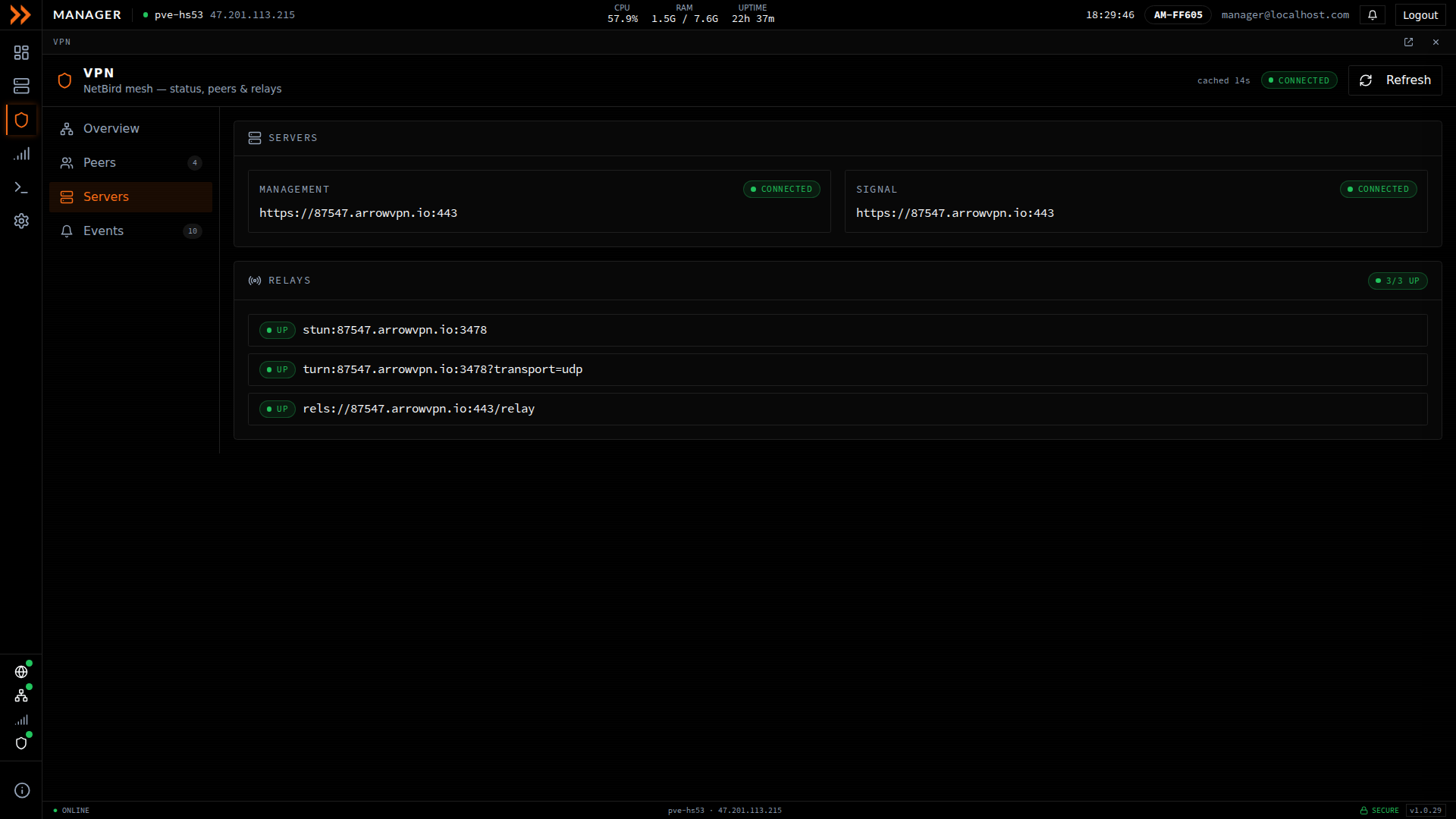
Servers shows the Management and Signal URLs and the relay servers, each with a status
Servers shows the Management and Signal URLs and the relay servers, each with a status
Events
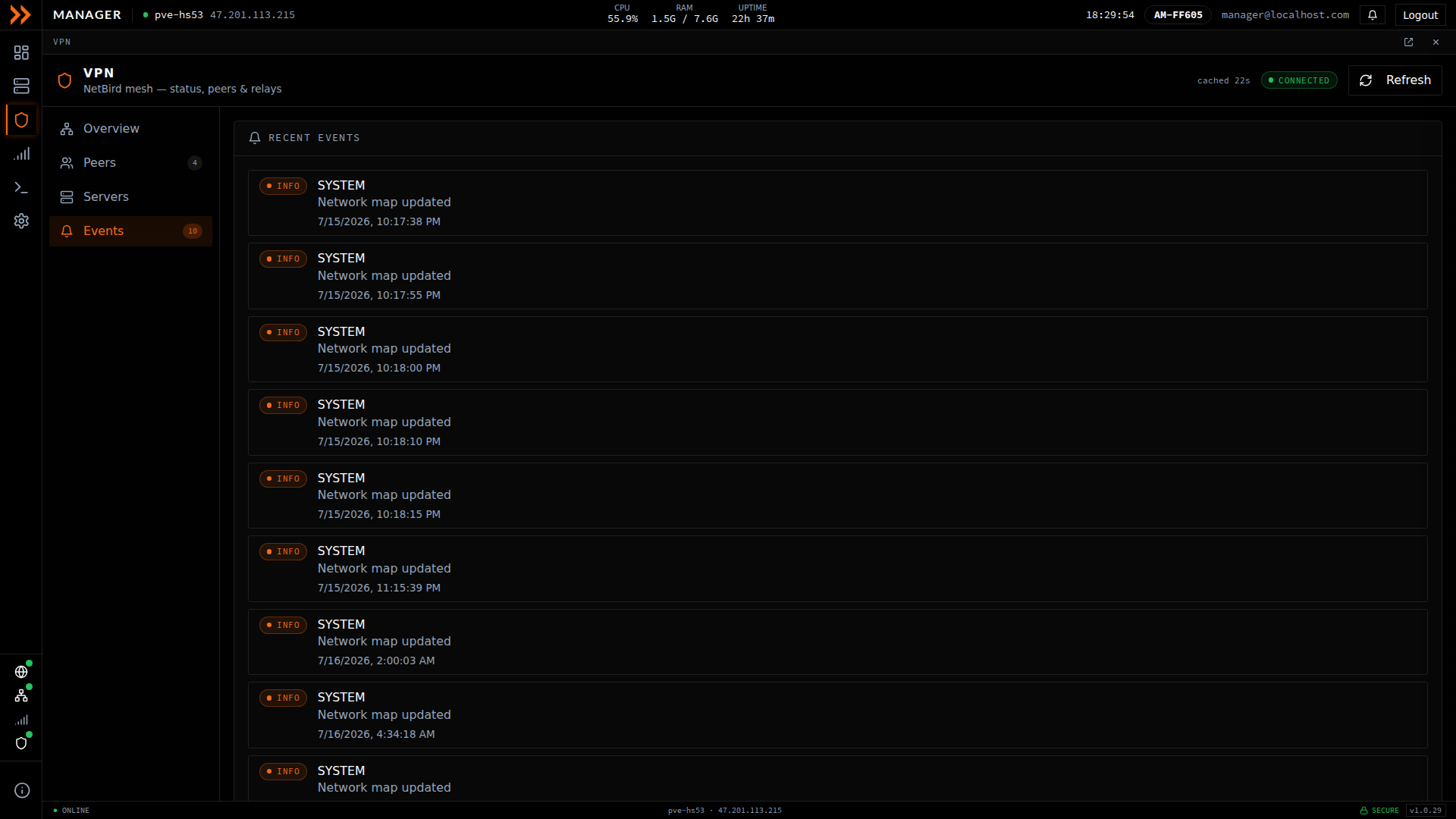
Section titled “Events”Events is the history you read when the VPN dropped and recovered while you were not watching. It is a running log of recent VPN activity, each entry tagged with a severity (such as INFO), a category (such as SYSTEM), a message (such as “Network map updated”), and a timestamp. It is the place to look for the moment a connection changed rather than its current state.
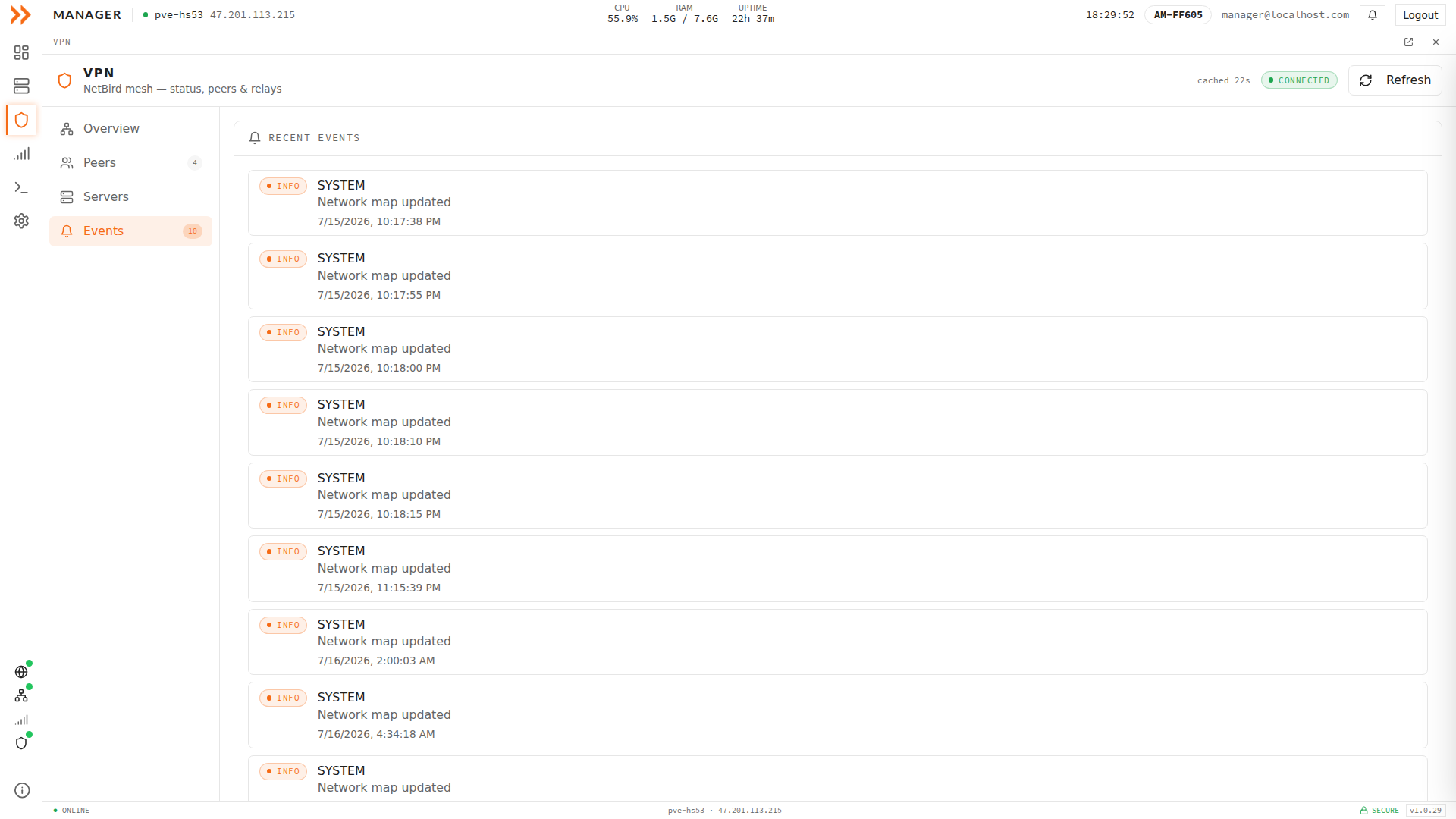
Events is a running log of recent VPN activity with severity, category, message, and timestamp
Events is a running log of recent VPN activity with severity, category, message, and timestamp
Via Local Network
Section titled “Via Local Network”If you are physically on the same network as the device, you can skip the VPN entirely. Open a browser, enter the device’s local IP address, and the login screen appears.
Via WiFi Hotspot
Section titled “Via WiFi Hotspot”When there is no network to share, the device can make its own. During initial setup, or anywhere else the device is isolated, it can broadcast a WiFi hotspot. Connect your laptop to the device’s WiFi network, open a browser, and navigate to the device to reach ARROW Manager. You configure the hotspot from Settings, in the WiFi Hotspot section.
First-Time Login
Section titled “First-Time Login”The first time you reach ARROW Manager, you land on the login screen. Sign in with SSO using your organization account, or switch to local login if the device cannot reach your identity provider. Either way you end up on the Dashboard. The full sign-in details are in Authentication.
Dashboard Overview
Section titled “Dashboard Overview”After signing in, the Dashboard shows a live view of the device:
| Section | Information |
|---|---|
| Connectivity banner | Whether the device can reach its VPN host |
| System health | CPU, memory, storage, and temperature |
| Network | Interface IP, connection type, and public IP |
| Cellular | Carrier, signal, band, and mode |
| VPN (NetBird) | VPN IP, peer count, and device FQDN |
Navigating ARROW Manager
Section titled “Navigating ARROW Manager”The icon rail on the left is how you move between sections:
| Section | What You Can Do |
|---|---|
| Dashboard | Monitor device resources and connectivity |
| Virtual Machines | Deploy, start, stop, and open VM consoles |
| VPN | View NetBird status, peers, relays, and identity |
| Cellular | Inspect LTE signal, tower, modem, and data usage |
| Terminal | Open an interactive shell on the device |
| Settings | Configure network, cellular, updates, and appearance |
Browser Compatibility
Section titled “Browser Compatibility”ARROW Manager works in any modern browser. Chrome is the safest bet, and Firefox, Edge, and Safari all work as well.
Connection Troubleshooting
Section titled “Connection Troubleshooting”You cannot reach ARROW Manager at all. This is nearly always a network problem rather than a device problem, so start there. Confirm your VPN or network connection to the device, double-check the IP address or hostname, and make sure the device is powered on. If VPN is not working, try the local network instead.
The page loads slowly. Check your connection speed, refresh the page, and clear your browser cache.
The login page never appears. Confirm the address is right, check that the device is running normally, and try a different browser.
Security Notes
Section titled “Security Notes”Reach ARROW Manager over a VPN or other secure connection rather than an open network, log out when you are finished, and never share your login credentials.
Related Documentation
Section titled “Related Documentation”- Overview - What ARROW Manager can do
- Authentication - Login details
- Troubleshooting - More solutions to common issues