
GPU Nodes & Cluster
Your recovery speed comes from the GPUs in your fleet. The Nodes screen is where you watch those rigs, see their health in real time, and add new ones. The Cluster screen shows how the nodes coordinate with each other.
Open Nodes to see every rig as a live card. Across the top, rollup tiles summarize the whole fleet, with nodes online, total GPUs, average GPU utilization, and combined VRAM and power draw.
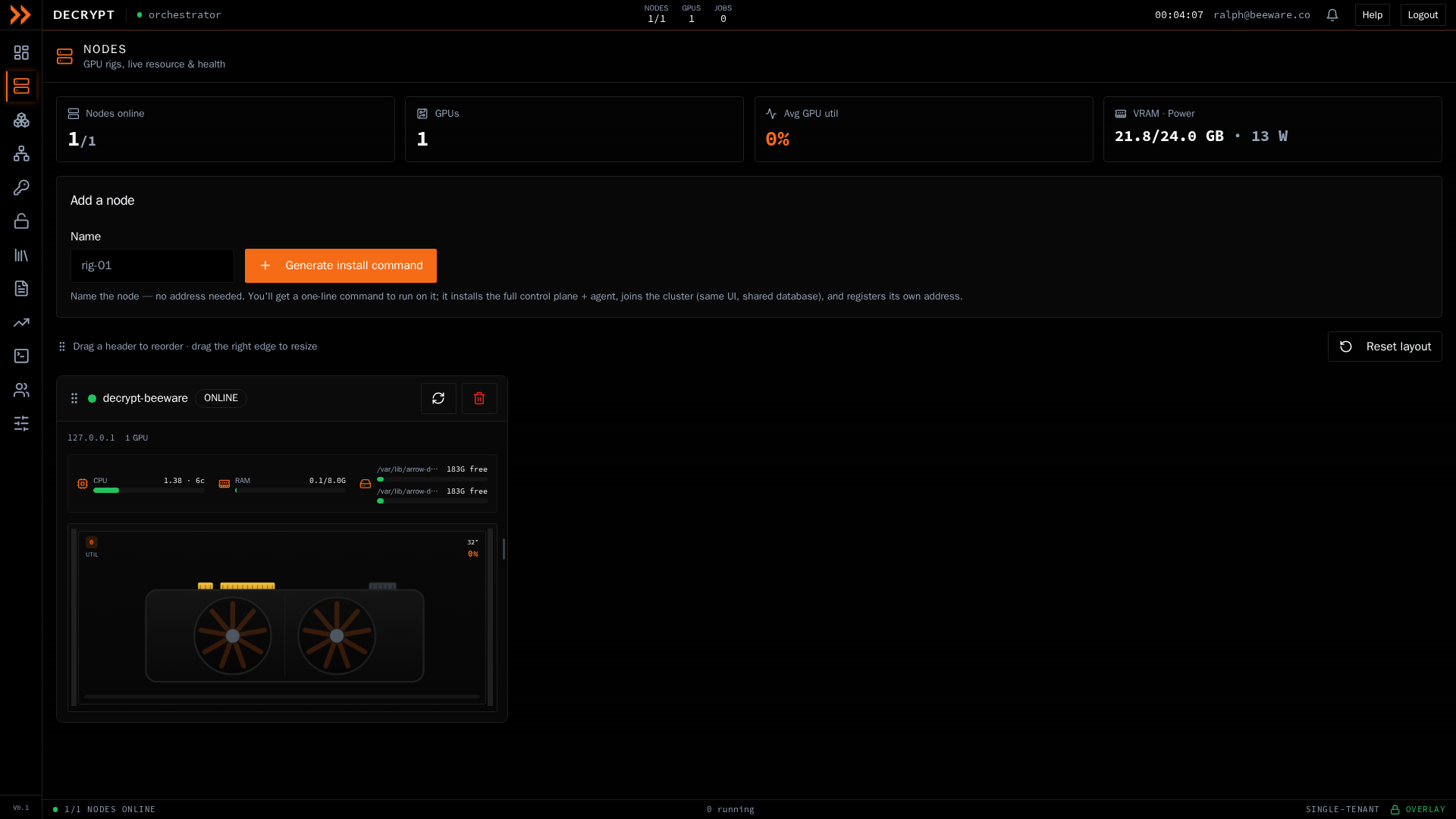
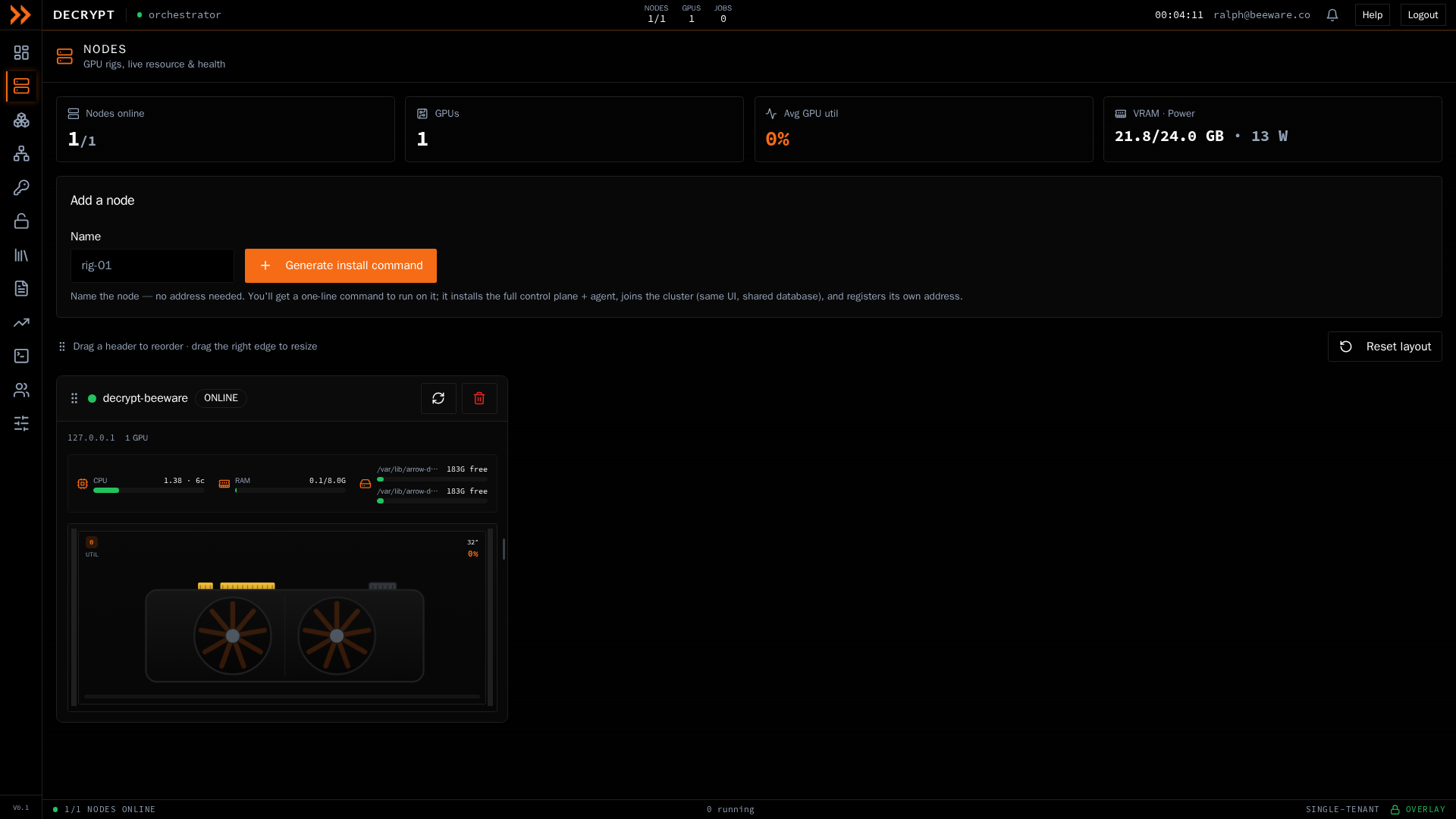
Each rig as a live card, with per-GPU temperature, utilization, VRAM, and power
Each rig as a live card, with per-GPU temperature, utilization, VRAM, and power
Each node card shows its status (ONLINE, DEGRADED, OFFLINE, or NO GPU), hostname, overlay address, and a strip of system metrics (CPU load, memory, and free disk). Below that, each GPU in the rig reports its utilization, temperature, VRAM use, power, and fan speed. Hover a GPU to expand its full gauges. Temperatures and usage bars shift from green to amber to red as they climb, so a hot or maxed-out card stands out.
You can drag a card’s header to reorder the fleet and drag its right edge to resize it; your layout is saved in the browser. Use Reset layout to return to the default. Each card has a Refresh control to pull fresh diagnostics and a remove control to detach the node.
Adding a node
Section titled “Adding a node”Use the Add a node card to bring a new rig into the fleet:
- Give the node a name. The name identifies the rig; you do not need to enter an address.
- Click Generate install command.
- Copy the one-line command with Copy and run it on the new host as root.
The command installs the agent, joins the cluster, and registers the host’s own address. Install commands are single-use and expire after a few minutes, so generate one when you are ready to run it. A new node appears offline until it registers, after which Refresh pulls its GPU diagnostics.
Removing a node detaches it from the cluster and deletes its row. Any agent still running on the host itself is left untouched.
Cluster
Section titled “Cluster”The Cluster screen shows how your nodes stay in agreement. One node is elected the leader and runs the active control plane; the others follow.
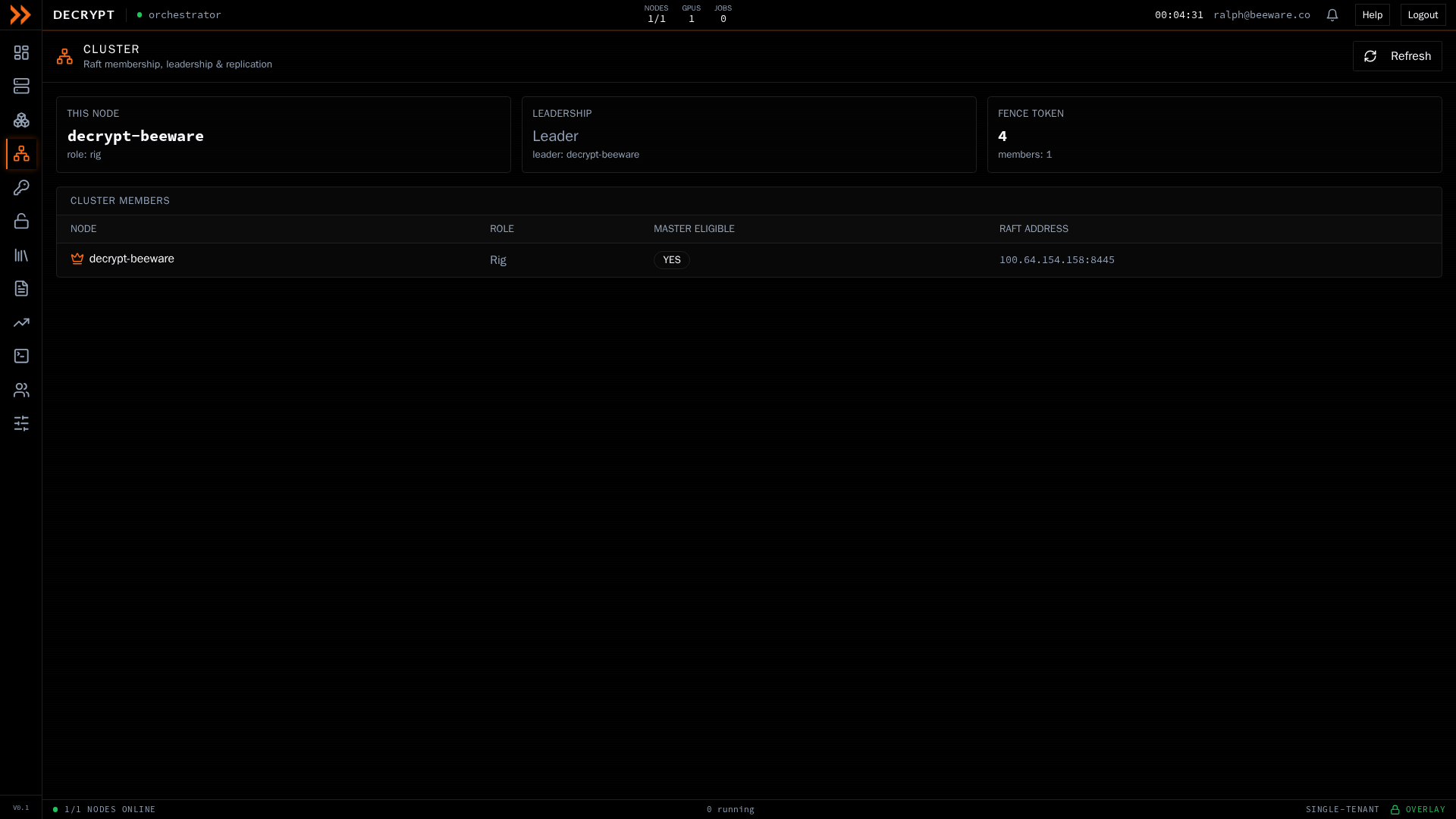
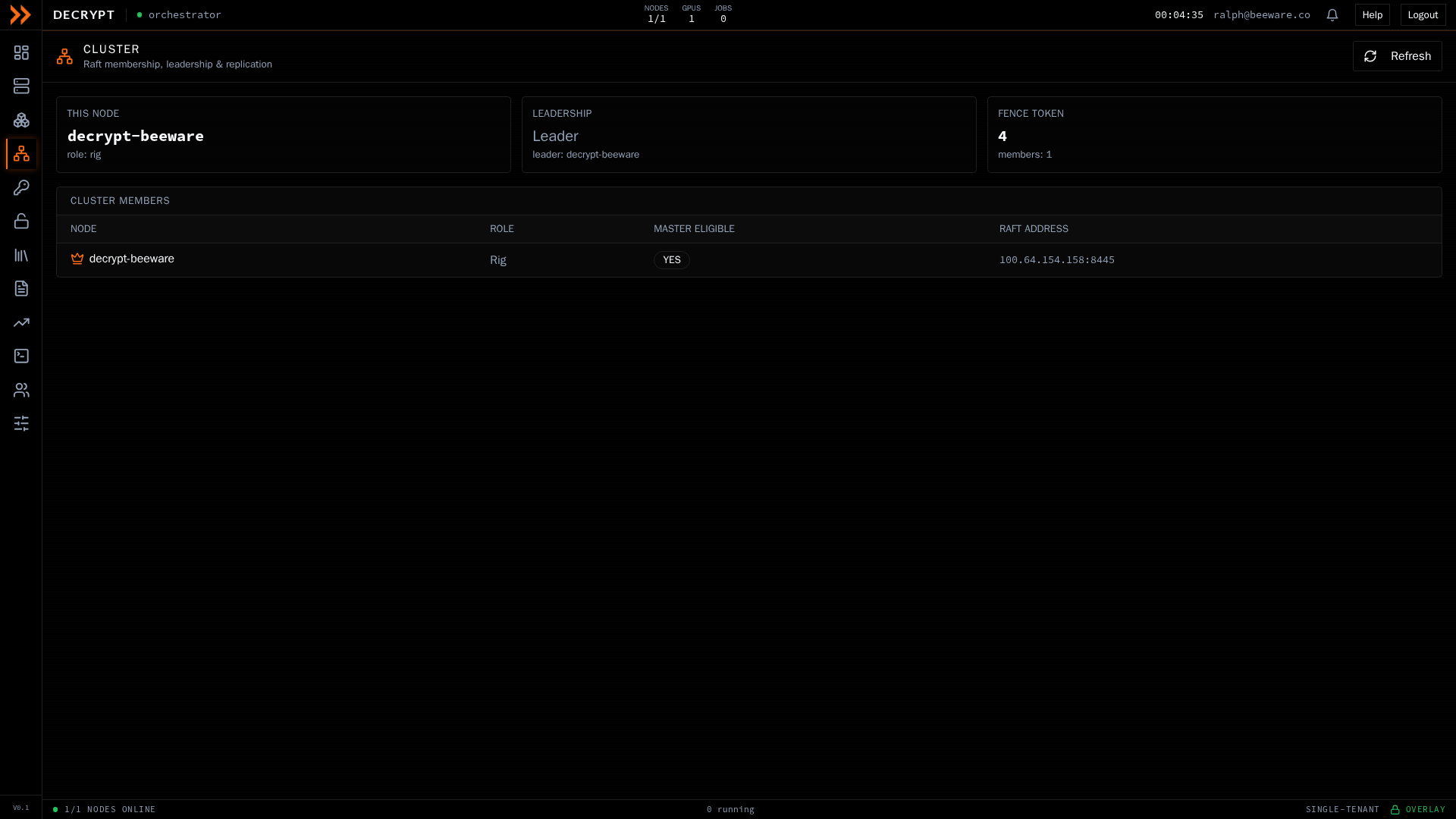
Cluster membership, the elected leader, and follower replication health
Cluster membership, the elected leader, and follower replication health
Headline tiles show which node you are viewing, the current leadership, and the member count. The Cluster members table lists every node with its role, whether it is eligible to become the master, and its address; the leader is marked with a crown. When you are viewing a follower, a banner reminds you that control actions such as queuing and dispatching jobs run on the leader, with a link to open the leader’s console.
On the leader, a Database replication table shows each follower’s sync status, how many updates have been delivered, and when it last synced. Live durable writes (jobs, engagements, wordlists, and accounts) fan out from the leader to eligible followers, which also reconcile from a full snapshot periodically.
If clustering is not enabled, the screen tells you that this is a single node running on its own. A single node is always the leader and runs the full control plane. To form a cluster, add more nodes as described above.
Related documentation
Section titled “Related documentation”- Cloud GPUs - Rent ephemeral GPUs when your own fleet is not enough
- Fleet Console - Run diagnostics and open a terminal on a node
- Settings - Benchmark the cluster and onboard nodes