
Billing
Billing
Section titled “Billing”The Billing & Invoices area is where you check what you are paying for and why. It has two tabs. Overview covers your plan summary, current usage, next billing date, and invoice history, and Detailed Charges gives you a per-device breakdown of what is driving your costs in a given period. Open it from the Billing entry in the sidebar.
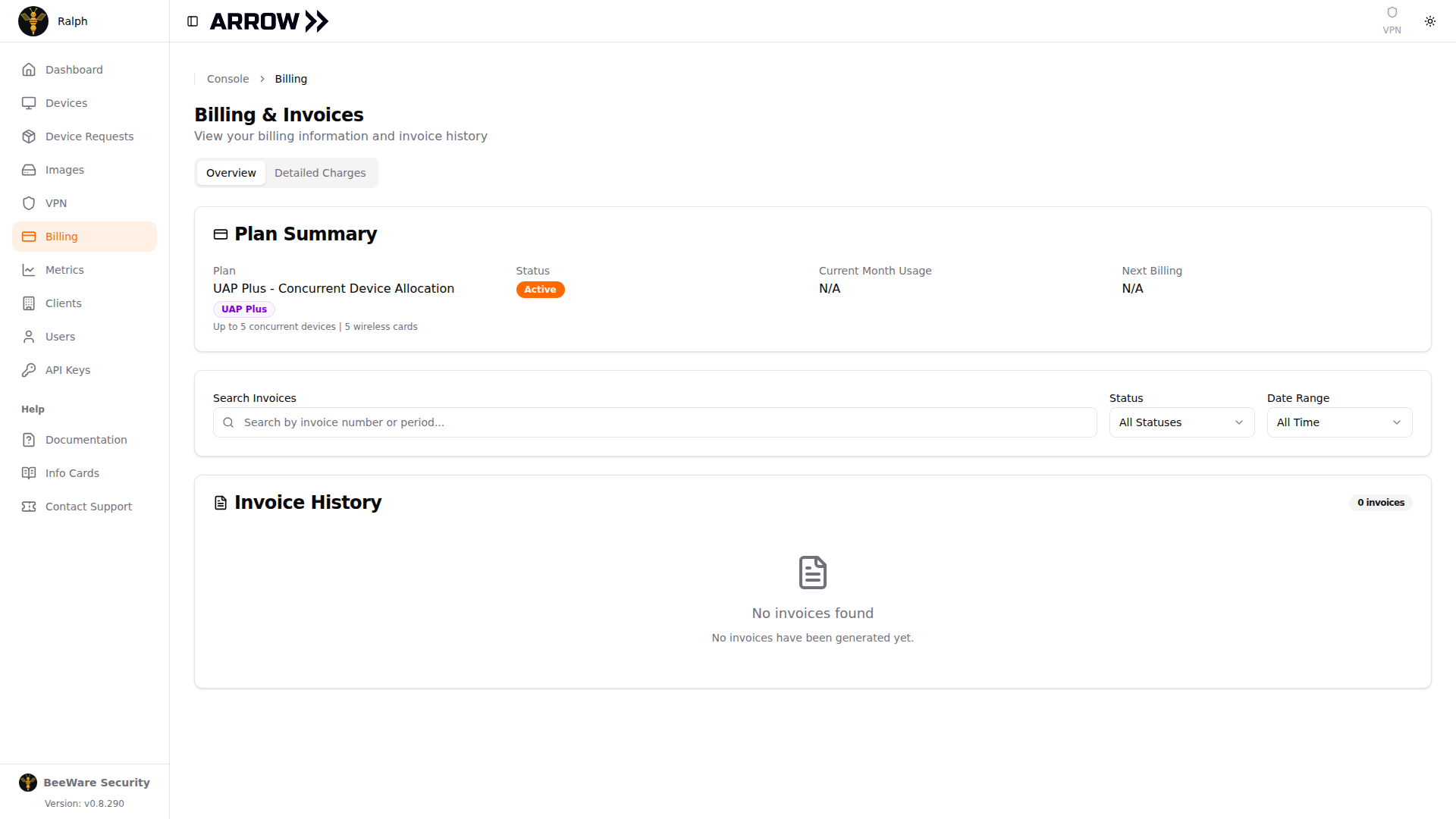
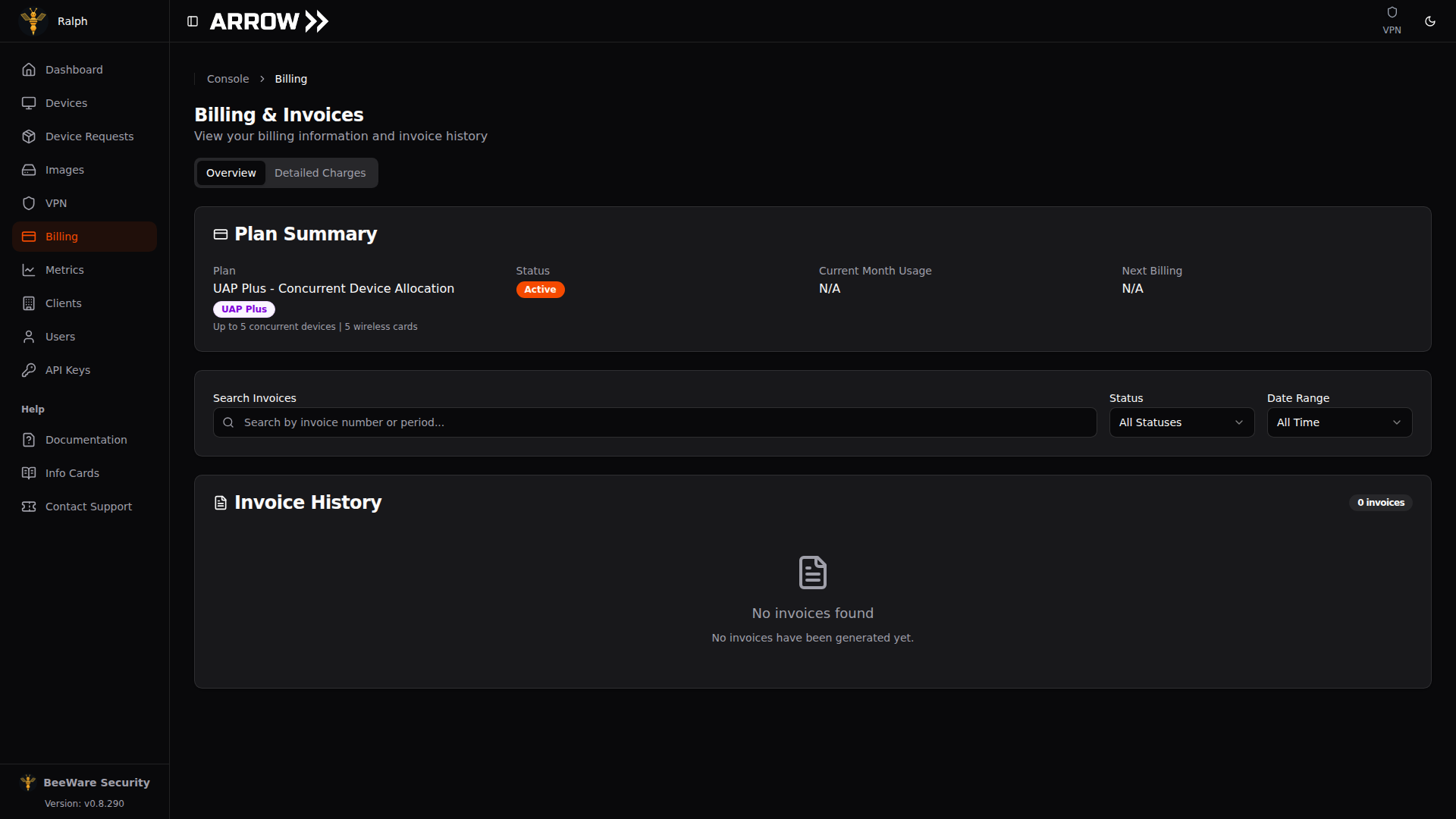
- 1 Switch between the plan overview and a detailed, line-by-line charge breakdown.
- 2 Your plan, its status, this month's usage, and your next billing date at a glance.
- 3 Every invoice, with a PDF download once it has been generated. Search and filter the list from the rail on the left.
Plan Summary
Section titled “Plan Summary”The Plan Summary card on the Overview tab is the quick answer to “what am I on, and how much am I using?” It shows your Plan name (such as UAP Plus - Concurrent Device Allocation) with a badge and a short description of your allocation, for example Up to 5 concurrent devices | 5 wireless cards. Alongside it you get your subscription Status, your Current Month Usage so far, and your Next Billing date. Usage and billing date read N/A until there is something to report.
The key idea is your allocation. Your plan includes a set number of concurrent devices and wireless cards. Usage inside that allocation is covered; anything past it is billed as overage. The Detailed Charges tab is where you see exactly how your current usage maps against those limits.
Invoices
Section titled “Invoices”The Invoice History section lists your invoices. Narrow it with the Search Invoices box (by invoice number or period), the Status filter, and the Date Range filter. A counter shows how many match. Until any invoices have been generated, you will see a No invoices found empty state; once they exist, they appear here to review and download.
Detailed Charges
Section titled “Detailed Charges”The Detailed Charges tab is where you go when a bill looks higher than expected or you need to attribute costs to a client. It breaks charges down device by device across a period.
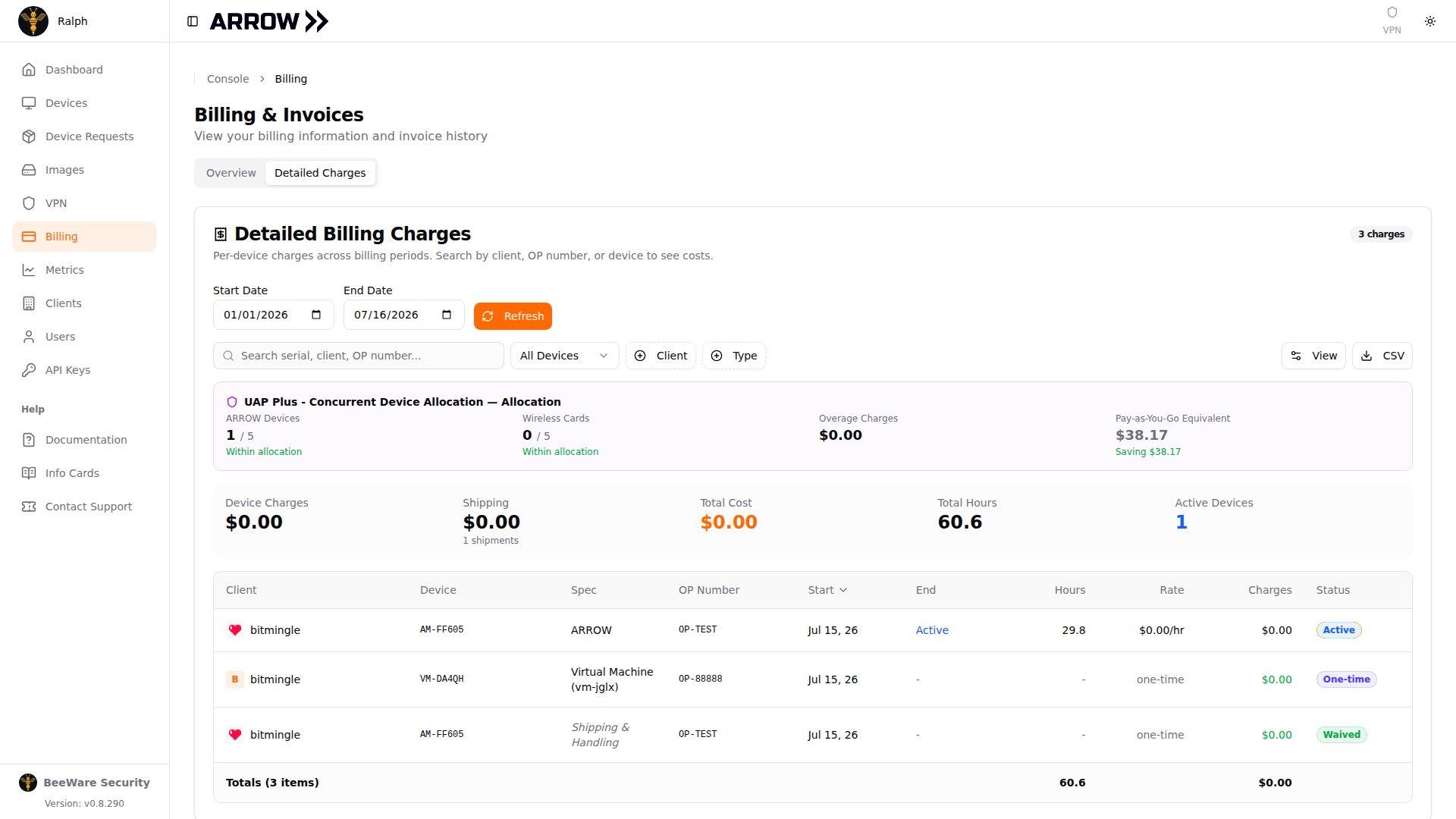
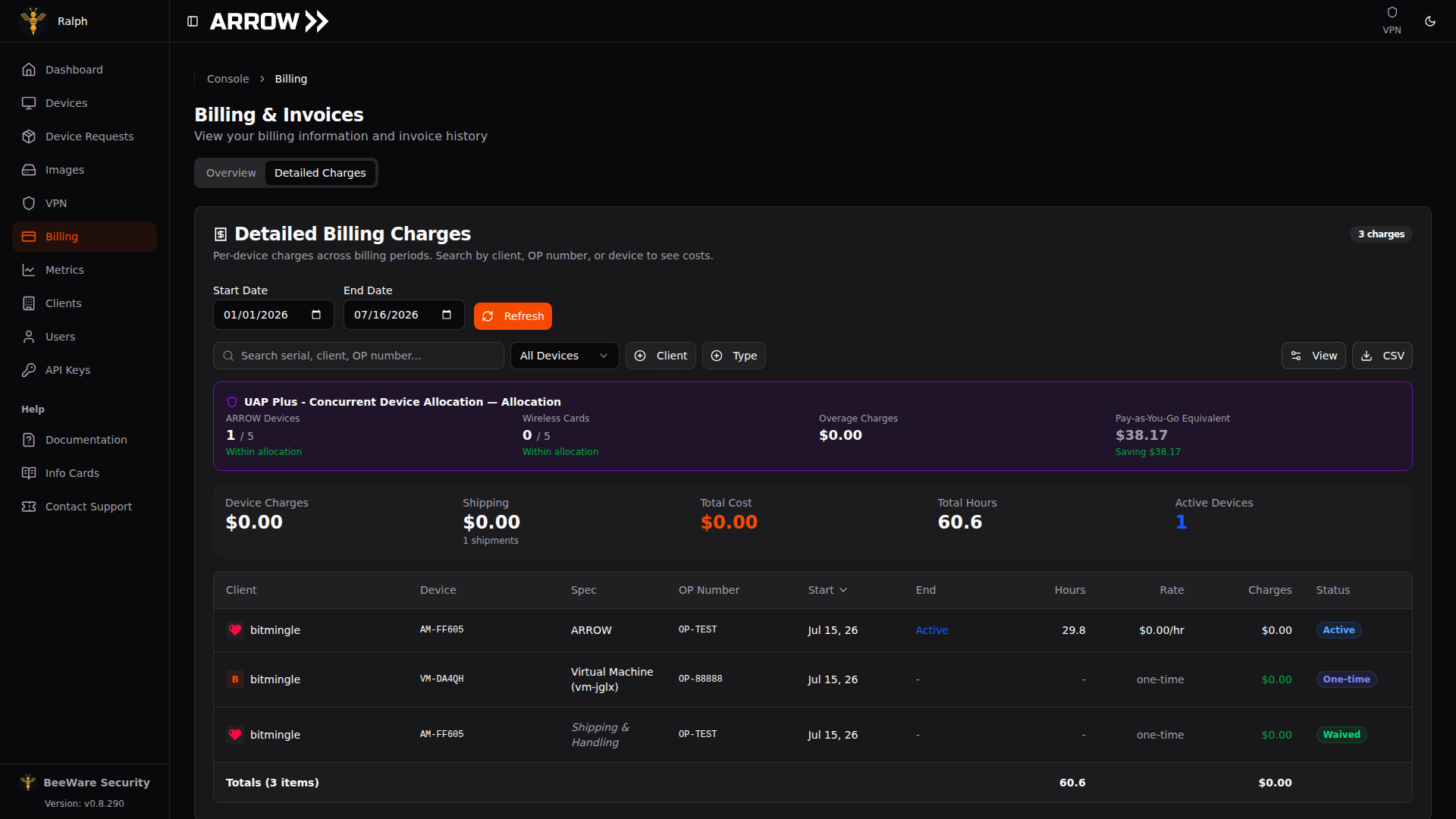
The Detailed Charges tab, with allocation summary and a per-device charge table
The Detailed Charges tab, with allocation summary and a per-device charge table
Choosing a period and filtering
Section titled “Choosing a period and filtering”Set a Start Date and End Date at the top and click Refresh to load that window. From there you can search by serial, client, or OP number, and narrow further with the All Devices filter to focus on a device type and the Client and Type filters to group by client or charge type. Use View to adjust the table and CSV to export. A counter shows how many charges match.
Allocation summary
Section titled “Allocation summary”The allocation banner is the fastest read on whether you are within your plan. It maps your current usage to your allocation (for example UAP Plus - Concurrent Device Allocation):
- ARROW Devices shows devices used against your allocation as a ratio like 1 / 5, with a Within allocation note when you are under the limit.
- Wireless Cards does the same for cards, such as 0 / 5.
- Overage Charges is anything beyond your allocation. It reads $0.00 while you are within plan.
- Pay-as-You-Go Equivalent is what the same usage would cost without your plan, with a Saving note showing what your plan is buying you.
Totals and the charge table
Section titled “Totals and the charge table”Above the table, a set of totals summarizes the period. You get Device Charges (device usage cost), Shipping (shipment and handling fees, with a count such as 1 shipment), Total Cost, Total Hours of device usage, and Active Devices currently running.
The table then lists each line item with columns for Client, Device, Spec, OP Number, Start, End, Hours, Rate, Charges, and Status. Status tells you how a line is billed. Active is a device still in progress, One-time is a fixed charge such as a virtual machine, and Waived is a fee that is not being billed (for example a waived shipping and handling line). A Totals row at the bottom sums the hours and charges.
How usage maps to your plan
Section titled “How usage maps to your plan”Your plan covers a fixed allocation of concurrent devices and wireless cards. Device usage is measured in hours while a device is active, shipment and handling fees are added per shipment, and wireless card usage (including any LTE overage) counts against your card allocation. Everything within your allocation is included; only usage beyond it shows up as Overage Charges. The Pay-as-You-Go Equivalent figure is there to show what your plan saves you versus paying per use.
When the clock starts and stops
Section titled “When the clock starts and stops”Device hours are measured from delivery to return, and the exact start depends on your plan.
UAP Plus. The clock starts when the device is delivered. Your allocation is a pool of concurrent device time, and a delivered device occupies a slot whether or not your engagement has started, so a device that arrives early spends allotment while it sits in its box. Keep the buffer on your start date to a day or two.
Pay-as-you-go. The clock starts at whichever is later, the delivery or your start date:
| What happened | When billing starts |
|---|---|
| Delivered before your start date | The start date. The waiting days are not billed. |
| Delivered on your start date | The hour it was delivered. |
| Delivered after your start date | The hour it was delivered. A late delivery is never billed as if it had been on time. |
The clock stops when the device is dropped off for its return, not when it reaches us, so return transit is not billed either. A device that never reaches you is not billed for usage at all, though the shipping fee still applies because the carrier moved the parcel.
Every line in Detailed Charges shows its own Start and End, so you can check any device against these rules.