
Signing In to ARROW Decrypt
You reach ARROW Decrypt in a browser over your team’s network. The sign-in screen asks for your email and password; depending on how your administrator has set up the instance, you may also be asked for a two-factor code.
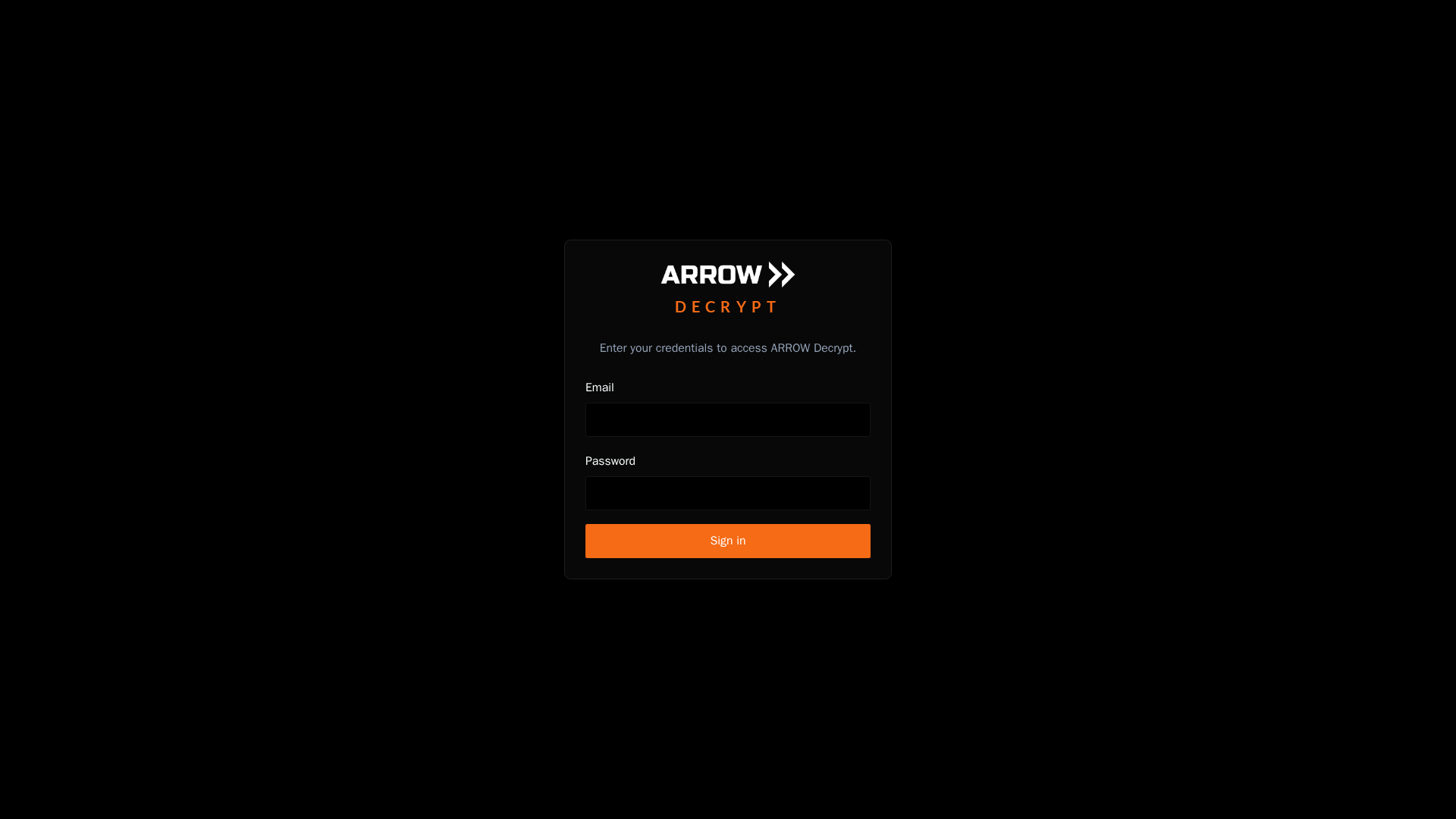
The ARROW Decrypt sign-in screen
The ARROW Decrypt sign-in screen
Signing in
Section titled “Signing in”- Enter your Email and Password.
- Click Sign in.
- If two-factor authentication is enabled on your account, enter the 6-digit code from your authenticator app, or one of your backup codes, and click Verify.
If your credentials are not accepted, confirm you are using the email your administrator invited, and check that Caps Lock is off. Repeated failures mean you should contact your administrator to have the account checked or reset.
Two-factor authentication
Section titled “Two-factor authentication”Two-factor authentication (2FA) adds a one-time code from an authenticator app on top of your password. Your administrator can require it for your account, or you can enable it yourself from Account & Security.
When 2FA is required and you have not set it up yet, the sign-in flow walks you through it on your next login:
- Scan the QR code with an authenticator app such as Google Authenticator, 1Password, or Authy. If you cannot scan, enter the secret key shown below the code by hand.
- Enter the 6-digit code the app generates and click Verify & enable.
- Save the backup codes you are shown. Each one works once if you lose your device, and they are not shown again. Store them somewhere safe before you continue.
Accepting an invitation
Section titled “Accepting an invitation”New team members join through an invitation link sent by an administrator. Opening the link takes you to the accept-invite screen:
- Your email is filled in and cannot be changed.
- Enter your Name and choose a password (at least 8 characters), then confirm it.
- Click Set password & continue.
Invitation links are time-limited and can only be used once. If yours has expired, ask an administrator to resend it, then open the new link.
First-run setup
Section titled “First-run setup”The very first time a new ARROW Decrypt instance is opened, before anyone has an account, it shows a one-time setup screen to create the first administrator:
- Optionally set an Organization name (it defaults to a generic name).
- Enter your name, email, and a password, then confirm the password.
- Click Create administrator.
This screen appears only on a brand-new install. Once the first administrator exists, the instance goes straight to the normal sign-in screen, and everyone else joins by invitation.
Related documentation
Section titled “Related documentation”- Account & Security - Change your password and manage two-factor
- Team & Roles - Invite people and set their permissions