
Receiving an ARROW Device
Receiving an ARROW Device
Section titled “Receiving an ARROW Device”This page is for the people at the location where an ARROW device is being installed: the person who unboxes and connects it, and the network or security team that approves its access. It covers what the device needs from the network, how to set it up, and what to check if it does not come online.
The device needs two things from the network, and they usually come from two different teams: outbound firewall access to one address (the firewall team), and a switch port that accepts more than one MAC address (the network team), because the device hosts virtual machines that each appear on the port as their own device. The second one is the one most often missed; it does not stop the device from coming online, only the work that runs on it.
No ARROW account is needed, and nothing is installed on any computer at the site.
The card in the box
Section titled “The card in the box”Every device ships with a card from your security provider. It lists the VPN address for the engagement, the short setup steps, and a QR code that opens your security provider’s setup page. Keep the card with the device.
The setup page carries everything on this page with your VPN address already filled in: the firewall and switch-port change requests ready to copy, the connectivity check with the right address in it, and who to contact. It is kept up to date, so it can be newer than the card. Your security provider may also email you the same link before the device ships, so the firewall and switch-port changes can be made before it arrives.
The VPN address is the destination for the device’s tunnel, and every firewall rule below refers to it. It takes the form 00000.arrowvpn.io: a five-digit number followed by the domain. Allow that address even if your security provider also uses a custom address of their own; the device connects to the arrowvpn.io address.
If the card is missing, ask your security provider for the address, or for the setup page link, before the device is installed.
What the device is
Section titled “What the device is”The ARROW device is a small appliance that gives your security provider remote access to your network for the duration of an engagement. When powered on, it opens one encrypted tunnel to your security provider’s ARROW platform. All of their work passes through that tunnel.
| The device does | The device does not |
|---|---|
| Make outbound connections only | Need any inbound port, port forward, NAT rule, or public IP |
| Take an address from DHCP, like any other client | Need software, an agent, or a certificate on any of your computers |
| Host virtual machines for your security provider, each with its own MAC address on the same cable | Need those addresses to be pre-registered anywhere, unless your switch limits MAC addresses per port (see The switch port) |
| Encrypt all traffic in the tunnel (WireGuard and TLS) | Need domain credentials or an account in your directory |
| Stop all activity when unplugged | Keep any access after it is powered off |
Any testing or scanning the device performs on your network is governed by your agreement with your security provider. The sections below cover only the network access the device needs in order to reach your security provider.
What to have ready
Section titled “What to have ready”- The card from the box.
- A power outlet. The device ships with a 36W adapter and a plug for your region.
- A wired network port with normal internet access, on which the switch accepts more than one MAC address. A Cat6 cable is in the box. See The switch port; this is the requirement most sites overlook.
- A location with airflow. The device is fan-cooled and should not be placed in a sealed cabinet.
- Usable cellular signal, if possible. The device has a cellular connection as a backup path, and basements and interior server rooms often have no signal.
Network requirements
Section titled “Network requirements”All connections are outbound, from the device to the internet. No inbound rules are needed. Beyond the firewall, the only other requirement is on the switch port itself: it must accept the device’s MAC address and one more for each virtual machine the device will host. That is covered under The switch port below.
Destination
Section titled “Destination”Allow the VPN address from the card. If your firewall matches on hostnames, allow the hostname. If it requires an IP address, ask your security provider for it. The address is dedicated to your engagement and does not change.
| Protocol | Port | Purpose | Requirement |
|---|---|---|---|
| TCP | 443 | Management, signaling, and encrypted relay. Carries all traffic on its own if UDP is unavailable. | Required |
| UDP | 3478 | NAT traversal (STUN/TURN), so the device can establish a direct tunnel | Preferred |
| UDP | 51820 | WireGuard direct tunnel | Preferred |
| UDP | 49152-65535 | Direct tunnel establishment and TURN relay allocations | Preferred |
With TCP 443 alone, the device comes online and stays online, but all traffic is relayed through the VPN host, which adds latency. With the UDP ports as well, the device establishes a direct tunnel, which is faster. No other ports are needed.
Other addresses the device contacts
Section titled “Other addresses the device contacts”The device checks its own internet connectivity and public IP address by making standard HTTPS requests to public services such as api.ipify.org, checkip.amazonaws.com, icanhazip.com, and www.google.com. These use TCP 443 and TCP 80, carry no information about your network beyond the request itself, and determine whether the device stays on the wired connection or falls back to cellular.
All other device traffic goes through the encrypted tunnel to your security provider.
DNS and time
Section titled “DNS and time”The device needs DNS resolution and outbound time synchronization, like any other client on the network. It takes its DNS servers from DHCP. If your network blocks external DNS and does not provide an internal resolver over DHCP, the device cannot resolve the VPN address and will not connect.
Not required
Section titled “Not required”- Inbound rules of any kind.
- UDP 80 or UDP 5555. These are used by other VPN products, not by ARROW.
- TCP port ranges. TCP 443 is the only TCP port the device uses.
- A static IP address. The device uses DHCP. If your policy requires a fixed address, a DHCP reservation for the device’s MAC address is the simplest option. If the network has no DHCP at all, set the device’s address on site with the ARROW Setup app.
The switch port
Section titled “The switch port”The device needs an ordinary access port that accepts more than one MAC address.
The device is one address. Each virtual machine your security provider deploys on it is another address on the same cable: a device with one VM, the usual setup, looks to the switch like two machines on one port, and each further VM adds one more. Many access switches limit a port to a single MAC address, learned when the first device connects. On such a port the ARROW device comes online normally, its MAC being the first one learned, and every VM after it is silently dropped: the VM asks for a DHCP lease over and over and the request never leaves the port. From the site nothing looks wrong. From your security provider’s side the device is online and the VM has no address.
The feature goes by different names: port security, a sticky MAC or MAC allow list, a MAC limit, or an 802.1X / MAB policy in single-host mode. Ask the network team which of these applies to the port, and have them:
- allow at least 2 MAC addresses on the port (the device plus one VM is the usual engagement; add one for each further VM, and ask your security provider how many they plan to run), or turn the limit off for this port; and
- if the port authenticates devices (802.1X or MAC Authentication Bypass), register each VM’s MAC address as well as the device’s, or set the port’s host mode to multi-host.
The VM addresses are derived from the device’s own: the device’s MAC address with the last byte increased by one for the first VM, by two for the second, and so on. Your security provider can give you the exact addresses ahead of time if the network team wants to register them individually rather than raise the limit.
If the port cannot be changed, tell your security provider before the device arrives. They can run VMs over the device’s cellular connection instead, where the switch never sees them, at reduced speed.
Firewall change request
Section titled “Firewall change request”The following text can be pasted into a firewall change ticket. The setup page from the QR code on the card has the same text with your VPN address already filled in.
Device:       ARROW security appliance, managed by the security providerDirection:    Outbound only. No inbound rules.Source:       DHCP address of the ARROW applianceDestination:  The VPN address on the card (format: 00000.arrowvpn.io)
Required:  TCP 443              Management, signaling, and encrypted relay
Preferred (enables a direct tunnel; performance only):  UDP 3478             NAT traversal (STUN/TURN)  UDP 51820            WireGuard tunnel  UDP 49152-65535      Direct tunnel establishment and TURN relay
Also needed:  DNS resolution and outbound time synchronization (NTP).  The destination excluded from TLS inspection and DNS filtering.
Notes:  All traffic is encrypted (WireGuard and TLS).  The appliance initiates every connection. Nothing connects to it from outside.  Removing power stops all activity.
Switch port change request
Section titled “Switch port change request”The switch port change is usually a different team and a different ticket from the firewall. The following text can be pasted into it:
Device:       ARROW security appliance, managed by the security providerPort:         The access port the appliance is connected toRequirement:  The port must accept more than one MAC address.              The appliance hosts virtual machines; each one uses its own              MAC address on the same port.
Please:  Raise the port's MAC address limit to at least 2 (one more for each  additional VM), or disable port security / sticky MAC on this port.  If the port uses 802.1X or MAC Authentication Bypass, either set the  port to multi-host mode or register the appliance MAC and each VM MAC.
Addresses:  Appliance MAC:  <from the security provider>  VM MACs:        the appliance MAC with the last byte +1 (+2, +3 for more VMs)                  (the security provider can supply the exact values)
Notes:  The appliance works on a one-address port; only its virtual machines  are blocked. The symptom is a VM with no address, not a device offline.
Setting up the device
Section titled “Setting up the device”- Place the device where it will stay, with clear space around the vents.
- Connect the Ethernet cable to a network port with internet access, on which the switch has been set to accept more than one MAC address (see The switch port).
- Connect power, using the supplied adapter or a USB-C PD supply.
- Wait a few seconds. The device starts on its own and the fan spins up. If the fan does not start, press the power button once.
- Leave the device for about five minutes.
No configuration is needed. The device was provisioned before shipping and connects on its own.
If it does not, or if the network requires a static address, you can check and set the device’s network from your phone over Bluetooth with the ARROW Setup app. No laptop, console cable, or working network connection is needed to use it.
Power button and indicator lights
Section titled “Power button and indicator lights”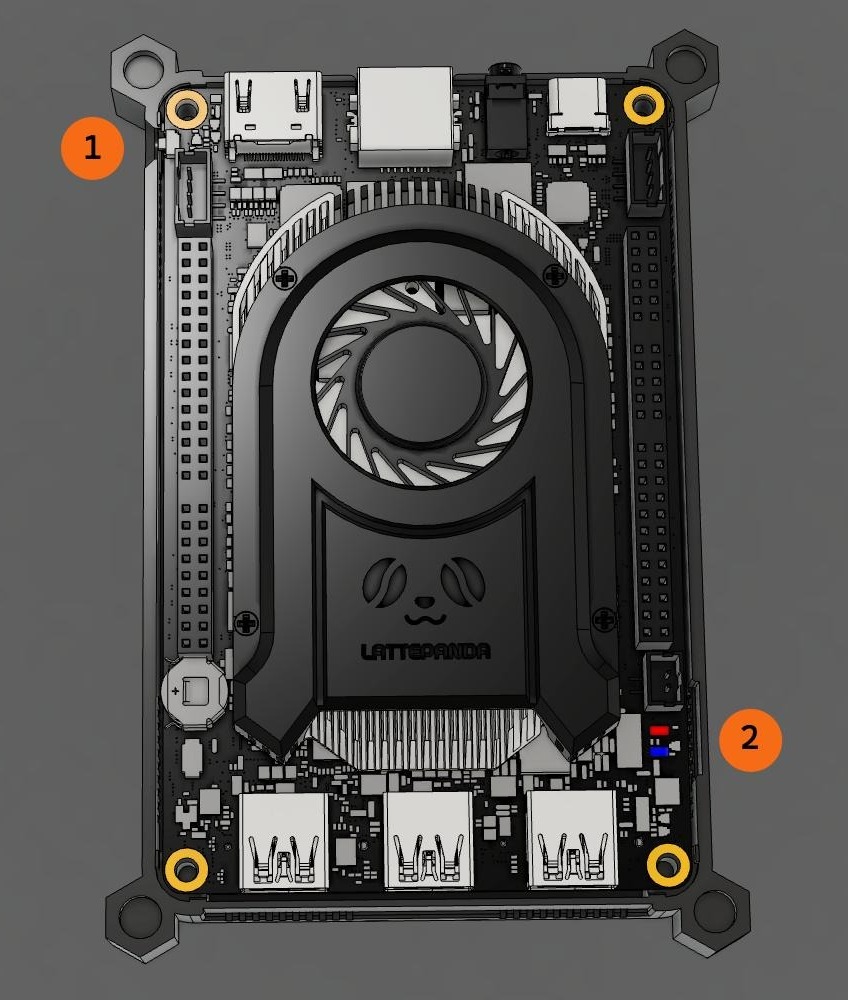
- 1 Power button. A short press starts the device if it did not start on its own.
- 2 Indicator lights, one red and one blue. Both are lit whenever the device has power, whether or not it has started.
On the assembled device, the power button is reachable through an opening in the side of the case at that corner. A power symbol on the lid marks the position.
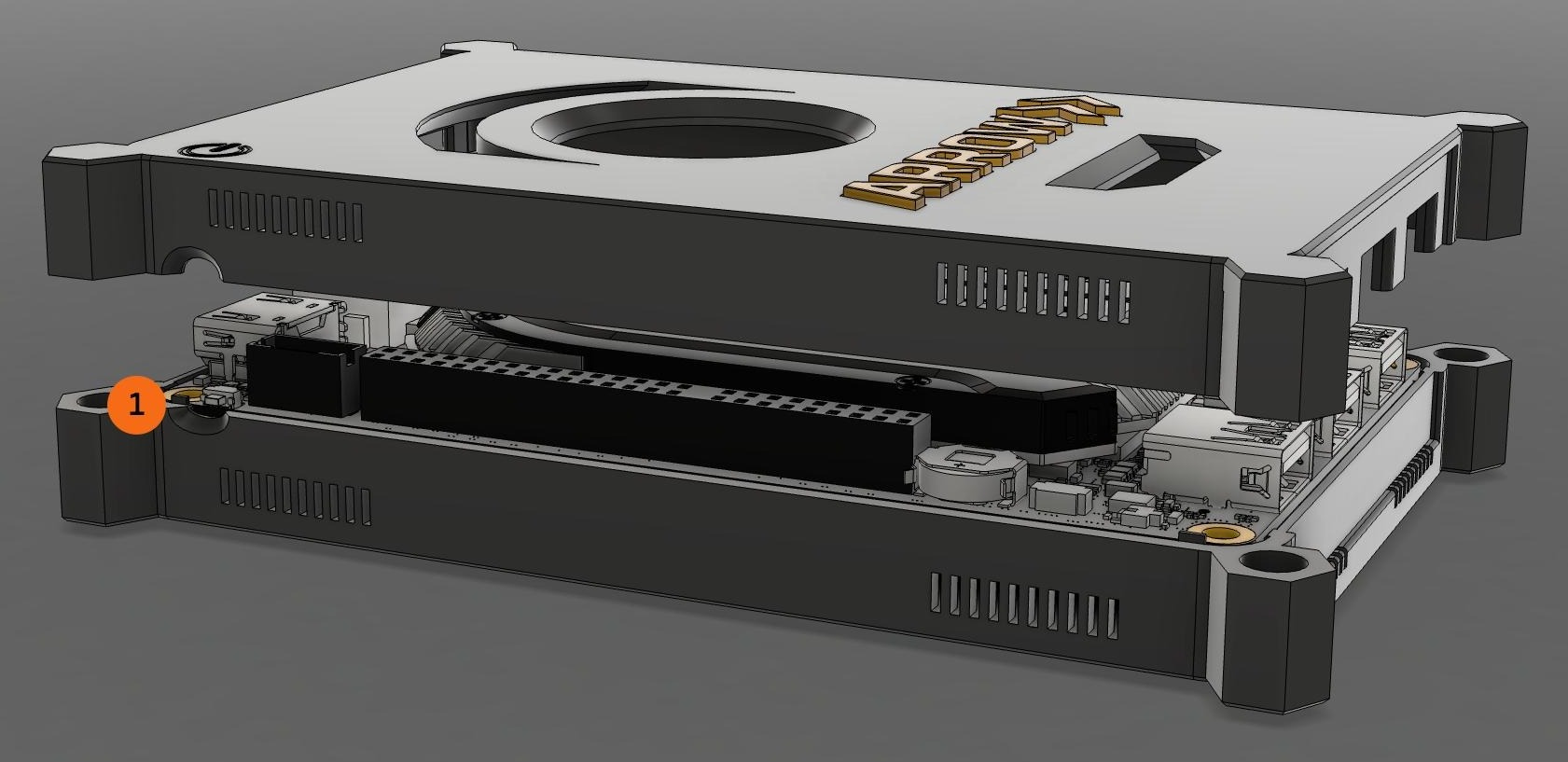
The power button position, shown with the lid lifted
The power button position, shown with the lid lifted
Confirming the device is online
Section titled “Confirming the device is online”The device has no display. Your security provider sees it come online in their console a few minutes after it is powered on. Let them know when it is connected so they can confirm.
At the device, the indicator lights and the fan show its state:
| Lights | Fan | State |
|---|---|---|
| Off | Off | No power. Check the adapter, cable, and outlet. |
| On | Running | Powered and running. |
| On | Off | Powered but not started. Press the power button once. |
Lights on and fan running means the device is running. It does not confirm that the device reached the internet. That confirmation comes from your security provider.
The device being online also does not confirm that the switch port will accept the virtual machines it hosts. Your security provider can test that from the device before deploying anything, and on some switches the device tests it on its own shortly after boot. If the port refuses a second address, your security provider will contact you with the switch name, the port number, and the two MAC addresses involved, so the network team can make the change from the switch port change request without any further investigation.
Site conditions that block the device
Section titled “Site conditions that block the device”Check these before the device arrives. Each one needs a different change, often from a different team.
802.1X or network access control. If ports authenticate devices before granting access, the device gets no address and no connectivity. Add a MAC Authentication Bypass entry for the device, or use a port that does not require 802.1X. Tell your security provider if this applies. Each virtual machine your security provider runs on the device has its own MAC address and needs its own entry.
One MAC address per port (port security). Many access switches limit a port to a single MAC address, learned when the first device connects. The ARROW device itself works on such a port, but every virtual machine your security provider deploys on it uses a second MAC address on the same cable and gets no address at all. Allow at least one extra MAC address on the port for each VM you expect (a limit of 4 is a sensible default), or use a port without the limit. See A VM Gets No Network Address for the exact setting on Meraki, Cisco, Aruba, Juniper, and UniFi switches.
Guest or captive portal network. The device cannot complete a web-page sign-in. Use a standard wired port.
TLS inspection. If an egress proxy intercepts and re-signs HTTPS, the tunnel fails certificate validation. Add the VPN address to the inspection bypass list.
Explicit proxy. The device does not use proxy settings from the network. If all outbound traffic must go through an explicit proxy, tell your security provider before the device ships so the device can be configured for it.
DNS filtering. Category filters may classify the VPN domain as blocked. Allow the VPN address at the DNS layer as well as at the firewall.
Category-based outbound rules. A rule that blocks “VPN” or “anonymizer” traffic as a category blocks the device even when the host is allowed. Allow the host explicitly.
Troubleshooting
Section titled “Troubleshooting”The lights are on but nothing else happens.
The device has power but has not started. The fan is silent and the device does not appear in your security provider’s console. Press the power button once. The fan starts within a second or two, and the device comes online about five minutes later.
If pressing the button does nothing, the device is not receiving enough power. Check the adapter, cable, and outlet. If using a USB-C supply, switch to the supplied adapter. The device needs a 20V USB-C PD supply, and not all chargers provide one.
The device never came online.
Check in order:
- The lights are on and the fan is running. If not, see above.
- The network port is live and hands out DHCP addresses. Connect a laptop to the same port and confirm it gets an address and can browse.
- TCP 443 outbound to the VPN address is allowed. From the same laptop on the same port, run the following, replacing
00000.arrowvpn.iowith the address on the card:
curl -sS -o /dev/null -w '%{http_code}\n' --max-time 10 https://00000.arrowvpn.ioAny HTTP status code, including 401 or 404, means the path is open. A timeout or connection refused means the firewall rule is not in place or does not apply to that source address.
The device came online, then dropped, and is now slow.
The device has fallen back to cellular or to relayed traffic. Both keep it working at reduced speed. Confirm that UDP 3478 and UDP 51820 are allowed outbound, and check that no DPI or IPS rule terminates the tunnel after it establishes. Tell your security provider; they can see which path the device is using.
The device is online but a virtual machine on it never gets an address.
The switch port accepts the device’s MAC address and refuses the VM’s. Ask the network team to raise the port’s MAC address limit or add the VM’s address; your security provider can read both addresses and the switch port number from the device. See A VM Gets No Network Address.
The device works on one port or VLAN but not another.
Compare the two for 802.1X, egress policy, and DNS servers. The difference is in port policy, not the device.
The device has an address but cannot resolve names.
The DHCP scope is handing out an internal DNS server that does not resolve external names or is filtering this one. Confirm the resolver works for external names and allow the VPN address on it.
You want to check the device yourself, on site.
The ARROW Setup app connects to the device over Bluetooth and shows whether it is online and what is stopping it, without needing the device to have a working network connection. It also sets the wired network, which is the fix when the site requires a static address.
Anything else.
Contact your security provider. They can see the device’s status, connection path, and logs from their console.
Returning the device
Section titled “Returning the device”When the engagement ends, power the device off and unplug it. Your security provider arranges the return; a prepaid return label is usually included in the box. Nothing on the device needs to be wiped or reset. The firewall rule, and any MAC address allowances or 802.1X entries made for the device and its virtual machines, can be removed once the device has left the site.