
ARROW Manager Authentication
ARROW Manager has two ways in, and which you use comes down to whether the device can reach your organization’s identity provider. SSO uses your normal work account and is the right choice almost all the time. Local login uses a password stored on the device itself, and it is your fallback for when SSO is not an option, such as initial setup, an SSO outage, or a device sitting on a network that cannot reach your identity provider. SSO is what you see first; the local option is one click away on the same screen. There is also a third route that skips the screen entirely: opening the device from the ARROW Portal signs you in on the way through.
Login Methods
Section titled “Login Methods”SSO Login (Default)
Section titled “SSO Login (Default)”Use SSO unless you have a reason not to. When you open ARROW Manager, click Sign in with ARROW SSO and you are sent to your organization’s identity provider at auth.vtemlabs.com to sign in with your usual work credentials. Once you authenticate, you come back to ARROW Manager on the Dashboard.
SSO is the recommended path because it keeps everything tied to your existing account. There is no extra password to manage, your IT team controls access centrally, and if your organization requires multi-factor authentication, it applies here automatically.
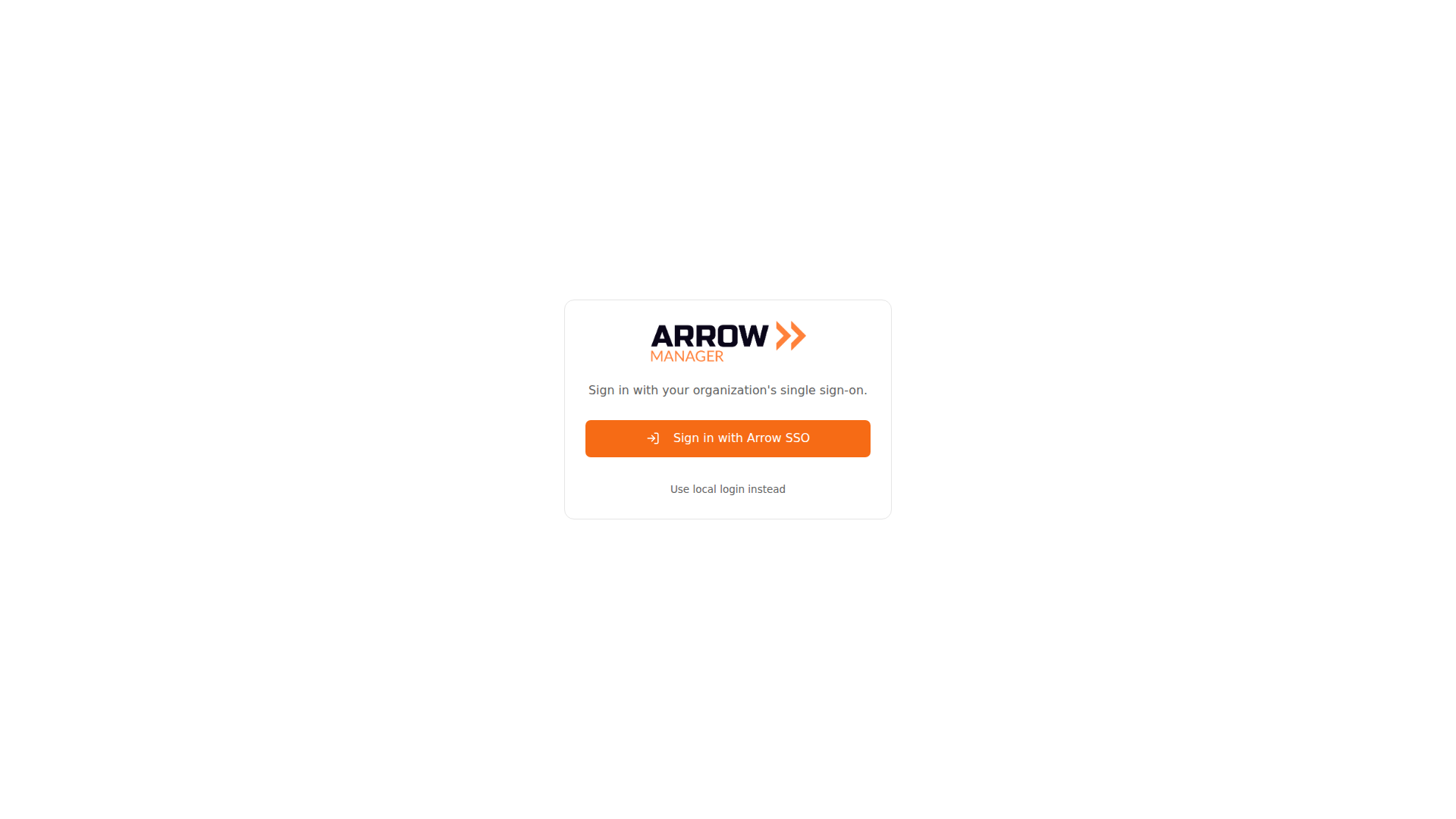
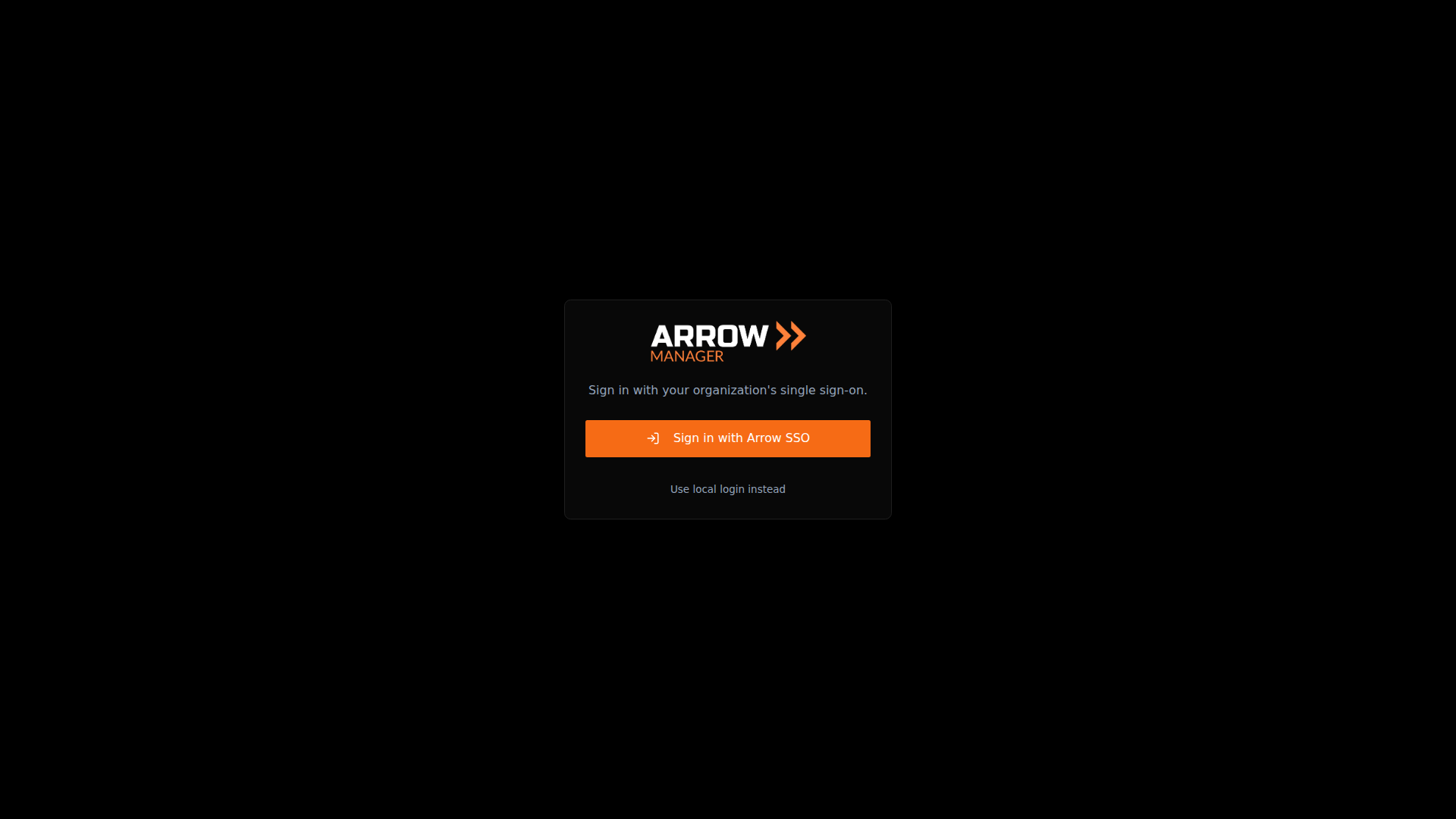
The ARROW Manager sign-in screen. SSO is the default; choose Use local login instead for direct device access.
The ARROW Manager sign-in screen. SSO is the default; choose Use local login instead for direct device access.
Local Login
Section titled “Local Login”Local login gets you in with a password that lives on the device, so it works even when your identity provider does not. Reach for it during initial setup, when SSO is temporarily down, while troubleshooting an SSO or network problem, or when the device is on a network that cannot reach your organization’s login. Click Use local login instead on the sign-in screen, then enter:
- Username:
manager - Password: the ARROW Password for the device. You will find it in the ARROW Portal, under the device’s Actions menu.
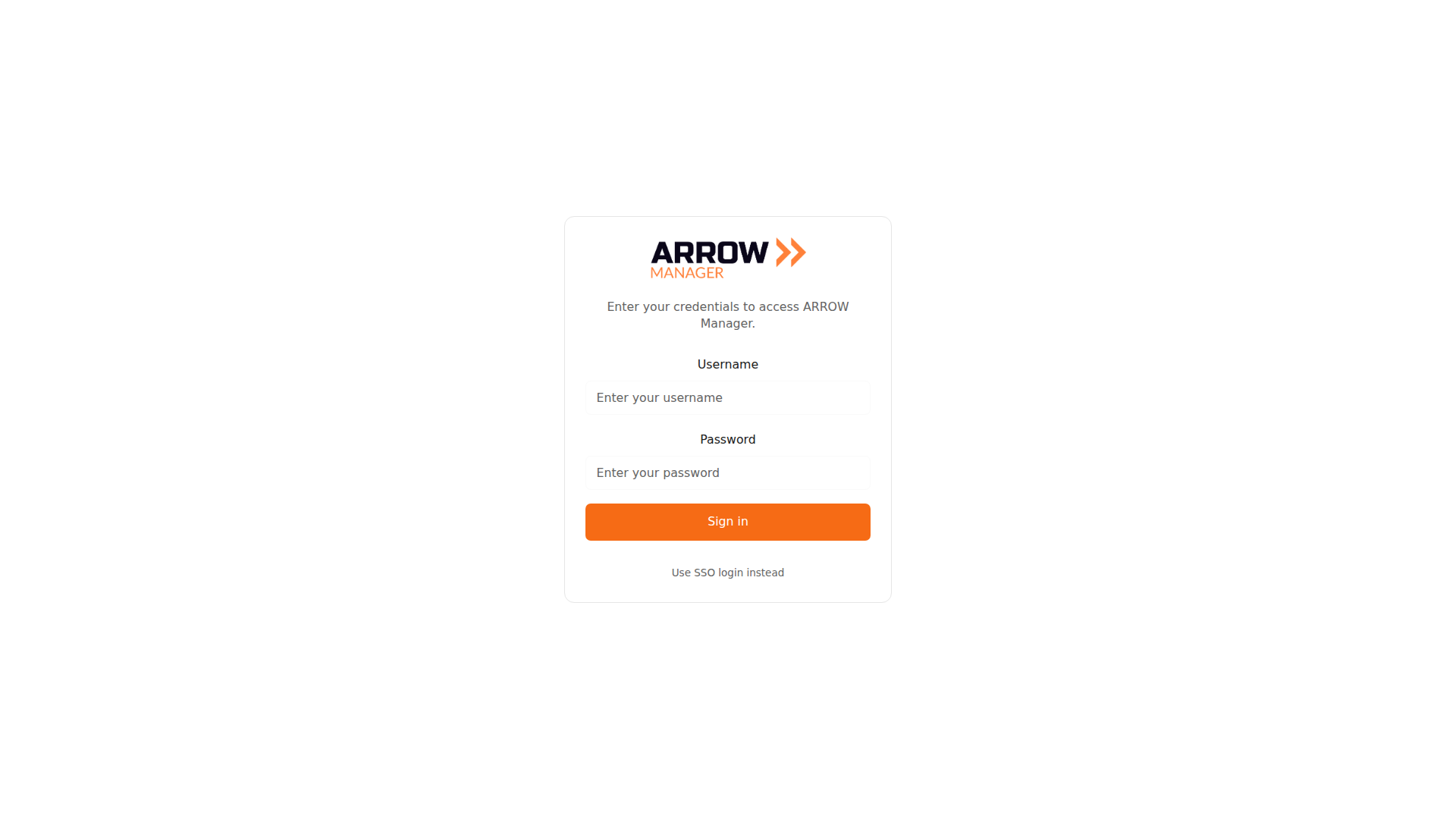
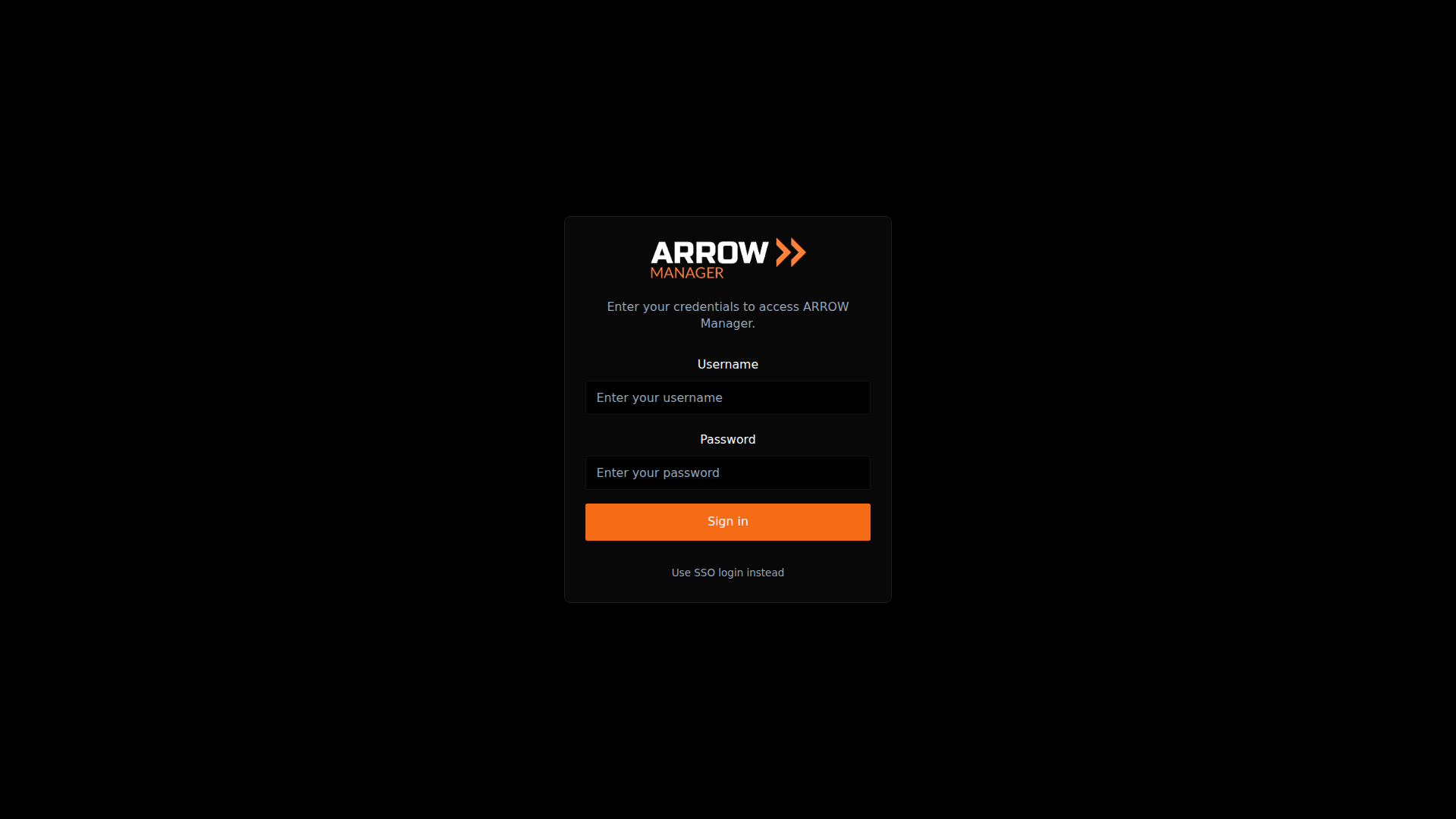
The local login screen. Enter the manager username and the device ARROW Password, then click Sign in.
The local login screen. Enter the manager username and the device ARROW Password, then click Sign in.
Once you sign in, you land on the Dashboard.
From the ARROW Portal
Section titled “From the ARROW Portal”Most of the time you will not see the sign-in screen at all. Open a device in the ARROW Portal, choose Access ARROW Manager, and the Portal hands you a session on the way through, so ARROW Manager opens on the Dashboard already signed in. Your access is decided in the Portal, which means there is nothing to grant on the device itself.
A device running an older build of ARROW Manager cannot accept that handoff. The Portal notices and opens the device’s own sign-in page instead, where SSO or local login gets you the rest of the way. If you land on a message saying the sign-in link is not valid, go back to the ARROW Portal and open the device again.
What You Need
Section titled “What You Need”Every route needs a working network path to the device. Beyond that:
| Login Method | Requirements |
|---|---|
| SSO | Organization account with ARROW Manager access, and a network path to the device |
| Local | The device password from the ARROW Portal, and a network path to the device |
| From the Portal | An ARROW Portal account with access to that device, and a network path to the device |
Sessions
Section titled “Sessions”Once you are in, your session stays active while you work and lasts until you log out or it expires, and you can reach every section your account is allowed to use. To end it deliberately, click Logout in the top-right corner, which returns you to the login screen.
A session can also end on its own after a long stretch of inactivity, when its token expires, or because of a security policy. That is expected. When it happens, sign in again and pick up where you left off.
To keep things safe, log out when you are done, reach ARROW Manager over trusted network or VPN connections rather than open networks, and tell your administrator if you see account activity you do not recognize.
Troubleshooting Login Issues
Section titled “Troubleshooting Login Issues”You cannot log in. Double-check the username and password first. If those are right, clear your browser cache and cookies, try a different browser, and confirm your network or VPN connection to the device is up, since a login page that will not accept credentials is often really a connection problem.
Your session keeps expiring. Sign in again, and if it happens repeatedly, check that your connection to the device is stable. If it continues, contact your administrator.
You get an access denied message after logging in. Your credentials worked, but your account may not be granted ARROW Manager access. Contact your administrator to confirm your permissions.
Related Documentation
Section titled “Related Documentation”- Overview - What ARROW Manager does
- Accessing ARROW Manager - How to connect to your device
- Troubleshooting - Common issues and solutions