
Notifications
Overview
Section titled “Overview”ARROW tells you when something happens to your devices, your account, or your organization’s security. A device ships, a device on site drops off the network, a contractor’s access is about to expire, a decoy is touched. All of it lands in one place in the console, and you decide how much of it also reaches your email, your Slack, or your own systems.
There are two screens. Notifications in the sidebar is the inbox, the full record of everything ARROW has sent you. Account Settings > Notifications is where you set what you want and how often. The bell in the top bar carries your unread count and opens a short list of your most recent notifications, with View all notifications to reach the inbox.
The important thing to know up front is that the inbox is complete. A notification is recorded there whether or not it was also emailed, so turning email down never means losing the history.
The Inbox
Section titled “The Inbox”Open Notifications from the sidebar.
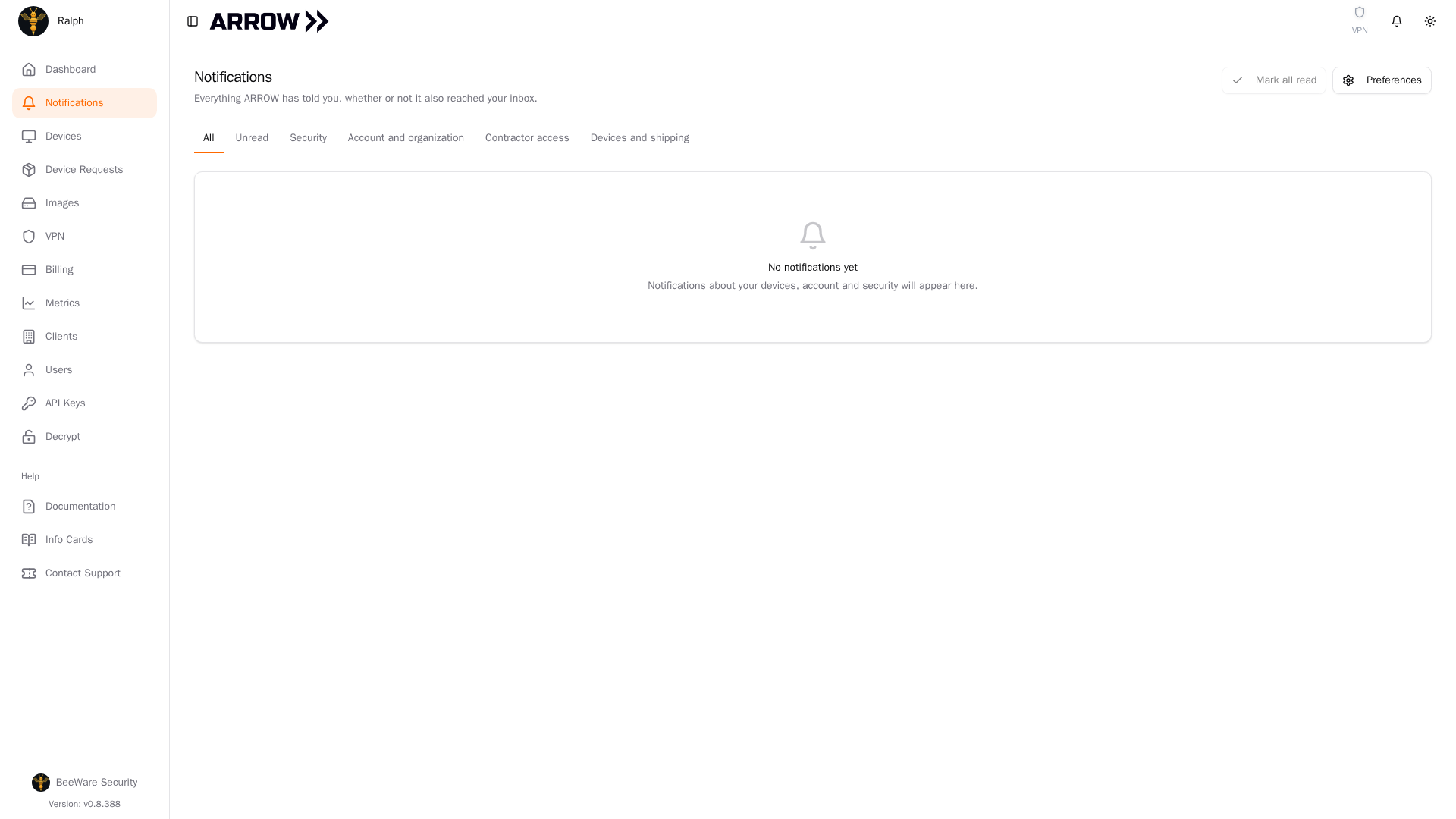
The notification inbox, filtered by All, Unread, and by category
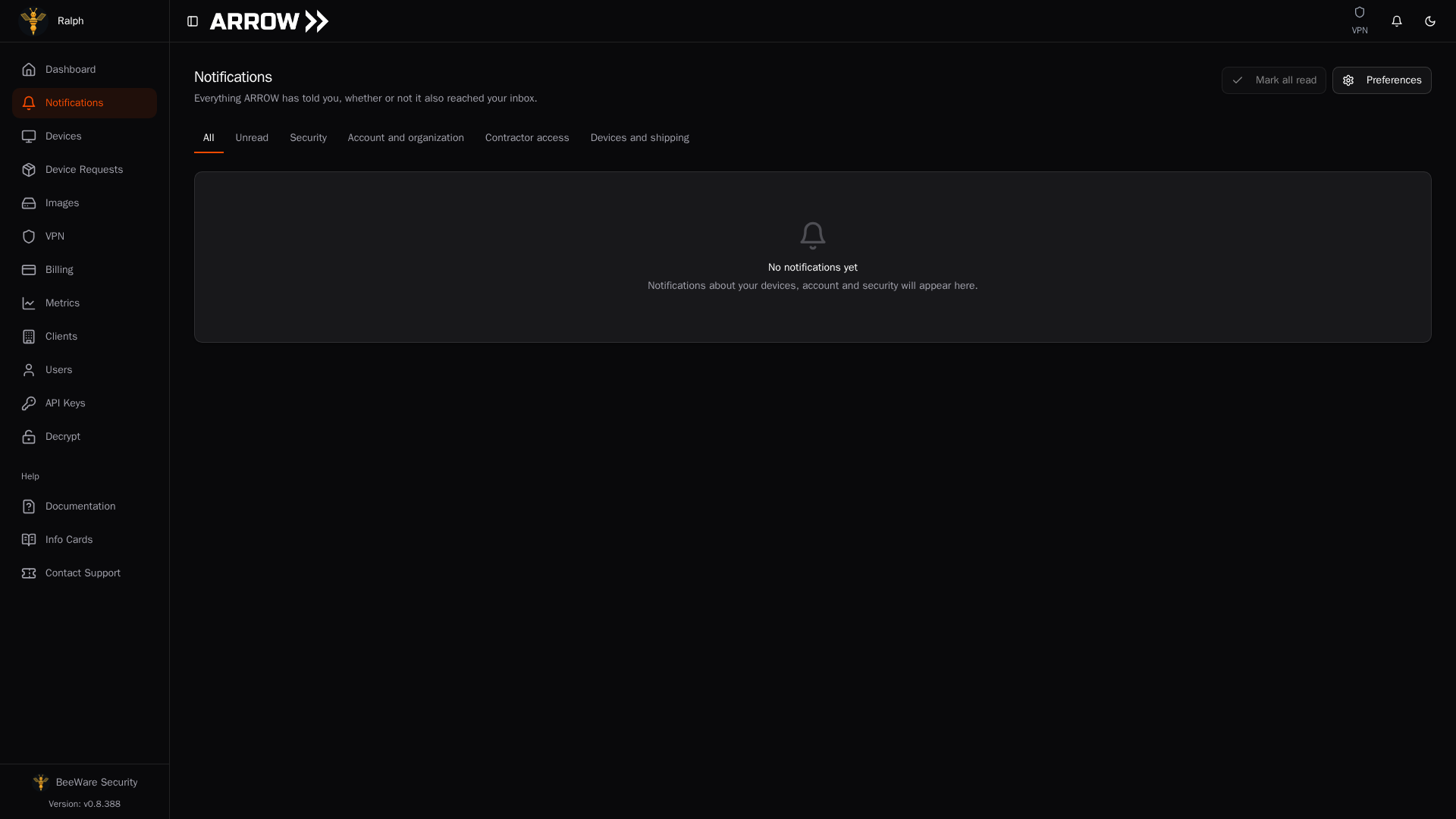
The notification inbox, filtered by All, Unread, and by category
The tabs across the top filter the list, with All, Unread, and then one tab per category you receive, such as Security, Account and organization, Contractor access, and Devices and shipping.
Unread items sit on a tinted row with a dot next to the title. Click any notification to open it; if it points somewhere in the console, such as the device request it concerns, clicking takes you there and marks it read. Each row also has its own controls on the right:
| Control | What it does |
|---|---|
| Check | Marks that one notification as read. |
| Archive | Removes it from the inbox without deleting the record. |
| Mark all read | Clears the unread state on everything currently unread. |
| Preferences | Opens your notification settings. |
Under each notification you get the time it arrived and its category. You may also see a note about email:
- Queued for your next digest means it is waiting to go out in your daily or weekly summary rather than as its own message.
- Not emailed, by your preference means it was recorded here only, because your settings said so.
Those two lines are the quickest answer to “why did this not hit my inbox”.
Choosing What Reaches You
Section titled “Choosing What Reaches You”Open Account Settings and select the Notifications tab, or click Preferences from the inbox.
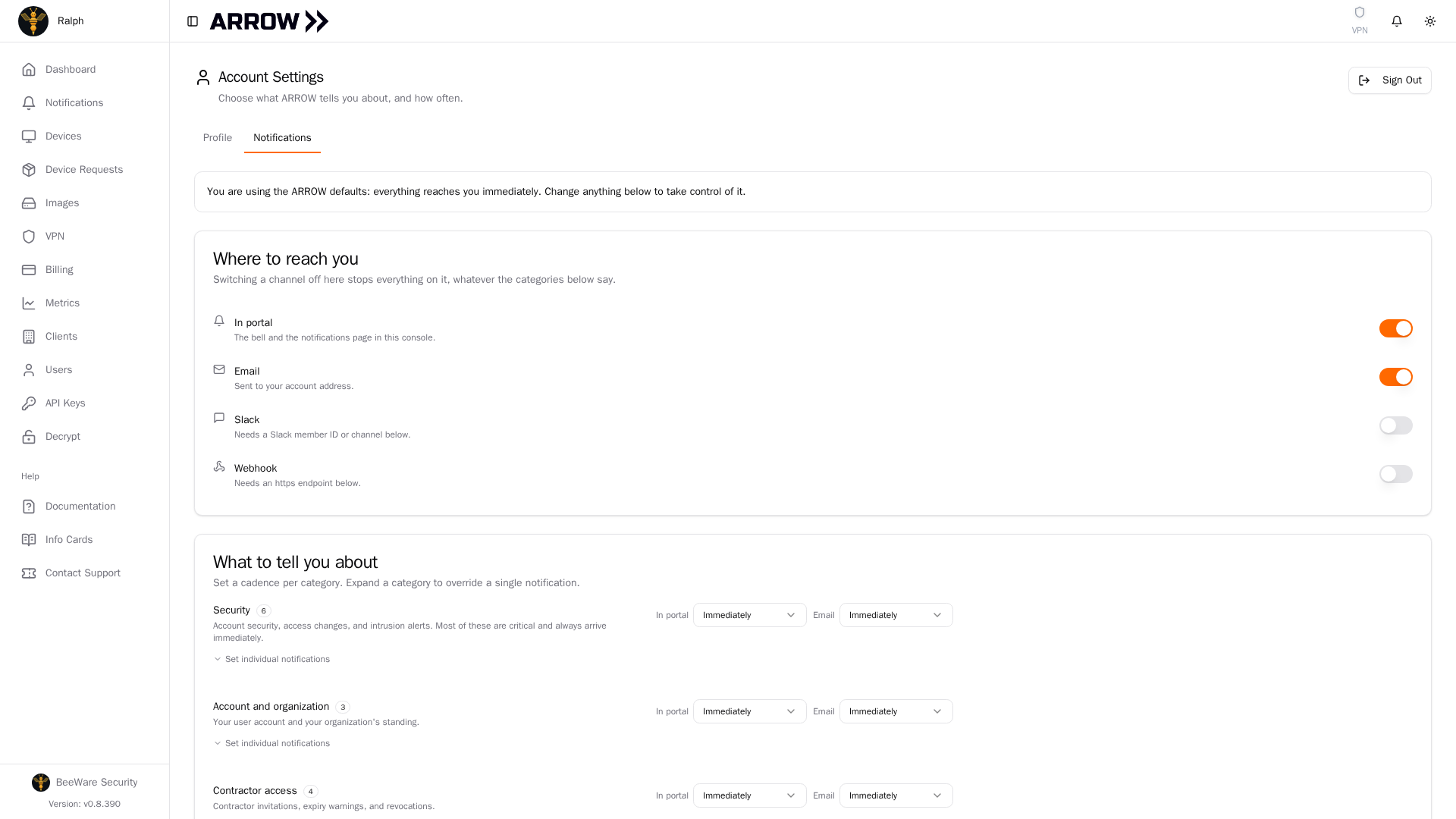
Notification preferences, with channels first, then a cadence per category
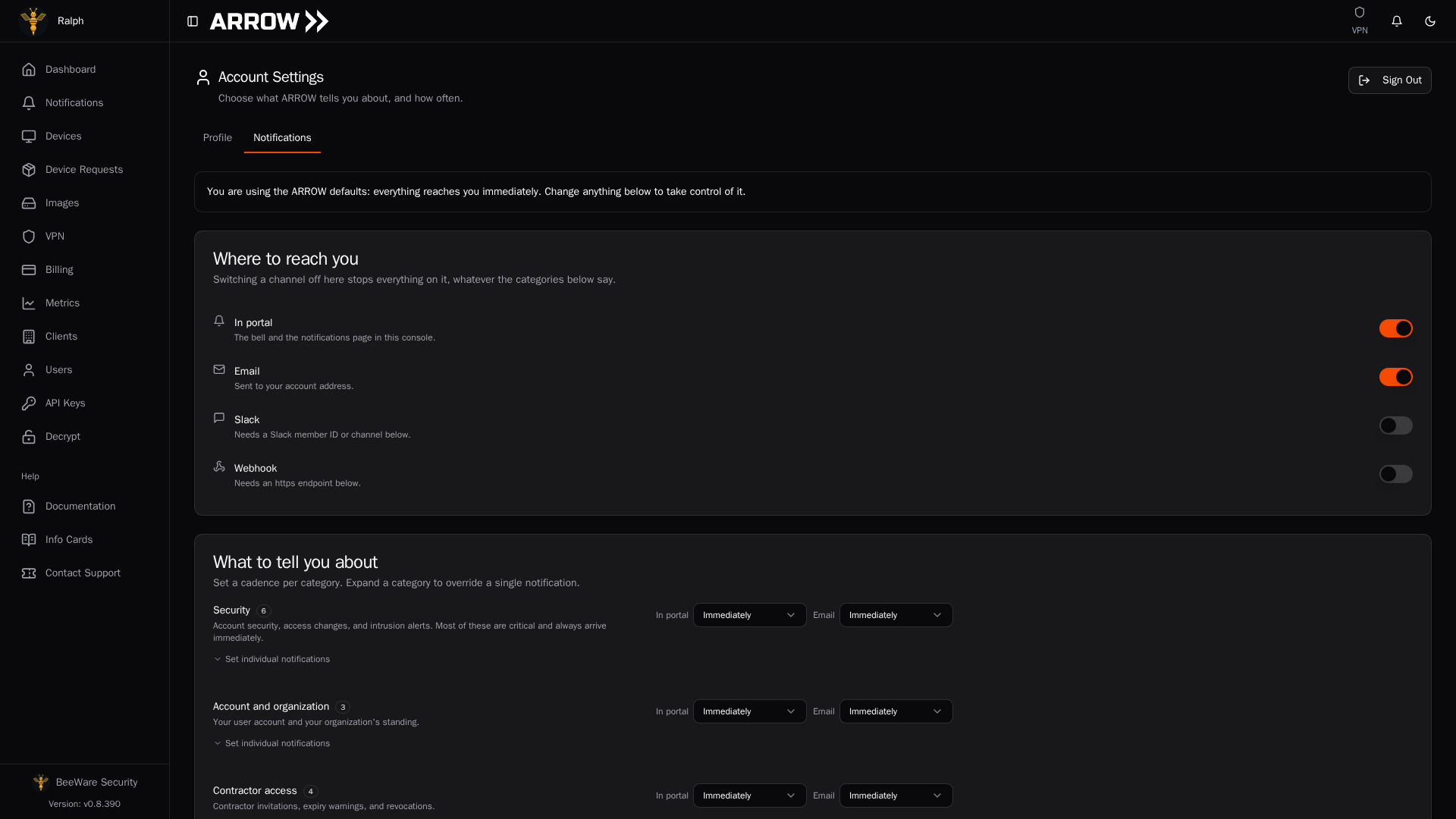
Notification preferences, with channels first, then a cadence per category
Until you change something here, you are on the ARROW defaults, and the page says so. Everything reaches you immediately. Editing anything takes over from the defaults.
Where to reach you
Section titled “Where to reach you”The first card is the master switch per channel. Turning a channel off here stops everything on it, whatever the categories below say.
| Channel | What it is |
|---|---|
| In portal | The bell and the notifications page in this console. |
| Sent to your account address. | |
| Slack | Needs a Slack incoming webhook URL, entered in Slack webhook URL. |
| Webhook | Needs an https endpoint, entered in Webhook endpoint. |
Slack and webhook send nothing until you supply a destination, and the page says so under the field while it is empty.
To get a Slack webhook URL, add an incoming webhook in Slack for the channel you want the alerts in. Slack gives you a URL starting https://hooks.slack.com/services/; paste it into Slack webhook URL. The webhook decides the channel, so to send alerts somewhere else, make a webhook for that channel.
Next to each destination, Send test sends a test message to whatever is in the field, saved or not. Use it before you rely on the channel: if the destination refuses the message, the page shows its reason. Slack and webhook carry only the notifications you get immediately; anything you have set to a daily or weekly summary is not sent to them.
What to tell you about
Section titled “What to tell you about”The second card sets a cadence per category, per channel. Each category shows how many notifications it covers and what it includes, and you pick one of four options:
| Cadence | What it means |
|---|---|
| Immediately | Sent as it happens. |
| Daily summary | Held and batched into your daily summary. |
| Weekly summary | Held and batched into your weekly summary. |
| Off | Not sent on that channel. |
If a category is broadly right but one notification inside it is not, click Set individual notifications to expand it and override that single item. An overridden item is marked so you can find it again and clear it.
Critical alerts cannot be batched Security notifications such as a Honey Bot decoy interaction only offer Immediately or Off. They are the alerts you need while they still matter, so ARROW will not hold them for a summary.
Device connection alerts
Section titled “Device connection alerts”Devices and shipping includes three alerts about a device’s link to ARROW, which are Device Connected, Device Disconnected, and Device Connection Unstable. They cover physical devices while the request is On-Site, so a device still being prepared, in transit, or already returned never raises one, and they reach only the person who requested the device and the consultants assigned to it.
A device has to hold its new state across several checks before ARROW says anything, so one missed report is not treated as an outage. How often it is expected to report depends on the link it is on: a device on cellular reports every five minutes rather than every minute and is judged against that slower cadence, so failing over to LTE does not raise a disconnect on its own. A device that has settled into LTE Idle stops sending metrics on purpose and sends a heartbeat instead, which counts as connected, so going quiet to save data is not reported as an outage either. If a device keeps changing state, ARROW sends a single Device Connection Unstable message instead of one per change and pauses the per-change alerts until the link holds one state for an hour. Live status on your Devices page stays accurate throughout.
These are not critical alerts, so a daily or weekly summary is available if a link that drops overnight is not something you want waking you up.
Every connection email names the device by its hostname, the name the console shows for it, with the serial number alongside, and carries a Silence connection alerts link that opens this page with that alert expanded and highlighted. The link changes nothing on its own. You sign in, pick the cadence you want, and save.
If you are taking a device offline on purpose, for an office move say, tell support before you do. They can hold the connection alerts for that one device while it is down, so nobody is told about an outage you already know about, and nothing else you receive is affected.
VM engagement alerts
Section titled “VM engagement alerts”Devices and shipping also covers the end of a virtual machine engagement, which has nothing else to announce it. A physical device comes back through a carrier, but a virtual appliance keeps running on your client’s infrastructure with its access to your ARROW network intact until somebody completes the request. So ARROW sends VM Engagement Ending three days before the end date on the request, and VM Engagement Ended once that date has passed with the request still open. Each is sent once, not repeated daily.
Both ask for the same thing: copy anything you still need off the appliance, then use Mark as Completed on the VM’s card on your Devices page. Completing the request is what removes the appliance’s access to your ARROW network, and it does so straight away whether or not the VM is still powered on; if it is still online when you complete it, ARROW tells you so. The VM itself stays on your client’s infrastructure, so ask them to power it off or remove it once you are done. If the engagement is running long, open Edit Request Details on the VM’s card and move the End Date, or switch on Long-term deployment if the VM is meant to stay. Either one stops the reminders.
If the request stays open, ARROW keeps tending it. VM Engagement Reminder goes out 14 and 30 days after the end date. From 30 days on, a VM that is still connected to your ARROW network gets VM Still Online After Engagement instead, repeated every 30 days for as long as it stays connected. ARROW never closes a request while its VM is online; that decision is yours. A VM that has been offline for two months gets VM Request Closing Automatically, a final notice naming the date, 30 days out, on which ARROW will complete the request itself, and the VM Completion card on your Dashboard shows that date beside the VM. If nothing changes by then, the request is completed, the appliance’s network access is removed, and VM Request Completed Automatically confirms it. A VM that comes back online before that date is not completed; you get the still-online reminder instead. Each step is sent once, so a request that has already been open for months gets one message, not the whole series.
From 60 days past the end date, your organization’s administrators are copied on each of these, and they receive them instead of the requester if the person who made the request no longer has an active account.
None of these are critical alerts, so a daily or weekly summary is available if you would rather collect them.
Device return reminders
Section titled “Device return reminders”A physical device is expected back, so Devices and shipping also tracks its return date. Device Return Reminder arrives three days before the end date on the request: pack the device in its case, attach the return label, and hand it to the carrier on or before that date. Once the carrier scans the label, the return is tracked automatically and nothing more is sent.
If the device has not been handed to the carrier by the end date, Device Return Overdue follows the day after, then at 14, 30 and 60 days, then every 30 days until it is on its way back. From 60 days your organization’s administrators are copied, as with the VM reminders. A device that is meant to stay on site should be marked Long-term deployment in Edit Request Details, which switches the reminders off; moving the End Date starts the schedule again from the new date. ARROW never completes a physical request on its own; the request closes when the device is checked back in.
These are not critical alerts either, so a daily or weekly summary is available.
Product updates
Section titled “Product updates”Product updates is the ARROW quarterly newsletter, covering new features and what is coming next. It works differently from the other categories. Instead of a cadence per channel it has a single Email switch, because it is one email about four times a year and is never held for a summary. It is also the one item on this page that never reaches your inbox, Slack, or webhook.
It is on until you turn it off. The line under the description tells you where you stand: on, off, or unable to reach you because Email is switched off in Where to reach you. The newsletter itself carries a link that opens this page with the Product updates switch highlighted, so you can turn it off from there.
When to send your summary
Section titled “When to send your summary”This card appears once anything is set to a daily or weekly cadence. Set the Hour your summary goes out, the Weekly summary day, and your Timezone, so the batch arrives when you will actually read it.
Quiet hours holds non-urgent email inside a window you choose with From and Until. Critical alerts still come through.
Send my summary now delivers whatever is currently queued without waiting for the schedule. If nothing is waiting, ARROW tells you that rather than sending an empty message.
Changes are not live until you click Save changes.
When an Expected Notification Does Not Arrive
Section titled “When an Expected Notification Does Not Arrive”Work down this list, in this order:
- Check the inbox. If it is in Notifications but not in your email, the routing is working and it is a channel or cadence setting. The note under the row tells you which.
- Check the channel switch. In Where to reach you, a channel switched off overrides every category setting below it.
- Check the cadence. A category set to Daily summary or Weekly summary is working as configured; the message is queued, not lost. Use Send my summary now to pull it forward.
- Check for an override. Expand the category with Set individual notifications and confirm that one notification is not separately set to Off.
- Check quiet hours. Non-urgent email raised inside the window is held until it ends.
- Check Slack and webhook destinations. Both need a valid destination; without one the channel does not deliver. Press Send test next to the field: if the test does not arrive, the message on screen says why.
- Check whether a device’s connection alerts are paused. A device whose link keeps dropping gets one Device Connection Unstable message and no per-change alerts until it holds one state for an hour. Connection alerts that support is holding for a device, because you told them it was powered down on purpose, are not sent and do not appear in the inbox.
If the notification is not in the inbox at all, the event never reached you, which is a different problem. Contact support.
Related Documentation
Section titled “Related Documentation”- Account for the rest of your account settings
- Users & Roles for who in your organization receives which notifications
- Device Shipments for the shipping events that generate most notification traffic