
Settings
Settings is where an administrator configures the instance end to end. A rail on the left switches between sections; each one has its own Save control, so you change one area at a time.
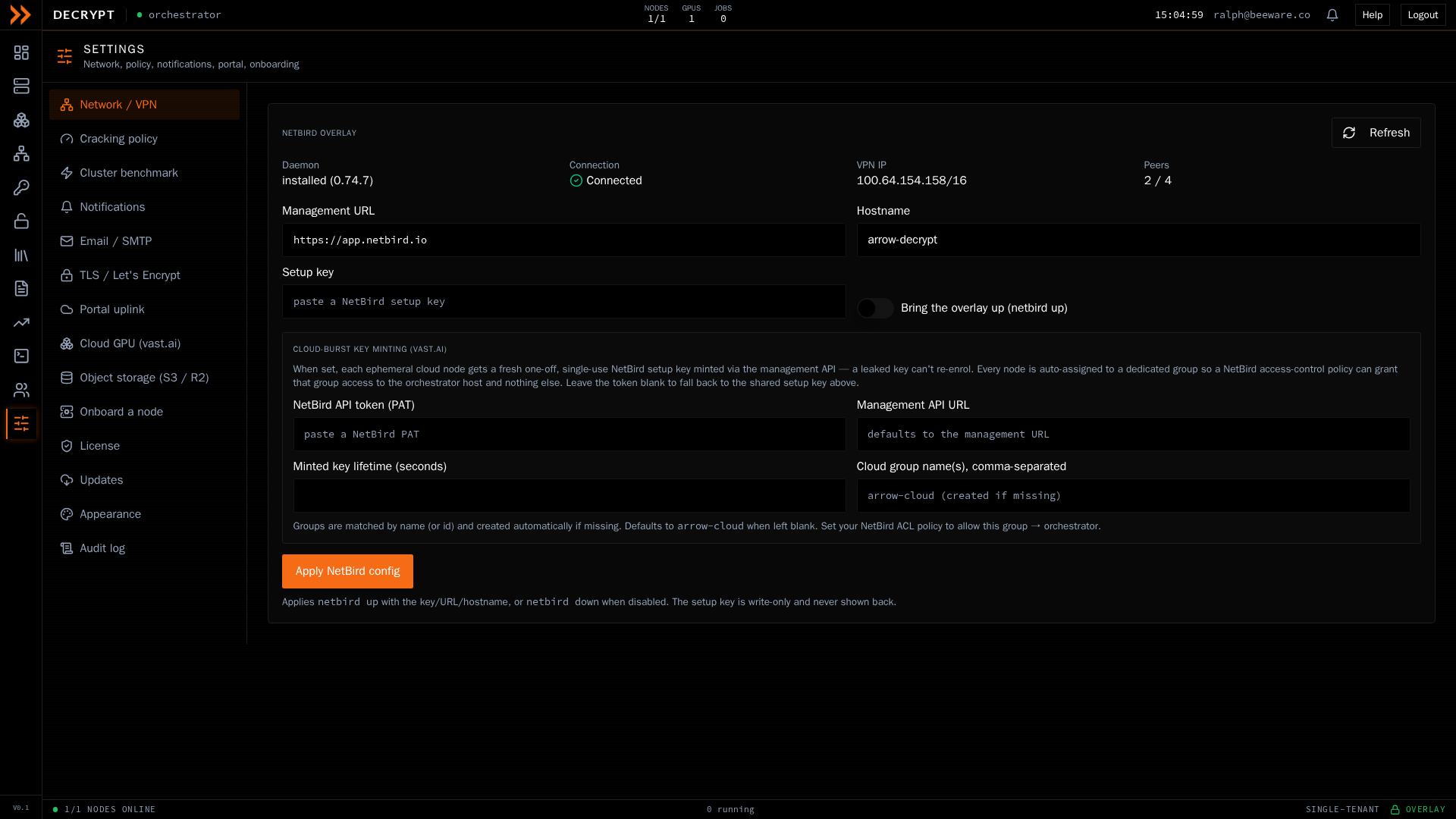
Settings, organized into sections you configure one at a time
Settings, organized into sections you configure one at a time
The sections
Section titled “The sections”| Section | What you configure |
|---|---|
| Network / VPN | The overlay network the fleet runs on, including status and the key used to mint cloud-burst access |
| Cloud GPU | Your vast.ai connection, default rental limits, allowed regions, and a list of hosts to avoid |
| Object storage | An S3 or Cloudflare R2 bucket for wordlists, with a one-click R2 preset and a read/write test |
| Cracking policy | The gates and cost model that govern which jobs run automatically, which need confirmation, and which are rejected |
| Cluster benchmark | Measure the fleet’s speed so job estimates are accurate |
| Hashcat engine | The hashcat version on each rig, with per-rig install or update to the validated build or the latest release |
| Notifications | Webhook and Slack destinations, which events fire, and whether they go to the in-app bell or email |
| Email / SMTP | The mail server used for invitations and notifications, with a test send |
| TLS certificate | The HTTPS certificate for the console, taken from ARROW Portal or issued here with Let’s Encrypt |
| Portal uplink | An outbound status feed to ARROW Portal, and the public URL used to launch this console |
| Onboard a node | Generate the one-line command to add a rig or a vote-only witness |
| License | View license status and install or replace a license |
| Updates | See the running version, pick the stable or beta channel, install updates, and restart the service on this node |
| Appearance | Switch between light and dark mode |
| Audit log | Review recent activity and export it |
Cracking policy
Section titled “Cracking policy”The policy section is worth understanding because it shapes what happens when anyone queues a job. You set feasibility gates (for example, run jobs under a certain estimated length automatically, and reject ones over another), a cost and value gate (a cap on GPU-hours, a confirmation threshold, and minimum expected value), the cost model used for estimates (electricity and hardware amortization), and a default GPU-hour budget per operator over a day, week, or month. These gates are what produce the auto, confirm, and reject verdicts you see on the Jobs queue.
Cluster benchmark
Section titled “Cluster benchmark”Until the cluster is benchmarked, job time estimates fall back to a slow live probe and are only rough. Run Common types to benchmark the frequently used hash modes in a minute or two, or Full hashcat suite to measure every type on every rig in the background. The dashboard prompts you to benchmark when it has never been done or when your hardware has changed.
Hashcat engine
Section titled “Hashcat engine”Each rig runs hashcat, and the whole fleet is standardized on one validated version so estimates and scheduling stay reliable. This section shows the recommended (validated) version alongside the latest release available upstream, then lists each rig with the version it is running now. Use Install (or Reinstall) to put the recommended build on a rig, or Latest to move it to the newest release. Moving a rig to the latest release can change how hashcat reports progress, so do it deliberately; the recommended build is the safe default. A rig cannot be updated while it has a job running.
TLS certificate
Section titled “TLS certificate”The console is served over HTTPS with a wildcard certificate, and Certificate source decides where that certificate comes from:
- Automatic (recommended) uses the ARROW Portal certificate when this deployment is linked to ARROW Portal, and Let’s Encrypt otherwise. Leave it here unless you have a reason not to.
- ARROW Portal organization wildcard uses the certificate ARROW Portal already issues and renews for your organization. There is nothing else to fill in, because this node collects the certificate over the same uplink you set under Portal uplink.
- Let’s Encrypt (DNS-01) issues the certificate here instead. Give it a base domain, an ACME contact email, your DNS provider and that provider’s credentials. If your provider is not in the list, pick Other (manual env vars) and enter its variables yourself. Credentials are write-only and are never shown back.
Turn on Enable HTTPS, then Save TLS settings. Issue / renew now fetches a certificate immediately (the button reads Sync from Portal now when ARROW Portal is the source), and the panel above it shows the covered domains, the expiry, and the result of the last attempt. The first time you enable HTTPS the node keeps serving plain HTTP until the service is restarted; the status panel says so and puts a Restart service button next to the message, so you can finish the switch from the browser. The certificate itself lands right away and is shared with every node in the cluster.
Service control
Section titled “Service control”A few settings are only read when the service starts, enabling HTTPS being the one you are most likely to hit. Updates has a Service control block with a Restart service button that applies them, and the same button appears in the TLS certificate panel while HTTPS is saved but not yet being served.
The restart covers this node only, so a cluster is rolled one node at a time rather than taken down at once. It interrupts any jobs running on that node, and the panel and the confirmation both tell you how many first. The console is unreachable for up to a minute while the node comes back, then reloads itself. If this host does not run ARROW Decrypt as a managed service the button is disabled and the panel explains why; restart it the way the host manages its processes instead.
Audit log
Section titled “Audit log”The audit log lists recent activity with the time, event, actor, source address, and details. You can export it for a SIEM in NDJSON or CEF format using the controls above the table. Viewing the audit log requires the audit permission.
Related documentation
Section titled “Related documentation”- Cloud GPUs - Uses the vast.ai and storage settings
- Wordlists - Uses the object storage settings
- GPU Nodes & Cluster - Onboard nodes and benchmark the fleet