
Google Cloud Platform
GCP Deployment
Section titled “GCP Deployment”Running ARROW on Google Cloud means staging a disk tarball in Cloud Storage, registering it as a Compute Engine custom image, and launching instances from that image. Your GCP build downloads as a ZIP containing the disk tarball and arrow-deploy, a single tool that does all of it.
What is in the download
Section titled “What is in the download”| File | What it is |
|---|---|
disk.raw.tar.gz | The disk image, a sparse tarball of a raw disk, around 23 GB |
arrow-deploy-linux-amd64 | The deploy tool for Linux |
arrow-deploy-darwin-arm64 | The deploy tool for macOS (Apple silicon) |
arrow-deploy-windows-amd64.exe | The deploy tool for Windows |
*-gcp-deployment.txt | A summary of this build and the manual commands |
DEPLOY-README.txt | Quick reference |
deploy-to-gcp.sh, Deploy-To-GCP.ps1 | The previous scripts, still included during the transition |
Prerequisites
Section titled “Prerequisites”You need the Google Cloud CLI, which supplies both gcloud and gsutil, and you need to be signed in with gcloud auth login.
Three further things are required, and arrow-deploy handles all of them for you:
- A project must be set.
gcloud config set project <id>accepts either a project ID or a project number; both work here, because the tool resolves a number to an ID before calling Compute Engine. - Two APIs must be enabled on that project:
compute.googleapis.comfor creating the image and launching instances, andstorage.googleapis.comfor staging the tarball.importoffers to enable a missing one. - A Cloud Storage bucket to stage the disk during import. With no
--bucket, the tool lists your buckets to choose from and offers to create one if you have none.
Check everything before you start
Section titled “Check everything before you start”doctor verifies your prerequisites and creates nothing:
chmod +x arrow-deploy-linux-amd64./arrow-deploy-linux-amd64 doctor --cloud gcp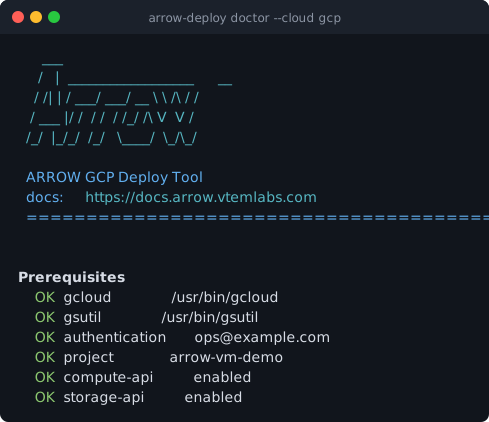
Run it first. A disabled compute.googleapis.com fails at image creation, which is the very last step, so without doctor you find out after uploading 23 GB. Anything reported as FAIL names the exact command that fixes it.
Deploy
Section titled “Deploy”Step 1: Import the disk image
Section titled “Step 1: Import the disk image”./arrow-deploy-linux-amd64 import \ --cloud gcp \ --image disk.raw.tar.gz \ --image-name arrow-kaliThe tool checks the APIs, resolves a staging bucket, uploads the tarball, and creates a custom image from it. The image is created with the guest OS features ARROW images need: GVNIC for high-performance networking, VIRTIO_SCSI_MULTIQUEUE for disk throughput, and MULTI_IP_SUBNET for multi-NIC layouts.
The upload is the slow part. The image name is printed at the end; you need it for the next step.
Step 2: Launch an instance
Section titled “Step 2: Launch an instance”./arrow-deploy-linux-amd64 launch \ --cloud gcp \ --image-id arrow-kali \ --vm-name arrow-kali-01 \ --size e2-standard-4 \ --zone us-central1-aThe tool offers a machine type if you do not pass one, and prints the instance’s external and internal addresses when it is ready. With --non-interactive and no --size, it uses n2-standard-4.
Step 3: Sign in
Section titled “Step 3: Sign in”The instance has two separate accounts, reached by different means.
| Account | How you get in | Password |
|---|---|---|
| Your Google account | gcloud compute ssh | No password; key only |
arrow | Password | Unique to this VM, shown in the ARROW Portal |
ARROW GCP images install google-guest-agent, so the standard GCP access path works: gcloud compute ssh generates and injects a key for your own account, as it does for any Compute Engine instance.
gcloud compute ssh arrow-kali-01 --zone us-central1-aThe arrow account is for console access and manual configuration using the password from the Portal. Reach it through the serial console or over the ARROW VPN rather than by exposing SSH to the internet. Most of the time you do not need to sign in at all, because the instance connects back to ARROW on its own as soon as it has network access.
The instance keeps its ARROW name
Section titled “The instance keeps its ARROW name”A deployed instance’s hostname is the name shown on its device record in the ARROW Portal, not the Compute Engine instance name. This is deliberate, because the Portal name is the identity your team works with, so the image keeps it.
Name the GCP instance whatever suits your project. It does not change the hostname inside the VM.
Removing what you created
Section titled “Removing what you created”cleanup reports what it would remove and deletes nothing until you add --yes:
./arrow-deploy-linux-amd64 cleanup --cloud gcp --zone us-central1-a./arrow-deploy-linux-amd64 cleanup --cloud gcp --zone us-central1-a --yesIt removes instances and custom images carrying its own arrow-managed label, so a resource this tool did not create is never touched, whatever it is called. Narrow it further with --name-prefix. Pass the --zone your instances are in, or the instance deletion has no zone to work in.
Command reference
Section titled “Command reference”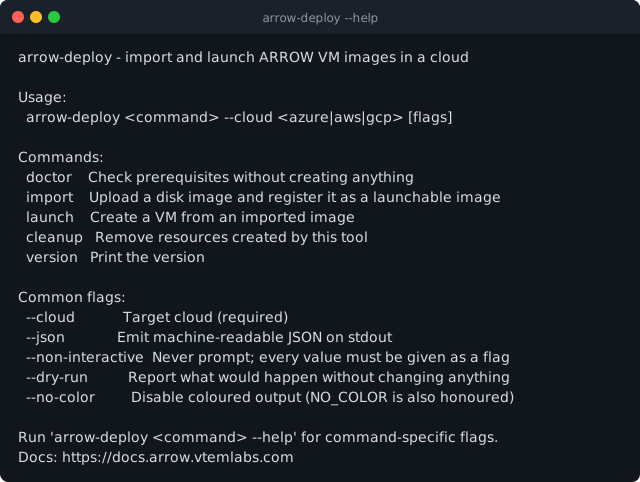
Commands
Section titled “Commands”| Command | What it does |
|---|---|
doctor | Checks prerequisites, creates nothing |
import | Stages the tarball in Cloud Storage and creates a custom image |
launch | Creates a Compute Engine instance from an image |
cleanup | Removes instances and images the tool created |
version | Prints the version |
Flags used with GCP
Section titled “Flags used with GCP”| Flag | Applies to | Meaning |
|---|---|---|
--cloud gcp | all | Target cloud, always required |
--image | import | Path to disk.raw.tar.gz |
--image-name | import | Name to register the custom image under |
--bucket | import | Cloud Storage bucket used to stage the upload |
--location | import | Location for a bucket the tool creates |
--project | import, launch, cleanup | Project to work in, when it is not your configured one |
--image-id | launch | The image that import created |
--vm-name | launch | Name for the instance |
--size | launch | Machine type, for example e2-standard-4 |
--zone | launch, cleanup | Zone to launch into, or to clean up in |
--network, --subnet | launch | Existing VPC network and subnetwork |
--name-prefix | cleanup | Restrict cleanup to matching names |
--yes | cleanup | Actually delete; without it cleanup only reports |
Flags available everywhere
Section titled “Flags available everywhere”| Flag | Meaning |
|---|---|
--dry-run | Report what would happen without changing anything |
--json | Machine-readable output, for scripting |
--non-interactive | Never prompt; every value must be supplied as a flag |
--no-color | Disable coloured output. NO_COLOR is also honoured |
Under --non-interactive the tool enables no APIs and creates no bucket. It prints the exact gcloud commands to run instead.
Recommended machine types
Section titled “Recommended machine types”| Type | vCPU / RAM | Use |
|---|---|---|
e2-standard-2 | 2 / 8 GB | Minimum |
e2-standard-4 | 4 / 16 GB | Recommended for most work |
e2-standard-8 | 8 / 32 GB | Heavier workloads |
Troubleshooting
Section titled “Troubleshooting”doctor reports compute-api or storage-api FAIL. The API is not enabled on the project. Accept when import offers to enable it, or run the gcloud services enable command that doctor prints. It is a one-time change per project.
doctor reports no active account. Run gcloud auth login.
doctor reports no project configured. Run gcloud config set project <id>.
The import fails with a message about the core/project property being a project number. Newer builds of arrow-deploy resolve the number to a project ID and pass it explicitly, so this should not occur. If you are running an older copy, either set the project by ID or pass --project <id>.
Image creation fails saying the image already exists. A previous run created it. Either pass a different --image-name, or remove the old image with cleanup --yes before importing again.
The instance boots with no network. The image must carry net.ifnames=0 biosdevname=0 on its kernel command line so interface naming matches the profile inside it. Every ARROW GCP image is built that way, so a fresh artifact is not affected.
gcloud compute ssh times out. Confirm the instance has an external address and that a firewall rule allows TCP 22 from your address. On the instance, systemctl status google-guest-agent shows whether key injection is running.
The arrow password from the Portal does not work over SSH. The arrow account is a console and VPN account. Key-based SSH goes to your own Google account through the guest agent, not to arrow.
Previous deploy scripts
Section titled “Previous deploy scripts”deploy-to-gcp.sh and Deploy-To-GCP.ps1 are still included in the download and still work:
chmod +x deploy-to-gcp.sh./deploy-to-gcp.sh # import the tarball as a custom image./deploy-to-gcp.sh --launch # launch from an existing ARROW image./deploy-to-gcp.sh --cleanup # remove ARROW GCP resources.\Deploy-To-GCP.ps1.\Deploy-To-GCP.ps1 -Launch.\Deploy-To-GCP.ps1 -CleanupNew deployments should use arrow-deploy. It is the same flow on every platform, it supports --dry-run and --json, it checks your prerequisites before a long upload rather than after it, it removes the staged object the scripts leave behind, and it rolls back what it created if something fails partway.