
Settings
Most of the time you will never open Settings, and that is by design. ARROW Control ships pre-configured on every VM, so the defaults are already right for a working box. You come here when you want to change something specific, such as rotating the device API key, switching the interface to light mode, picking a terminal theme, managing SSH keys, checking the license expiry, changing the update channel, or restarting the service after a change. Everything you can configure is grouped down the left rail so you can go straight to the one thing you came for.
The seven sections are General, Appearance, Terminal, Security, Monitoring, Updates, and System. Each one is small and focused, and the rest of this page walks through them in order.
General
Section titled “General”General is the device’s identity card. It shows the VM serial, the portal URL this VM reports to, and whether the API key is configured, so it is the first place to look when you want to confirm the machine is talking to the right ARROW portal. The Update API key button lets you set or rotate the key that authenticates this VM to the portal, which is what you would do if the key was reissued or the device was re-registered.
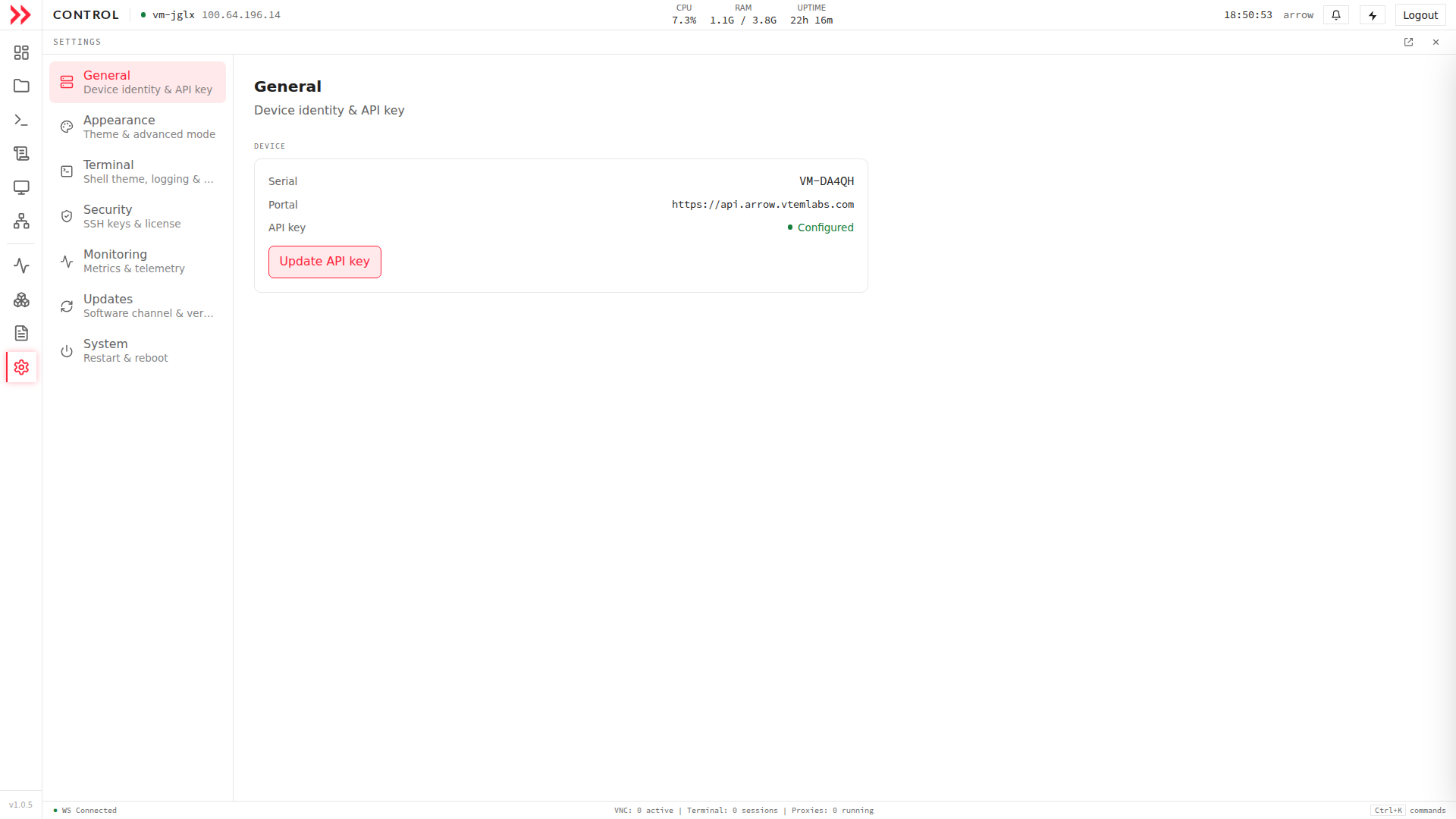
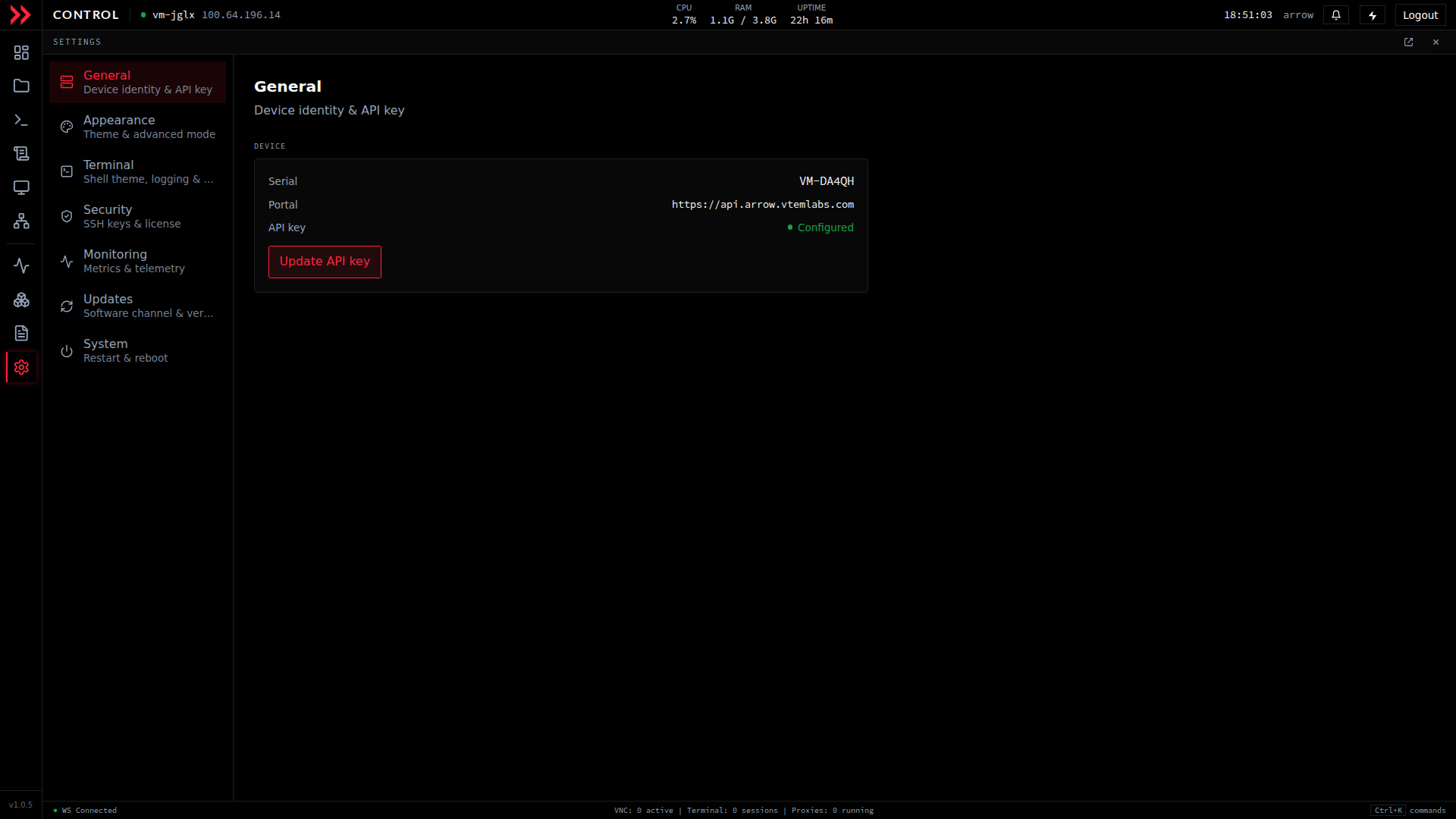
General shows the device serial, portal URL, and API key status, with a button to update the API key.
General shows the device serial, portal URL, and API key status, with a button to update the API key.
Appearance
Section titled “Appearance”Appearance controls how ARROW Control looks and how much detail it shows you. Switch the interface between Dark and Light to match your preference or the room you are working in, both are fully supported. The Advanced mode toggle is off by default; turn it on when you want deeper technical detail such as exact metric values and internal endpoints, and leave it off for a cleaner everyday view.
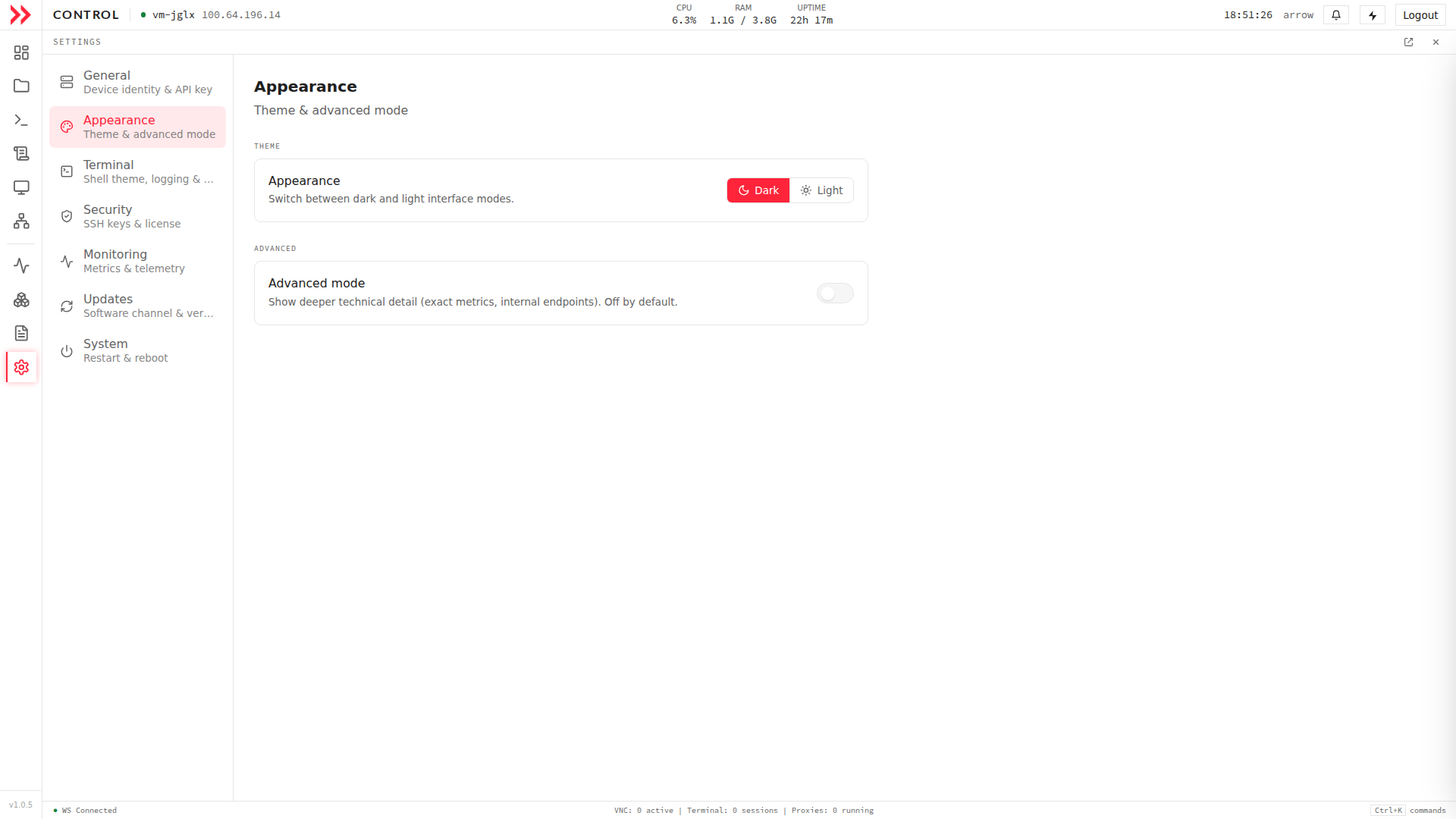
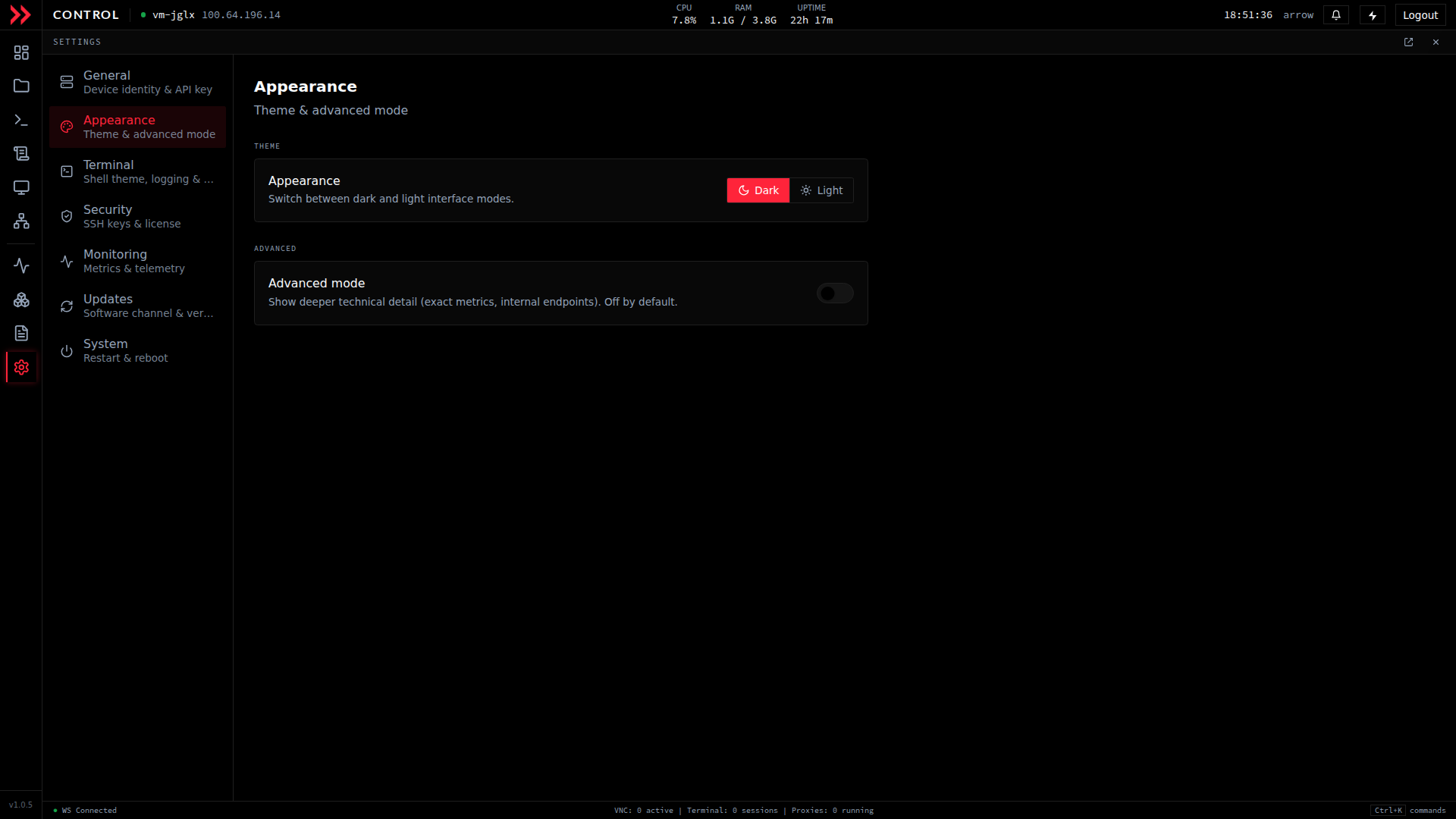
Appearance switches between dark and light modes and toggles advanced mode for deeper technical detail.
Appearance switches between dark and light modes and toggles advanced mode for deeper technical detail.
Terminal
Section titled “Terminal”Terminal tunes the shell experience for the VM’s own terminal, so reach for it when you want the command line to feel like home. Pick a shell theme (arrow, jellybeans, gruvbox, catppuccin, nord, or tokyonight) that recolors the prompt, tmux, and zellij together, and choose the default shell new terminals launch with (Zsh, Nushell, or Bash). Session logging records terminal sessions to ~/terminal_logs so you can review exactly what was run later under Terminal Logs, which is useful for keeping an audit trail of your work.
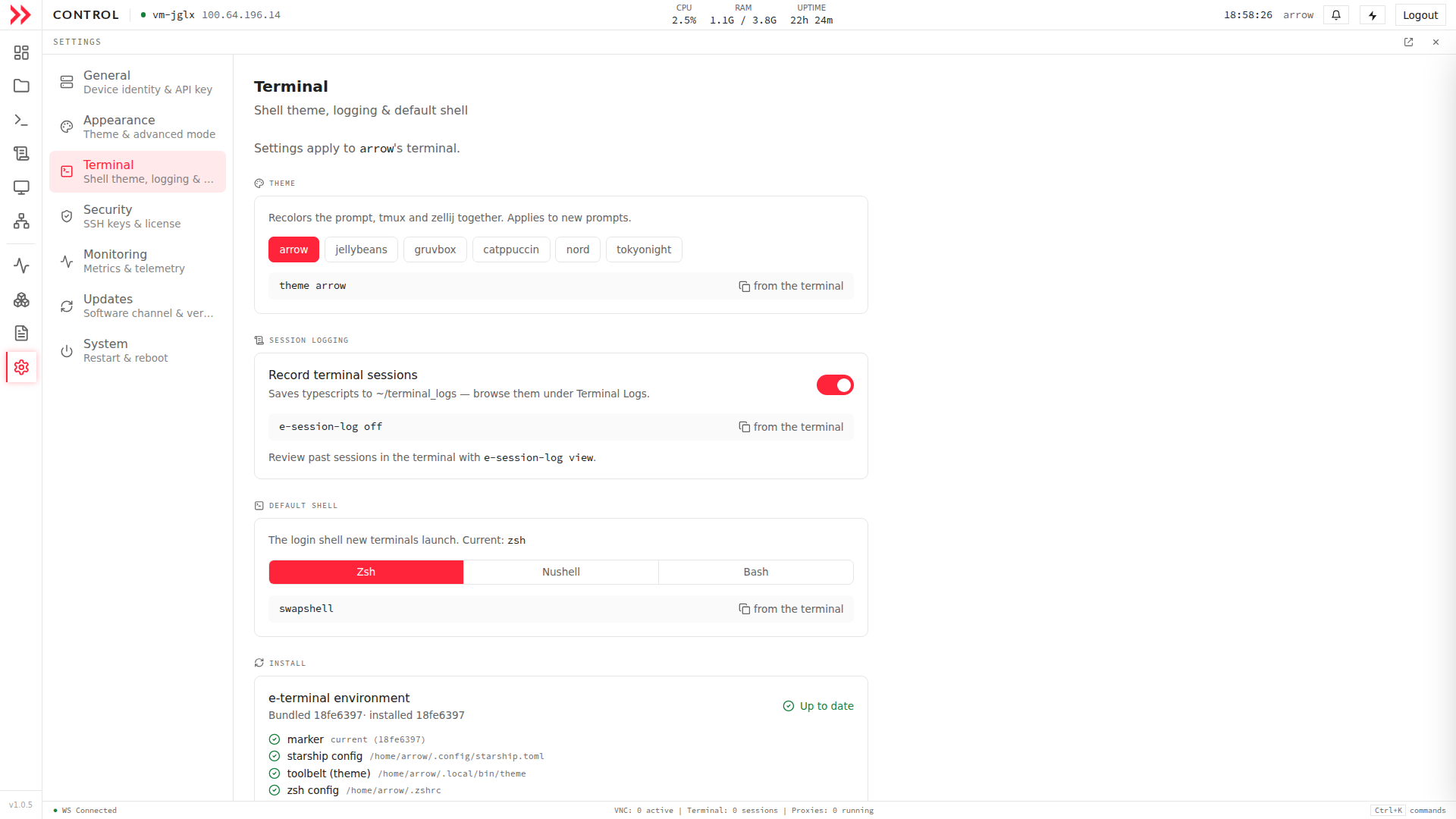
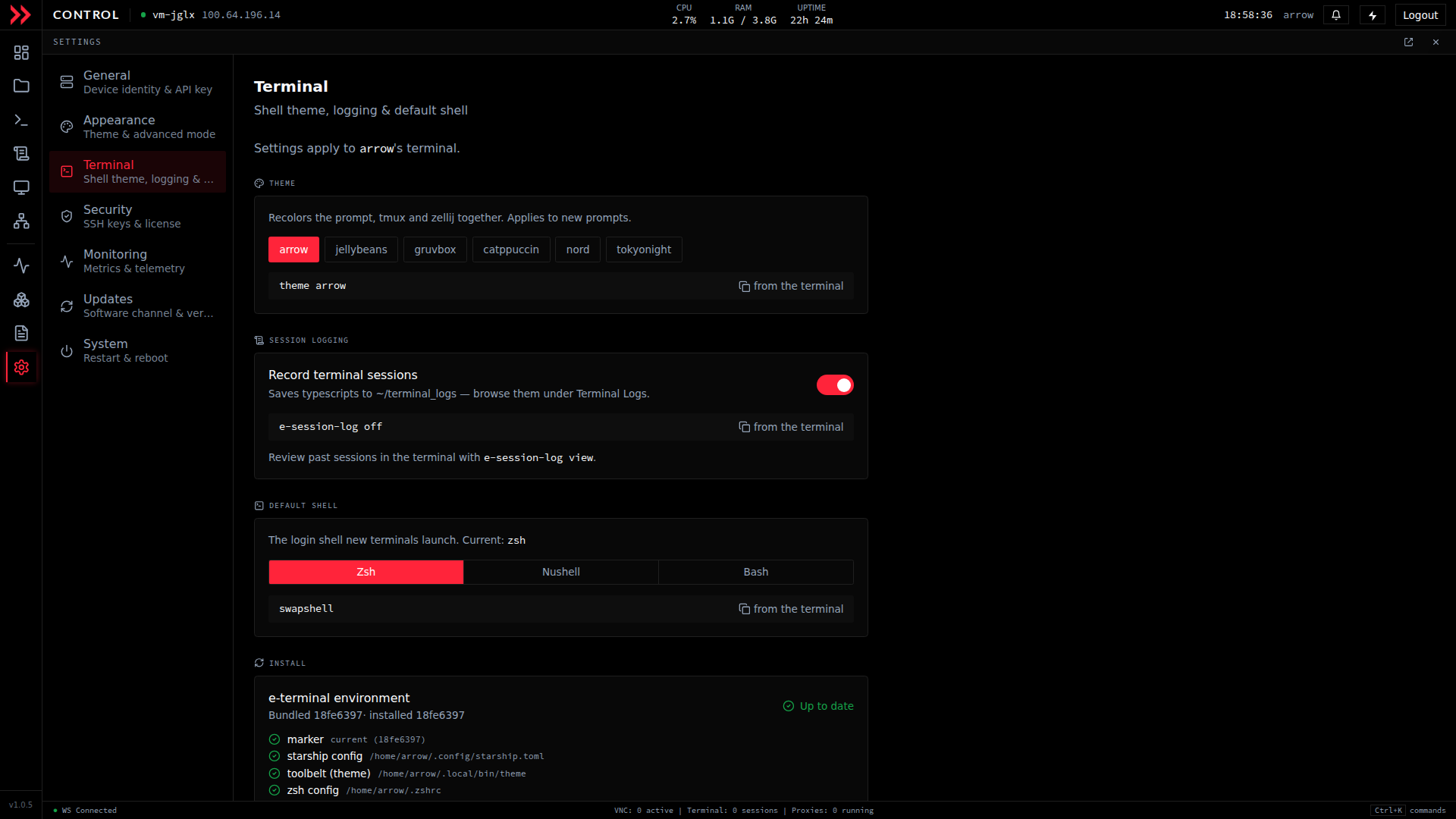
Terminal sets the shell theme, default shell, and session logging for the VM's terminal.
Terminal sets the shell theme, default shell, and session logging for the VM's terminal.
Security
Section titled “Security”Security is where the VM’s access controls and licensing live. Open SSH Key Manager takes you to key management for tunnels and access, where you can generate keys, manage authorized keys, and tune the SSH server, which matters when you are setting up pivoting or hardening remote access. The License panel below shows the organization, license ID, device limit, and expiry date, with a status line confirming the license is valid, so it is the quick place to check when a renewal is coming up.
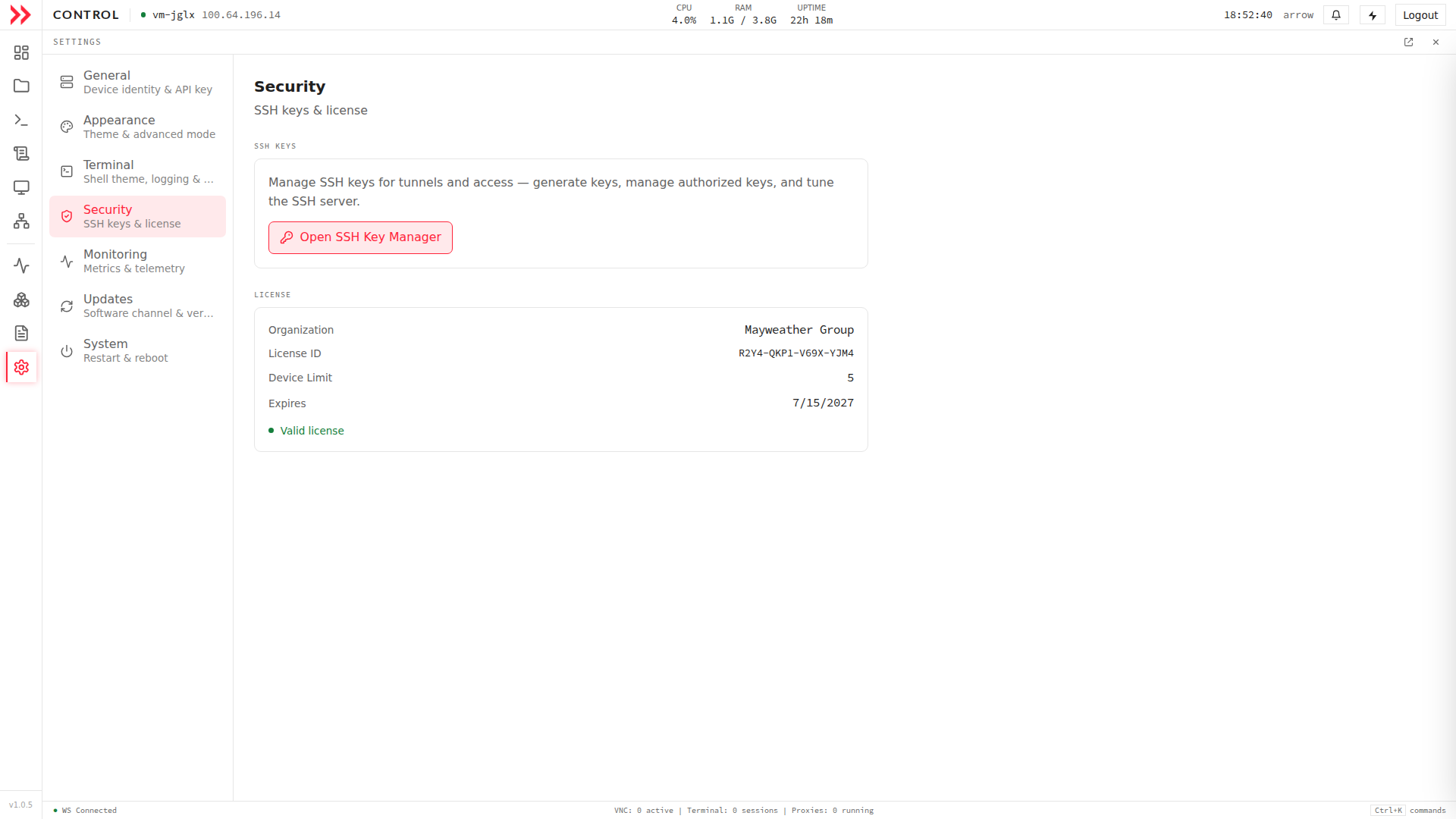
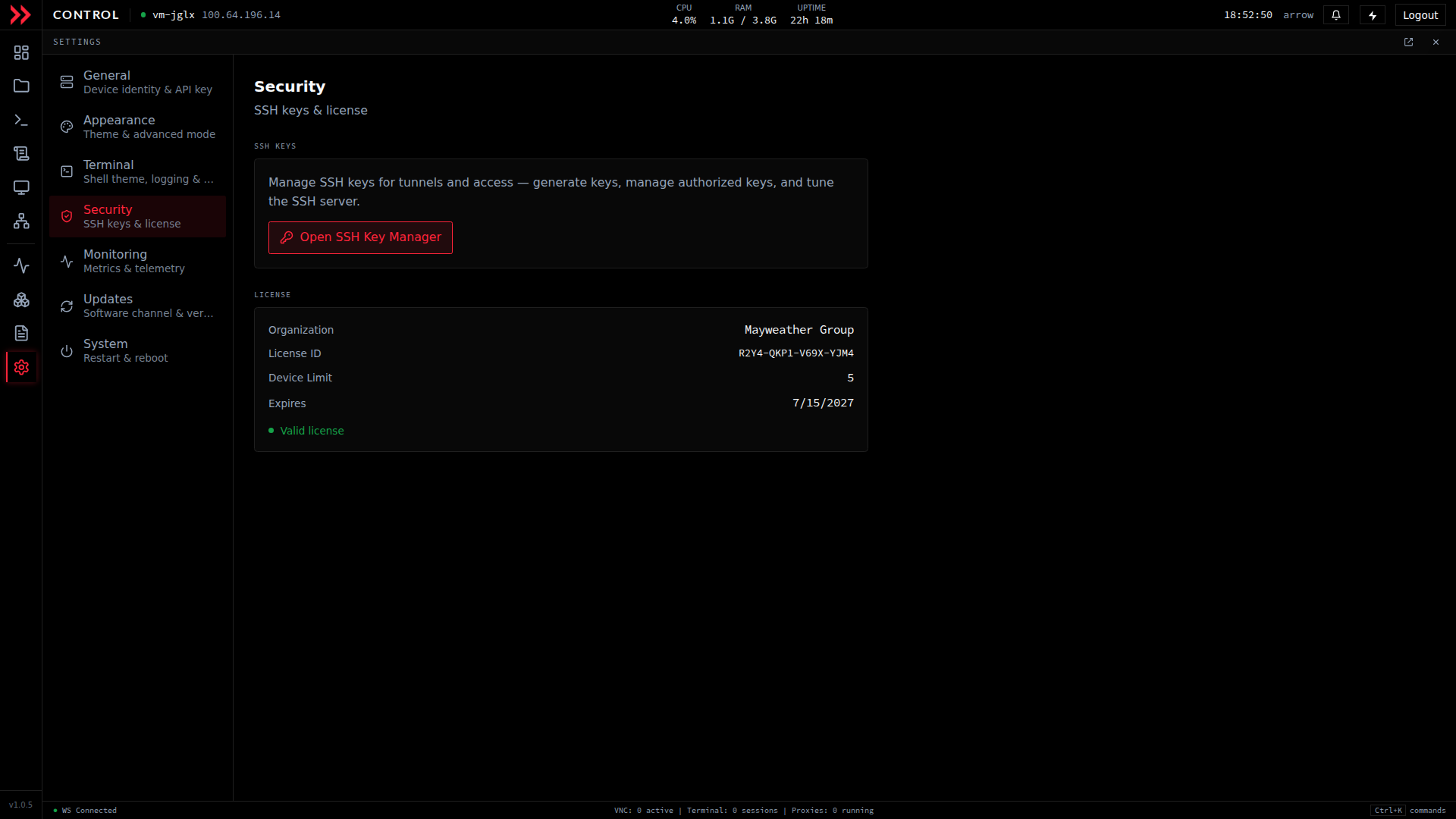
Security opens the SSH Key Manager and shows license status, device limit, and expiry.
Security opens the SSH Key Manager and shows license status, device limit, and expiry.
Monitoring
Section titled “Monitoring”Monitoring covers the metrics and telemetry ARROW Control collects about the VM. By default the system metrics that keep the device healthy are collected and sent to your ARROW portal, and this section confirms that status at a glance. You would open it to check that telemetry is flowing, and enabling Advanced mode (from Appearance) reveals exactly what is being collected if you want the full detail.
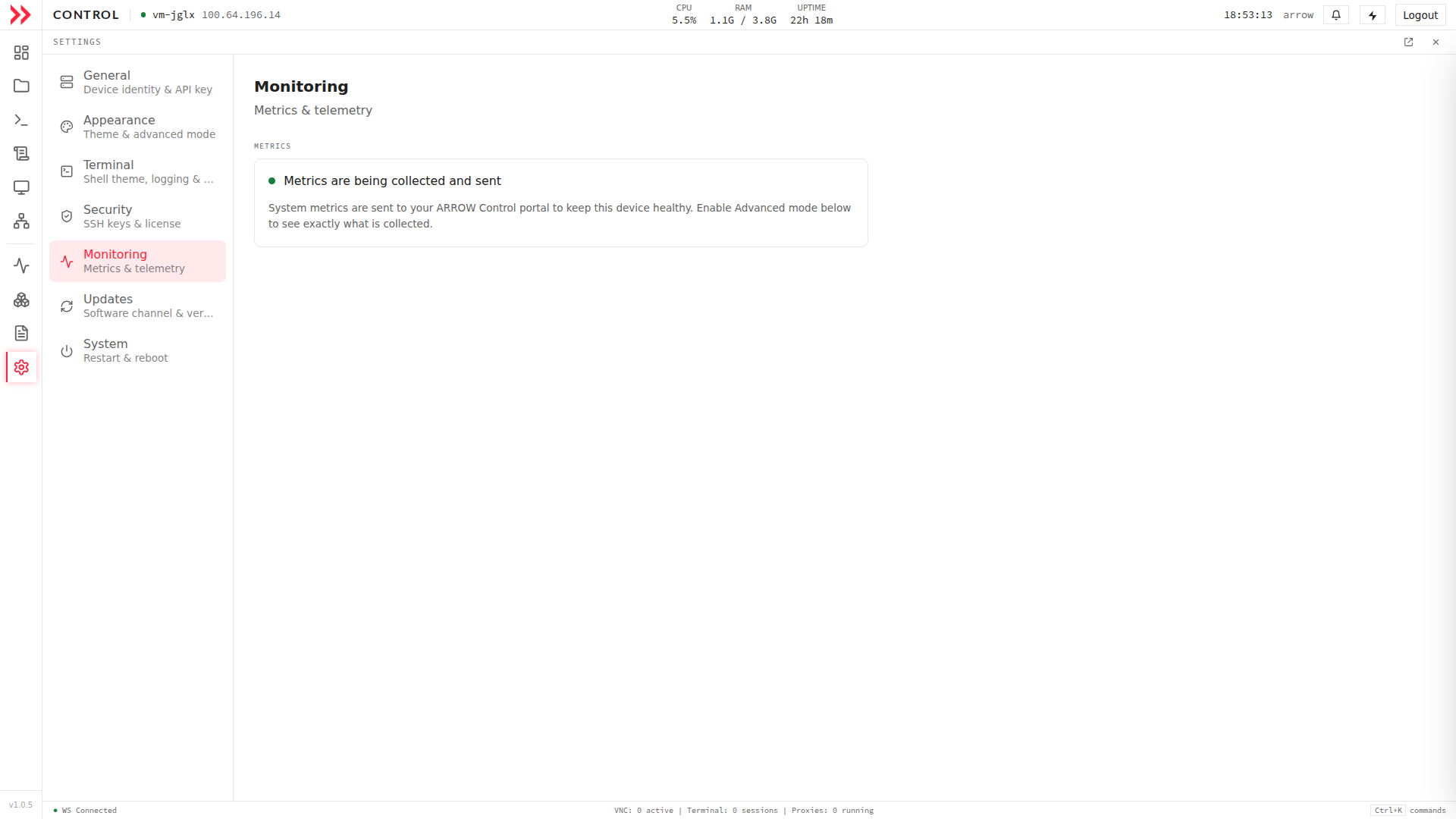
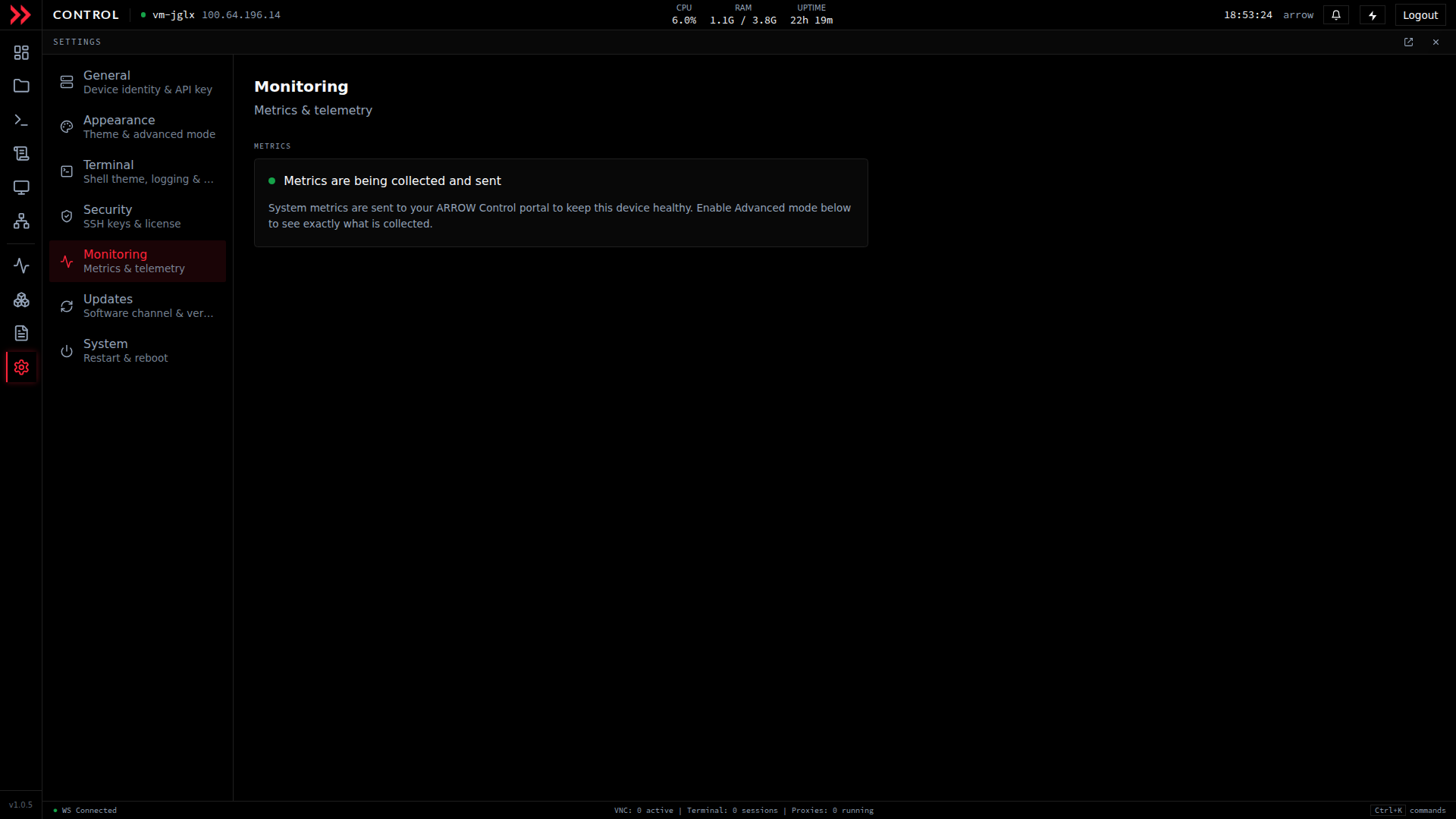
Monitoring confirms that system metrics are being collected and sent to your ARROW portal.
Monitoring confirms that system metrics are being collected and sent to your ARROW portal.
Updates
Section titled “Updates”Updates keeps ARROW Control current. It shows the current version and lets you choose an update channel, either Stable for the tested release most operators should stay on, or Beta if you want early features and are comfortable with change. Check for Updates looks for a newer build on the selected channel, so this is where you go after a release announcement or when you want to confirm you are up to date.
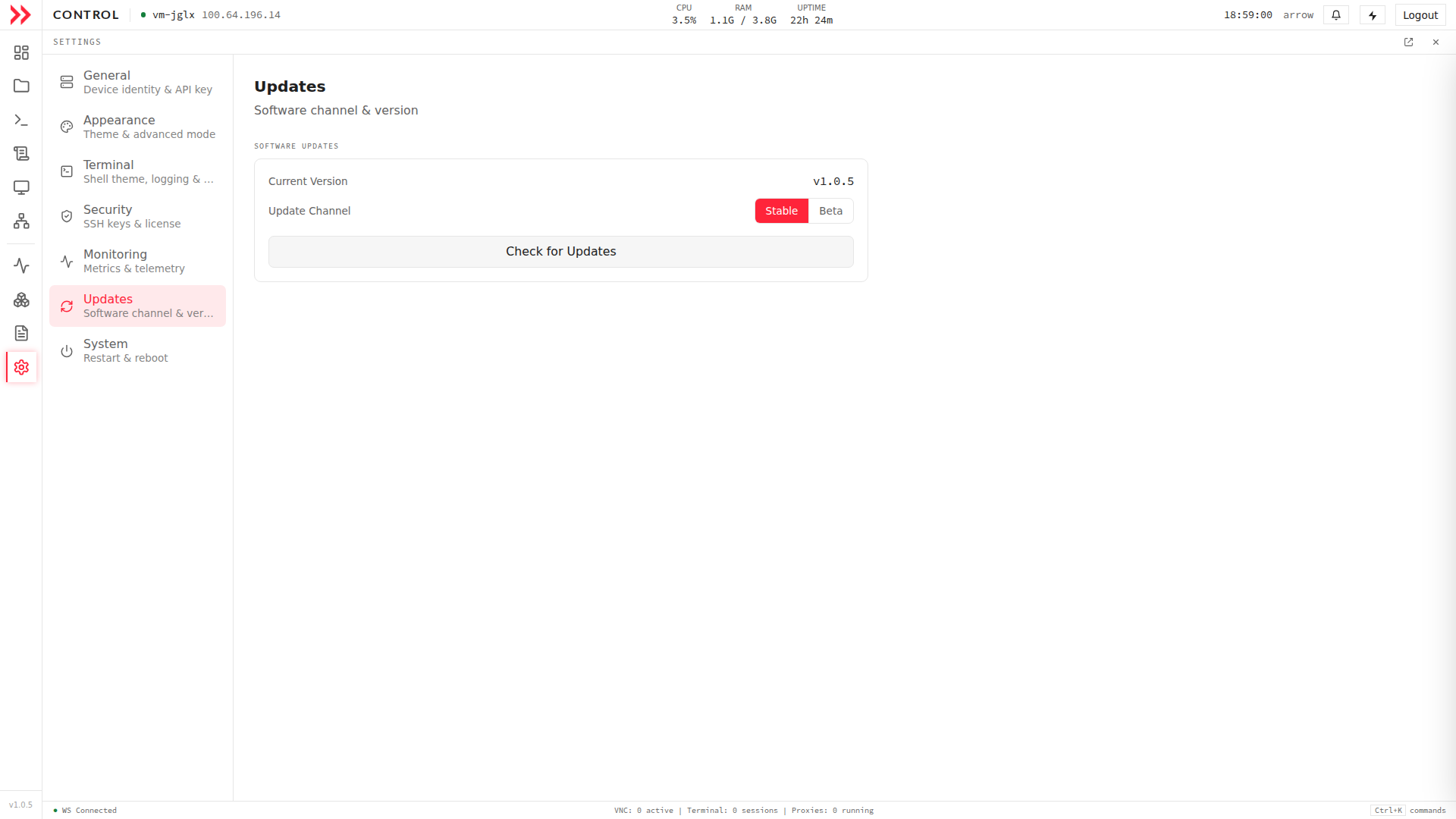
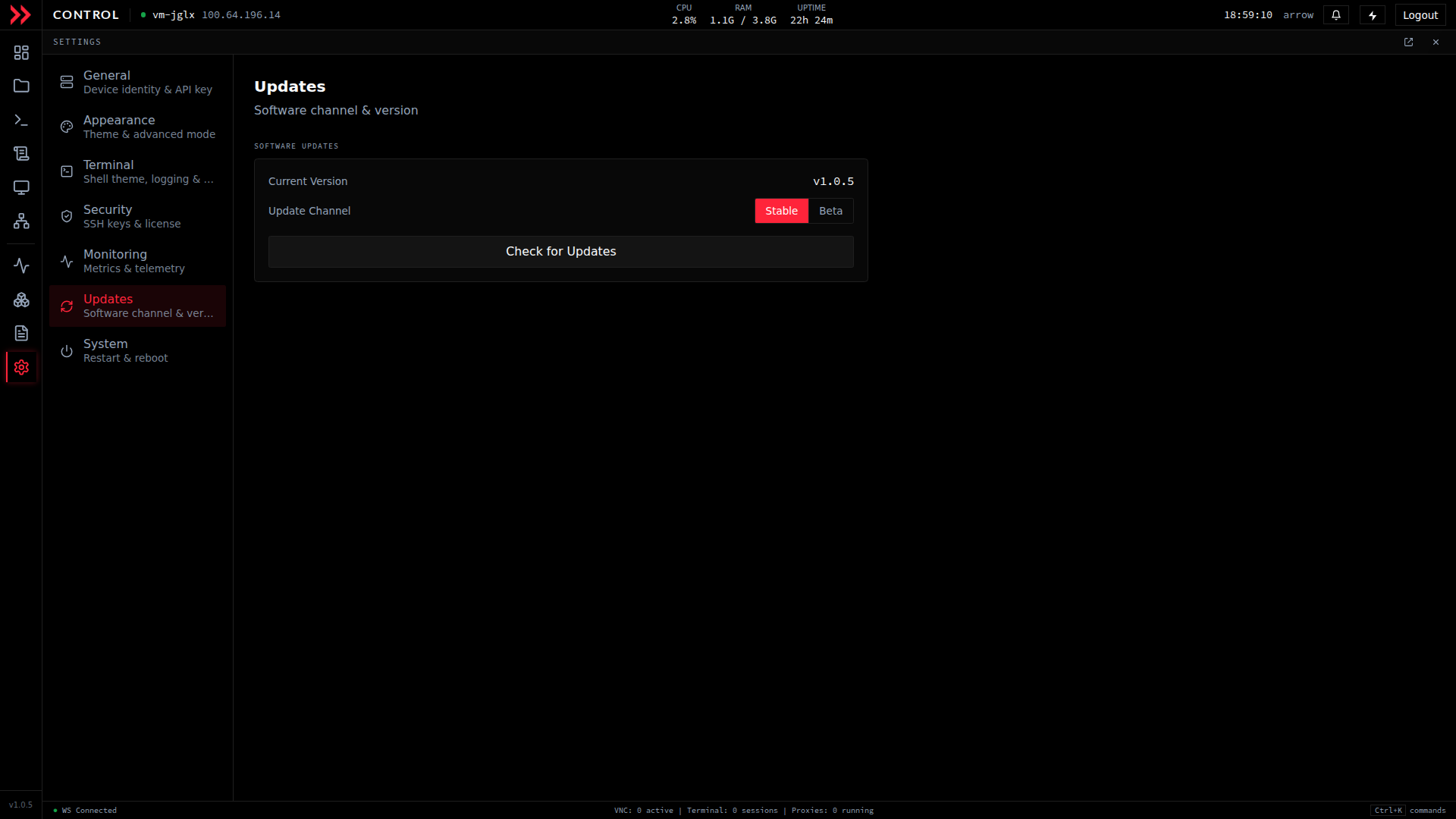
Updates shows the current version, selects the Stable or Beta channel, and checks for updates.
Updates shows the current version, selects the Stable or Beta channel, and checks for updates.
System
Section titled “System”System holds the two real actions that affect the running machine, so use it with care. Restart ARROW Control restarts just the service and reconnects automatically, which is the gentle fix after a settings change or if the console gets into a bad state. Reboot restarts the entire device, which drops every session and connection until the VM comes back up, so save it for when a full reboot is genuinely what you need.
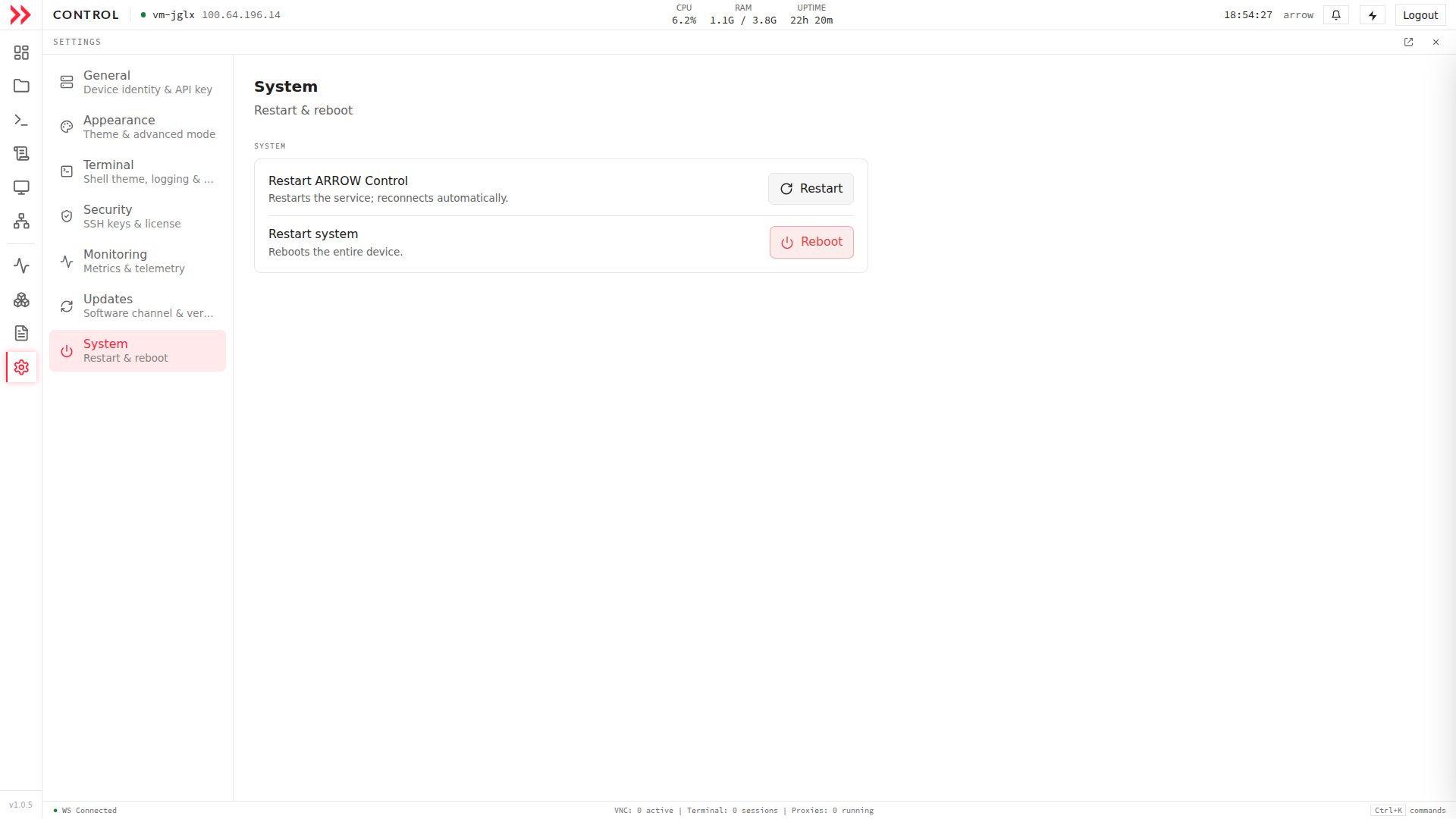
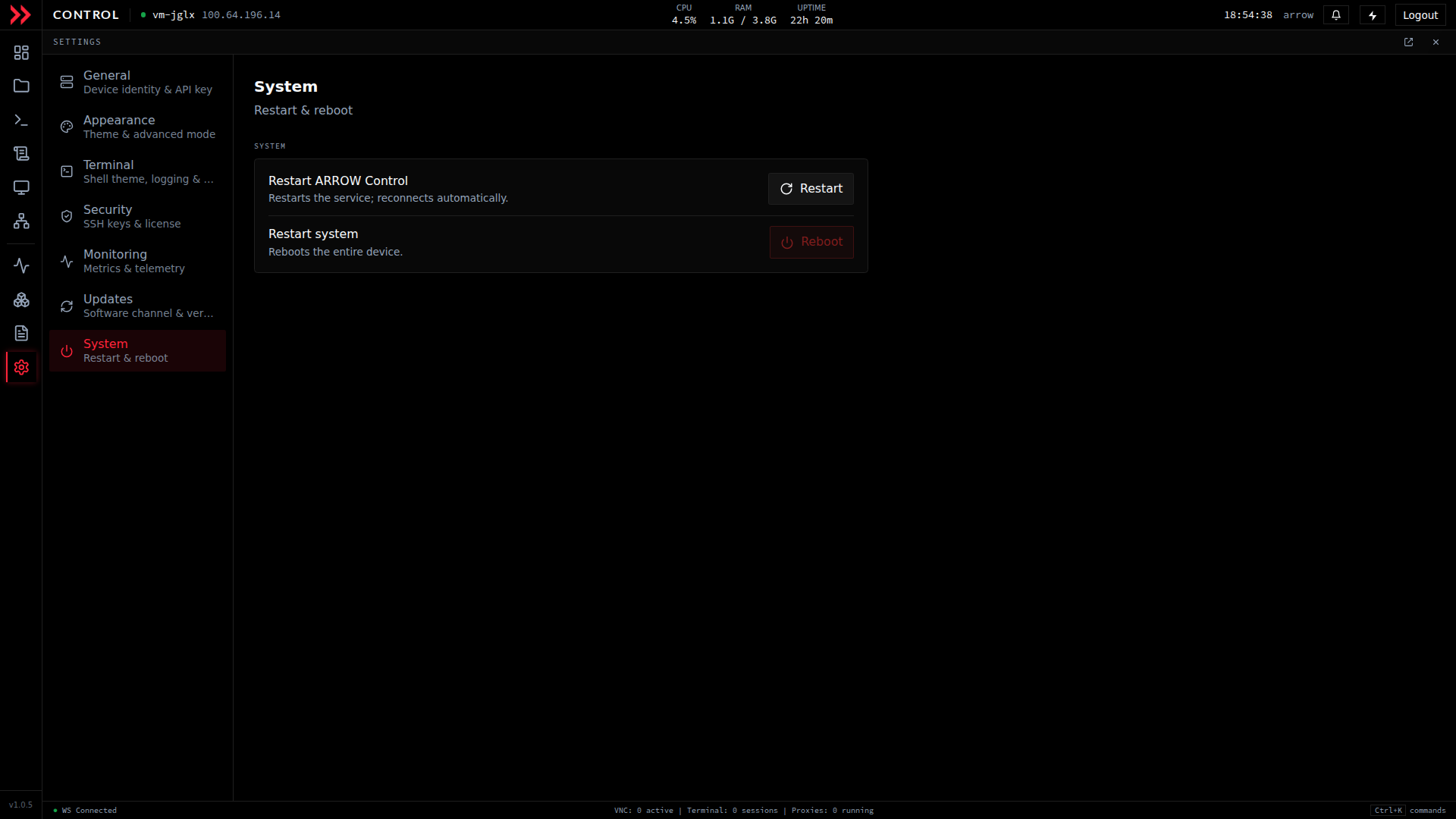
System restarts ARROW Control or reboots the whole device - both are real actions, so use them with care.
System restarts ARROW Control or reboots the whole device - both are real actions, so use them with care.
Related Documentation
Section titled “Related Documentation”- ARROW Control Overview - Complete feature overview
- Terminal & VNC Access - Command line and remote desktop
- System Monitoring - Live metrics and process visibility
- Pivot - SOCKS proxies, tunnels, and network discovery