
ARROW Setup (Mobile App)
ARROW Setup (Mobile App)
Section titled “ARROW Setup (Mobile App)”ARROW Setup is a free app for iPhone and Android that talks to an ARROW device over Bluetooth. It is for the person standing next to the device: you can see whether it is online, set its network, check the cellular link, and confirm it is reachable before you leave the site.
Most devices need none of this. A device arrives provisioned and comes online on its own a few minutes after you connect power and a network cable, as described in Receiving an ARROW Device. The app is for the times that does not happen, and for sites where the network needs a static address.
The app is a companion to the hardware and does nothing without a device in Bluetooth range.
What you need
Section titled “What you need”- The ARROW Setup app on your phone: from the App Store on iPhone, or Google Play on Android.
- An ARROW device, powered on, within Bluetooth range.
- The serial number from the black label on the fan cover, under the device’s lid. Lift the lid off to read it and put it back afterwards. It takes the form
AM-1A2B3. - Bluetooth switched on. The app does not need mobile data or Wi-Fi.

Apple and the Apple logo are trademarks of Apple Inc., registered in the U.S. and other countries and regions. App Store is a service mark of Apple Inc. Google Play and the Google Play logo are trademarks of Google LLC.
No ARROW account is needed. The app has no sign-in.
Connecting
Section titled “Connecting”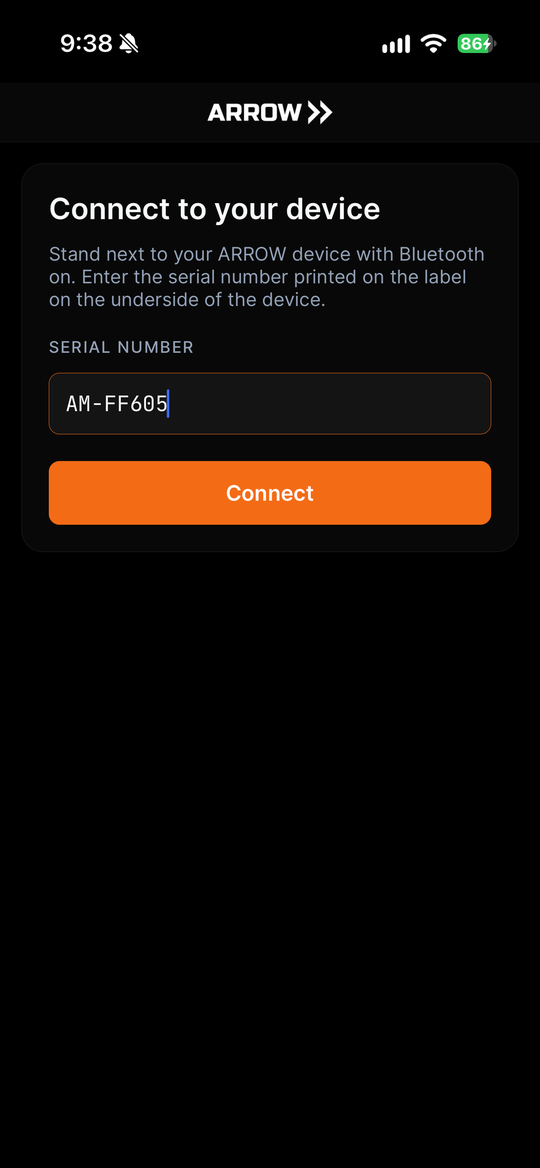
Enter the serial printed on the device
Enter the serial printed on the device
- Open the app. It shows Connect to your device.
- Type the serial into SERIAL NUMBER.
- Tap Connect.
The app finds that device over Bluetooth, and the device authorizes the session before it answers anything. Connecting takes a few seconds.
If it reports that it could not reach the device, move closer and try again. Bluetooth range is short, and a metal cabinet or rack door between you and the device is often enough to block it.
Overview
Section titled “Overview”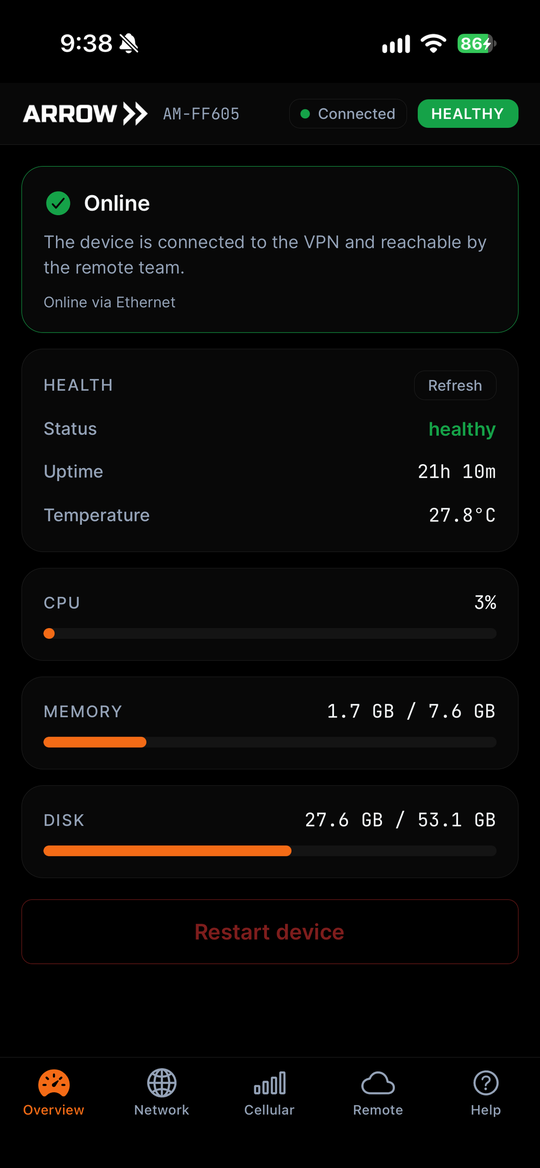
The Overview tab answers the question you came for: is the device reachable
The Overview tab answers the question you came for: is the device reachable
The Overview tab leads with whether the device is online and how it got there, for example Online via Ethernet. Below that it shows the device health, its uptime and temperature, and current CPU, memory, and disk usage.
If the device is not online, this tab names the reason rather than just reporting a failure, and links to the matching page in these docs.
Restart device reboots it. The app warns you first: the Bluetooth connection drops and the device is back in a few minutes. Reboot only if your security provider asks you to.
Network
Section titled “Network”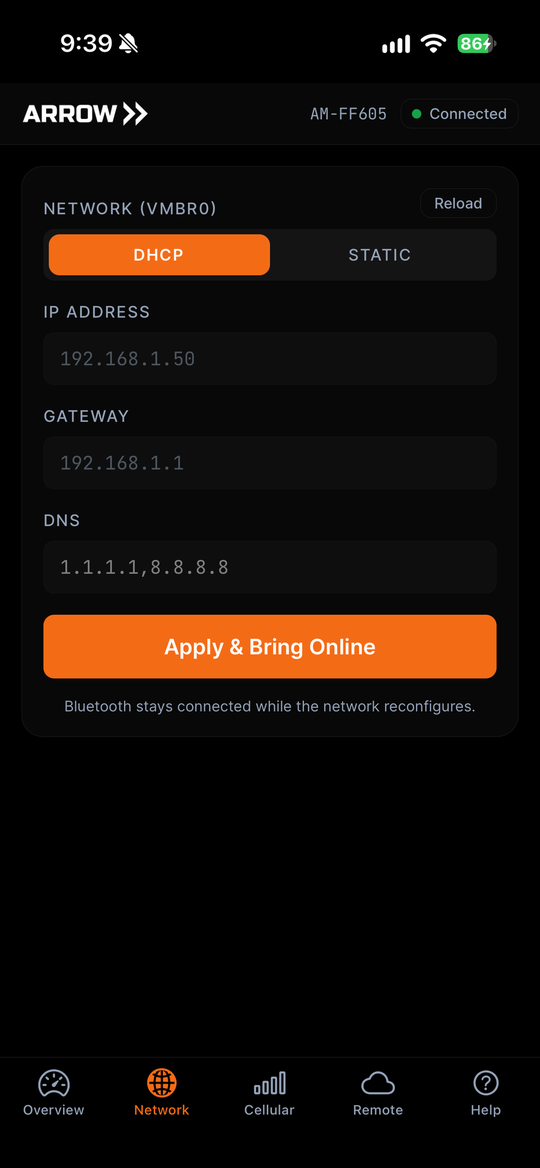
Switching the device to a static address
Switching the device to a static address
The Network tab shows the device’s current wired configuration and lets you change it.
| Field | What it does |
|---|---|
| DHCP / STATIC | Whether the device takes an address automatically or uses one you set |
| IP ADDRESS | The fixed address for the device, when set to STATIC |
| GATEWAY | The router the device sends traffic through |
| DNS | The name servers the device uses, comma separated |
DHCP is the default and is right for almost every site. Use STATIC only where the network requires it and the network team has given you an address to use.
Tap Apply & Bring Online to write the change. Bluetooth stays connected while the network reconfigures, so you can watch the device pick the change up rather than guessing.
Important An address that is already in use, or a gateway the device cannot reach, leaves the device offline. If you are unsure, use DHCP and ask the network team for a DHCP reservation instead.
Cellular
Section titled “Cellular”The Cellular tab shows the state of the device’s backup connection: its status, the carrier it has attached to, the signal strength as RSRP and RSSI, and the band in use.
This is worth checking before you leave. The device uses cellular when the wired network is unavailable, and basements and interior server rooms often have no usable signal. A device with no wired path and no cellular signal is a device nobody can reach.
Remote
Section titled “Remote”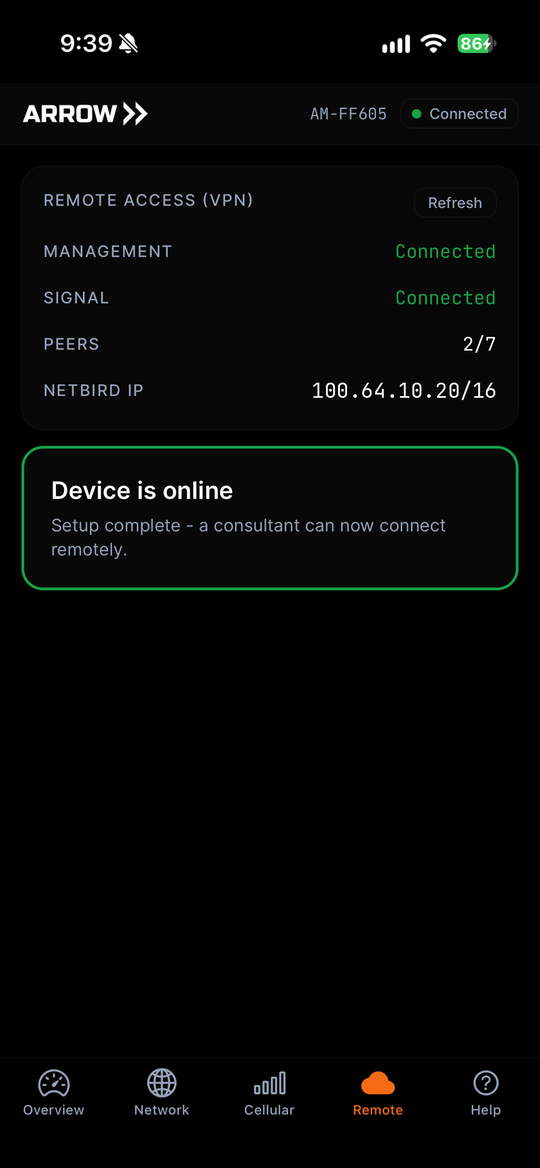
The check that says the installation is finished
The check that says the installation is finished
The Remote tab confirms that the device has reached the ARROW platform and that your security provider can now connect to it. It shows the state of the management and signal connections, how many peers the device can see, and the device’s address on the VPN.
When it reads Device is online, with Setup complete - a consultant can now connect remotely, the installation is done. Until then it reads Not yet online, with Finish network setup to allow remote access.
This is the tab to check last. Everything else can look healthy while the device still cannot be reached.
The Help tab links into these docs: the setup guide, troubleshooting, network and Ethernet failover, and VPN connectivity. Links open in your browser.
For hands-on support, contact your organization’s ARROW administrator. They manage support for your deployment.
Privacy
Section titled “Privacy”The app talks to the device over Bluetooth and sends nothing to any server. There is no account, no analytics, and no crash reporting. Bluetooth is used only to find and reach your ARROW device, never to determine your location. The only thing it stores on your phone is the serial number of the last device you connected to, so you do not have to type it again.
If the app cannot find the device
Section titled “If the app cannot find the device”- Confirm the device has power and the fan is running. See Receiving an ARROW Device.
- Confirm Bluetooth is on and the app has permission to use it.
- Move within a few metres of the device, with no cabinet door or rack panel in between.
- Check the serial against the black label on the fan cover, under the device’s lid. It is easy to read
0forO. - Tap Try again.
If it still cannot connect, contact your security provider. They can see the device’s status from their console.