
Team & Roles
The Team screen is where you control who can reach ARROW Decrypt and what they can do. It lists everyone on the instance with their role, status, two-factor state, and last sign-in.
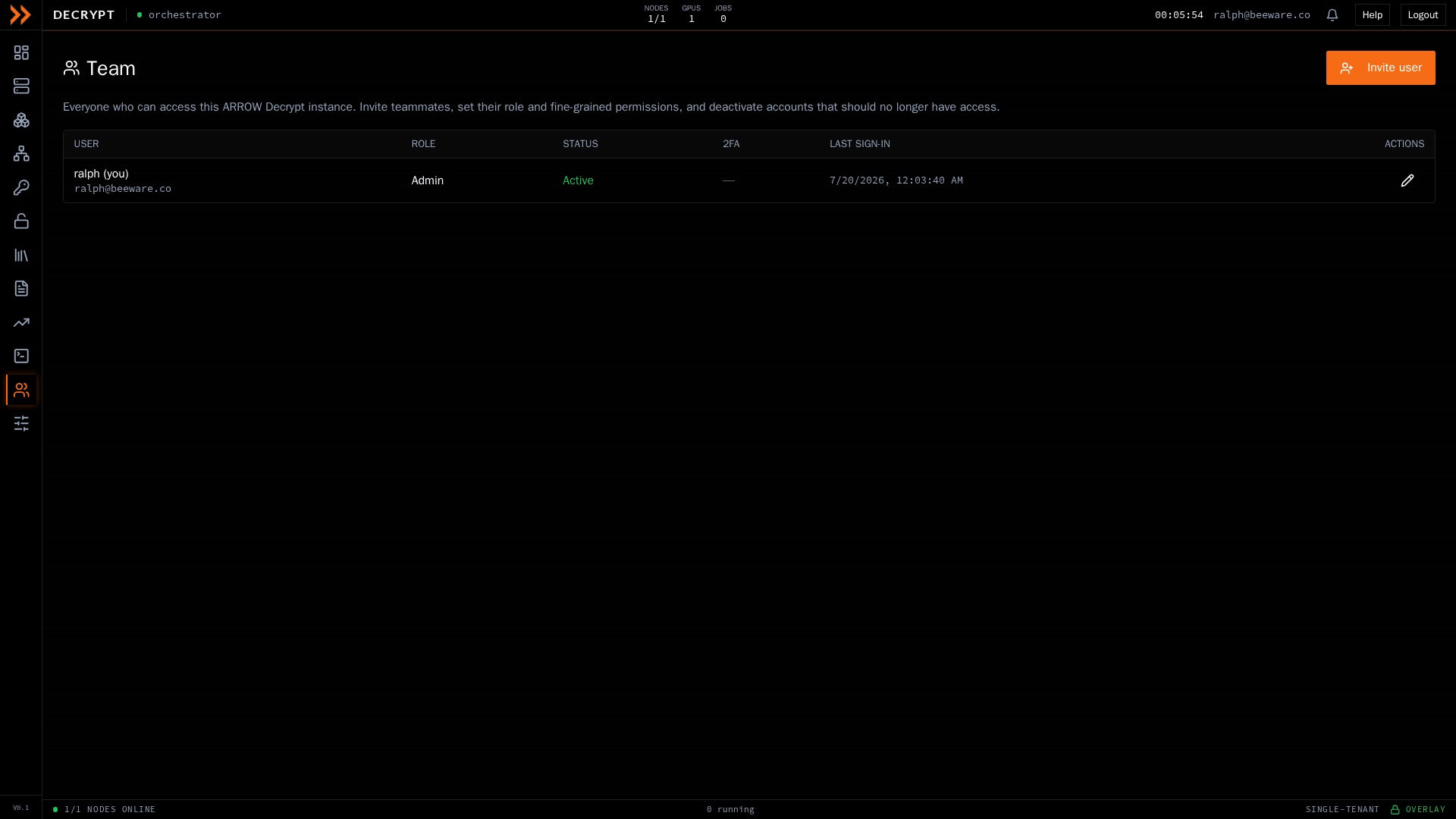
The team roster, with role, status, two-factor, and last sign-in
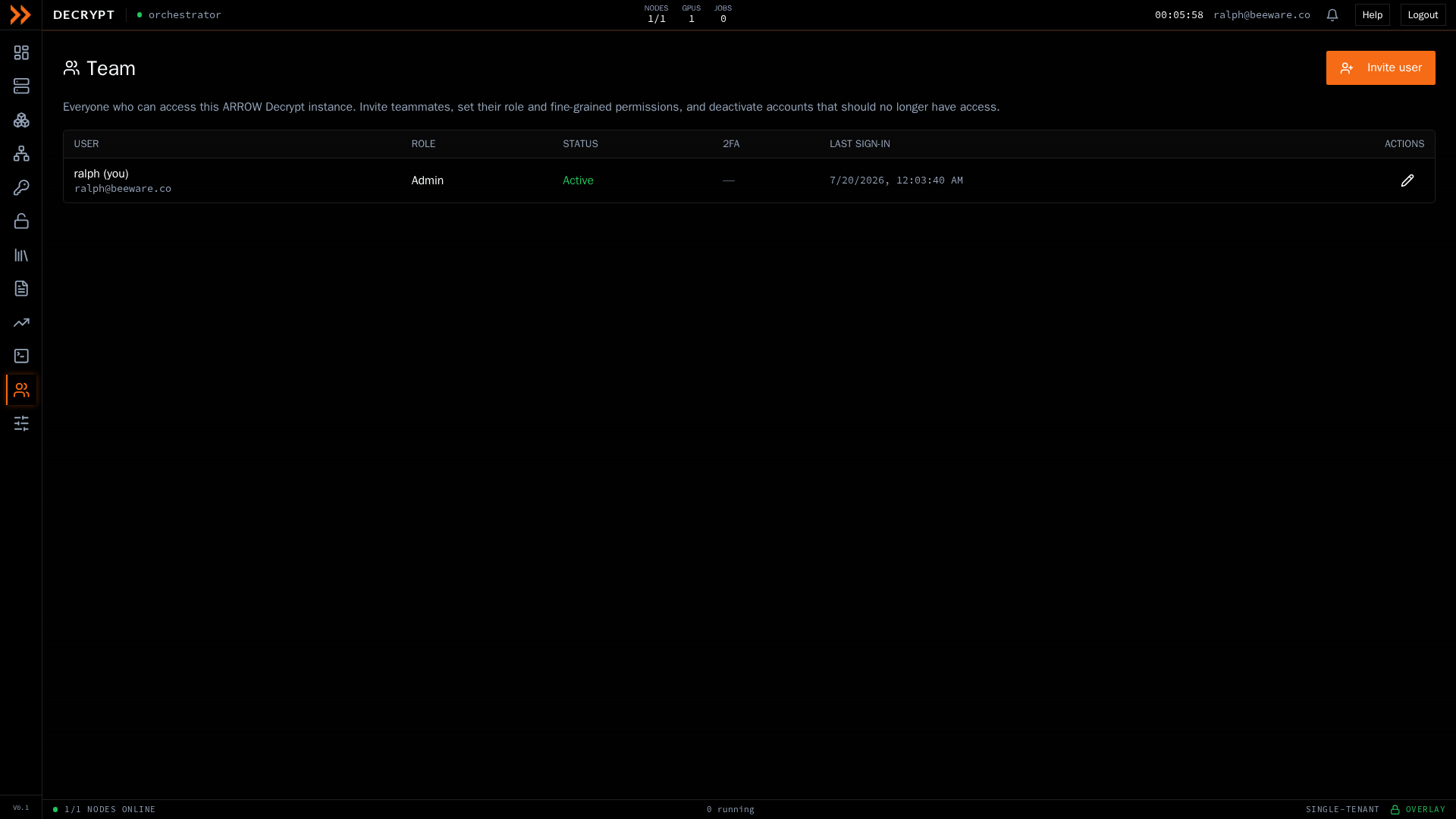
The team roster, with role, status, two-factor, and last sign-in
Each row shows the person’s name and email, their Role, their Status (Active, Invited, or Disabled), whether two-factor is enrolled or required, and when they last signed in. Your own row is marked so you can find it quickly. From a row you can edit a user, resend an invite, reset their two-factor, or deactivate and reactivate them. You cannot deactivate your own account.
Inviting a teammate
Section titled “Inviting a teammate”Click Invite user to open the invitation dialog.
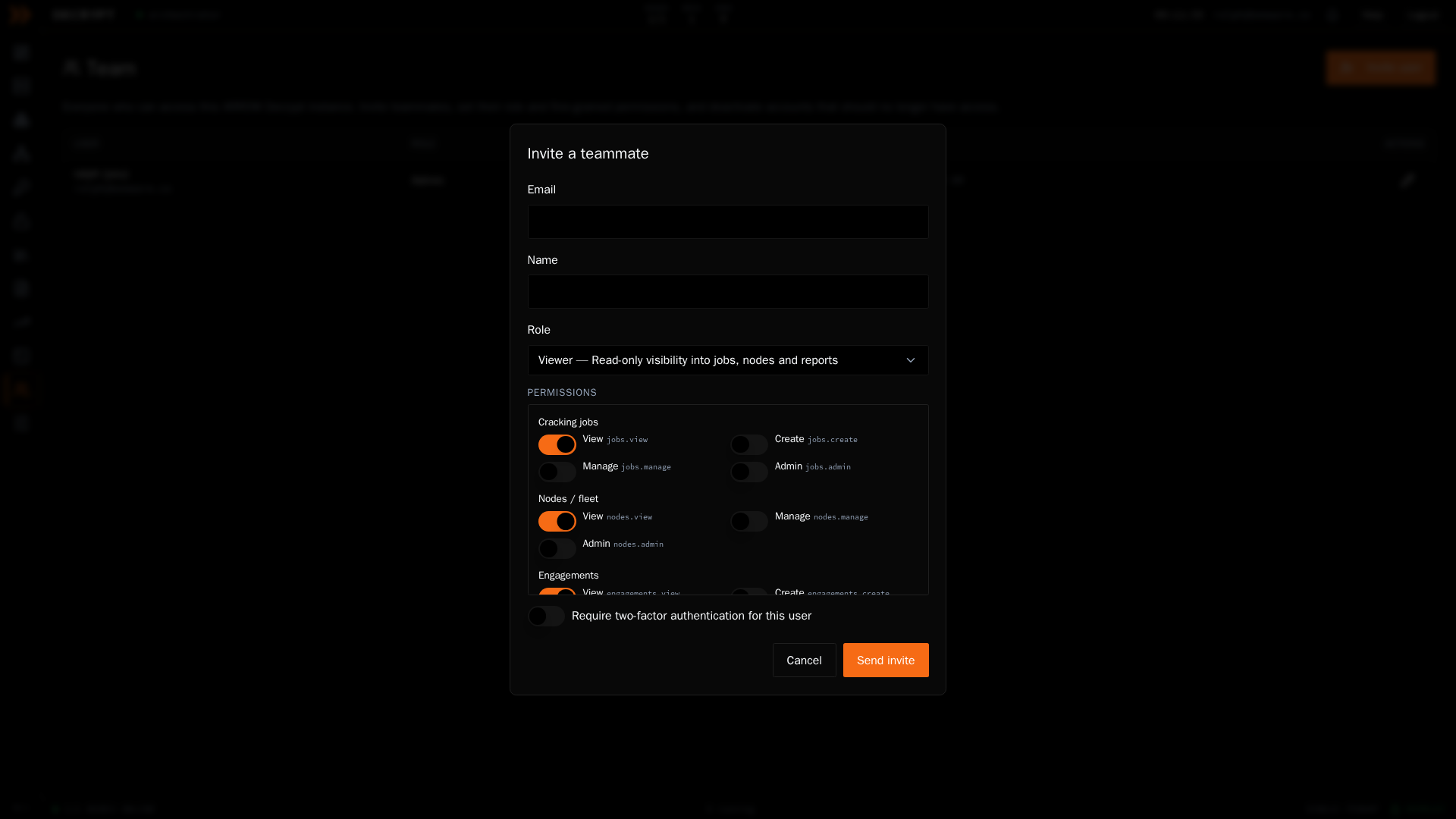
Inviting a teammate, where you pick a role, tune permissions, and require two-factor
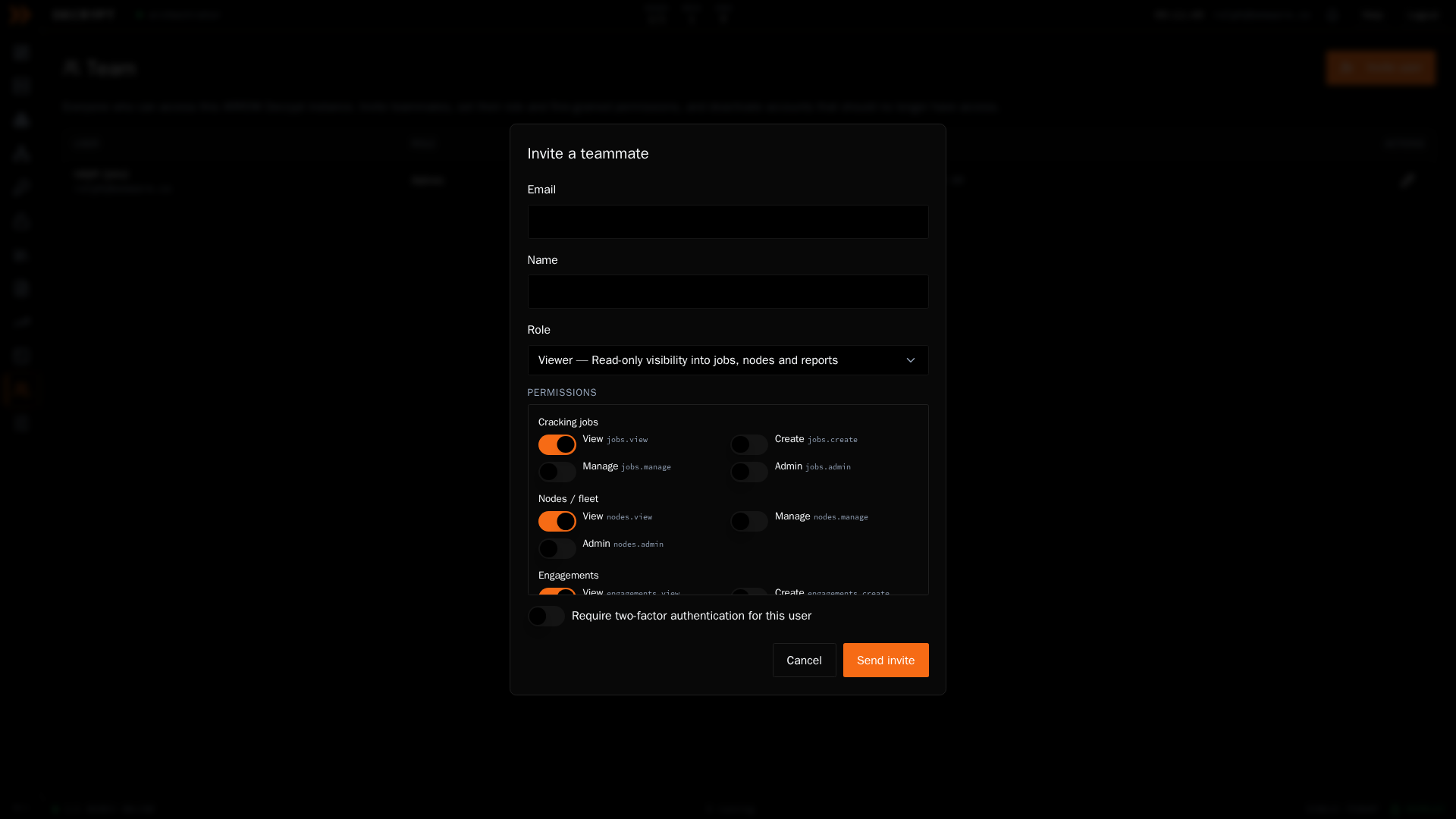
Inviting a teammate, where you pick a role, tune permissions, and require two-factor
- Enter the person’s Email and Name.
- Pick a Role. The role seeds a sensible set of permissions; for example, a Viewer gets read-only visibility into jobs, nodes, and reports.
- Fine-tune the Permissions if you need to. They are grouped by area (cracking jobs, nodes, engagements, and more), each with view, create, manage, and admin toggles.
- Turn on Require two-factor authentication for this user if you want to force 2FA on the account.
- Click Send invite.
The person receives an invitation link and finishes setting up their own password. See Signing In.
Editing a user
Section titled “Editing a user”Open a user from the roster to change their name, role, or permissions, or to toggle their two-factor requirement. The email cannot be changed. Changing the role re-seeds the permission toggles to that role’s defaults, which you can then adjust. If a user holds the full-access grant, the dialog says so and prompts you to pick a role to set granular permissions instead.
Most team management is limited to administrators; actions you do not have permission for are hidden.
Related documentation
Section titled “Related documentation”- Signing In - How invited users join
- Account & Security - What each user manages for themselves