
ARROW Control Overview
ARROW Control is the app that lives on each ARROW VM you deploy, and it is how you actually work on that machine. Instead of juggling an SSH client, a VNC viewer, and a pile of local tools, you open one page in your browser and get the whole box, with live health, a file browser, a real terminal, the graphical desktop, network pivoting, a security tool catalog, and a full record of everything that happened. You reach all of it over your Netbird VPN, so the VM never has to be exposed to the open internet.
What ARROW Control is for
Section titled “What ARROW Control is for”ARROW Control ships pre-installed on every VM deployed through ARROW Manager, so there is nothing to set up. Think of it as the single console for one VM. You sign in, and the dashboard tells you immediately whether the machine is healthy and gives you a one-click path to whatever you came to do.
A status strip runs across the top of every screen so you never lose your bearings, with the VM hostname and its VPN IP on the left, live CPU, RAM, and uptime in the center, and the clock, your signed-in user, and a Logout button on the right. The bar along the bottom confirms the live connection (“WS Connected”), the ARROW Control version, and how many VNC, terminal, and proxy sessions are currently running.
Why you will keep coming back to it:
- You reach the VM from anywhere on the VPN, with nothing to install locally.
- CPU, memory, storage, and network activity update in real time, so a struggling box is obvious at a glance.
- The file manager, terminal, VNC, pivoting, monitoring, and software catalog all live behind one login.
- The software catalog installs professional pentest tooling for you, dependencies and all.
- Every session and action is written to an audit trail you can search and export later.
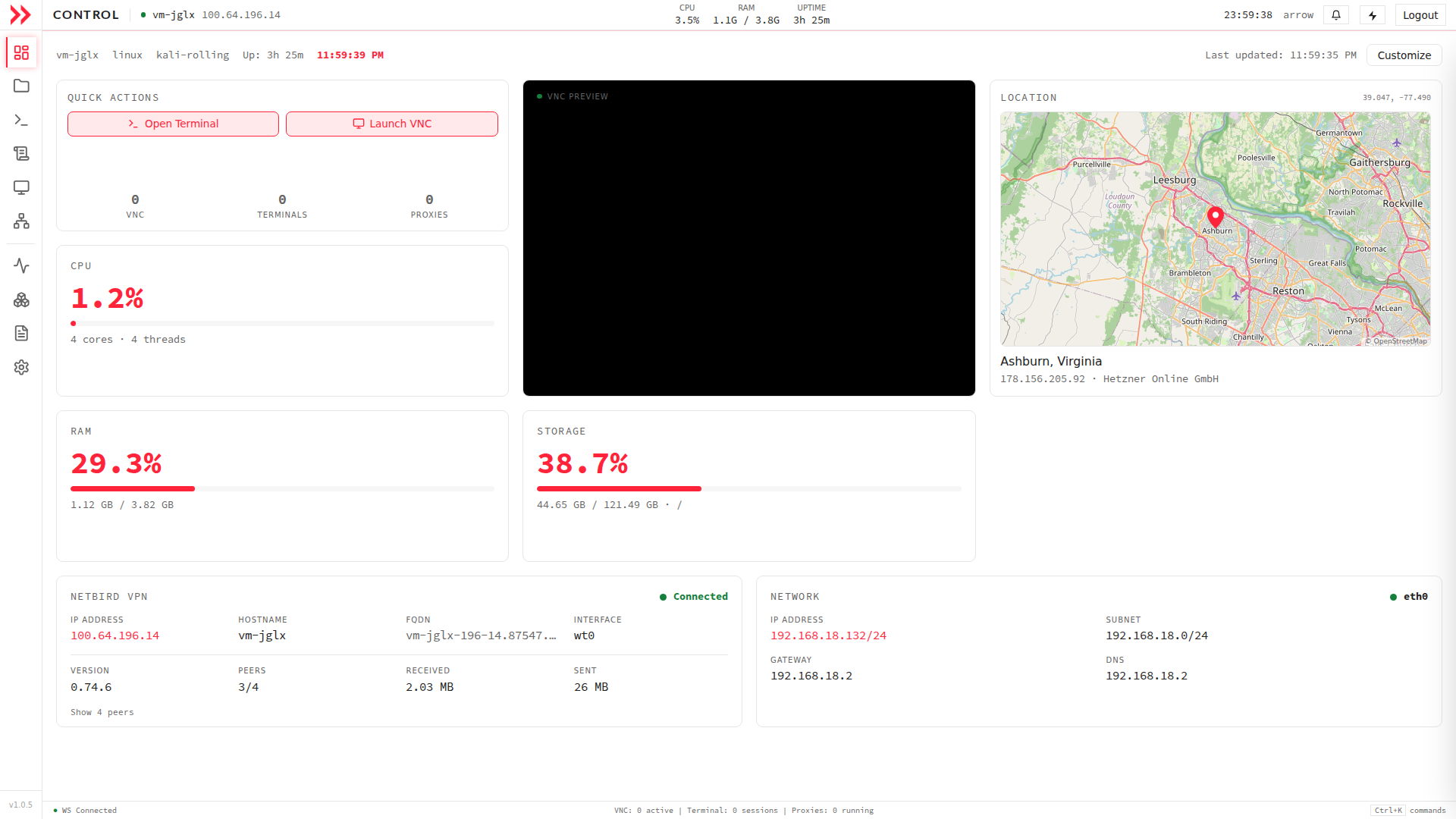
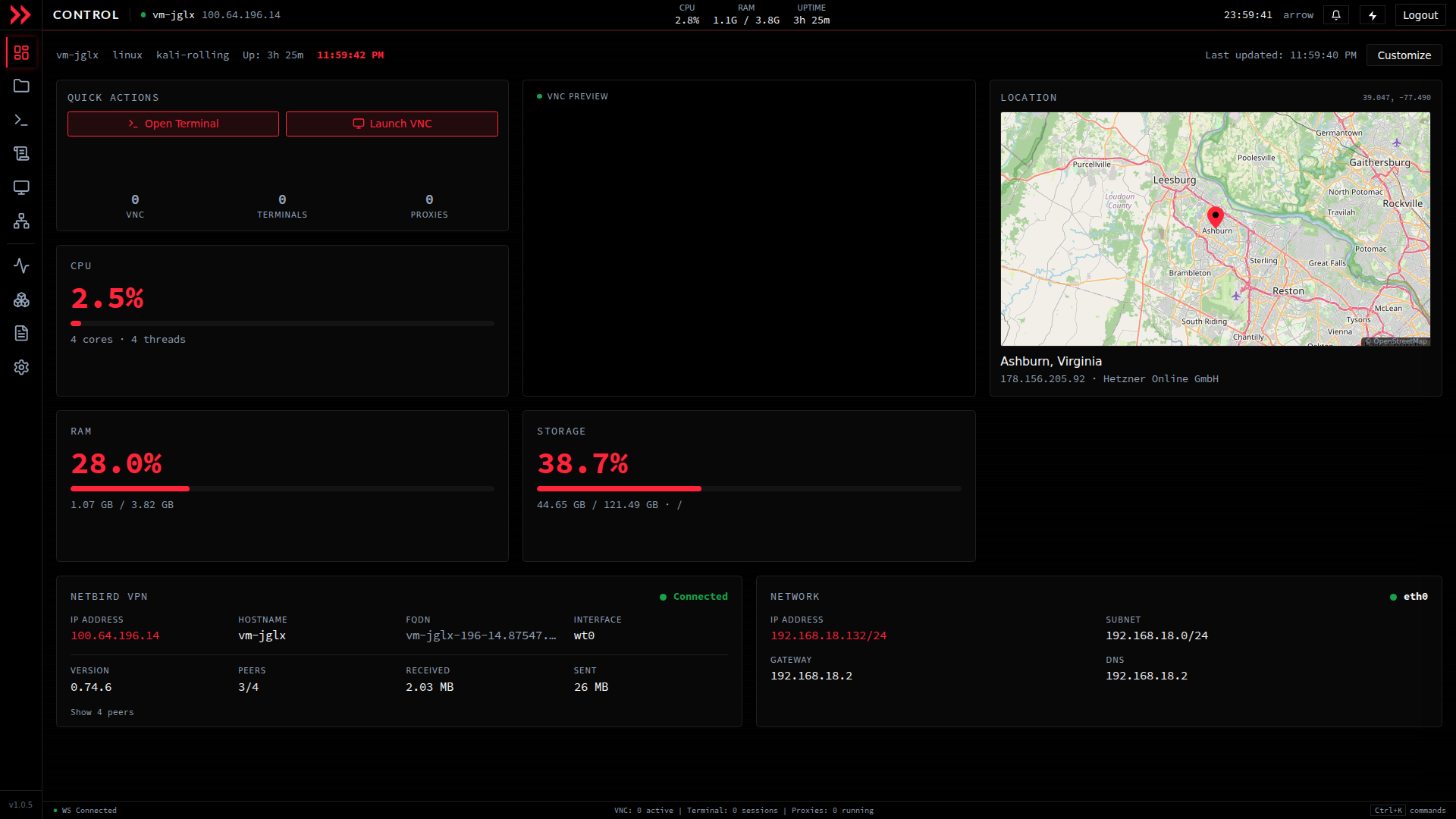
- 1 The sidebar switches between modules for files, terminal, VNC, software, and more.
- 2 Quick actions let you open a terminal or launch the remote desktop in one click.
- 3 Live resources for the device, covering CPU, memory, and storage usage.
- 4 Where the device is, with the public address and hosting provider it is reaching the internet from.
Getting to it
Section titled “Getting to it”ARROW Control is reachable only over the Netbird VPN. Connect to the VPN first, then open your VM’s VPN IP address on port 20443:
https://<vm-vpn-ip>:20443For example, https://100.64.196.14:20443
The first time you connect, your browser will warn you about a self-signed certificate. That is expected on a VPN-only VM. Accept it and continue. For the full step-by-step, see Accessing ARROW Control.
The dashboard
Section titled “The dashboard”The dashboard is the first thing you see, and it is built to answer one question. Is this VM healthy, and what do I want to do next? You get big, live CPU, RAM, and storage meters, quick-action buttons to jump straight into a terminal or the desktop, a map showing where the VM is hosted, and panels for the Netbird VPN and network details. The active-session counts (VNC, terminals, proxies) sit right next to the quick actions so you can tell at a glance what is already running.
What you can do here
Section titled “What you can do here”Manage files without SSH or FTP. The file manager lets you browse, upload, download, and edit files right in the browser, with a path bar, a filter box, and full permission and timestamp detail. Reach for it when you want to move files around, tweak a config, or grab output. See File Management.
Run commands in a real terminal. Open one or more full shell sessions in tabs and work exactly as you would over SSH. Every session is recorded, so you can review precisely what was run later under Terminal Logs. This is your go-to for anything a command line handles well. See Terminal & VNC Access.
Use the graphical desktop over VNC. When a task needs a GUI, such as a browser-based tool or a desktop application, open the VM’s desktop in the browser, inline or popped out into its own window. See Terminal & VNC Access.
Watch the VM’s health. System monitoring tracks CPU, memory, storage, and network live, breaks CPU down per core and network down per interface, and shows the running process count so you can connect a spike to what caused it. See System Monitoring.
Install security tooling in one click. The software catalog is a curated, searchable list of pentest tools. Filter by category or install state, click Install, and ARROW Control handles the dependencies and setup for you. See Application Management.
Pivot into the target network. The Pivot screen sets up SOCKS proxies and tunnels and includes discovery tools for mapping reachable hosts. It tracks total proxies and active and idle connections, with tabs for Proxies, Tunnels, and Discovery.
Review the audit trail. Every action, session, and connection is recorded. Search the audit log by action, user, IP, resource, or details, filter it down, and export to CSV when you need a record for compliance.
Finding your way around
Section titled “Finding your way around”Navigation lives in an icon rail down the left edge. Hover an icon to see its label, click to open that section, and the section you are in stays highlighted in red.
| Section | What it does |
|---|---|
| Dashboard | Live overview, quick actions, and VM location |
| File Manager | Browse and manage files on the VM |
| Terminal | Open web-based terminal sessions |
| Terminal Logs | Review recorded terminal session output |
| VNC | Remote graphical desktop |
| Pivot | SOCKS proxies, tunnels, and network discovery |
| Processes | Live metrics and running processes |
| Software | Install and manage security tools |
| Audit Logs | Searchable activity and access history |
| Settings | Device identity, appearance, terminal, security, and updates |
How access is protected
Section titled “How access is protected”A few things keep this console safe to leave running on a deployed box. You sign in with the VM’s own system account, the same credentials you would use for SSH, so there is no separate password to manage. All traffic is HTTPS, and the console is only reachable over the Netbird VPN, never the open internet. Everything you do is written to the audit trail. Root login is disabled by default, so sign in with a non-root account.
Settings
Section titled “Settings”The Settings screen groups everything you can configure down the left side, so you can go straight to what you need:
- General: Device identity, including the serial, portal URL, and API key status.
- Appearance: Theme and advanced-mode options.
- Terminal: Shell theme, logging, and session behavior.
- Security: SSH keys and license.
- Monitoring: Metrics and telemetry preferences.
- Updates: Software channel and version.
- System: Restart and reboot controls.
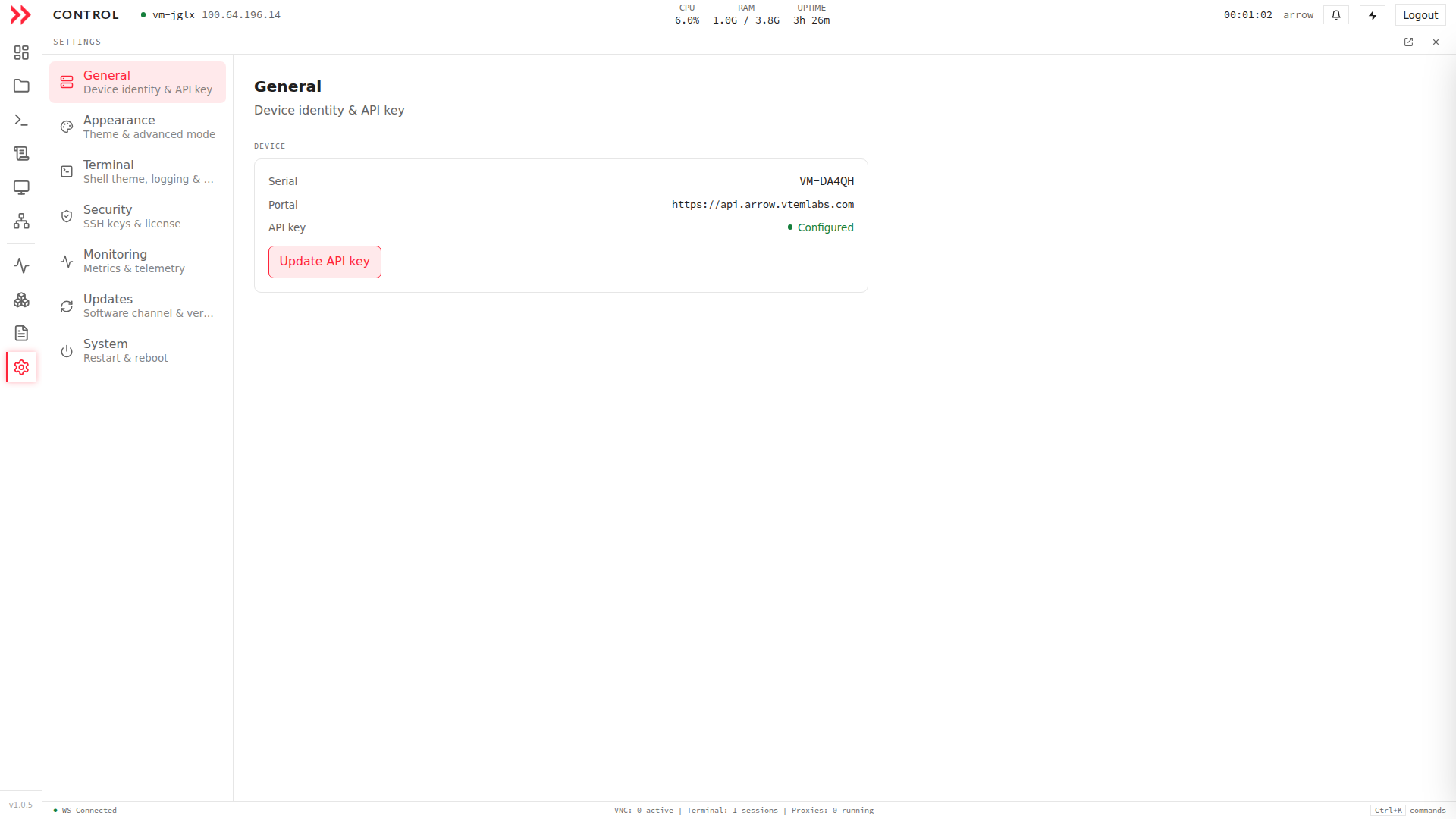
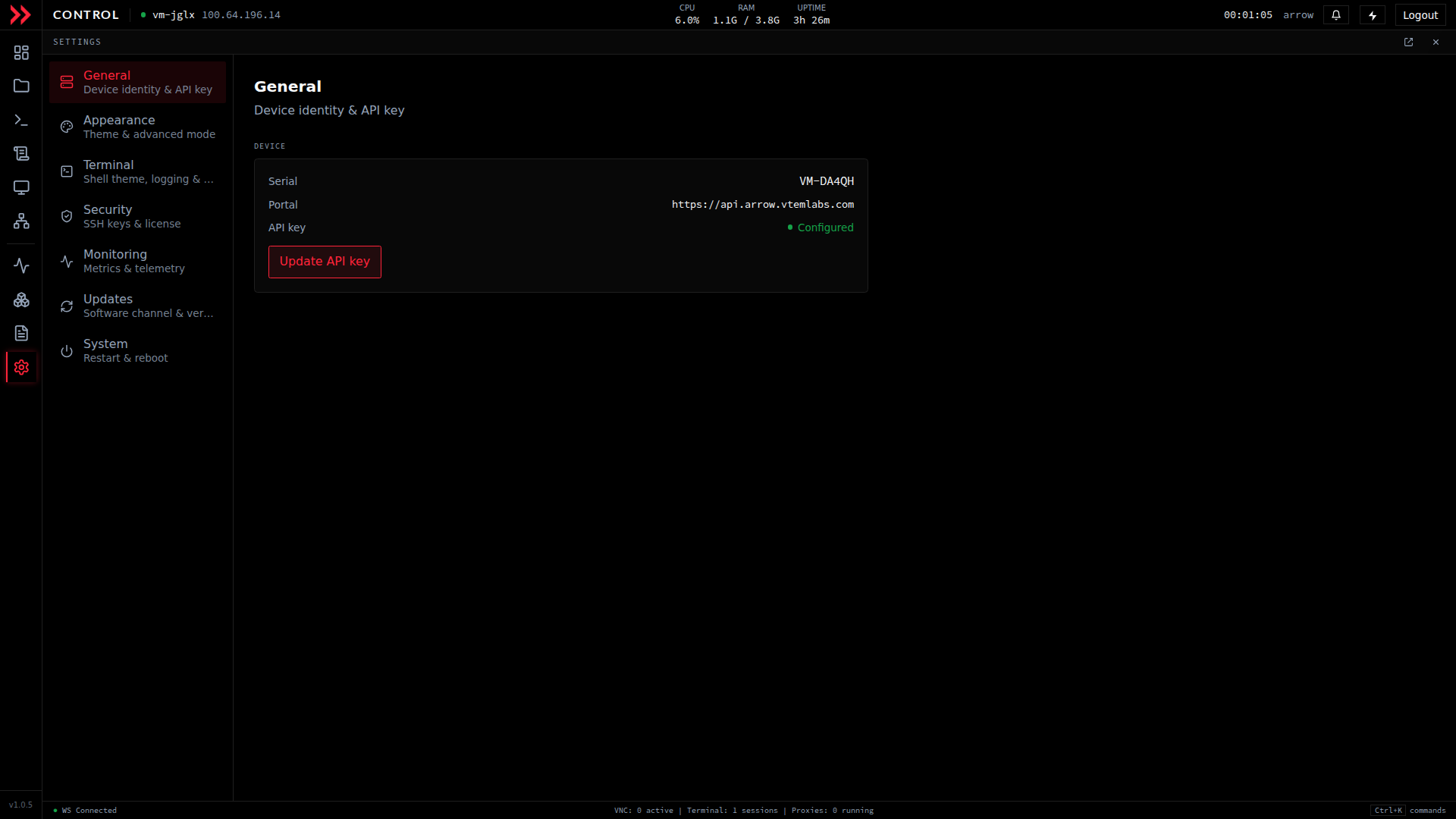
Settings groups device identity, appearance, terminal, security, monitoring, updates, and system controls.
Settings groups device identity, appearance, terminal, security, monitoring, updates, and system controls.
Getting started
Section titled “Getting started”Getting into ARROW Control is quick once the VM is up:
- Make sure the VM is running (deploy it through ARROW Manager).
- Connect to the Netbird VPN.
- Open
https://<vm-vpn-ip>:20443in your browser. - Accept the browser’s certificate warning.
- Sign in with your VM’s system credentials.
For the detailed walkthrough, see Accessing ARROW Control.
Related Documentation
Section titled “Related Documentation”- Accessing ARROW Control - Step-by-step connection and login guide
- File Management - Browse and manage files
- Terminal & VNC Access - Command line and remote desktop
- System Monitoring - Live metrics and process management
- Application Management - Install and manage security tools
- ARROW Manager Overview - Managing your ARROW devices and VM deployments