
ARROW Manager Troubleshooting
Most problems with ARROW Manager come down to connectivity, not the device itself, and the Dashboard is built to show you that fast. Before digging in, glance at the health banner at the top, which tells you whether the device can reach its VPN host, and the Network, Cellular, and VPN cards show the state of each connection. That is often enough to point you at the real issue. This guide covers the common cases and how to work through them.
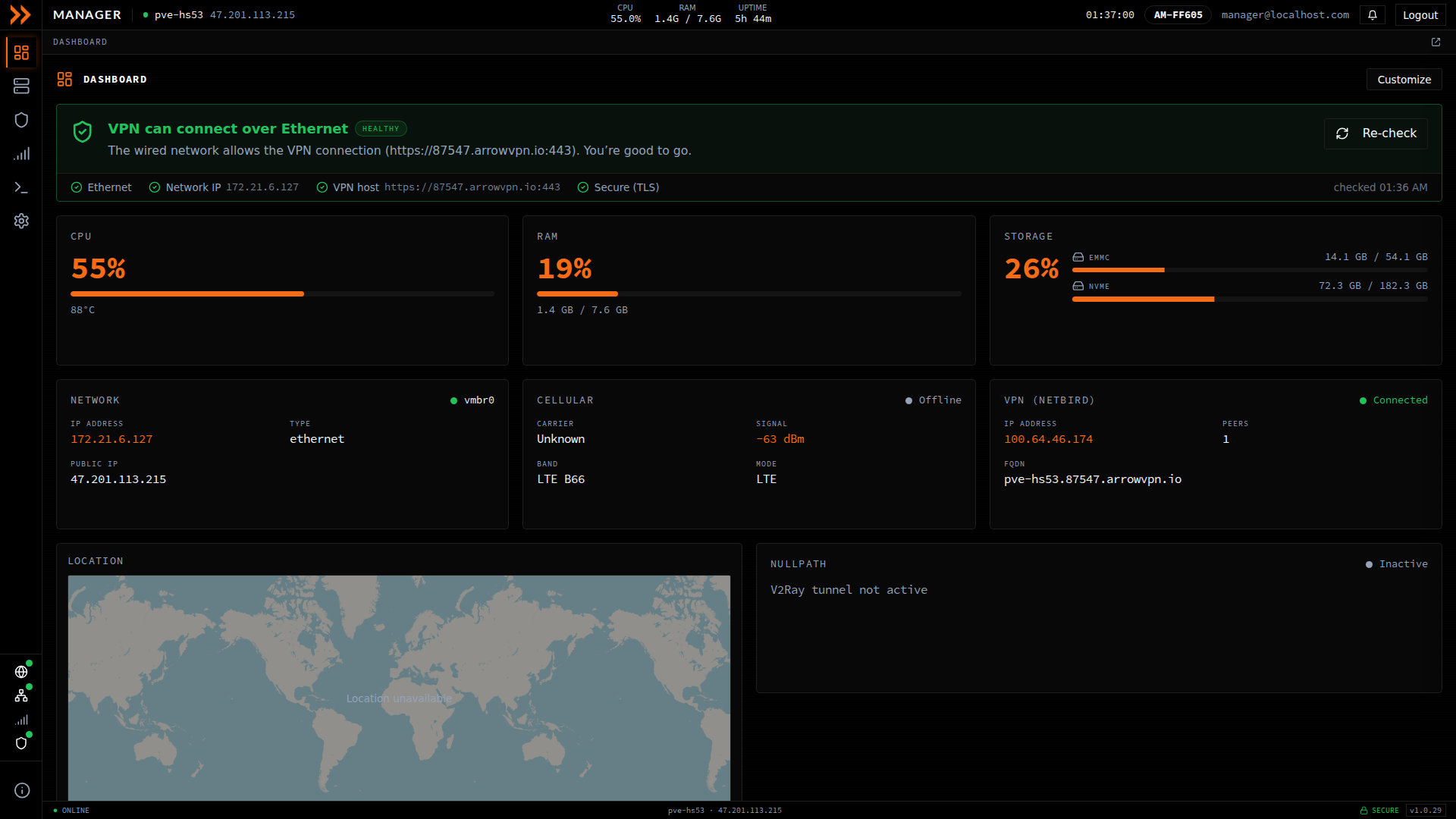
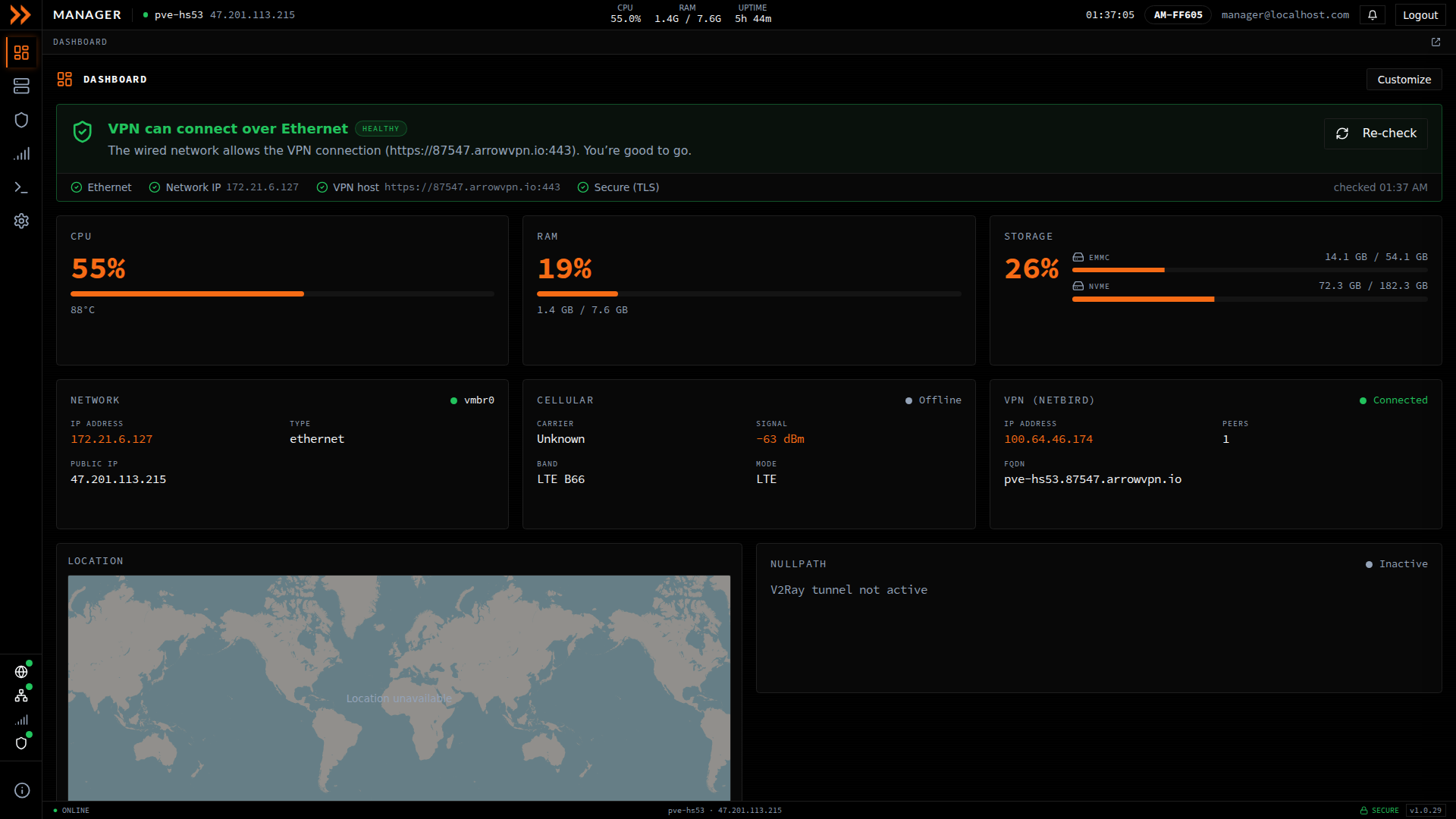
The Dashboard health banner and status cards are the quickest way to spot a connection problem
The Dashboard health banner and status cards are the quickest way to spot a connection problem
Login Issues
Section titled “Login Issues”You cannot log in. If the login button does nothing, or you get an error after entering credentials, or the page just sits there, work through the usual suspects in order. Confirm the username and password are right, clear your browser cache and cookies, try a different browser, and check that you can actually reach the device. If everything checks out and you still cannot get in, your account may be inactive, so contact your administrator.
Your session expired out of nowhere. Getting bounced to the login page with a “session expired” message is normal after a stretch of inactivity, so just sign in again. If it keeps happening, your connection to the device is probably unstable; check that first, and contact your administrator if it continues.
You get an access denied page after logging in. Your credentials worked, but your account may not be permitted to use the feature you tried to open. Contact your administrator to confirm your access level.
Connection Issues
Section titled “Connection Issues”You cannot reach ARROW Manager. A “cannot connect” or “site unreachable” error, or a page that never loads, almost always means the network path to the device is broken rather than the device being down. Check these in order:
| Check | Action |
|---|---|
| VPN connection | Ensure your NetBird VPN shows “Connected” |
| IP address | Verify you are using the correct device address |
| Device status | Confirm the device is powered on |
| Network | Check your own internet or network connection |
If all of those look right, try pinging the device from the command line, and try a different connection method (the local network if VPN is failing). If the device itself appears offline, contact your administrator.
The page loads very slowly. Check your connection speed, refresh with Ctrl+R or Cmd+R, clear your browser cache, and close other bandwidth-heavy applications.
The Dashboard shows “No Data”. Empty metrics or blank graphs usually just mean data is still loading, especially right after the device boots. Wait a moment and refresh. If other sections work but this one does not, give the device a few minutes to finish starting up.
VPN Issues
Section titled “VPN Issues”VPN Shows Disconnected
Section titled “VPN Shows Disconnected”If the VPN card on the Dashboard reads “Disconnected”, or you cannot reach the device by its VPN IP, open the VPN section to confirm the state. When healthy, it shows a green CONNECTED badge with the device’s VPN IP, peer and relay counts, and NetBird identity. When it is not connected, the checks here help you narrow down why.
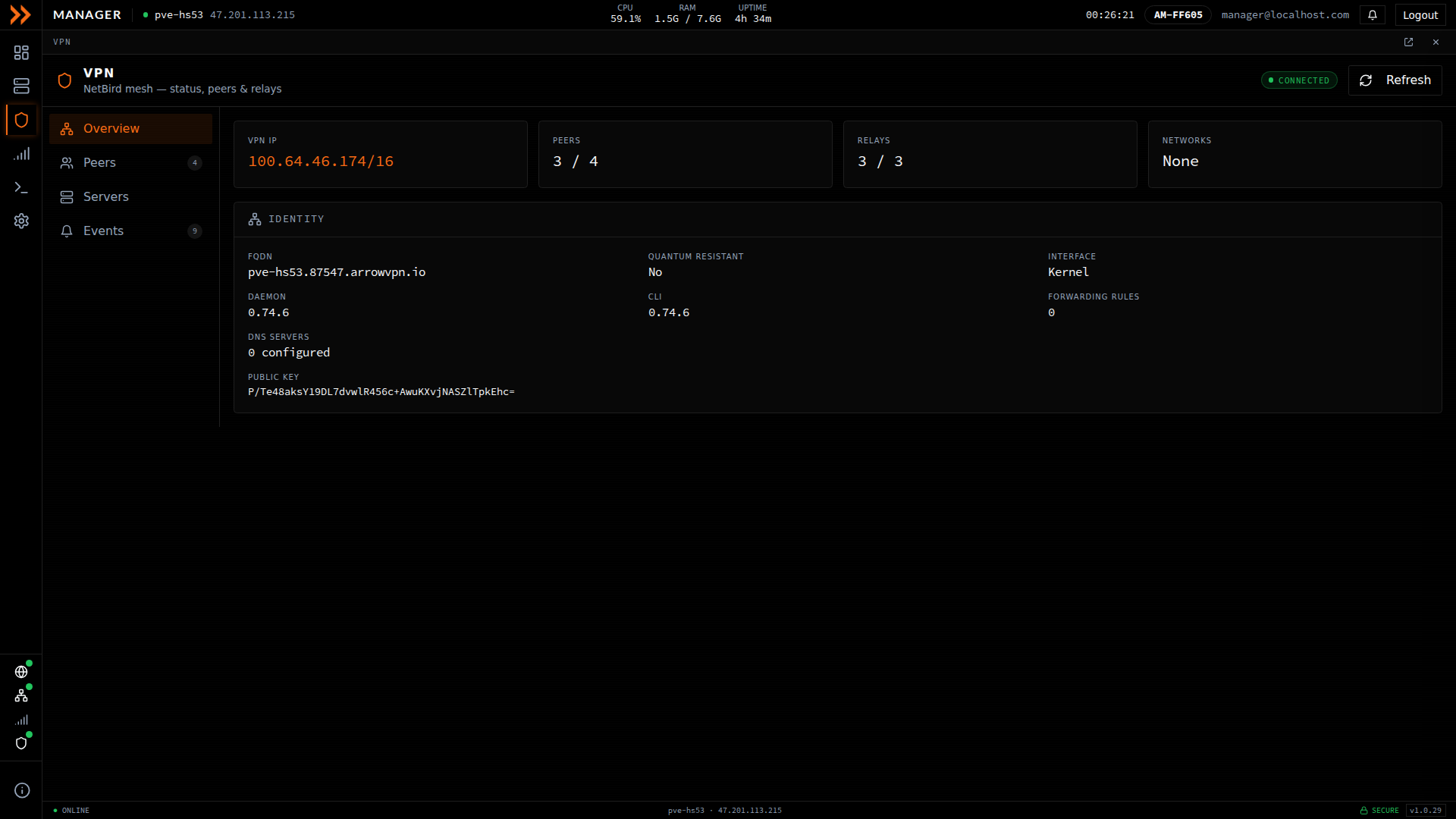
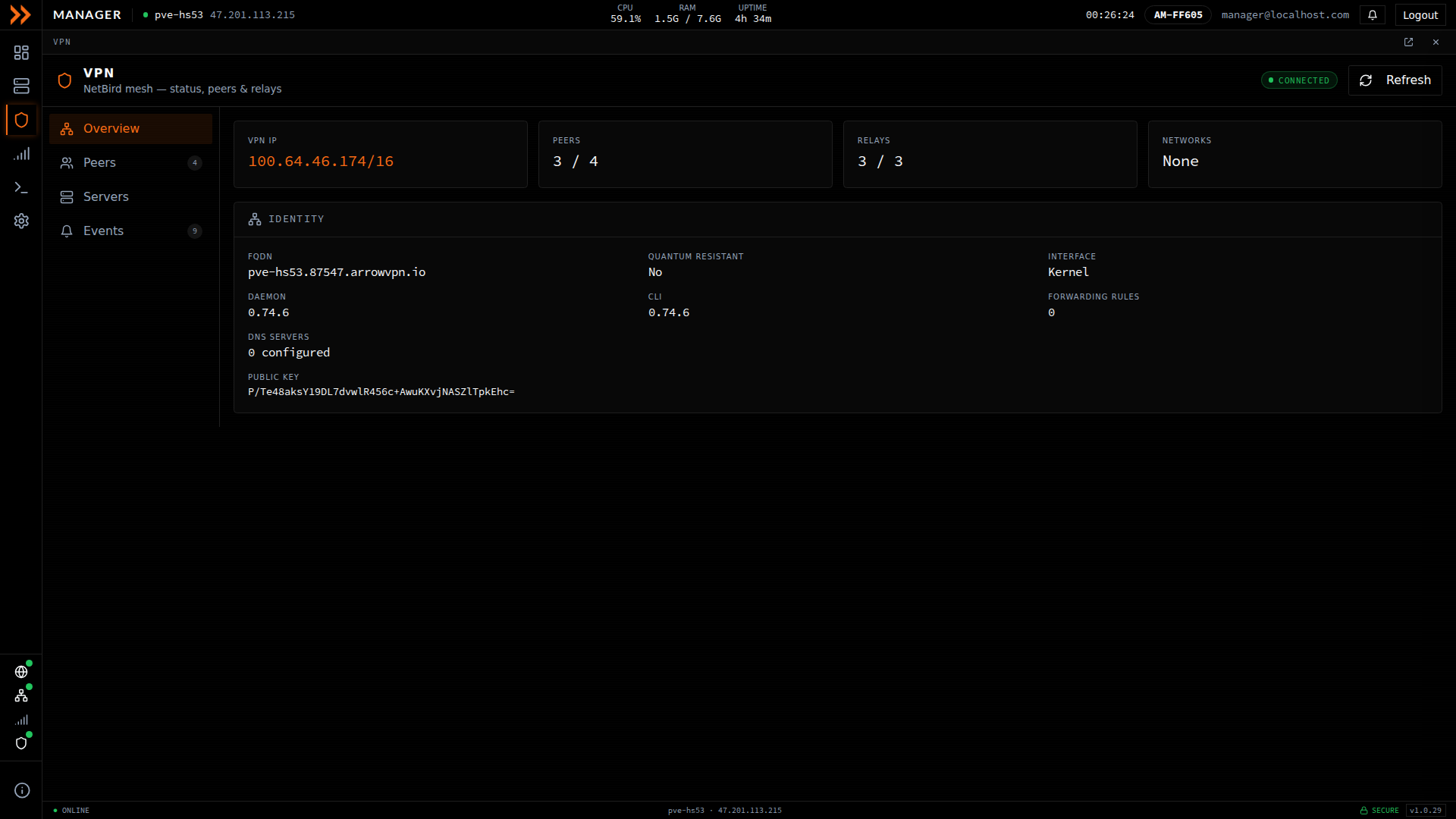
The VPN section shows the NetBird connection state, peers, relays, and identity
The VPN section shows the NetBird connection state, peers, relays, and identity
Most of the time the fix is patience, so give it a few minutes, since the VPN often reconnects on its own. While you wait, confirm the device has internet at all, since the tunnel cannot come up without it. If it stays down, the cause is usually one of these, and your administrator can help with the first and third:
| Cause | What to do |
|---|---|
| VPN service stopped | Ask your administrator to check the VPN service on the device |
| Network firewall | Make sure VPN traffic is not being blocked on your network |
| Internet outage | Verify the device has working internet connectivity |
VPN Connection Unstable
Section titled “VPN Connection Unstable”If the VPN keeps connecting and dropping, and your access to ARROW Manager comes and goes with it, the culprit is almost always a shaky internet connection on one end or the other. Check the stability of your own connection and the device’s. If both look solid and it still flaps, contact your administrator.
VM Network Issues
Section titled “VM Network Issues”A VM Has a 169.254 Address or No Network
Section titled “A VM Has a 169.254 Address or No Network”The device is online and the VM booted, but it never got a DHCP lease. About a minute and a half after a VM starts on the client network, ARROW Manager checks whether the network is answering it and, if not, shows a red alert on the VM’s card in Virtual Machines with one of four verdicts:
- The switch port is refusing this VM’s MAC address. The port accepts only one MAC address, the device’s. The alert names the switch, model, and port when the switch advertises them, and lists the exact change for the network team. This is the usual cause, and only the customer’s network team can fix it.
- No DHCP lease for this VM. The port accepts the MAC but the DHCP server or NAC withholds a lease. Ask for a DHCP reservation or NAC entry for the VM’s MAC.
- The VM is not asking for an address. The guest sent nothing. Open the console and check the interface and the DHCP client.
- The appliance uplink is down. Fix the device’s own connection first.
The same check runs on demand from Check switch port on any running VM’s card, and the alert clears by itself once the VM gets a lease. Full detail and per-vendor switch steps are in A VM Gets No Network Address.
Settings Issues
Section titled “Settings Issues”Settings will not save. If your changes do not stick or you get an error when saving, the form is usually rejecting something. Make sure every required field is filled in and the values are valid, such as a correctly formatted IP address. If it all looks right, refresh the page and try again in case it was a temporary hiccup.
WiFi or static IP configuration is not working. These fail for predictable reasons. For WiFi, the SSID is often misspelled or the password mistyped, and the network needs to be in range, so re-enter both carefully. For a static IP, confirm the address is not already in use, that the subnet mask and gateway are correct, and check with your network administrator if you are unsure of the right values.
| Setting | Check |
|---|---|
| WiFi | SSID and password are correct, network is in range |
| Static IP | Address is valid and not already in use |
| Gateway | Gateway is correct and reachable |
Update Issues
Section titled “Update Issues”Updates are driven by the ARROW Portal, not the device, so most update questions come down to timing rather than something you can fix locally. If the status sits on “Pending” for a while, or the version number has not changed after an update you were expecting, give it time to download and install, then check the update status in the ARROW Portal. If it still looks stuck, contact your administrator. See Software Updates for how updates reach the device.
Browser Issues
Section titled “Browser Issues”The interface looks broken or features do not work. Switch to a different browser (Chrome is the most reliable), clear your cache and reload, disable any extensions that might interfere, and make sure your browser is up to date.
Copy and paste does not work in the terminal. Use the terminal’s own shortcuts, Ctrl+Shift+C to copy and Ctrl+Shift+V to paste. The right-click menu works in some browsers, and if clipboard access is blocked entirely, try Chrome.
Getting More Help
Section titled “Getting More Help”If none of this resolves your issue, gather a few details before you reach out, such as the device’s serial number or identifier, what you were trying to do, any error messages, and a screenshot if you can. Then contact your administrator with that information. It is also worth checking the device’s status in the ARROW Portal, which may show the problem from the other side.
Quick Reference
Section titled “Quick Reference”| Issue | First Thing to Try |
|---|---|
| Can’t log in | Clear browser cache, try different browser |
| Can’t connect | Check VPN connection |
| Slow loading | Refresh page |
| Settings won’t save | Check for validation errors |
| VPN disconnected | Wait for auto-reconnect |
| Display broken | Try Chrome browser |
Related Documentation
Section titled “Related Documentation”-
Overview - ARROW Manager features
-
Authentication - Login help
-
Accessing ARROW Manager - Connection methods