
Account
Account
Section titled “Account”The Account Settings page is your own corner of the ARROW Platform, covering your profile, your access, your security, and how you sign out. A lot of it is read only by design, because your organization and identity provider own those details. It is split into two tabs, Profile and Notifications, and the Profile tab is organized into four cards.
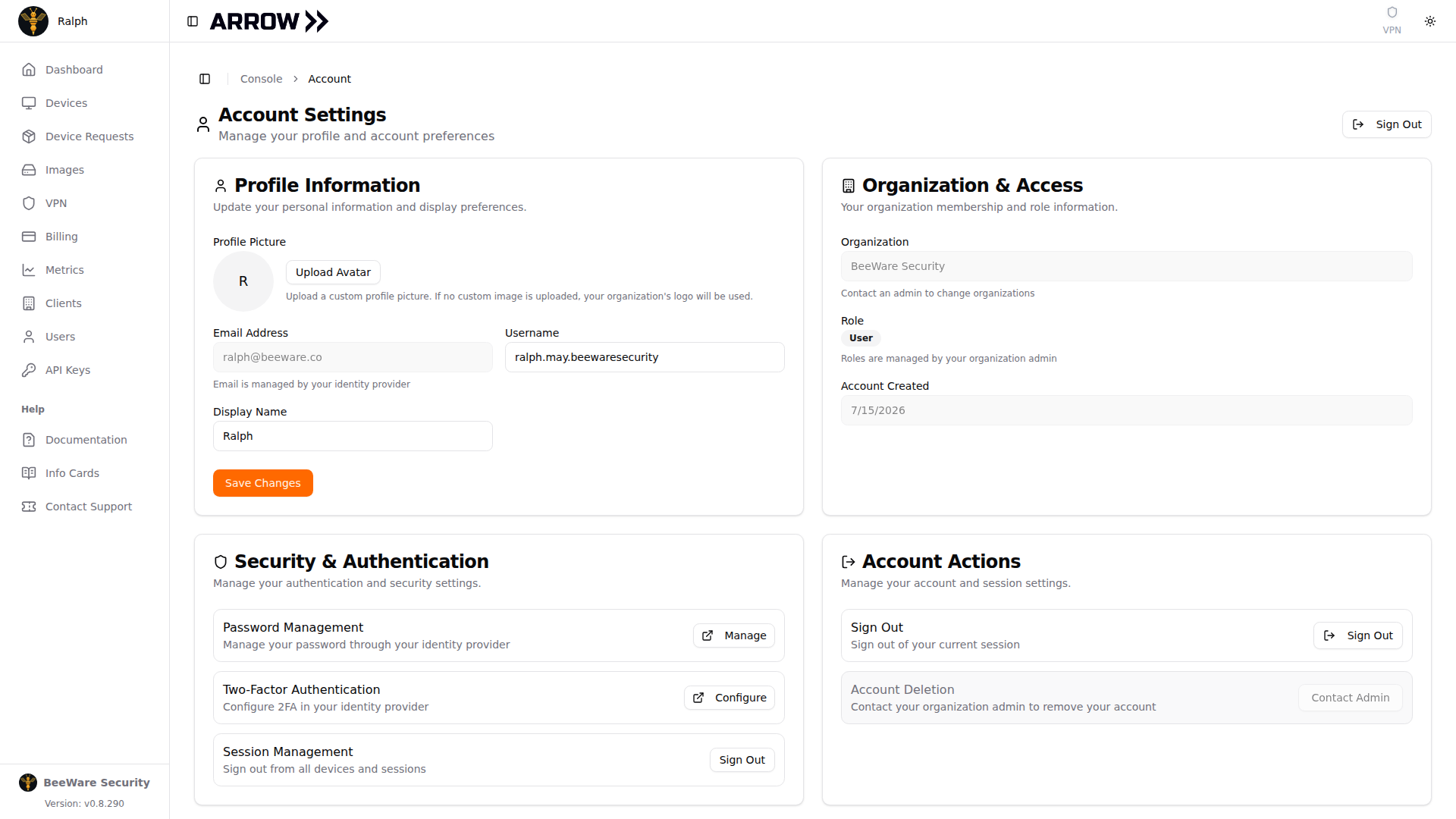
- 1 Your profile, with avatar, username, and display name. Your email is managed by your identity provider.
- 2 Which organization and role you hold, and when your account was created.
- 3 Manage your password and two-factor settings through your identity provider, and review your session.
- 4 Sign out of your session, or reach your admin about removing your account.
Profile Information
Section titled “Profile Information”This is the one card you actively edit. Your Display Name is the name shown for you across the console, and it is the main thing you will change here. You can also upload a custom avatar with Upload Avatar; without one, your organization’s logo stands in. Your Username is shown, and your Email Address is managed by your identity provider, so it is read only. After changing your display name or avatar, click Save Changes.
Organization & Access
Section titled “Organization & Access”This card is for reference, not editing. It shows the Organization you belong to, your assigned Role as a badge (such as User), and the Account Created date. Your admin controls all of this, so if your organization or role needs to change, reach out to them.
Security & Authentication
Section titled “Security & Authentication”Because ARROW authenticates you through your identity provider, the security controls here open your provider rather than changing anything directly in ARROW. Use Manage for password management and Configure for two-factor authentication, and both take you to your provider. Session Management includes a Sign Out that ends every session you have across all devices at once, which is the one to use if you think a session has been left open somewhere.
Account Actions
Section titled “Account Actions”Here Sign Out ends just your current session on this device. Account deletion is not something you do yourself; to remove your account, contact your organization admin, as the card notes.
Notifications
Section titled “Notifications”The Notifications tab is where you choose which alerts reach you, on which channel, and how often. See Notifications for the full walkthrough.
Two ways to sign out
Section titled “Two ways to sign out”Depending on what you are trying to do:
- To end your current session on this device, use Sign Out in the Account Actions card.
- To end every active session across all your devices, use Sign Out under Session Management in the Security & Authentication card.