
Authentication
Signing In to ARROW
Section titled “Signing In to ARROW”There is no separate ARROW password to create or remember. ARROW signs you in through your organization’s identity provider, so the credentials you already use for your other work applications get you into the Console. The login screen you see is the one your organization uses everywhere else.
How to Sign In
Section titled “How to Sign In”Go to your organization’s ARROW Console URL and click Sign In. You will be handed off to your identity provider, where you enter your usual organizational credentials, and then returned to the Console once you are authenticated. That is the whole flow, every time.
First-Time Login
Section titled “First-Time Login”The first time you sign in, take a minute to get your bearings. Depending on your organization’s settings you may receive a verification email; if so, confirm it. Check that your name and contact details on your profile are correct, look over the Dashboard and main navigation, and note your assigned role, since your role (Admin, Manager, or User) decides which features you can reach. If something you expect to see is missing, your role is the likely reason, and your ARROW administrator can adjust it.
Managing Your Account
Section titled “Managing Your Account”Open Account Settings to review your profile and preferences. The page is split into four cards, for Profile Information, Organization & Access, Security & Authentication, and Account Actions.
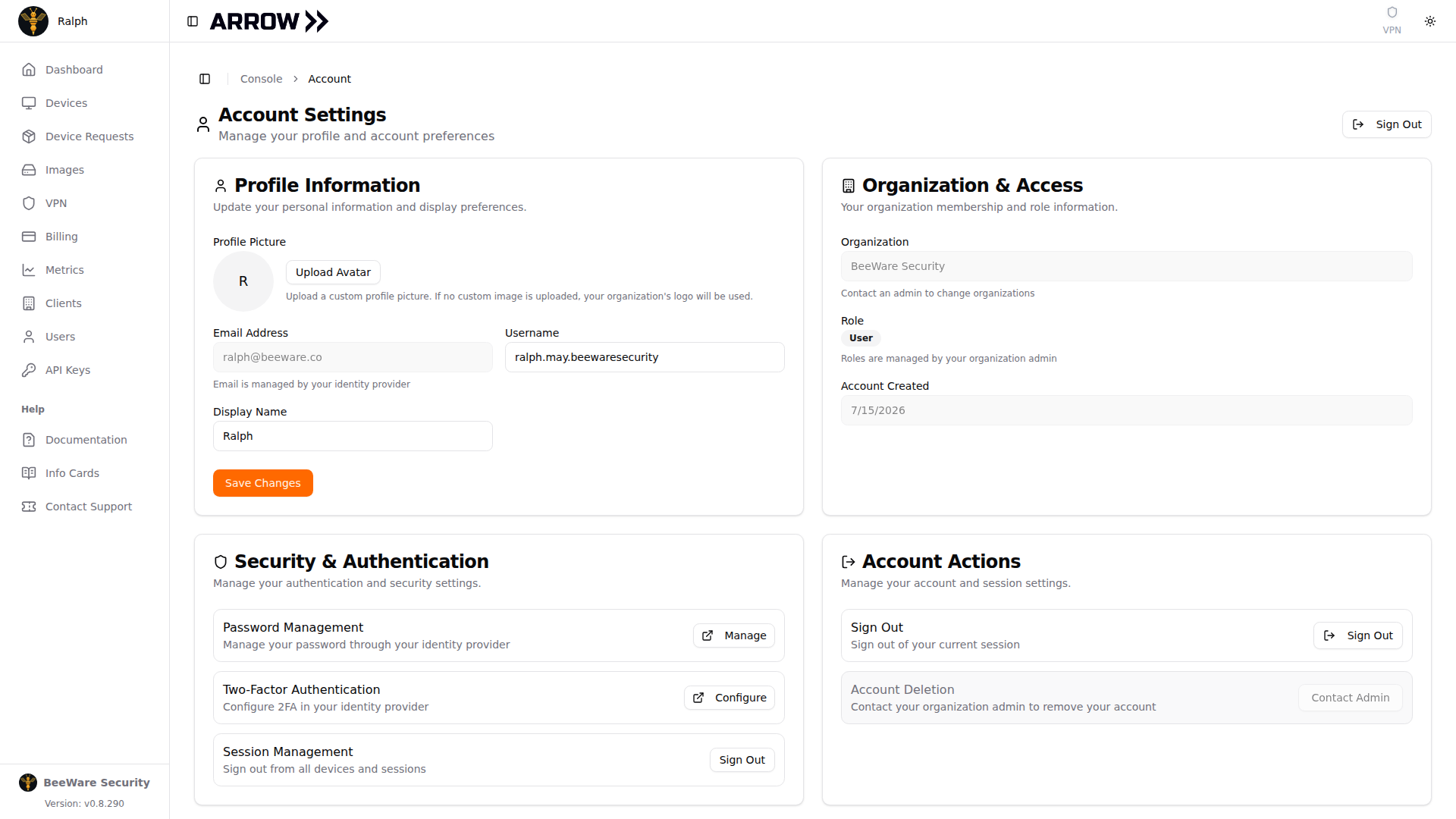
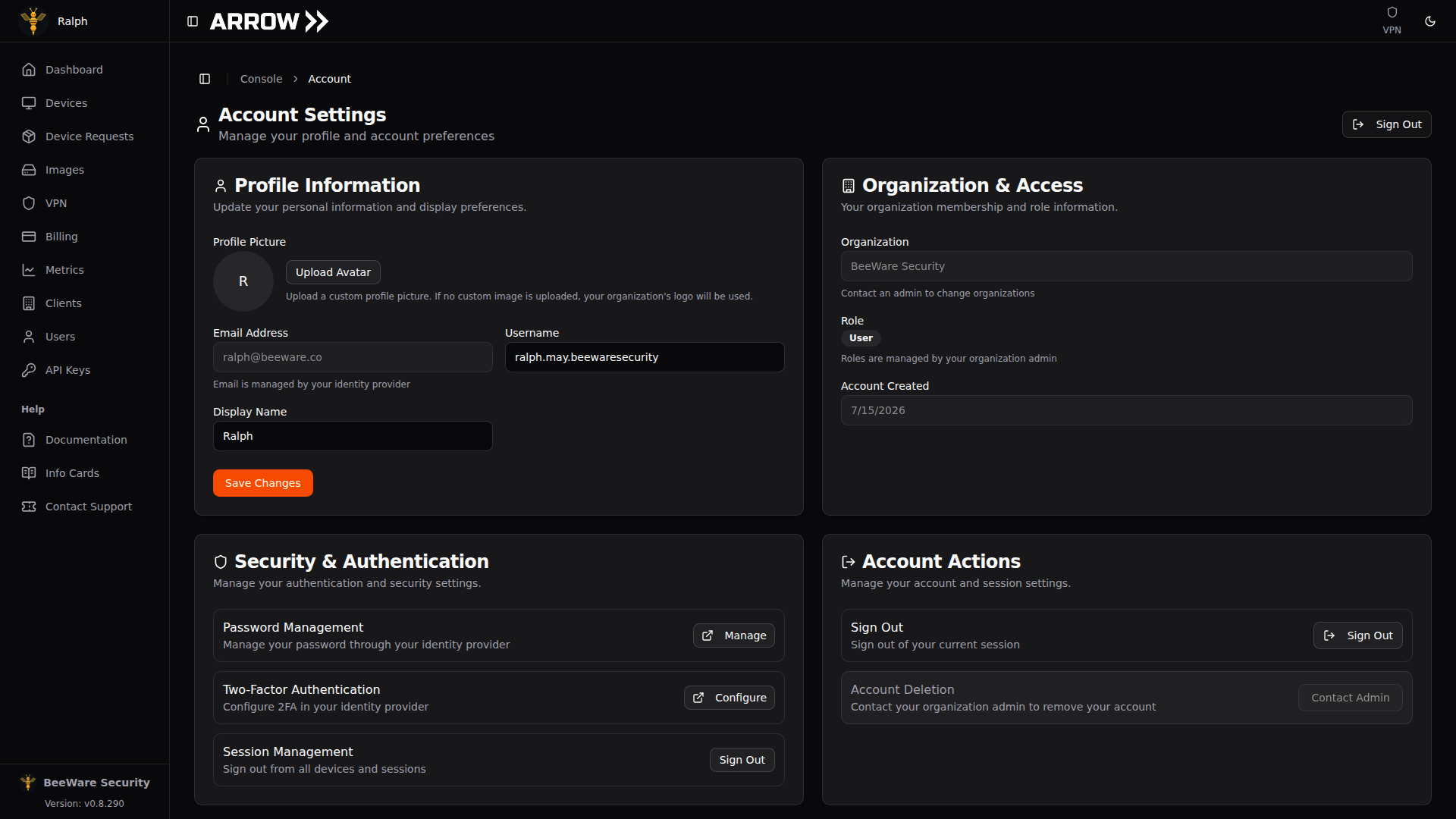
Account Settings, showing your profile, organization and role, security options, and account actions
Account Settings, showing your profile, organization and role, security options, and account actions
What you can change
Section titled “What you can change”The Profile Information card holds the settings that are yours to edit. You can change your Profile Picture (upload a custom avatar, or ARROW falls back to your organization’s logo), your Username within ARROW, and your Display Name as others see it. Click Save Changes to apply your edits.
What your administrator controls
Section titled “What your administrator controls”The Organization & Access card is read-only. It shows the Organization your account belongs to, your Role within it, and the date your account was created. If any of these are wrong, that is a conversation with your administrator.
What your identity provider controls
Section titled “What your identity provider controls”Because sign-in lives with your identity provider, a few things cannot be changed inside ARROW at all. Your email address is managed by your IDP, so your IT administrator updates it. Your password is reset through your IDP, and the Password Management option simply links you there. Two-factor authentication is configured in your IDP’s security settings, reachable from the Security & Authentication card.
Password and Security
Section titled “Password and Security”Since authentication happens in your identity provider, so does everything about passwords and second factors.
To reset your password, either contact your IT administrator or use your organization’s self-service reset portal, then sign in to ARROW with the new credentials. If your organization requires two-factor authentication, set it up in your IDP’s security settings; ARROW will then enforce it automatically at sign-in, so there is nothing extra to configure on the ARROW side.
Your session stays active while you are working and may expire after a period of inactivity, according to your organization’s security policy. The Security & Authentication card includes a Session Management option for signing out of your active sessions.
Signing Out
Section titled “Signing Out”To sign out, use the Sign Out button at the top right of the Console, or the Sign Out action in the Account Actions card in Account Settings. Either returns you to the sign-in screen. On a shared computer, always sign out when you are done.
Account deletion The Account Actions card also lists Account Deletion. Because your administrator handles removing accounts, this option points you to contact them.
Troubleshooting Login Issues
Section titled “Troubleshooting Login Issues”You cannot sign in. Confirm you are using the right credentials for your organization and that you have a stable connection. A browser extension or stale session is a common culprit, so clearing your cache and cookies, or trying a different browser, often clears it up.
You are locked out. Wait out the lockout period, which is usually 15 to 30 minutes, then contact your IT administrator to unlock the account or run your organization’s password reset if needed.
You are missing a feature. Access is tied to your role (Admin, Manager, or User). Ask your ARROW administrator for a role change if you need more.
Browser support. ARROW works best in a current version of Chrome (recommended), Firefox, Edge, or Safari. Keeping your browser up to date avoids most rendering and authentication oddities.
Related Documentation
Section titled “Related Documentation”- Getting Started - Overview of the ARROW platform
- FAQ - Common questions and answers