
Cellular Management
Overview
Section titled “Overview”Every ARROW device carries an integrated LTE modem so that a dropped ethernet link does not mean a device you cannot reach. When the wired connection fails, cellular takes over automatically and the device stays online. Most of the time you will not think about it; the value shows up the day the site network goes down mid-engagement and your device is still there.
Viewing Cellular Status
Section titled “Viewing Cellular Status”Open the Cellular section in ARROW Manager to watch the modem in real time. A row of badges under the header gives you the overall state (such as STANDBY), whether cellular is the active route or sitting as backup, the tower operator and the SIM brand, and the current mode (such as LTE). Sub-tabs on the left, Signal & Link, Tower & Cells, Modem & SIM, and Operating Mode, break the detail out by area.
When Cellular Is Not Up
Section titled “When Cellular Is Not Up”When the modem is not carrying traffic and the device can say why, a banner sits above the sub-tabs naming the fault and explaining it in a sentence. Read it before you go digging through the signal readings, because signal strength on its own cannot answer “why is there no link”. A modem watching an empty SIM slot reports a strong signal and no connection at the same time, and that contradiction is what sends people off investigating coverage.
| Fault | What it means |
|---|---|
| No modem | No modem is present on the USB bus. |
| No readable SIM | The modem reports no SIM. Either the slot it is watching is empty, in which case the device tries the other slot on its own, or the eSIM holds no profile. If both slots have been tried, the card needs re-seating. |
| SIM is PIN-locked | It is a real card, and the PIN has to be supplied or cleared before it will work. |
| Attach APN is wrong | The modem’s attach context does not carry the configured APN, so the network never grants a bearer. The device rewrites it and re-attaches by itself; if it keeps coming back, the APN is being refused. |
| Registration refused | The network refused the registration, so this SIM is not provisioned for the operator it is visiting and no retry will help. |
| No usable coverage | The radio is searching and the signal is too weak to register. This is an antenna or a location problem. |
| Registering | The modem is registering, which takes up to about 90 seconds after a module restart. Nothing is wrong yet. |
| Packet service detached | The modem is registered but the packet service is detached, so there is no bearer to dial. |
A modem that is registered and attached with no data session open is not a fault, so no banner appears for it. That is the normal resting state while ethernet is carrying the traffic.
Signal & Link
Section titled “Signal & Link”Start here. This is the view you open when someone reports the device is slow or unreachable and you need to know whether the radio itself is healthy. It leads with an RSSI bar and a plain-language quality rating (EXCELLENT, GOOD, and so on), then breaks out the four readings that actually matter for diagnosis, which are RSRP, RSRQ, SINR, and RSSI. The Link panel on the right is the practical half, with the active interface (such as wwan0), whether it is up or down, the default route, the registration state (searching, registered, and so on), latency, and both the internal and public IP addresses. Hit Refresh to re-read the modem on demand.
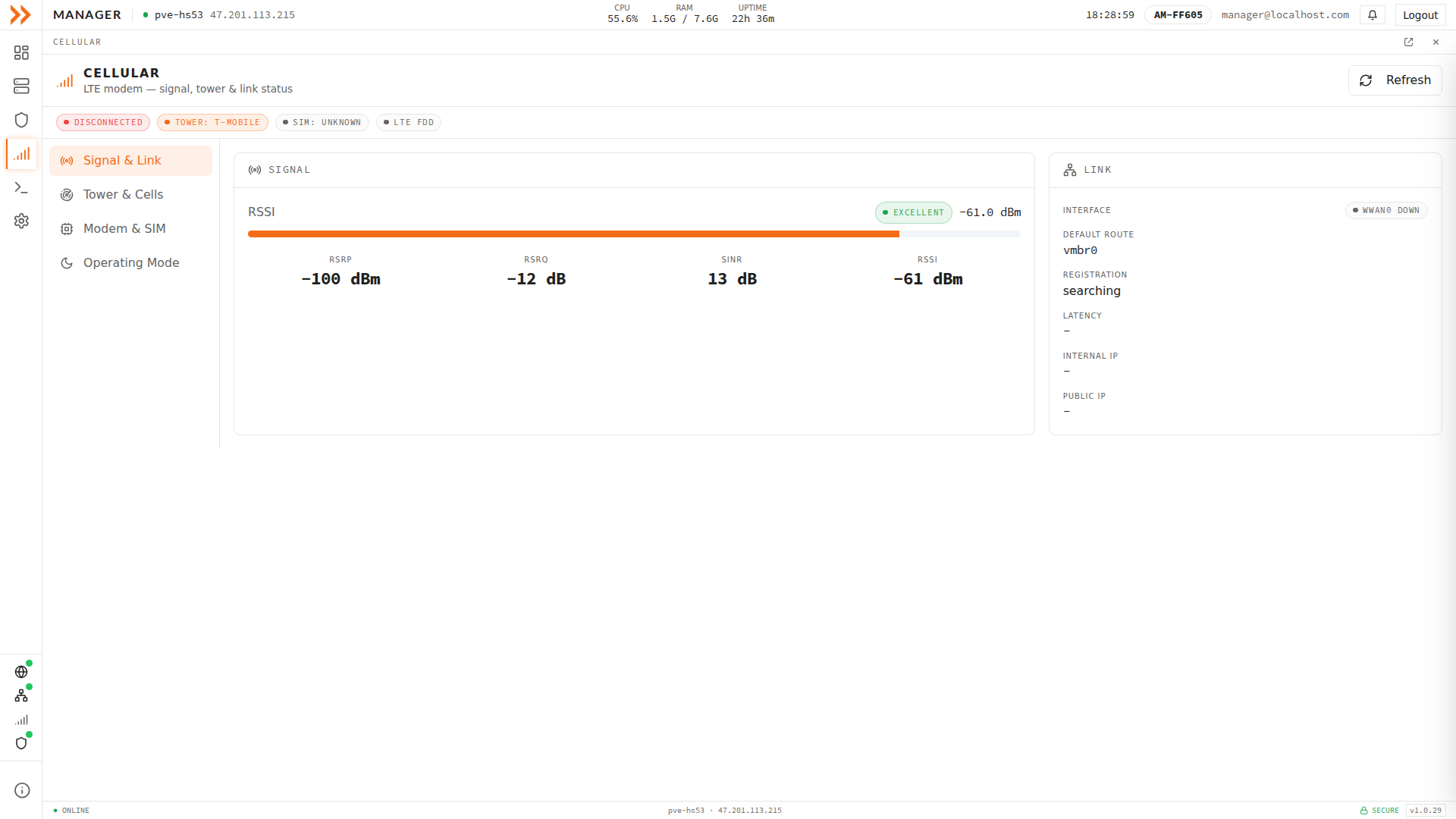
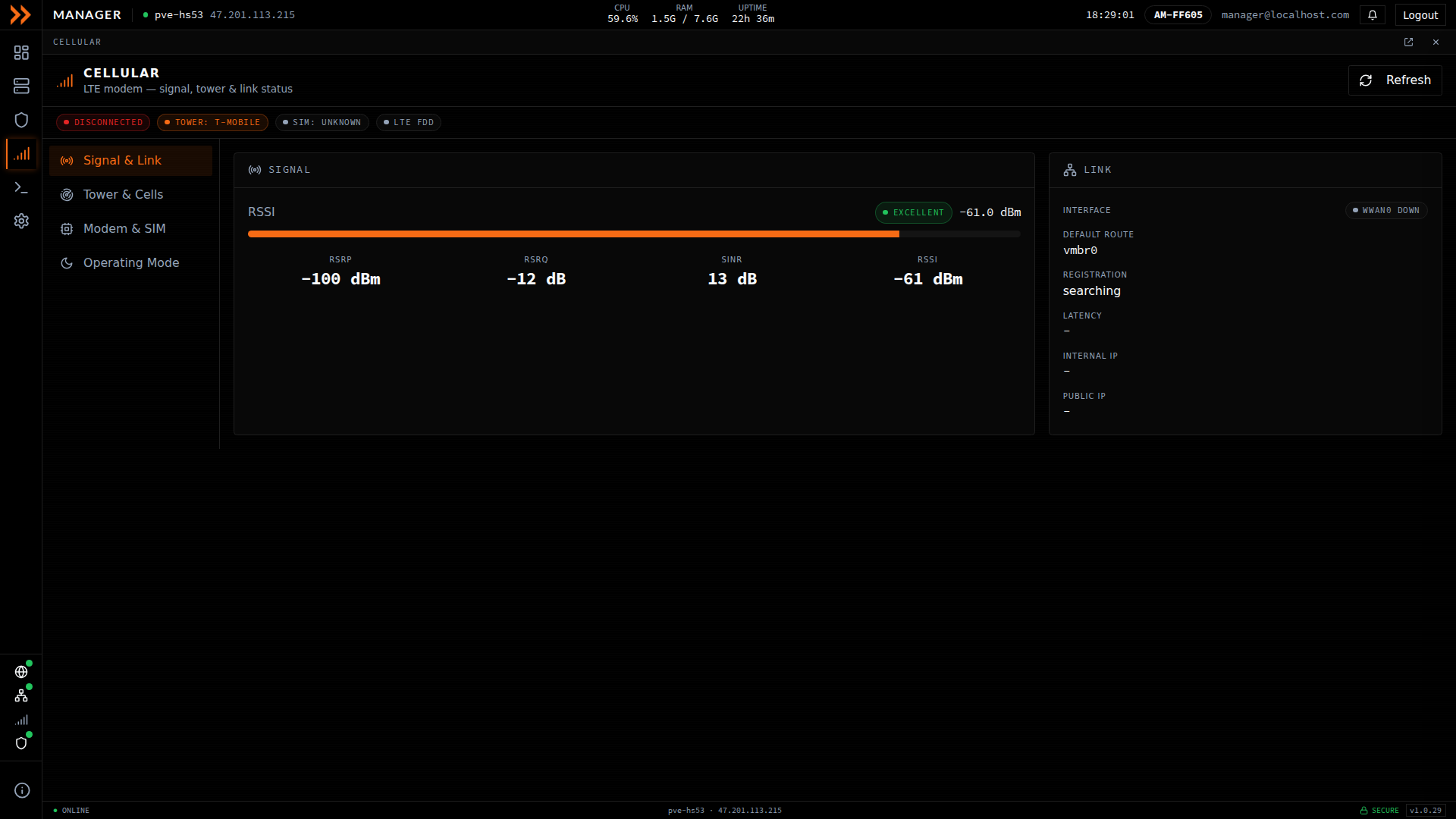
Signal & Link leads with an RSSI quality rating and the underlying RSRP, RSRQ, SINR, and RSSI readings
Signal & Link leads with an RSSI quality rating and the underlying RSRP, RSRQ, SINR, and RSSI readings
Tower & Cells
Section titled “Tower & Cells”Reach for this when the signal looks weak and you want to understand why. It names the tower operator and SIM brand, then the physical channel the device is camped on, with band, EARFCN, Cell ID, PCI, TAC, MCC/MNC, uplink and downlink bandwidth, and the duplex mode. The Carrier Aggregation table shows any extra carriers the modem has bonded for more throughput, and the Neighbor Cells table lists the nearby cells the modem can see, with their RSRP and RSRQ, which tells you whether there is a stronger tower to hand off to.
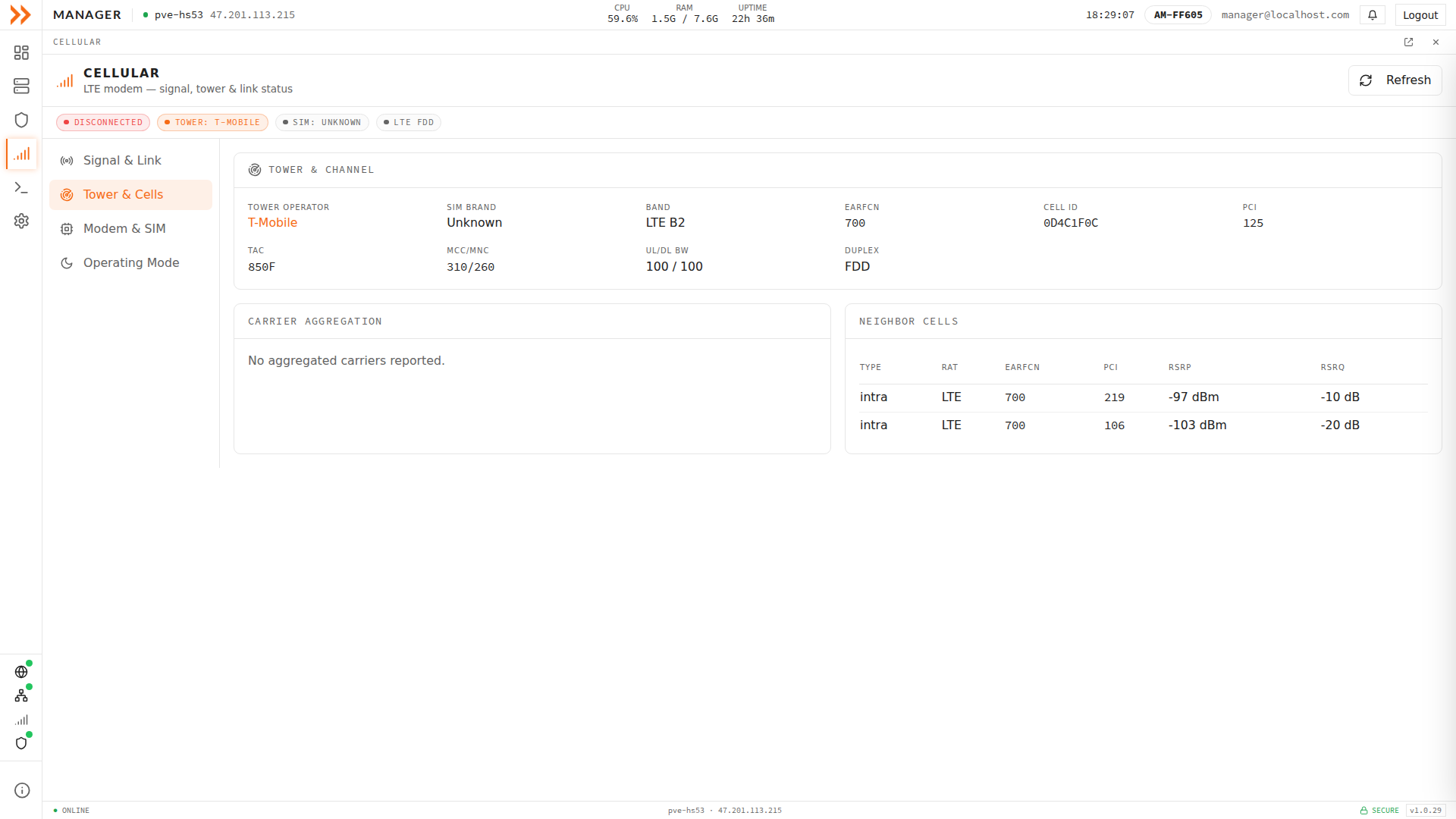
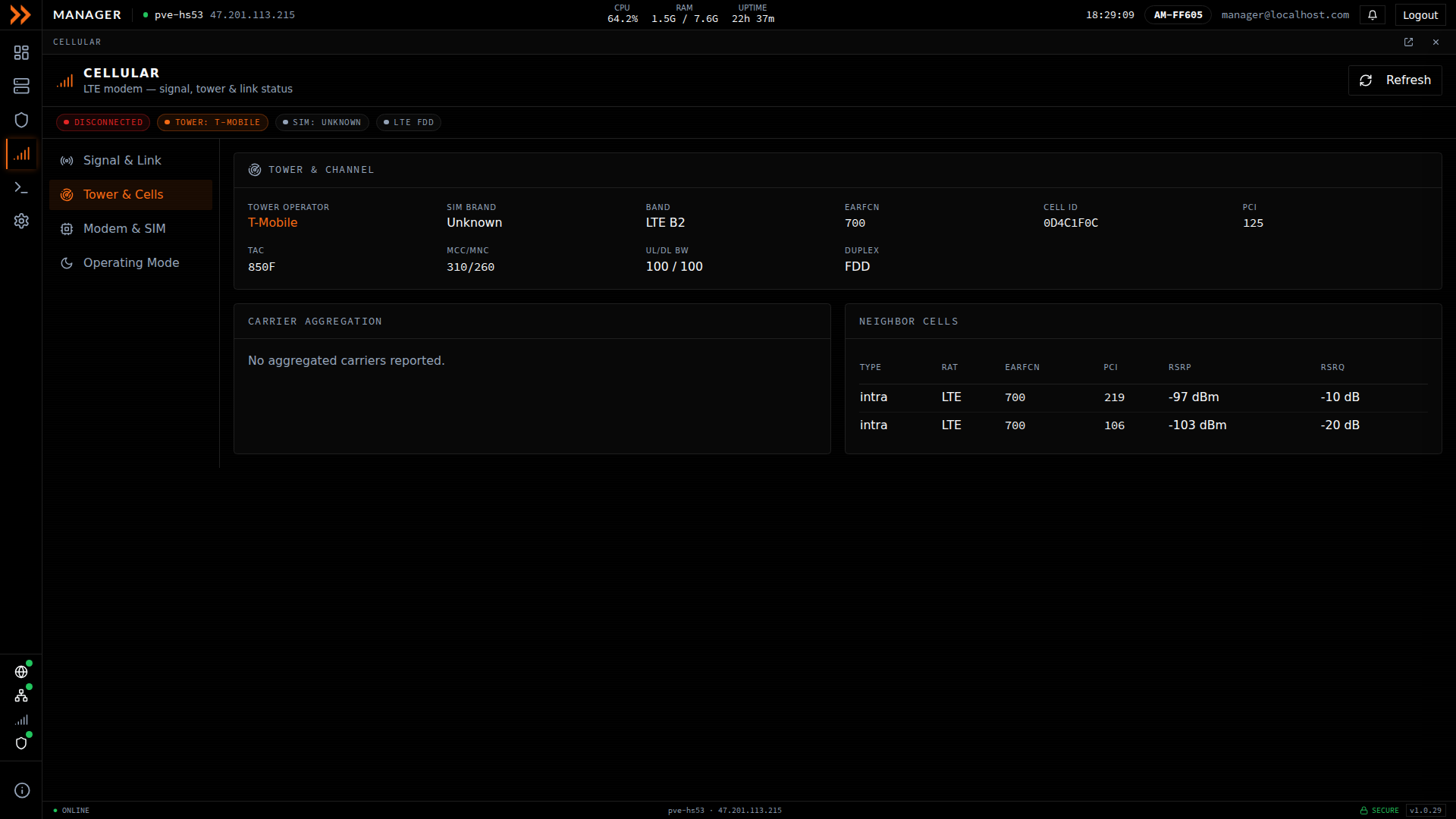
Tower & Cells shows the physical channel, carrier aggregation, and the neighbor cells the modem can see
Tower & Cells shows the physical channel, carrier aggregation, and the neighbor cells the modem can see
Modem & SIM
Section titled “Modem & SIM”This view is about the hardware and the account, not the live signal, so you visit it when confirming what is installed rather than chasing a signal problem. It reports the modem manufacturer, model, and firmware build, along with the SIM’s IMSI and ICCID. Below those it names the UIM Slot the modem is watching, the SIM State it finds there, and the Attach APN the modem registers with, which together are what a “No readable SIM” banner is actually reporting. The APN Contexts panel lists the access point names the modem is configured with (their CID, IP type, and APN), which is the first thing to check with support when the link connects but no data flows.
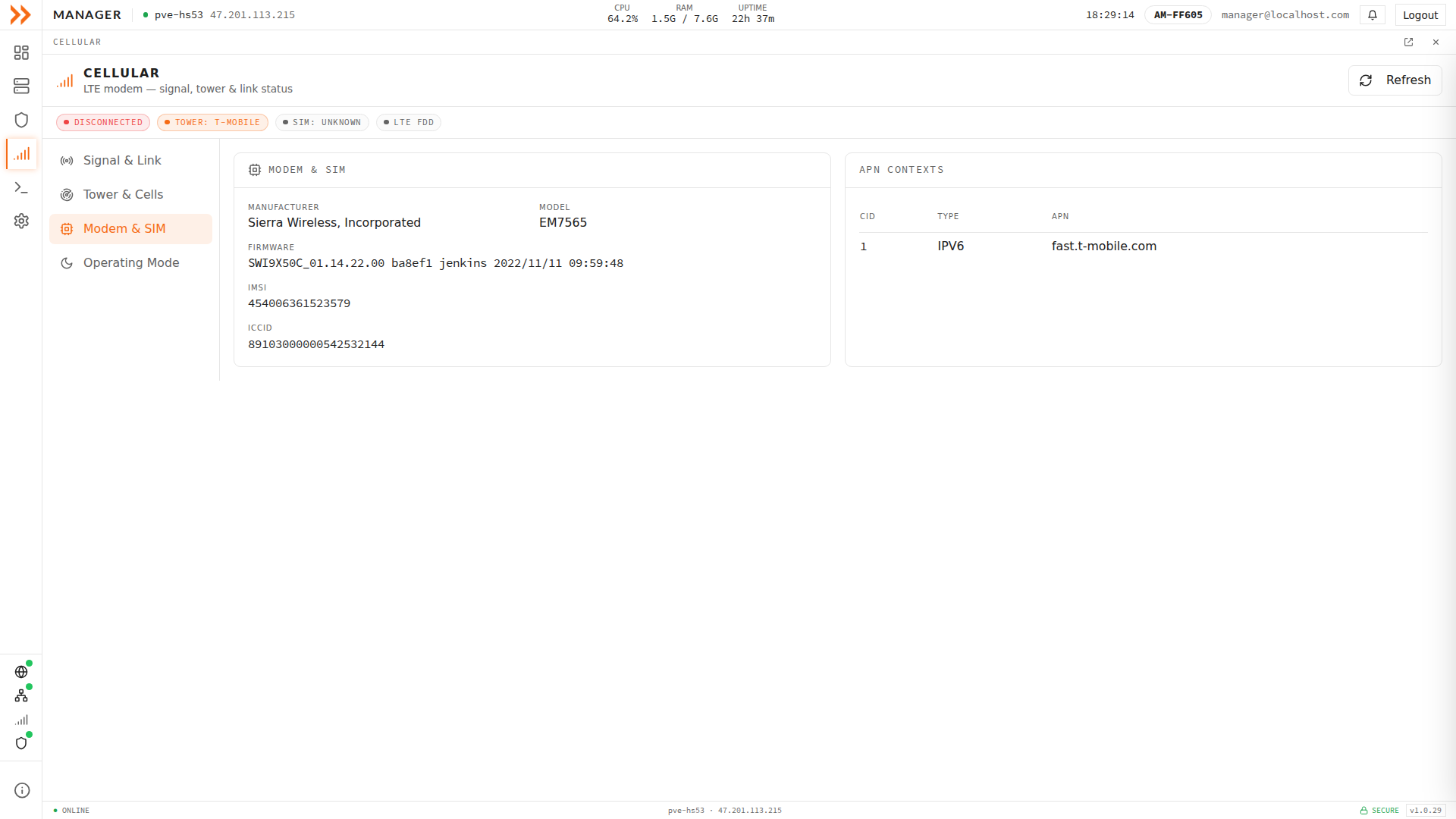
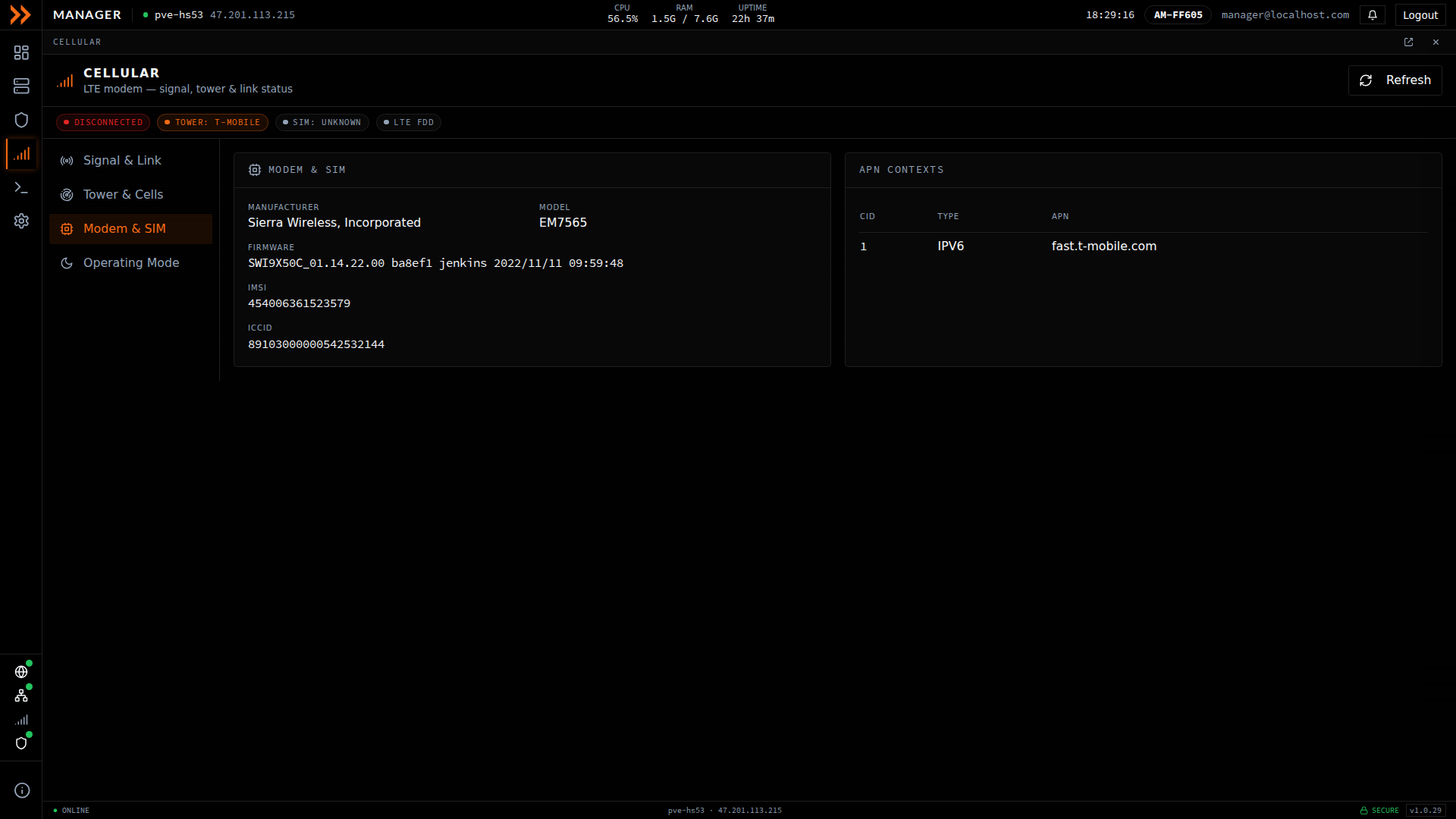
Modem & SIM identifies the modem and SIM and lists the configured APN contexts
Modem & SIM identifies the modem and SIM and lists the configured APN contexts
Below those panels, the Data APN card is where you change the access point name the modem attaches with. It applies to whichever SIM is active, physical card or eSIM profile, and it matters because the APN decides where your cellular traffic reaches the internet, not just whether it connects. The card shows the APN In use, the one Granted by network, the Bearer address, and the Registration state, with a line underneath that reads the four together. While ethernet is carrying the traffic, the modem stays attached and holds an address without opening a data session, and the card says so; that is cellular standing by for failover, not a fault.
To switch, click Use next to one of the Simplex presets, Simplex Global Data, Simplex (imaged default), or Simplex US, or type another APN into the field below them and click Use. Each preset carries a note on where it breaks out: Global Data picks the Simplex gateway nearest the serving network and needs no per-country setting, while Simplex US forces a US breakout but frequently will not attach outside the US. Confirm with the Apply button, which names the APN you chose. The modem detaches and re-attaches on the new APN, which takes up to 90 seconds, and a device you are reaching over cellular is unreachable while that happens. If the network grants no bearer for the new APN, the previous one is put back automatically. The card reports the outcome either way, including when the network granted a different APN than the one you asked for. The same card sits at the top of Settings > Connectivity, above LTE Bridge Mode.
Operating Mode
Section titled “Operating Mode”This view also has a control on it rather than just readouts. It shows whether the device is currently on ethernet, LTE Active, or LTE Idle, and offers a Force LTE Idle action for when you want to keep the modem registered but stop it carrying traffic. The controls only appear when the device is primarily on LTE; when ethernet is doing the work, this view tells you the mode controls are unavailable, which is expected.
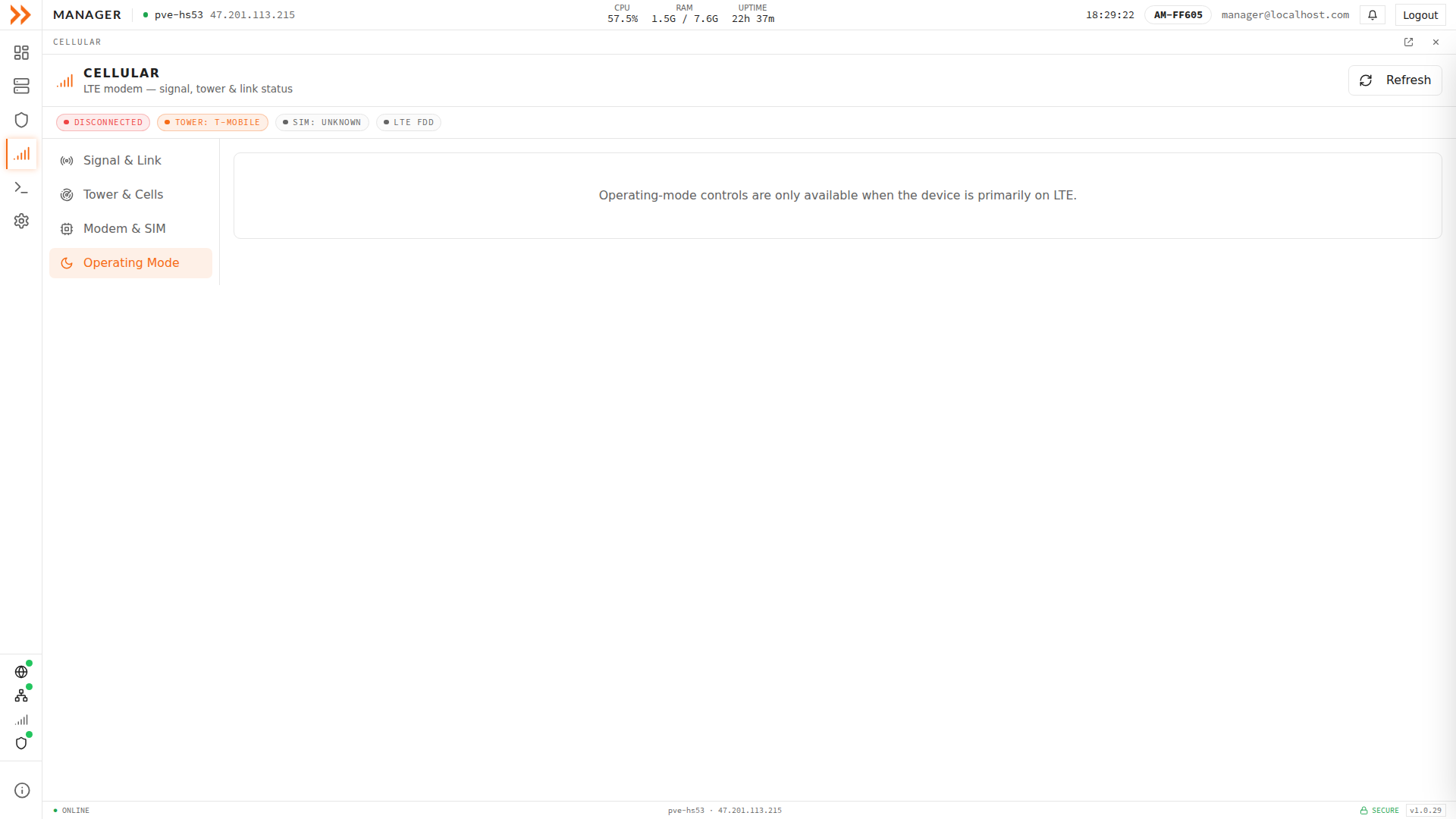
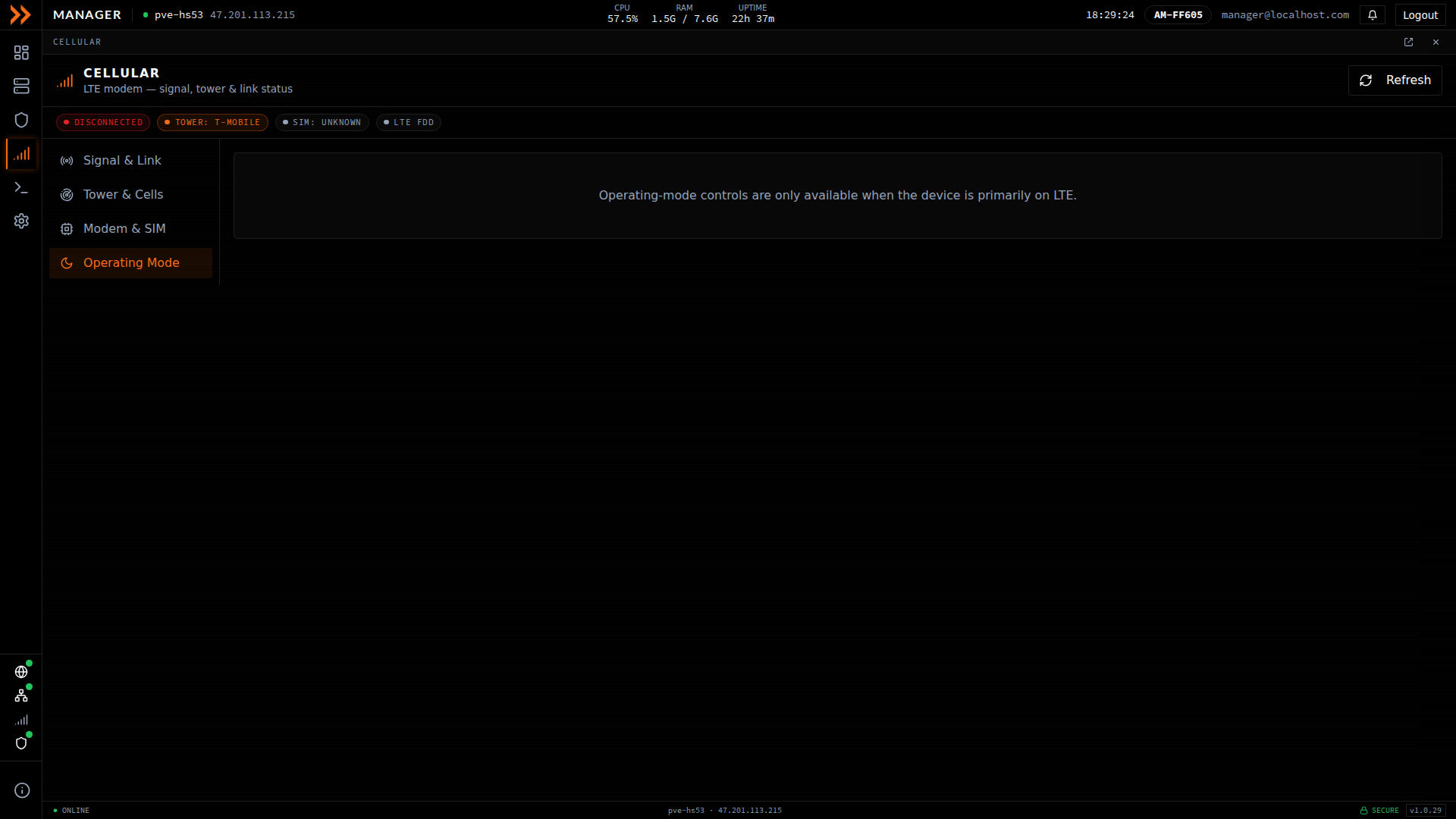
Operating Mode shows the current mode and offers Force LTE Idle when the device is primarily on LTE
Operating Mode shows the current mode and offers Force LTE Idle when the device is primarily on LTE
The Cellular card on the Dashboard gives you the same headline information, carrier, signal, band, and mode, without leaving the overview.
Connection Status
Section titled “Connection Status”| Status | Meaning |
|---|---|
| Connected | Cellular is up and carrying the device’s traffic |
| Registered | The cellular interface is up, but ethernet is still carrying the traffic |
| Standby | The modem is registered with the carrier with no data session open, which is the normal state while ethernet works |
| Searching | The modem knows which carrier it is looking for but has not registered yet |
| No Modem | No modem is present |
| Disconnected | No cellular connection available |
Whenever the modem is up, a second badge tells you whether it is doing any work. Active Route means traffic is going over LTE right now, while Backup means it is standing by while ethernet carries the load.
Understanding the Signal Metrics
Section titled “Understanding the Signal Metrics”The headline number is signal strength in dBm. As a rough guide, -50 to -70 is excellent, -70 to -85 is good, -85 to -100 is fair, -100 to -110 is poor, and anything below -110 is very poor and likely to be unreliable.
If you need to diagnose a marginal connection, the advanced metrics tell you more than raw strength does. SINR (signal-to-interference-plus-noise) is healthy above 10 dB, RSRP (reference signal received power) above -80 dBm, and RSRQ (reference signal received quality) above -10 dB. Weak RSRP with poor SINR usually points to interference or congestion rather than distance from the tower.
The rest of the connection detail (carrier, mode, band, internal and public IP, latency, and current download and upload speeds) is there when you need to confirm exactly how the device is connected.
Monitoring Data Usage
Section titled “Monitoring Data Usage”Cellular data is metered by your carrier, so it is worth knowing where it goes. The Usage tab meters traffic by category, and it is split into four sub-tabs named Live, History, Categories & Rules, and Settings. The same information is also available from Settings under Data Usage.
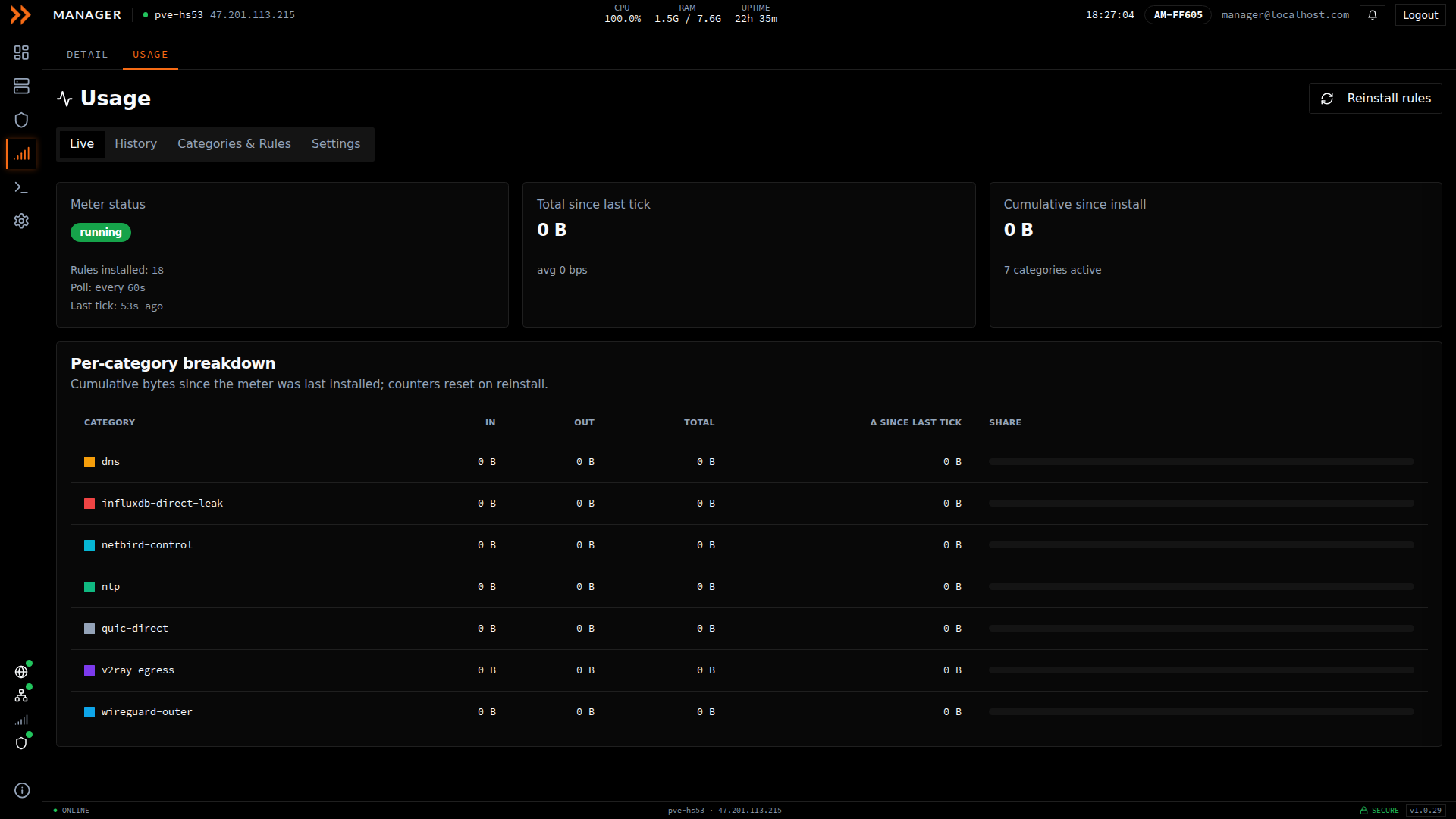
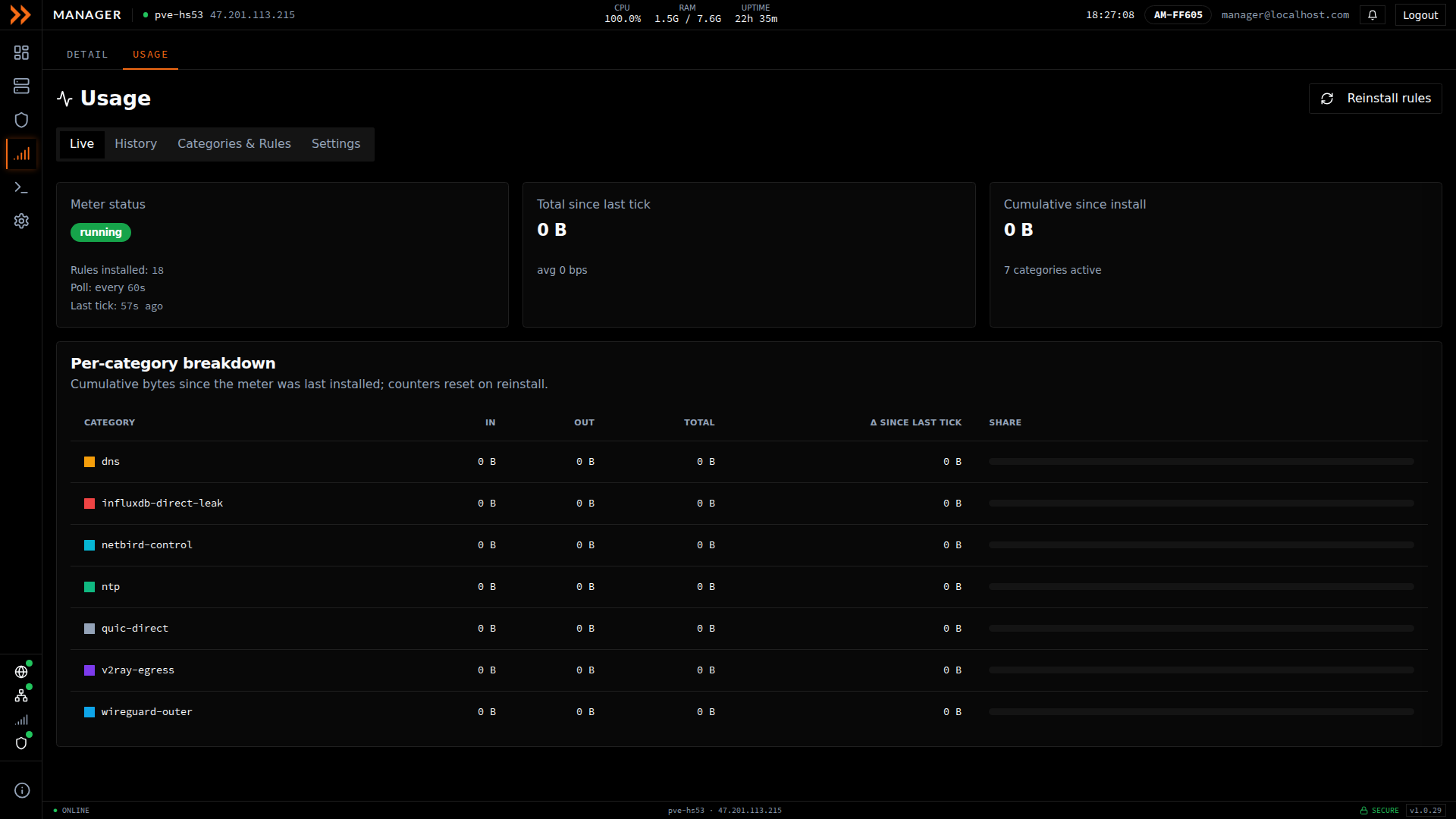
The Usage tab meters cellular data with a per-category breakdown
The Usage tab meters cellular data with a per-category breakdown
This is the tab to open when you want to know what the device is using right now. It shows the meter’s own status (running or not, how many rules are installed, how often it polls, and how long ago the last tick was), the total since the last measurement tick, and the cumulative total since the meter was installed. The Per-category breakdown table lists in, out, and total bytes for each category, plus the change since the last tick and each category’s share of the total, so you can confirm the device is only using the connection you expect it to.
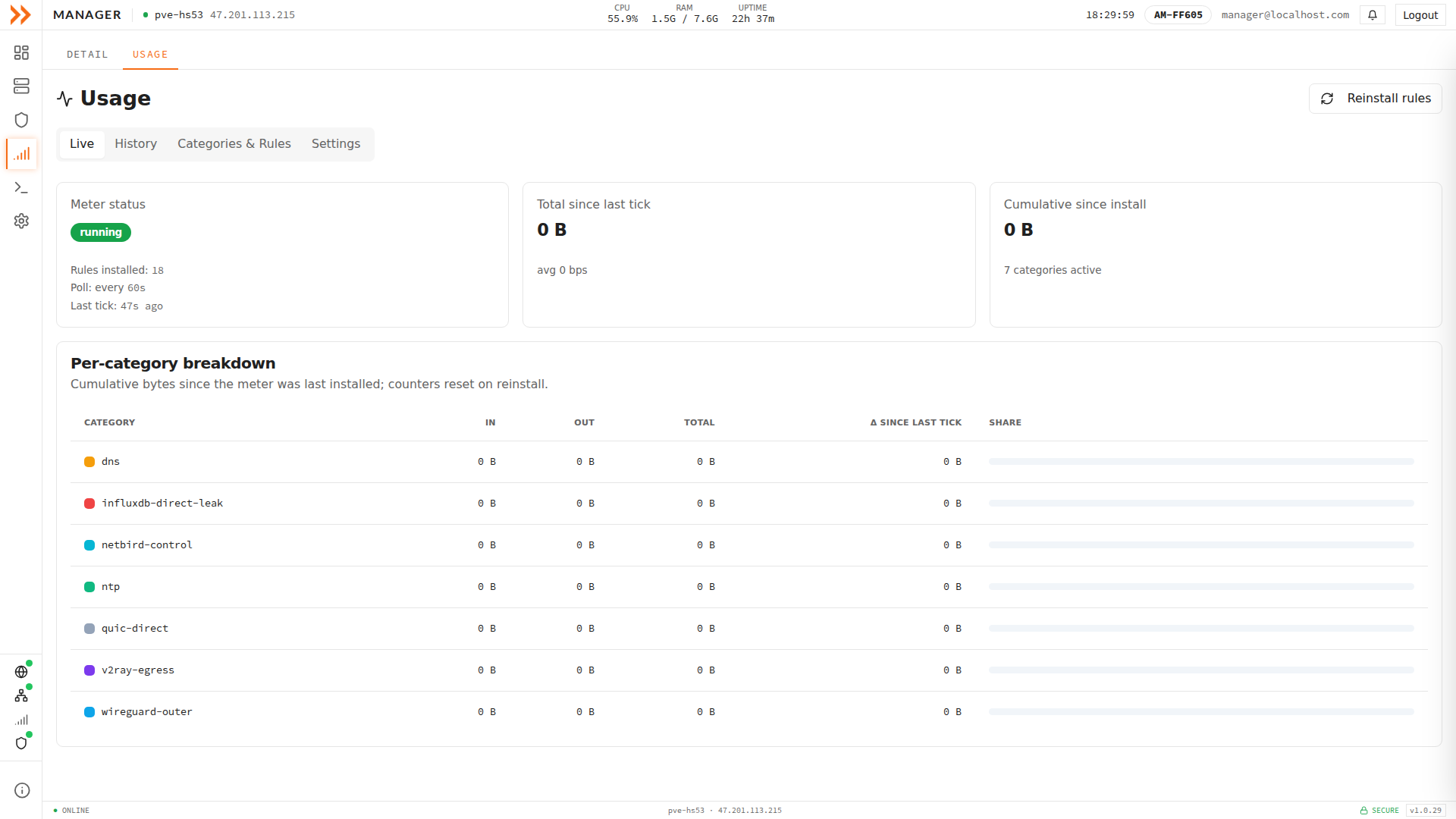
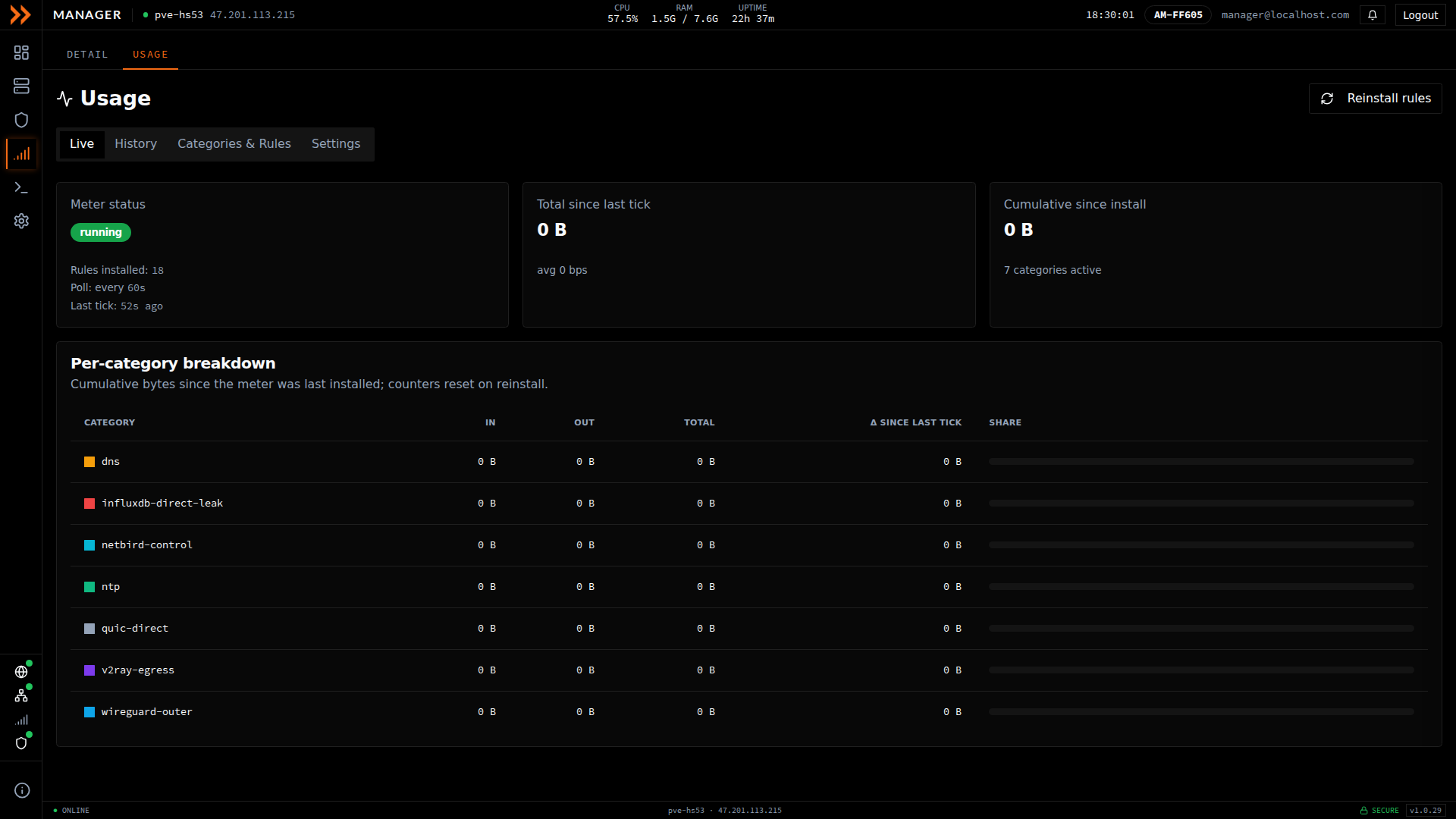
Live shows the meter status, totals since the last tick, and a per-category breakdown
Live shows the meter status, totals since the last tick, and a per-category breakdown
History
Section titled “History”Use History when a data bill looks high and you want to find the spike. It plots usage over time in fixed windows, and you can switch the range with the 1h, 24h, 7d, and 30d buttons. Each row is a time bucket with its in and out bytes stacked together; hover a row for the per-category detail behind the total.
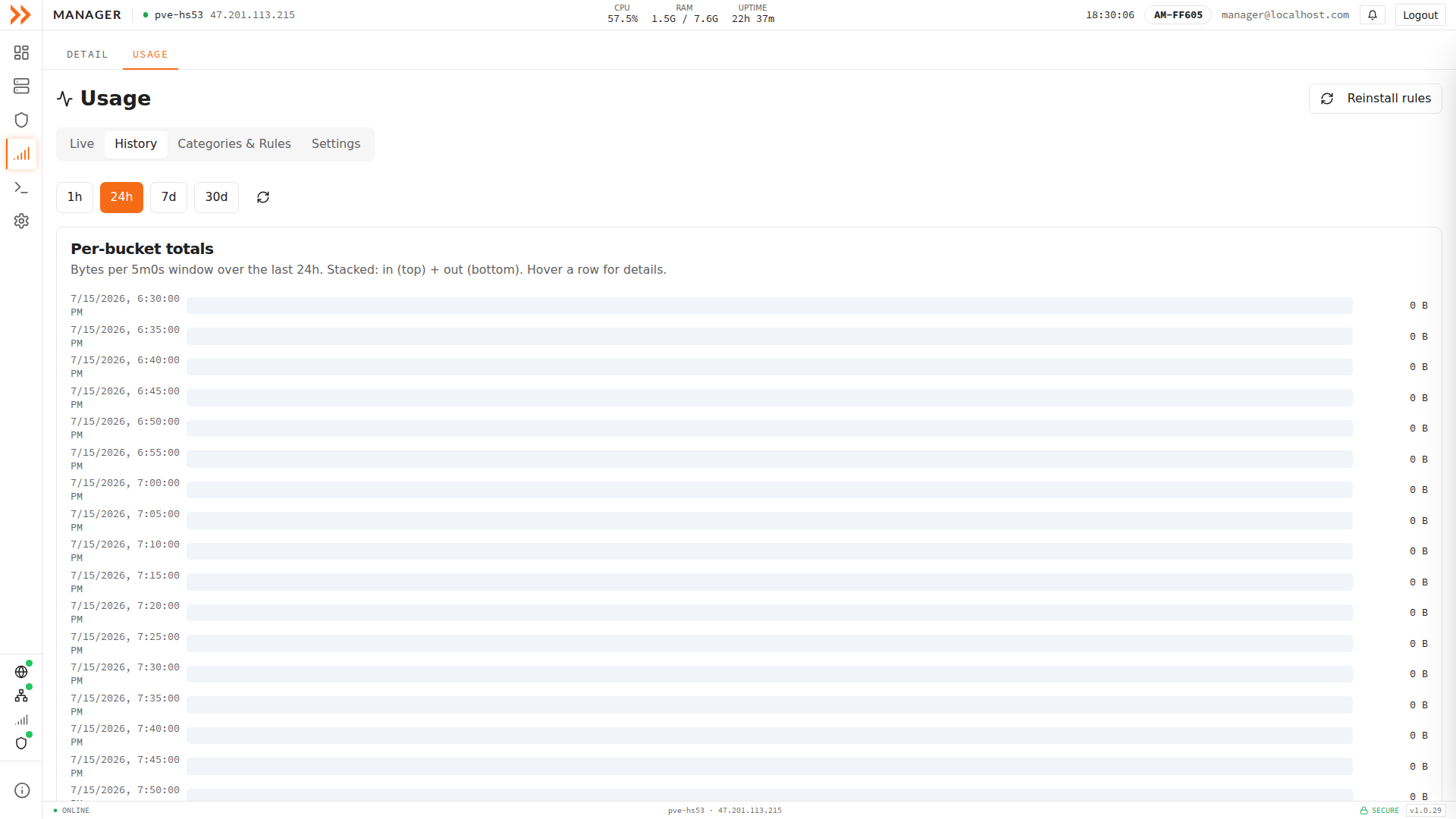
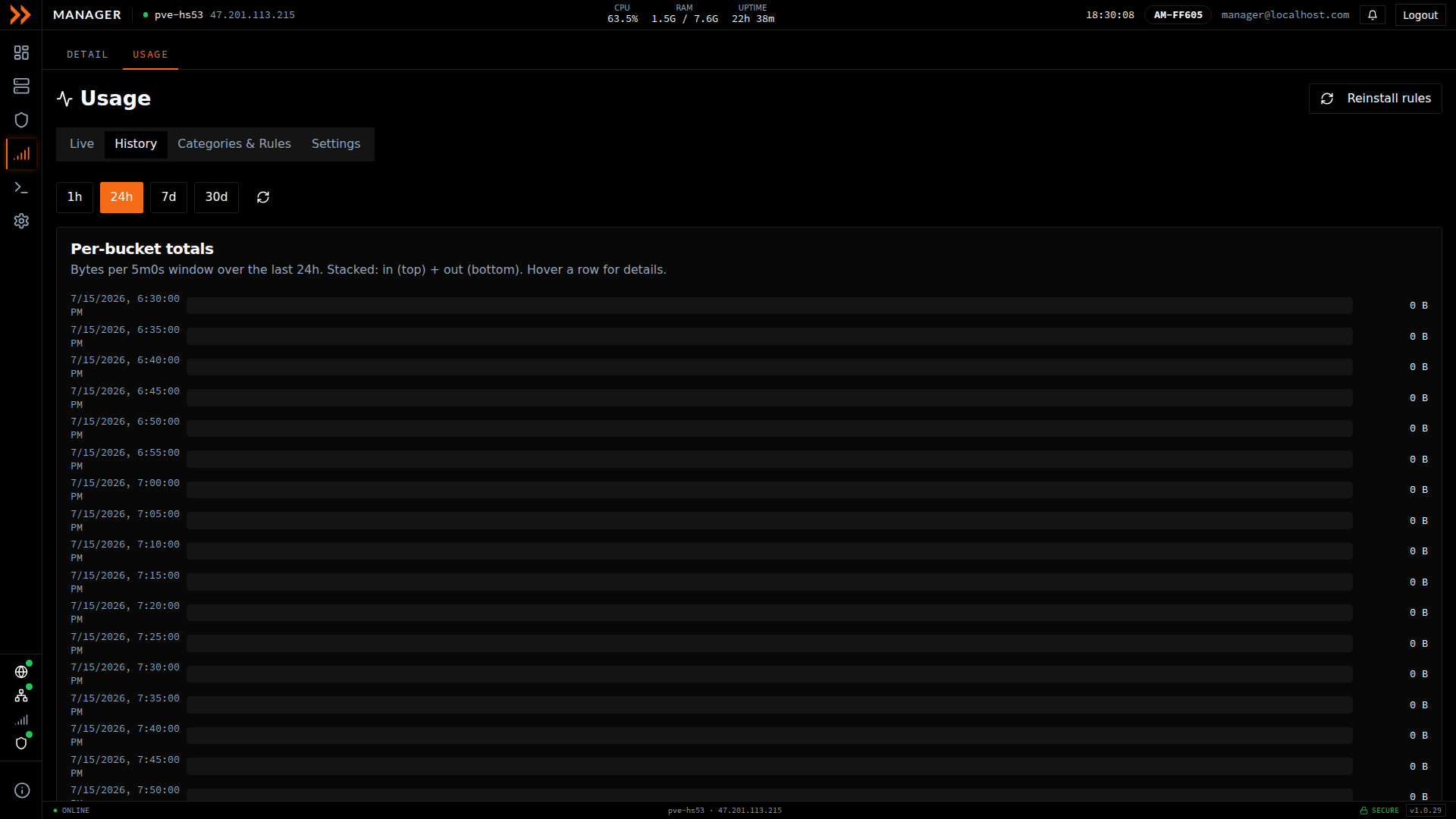
History breaks usage into time buckets over 1h, 24h, 7d, or 30d ranges
History breaks usage into time buckets over 1h, 24h, 7d, or 30d ranges
Categories & Rules
Section titled “Categories & Rules”This tab is where the buckets in Live and History are defined. It lists every category with its color, slug, name, description, and whether it is enabled, and marks the built-in ones (DNS, NTP, NetBird control, and the rest) so you can tell them apart from your own. You would come here to add a New category or edit the rules that classify traffic into it, for example to break out a specific host you want to watch separately.
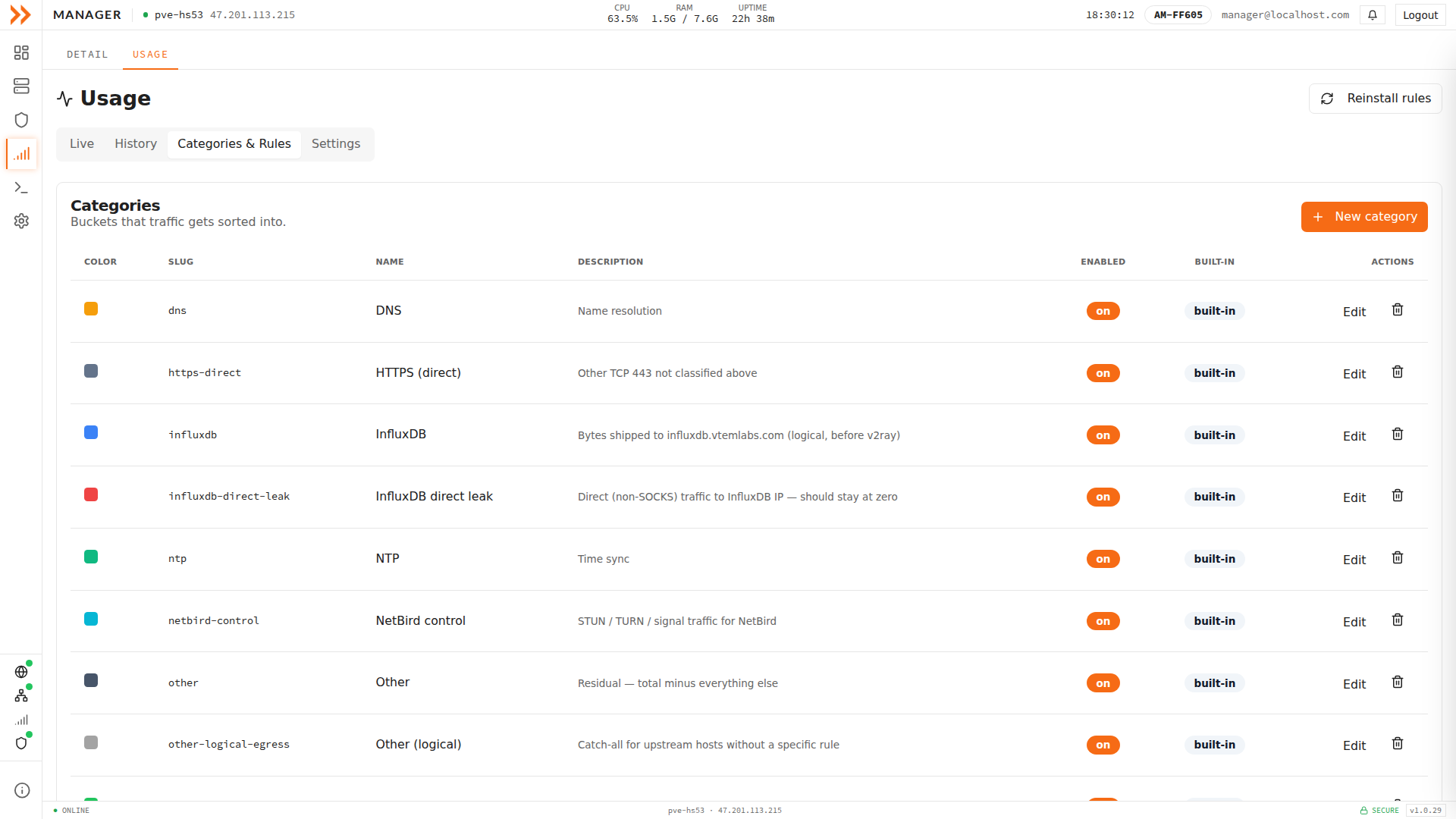
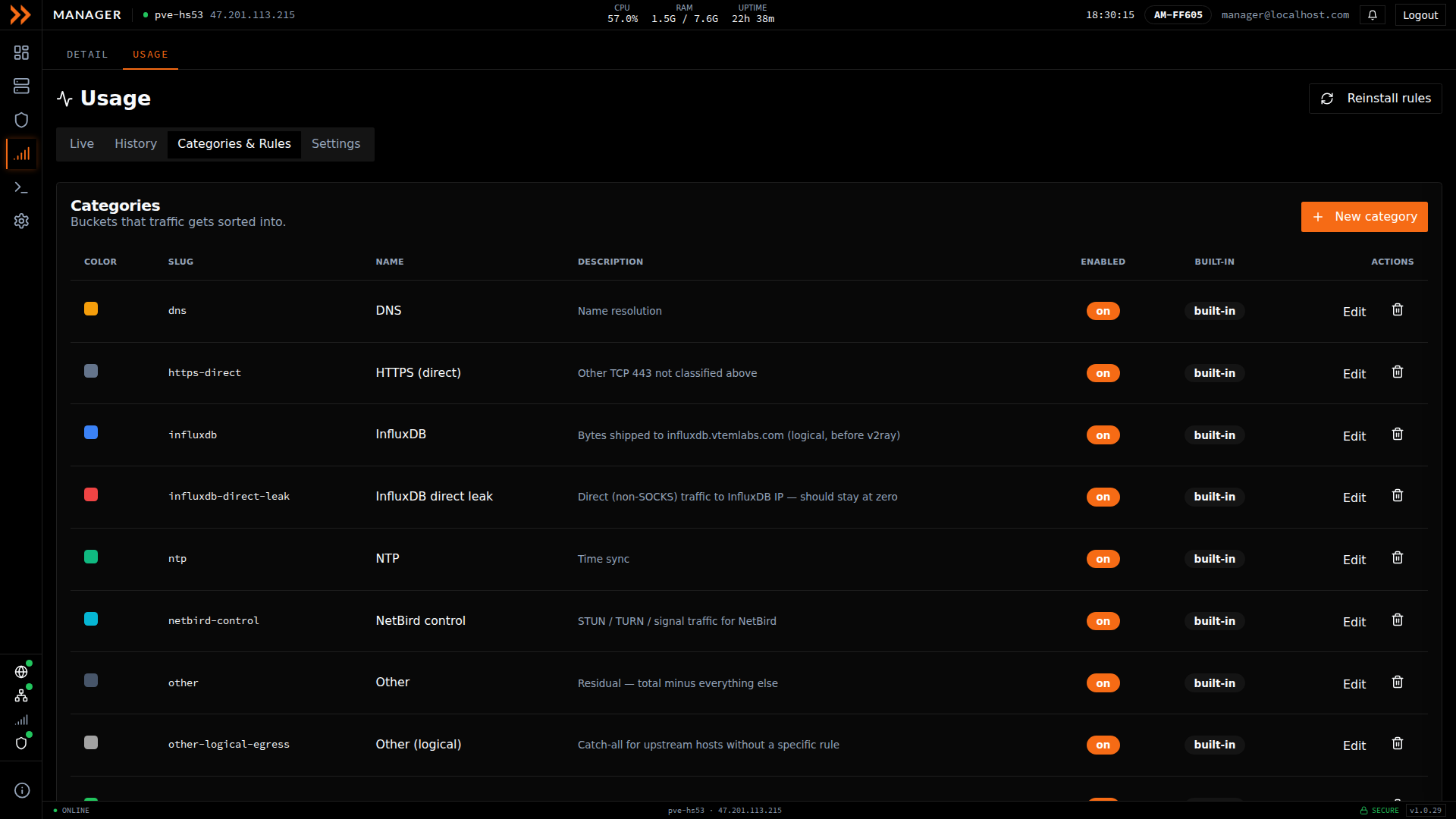
Categories & Rules defines the buckets that traffic is sorted into and the rules that classify it
Categories & Rules defines the buckets that traffic is sorted into and the rules that classify it
Settings
Section titled “Settings”The Settings tab controls the meter itself. A Tracking enabled master switch turns the counters and samples on or off, and Auto-install on boot decides whether the classification rules are reinstalled every time ARROW Manager starts. You also set the poll interval and how many days of history to retain here. Saving reinstalls the underlying rules so the kernel state matches, and a Last install line at the bottom confirms it worked.
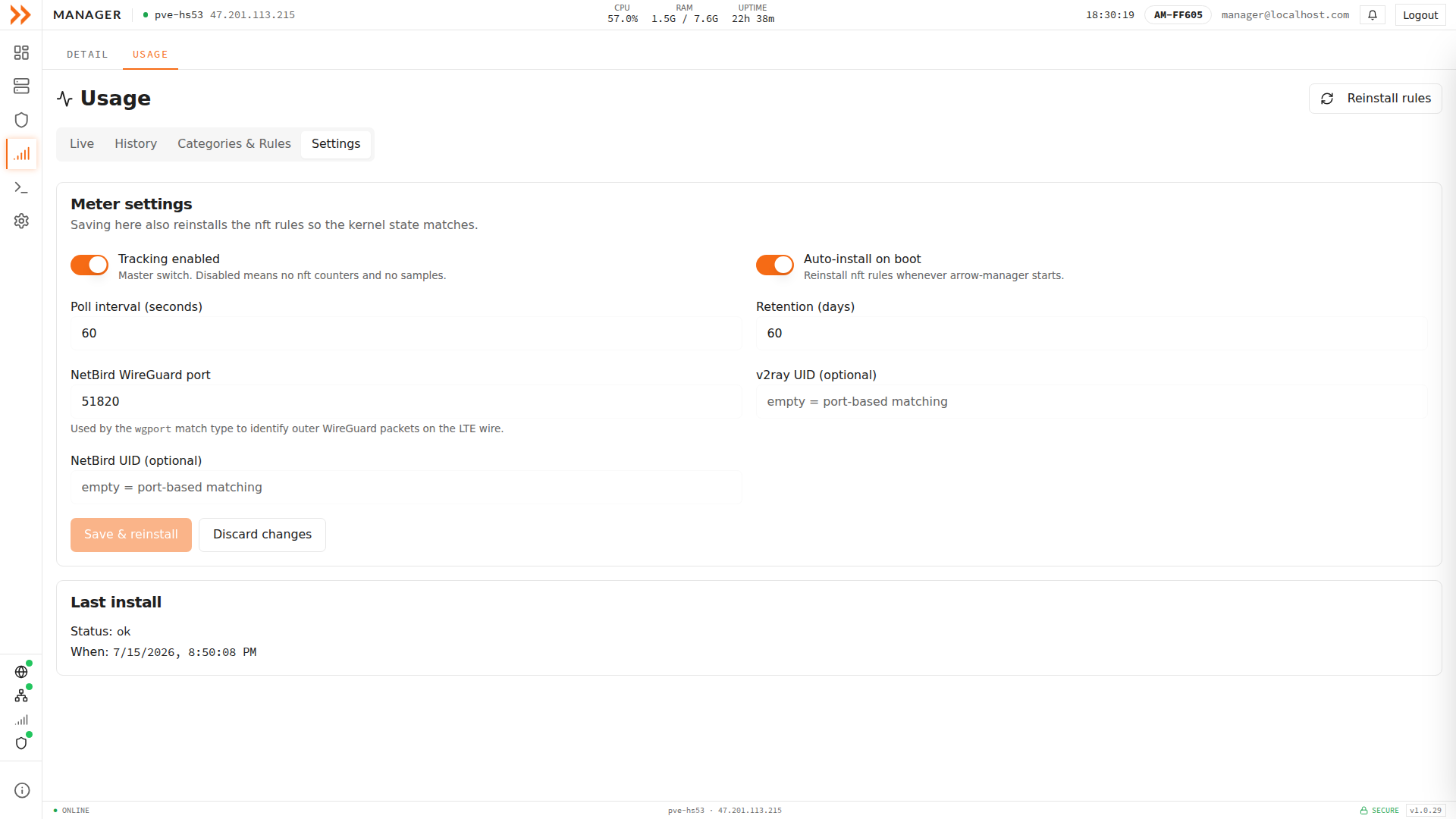
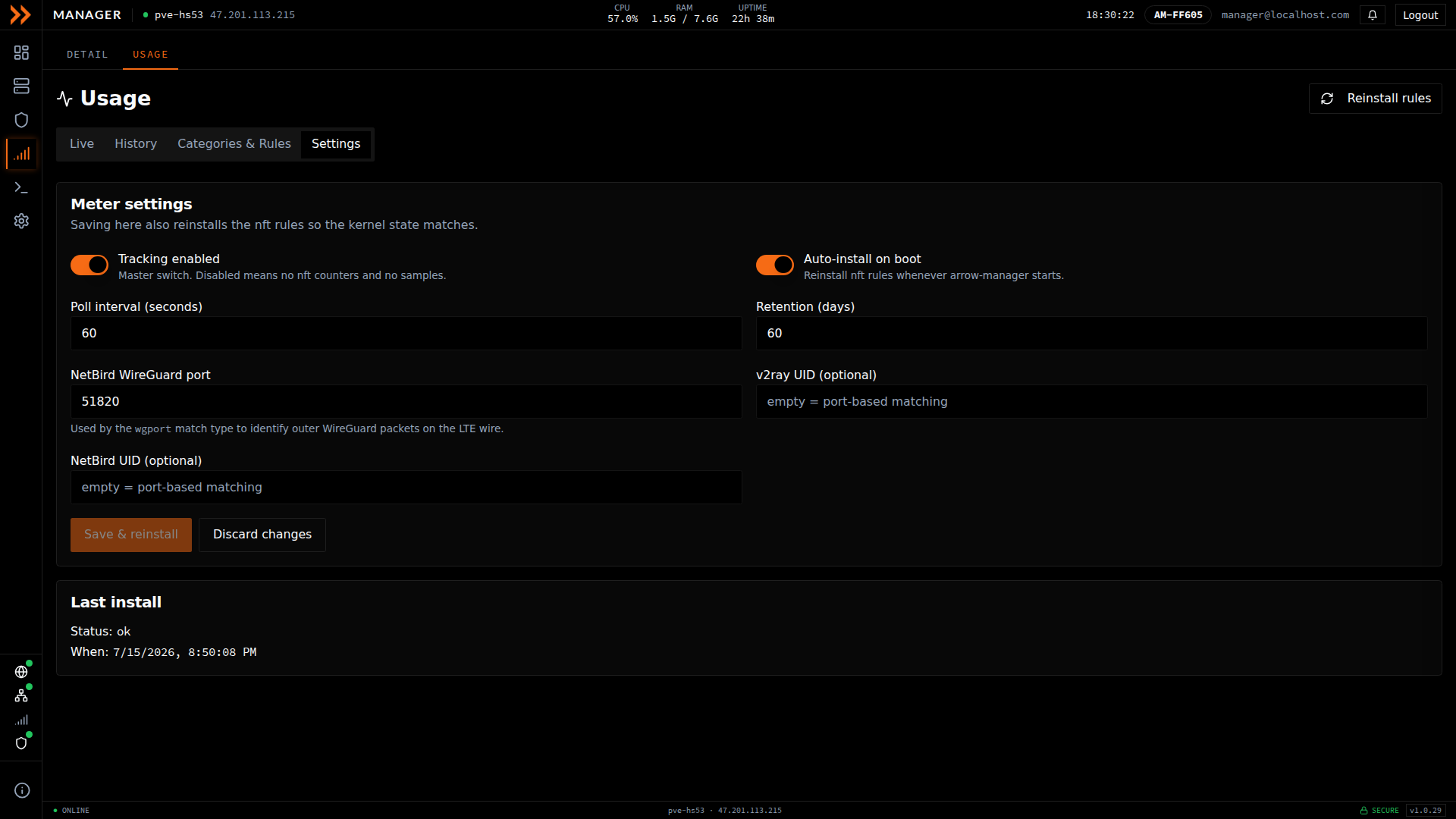
Settings controls tracking, auto-install on boot, the poll interval, and retention
Settings controls tracking, auto-install on boot, the poll interval, and retention
Automatic Failover
Section titled “Automatic Failover”Failover is automatic and needs no input from you. As long as ethernet is up and has real internet access, cellular sits in backup mode and traffic goes over the wire. The moment ethernet drops, or stays plugged in but loses internet, or its gateway becomes unreachable, cellular promotes itself to the active route and carries traffic over LTE. A pulled cable is believed as soon as the next check sees it, without waiting for connectivity probes to time out; a link that stays up but stops passing traffic is confirmed by those probes first, so a momentary blip does not bounce the device onto cellular. When ethernet recovers, cellular steps back down to backup.
Cellular is not always the first fallback. If your organization has Nullpath turned on, a wire that is still up but will not carry the VPN, because the site blocks it, is tried through the Nullpath tunnel first, and cellular is only used if that fails too. A wire that has gone dark skips straight to cellular, and Nullpath is never attempted over cellular or in drop mode, so it cannot spend your data plan or break a dropped device’s silence.
You can always tell which link is carrying traffic by the default route interface shown in ARROW Manager. vmbr0 means the ethernet bridge is active, and wwan0 means the cellular modem is active. The Access path card on the Dashboard says the same thing in plain language.
LTE Bridge Mode (Advanced)
Section titled “LTE Bridge Mode (Advanced)”Everything above is about keeping the device itself reachable. LTE Bridge Mode is a different, deliberately narrow feature: it allows the traffic of VMs on the device’s guest bridge (vmbr1), including the VPN uplink of every deployed VM, to leave over cellular. With it off, that traffic only ever uses the wired uplink and is held while the device is on LTE. You would reach for this only in a corner case, such as needing an isolated internet path for a VM when no ethernet is available.
LTE Bridge Mode costs $20 per gigabyte. Treat it as temporary. Use it for emergency access or short isolated tests, and switch back to ethernet for normal operation.
The Settings page surfaces the bridge state so you know what is configured before you turn it on. It shows whether Bridge Mode is enabled, whether the vmbr1 interface exists, whether the LTE connection (wwan0) is active, whether NAT rules are in place, and how many VMs are attached to the bridge.
Enabling and disabling
Section titled “Enabling and disabling”To enable it, open ARROW Manager, go to Settings > Connectivity, and find LTE Bridge Mode (Advanced). The LTE connection must be active first. Click Enable LTE Bridge and confirm the cost warning.
To turn it off, return to Settings > Connectivity and click Disable LTE Bridge, then confirm. Guest traffic on vmbr1 goes back to the wired uplink only, so a VM that was relying on cellular has no path out until the wire is up. The bridge itself is kept while any VM is attached to it, and removed once none is.
Configuring VMs for the LTE Bridge
Section titled “Configuring VMs for the LTE Bridge”Getting a VM onto the bridge is two steps. Attach it in Proxmox, then give it an address inside the VM.
In Proxmox, enable LTE Bridge Mode in ARROW Manager, edit the VM’s hardware, change its Network Device bridge from vmbr0 to vmbr1, and restart the VM.
Inside the VM, DHCP is the easy path and what we recommend. Set the interface to DHCP and it will pick up an address, gateway, and DNS from the bridge automatically. If you need a static address instead, use an IP inside the bridge’s range (not the gateway address itself) with a 255.255.255.0 subnet mask, the bridge gateway, and a DNS server such as 8.8.8.8. The bridge normally sits on 192.168.2.0/24, with a gateway of 192.168.2.1 and DHCP addresses from 192.168.2.10 to 192.168.2.250, but if the client network already uses that range the device moves the bridge to another private range on its own (waiting until no VM still depends on the old one), so read the current range and gateway from the VM Configuration Guide under LTE Bridge Mode (Advanced) rather than assuming them.
To confirm the VM is actually egressing over cellular, check its public IP from inside:
curl ifconfig.meThat should return the cellular public IP address.
Under the hood, the bridge is a vmbr1 interface with a DHCP server for the VMs on it. NAT rules translate VM addresses onto the LTE interface and IP forwarding is enabled between vmbr1 and wwan0. If the cellular link drops, the bridge stays up and guest traffic follows whatever connection the device itself is using, so a VM keeps working over the wire when there is one and waits when there is not.
Troubleshooting
Section titled “Troubleshooting”Cellular shows Disconnected. Read the fault banner at the top of the Cellular page first, since it names which of signal, SIM, or hardware is at fault instead of leaving you to guess. Beyond that, check signal strength from a different location, ask VTEM Labs support to verify the SIM, and restart the device if the modem seems wedged.
Connected but no internet. The link is up but data is not flowing, which typically means an exhausted data plan, a carrier outage, or an APN problem. Wait out carrier issues, contact VTEM Labs to confirm the plan is active, and check whether other cellular devices work in the same spot. For an APN problem, the Data APN card under Modem & SIM shows what the network actually granted and lets you switch to another APN.
Cellular works but everything is slow. The APN decides where cellular traffic breaks out. On a Simplex SIM, the plain simplex.iot APN home-routes a US device through Singapore, so switch to Simplex Global Data in the Data APN card to break out at the nearest gateway.
LTE Bridge will not enable. The most common reason is that the LTE connection is not active, since the bridge requires it. Confirm “LTE Connection” shows active, refresh the status, and restart ARROW Manager if needed.
A VM cannot get out through the bridge. Confirm the VM’s network device is set to vmbr1, that it has an address in the range the VM Configuration Guide shows for the bridge, and that every bridge status indicator is green. Test with DHCP before trying a static IP.
Related Documentation
Section titled “Related Documentation”- ARROW Manager Network - Network status and management
- VPN Management - VPN connectivity
- Device Management - Managing ARROW devices