
ARROW Device
The ARROW device is a rugged, portable mini PC designed for enterprise security testing and remote network operations. Built with field durability and professional-grade performance in mind.
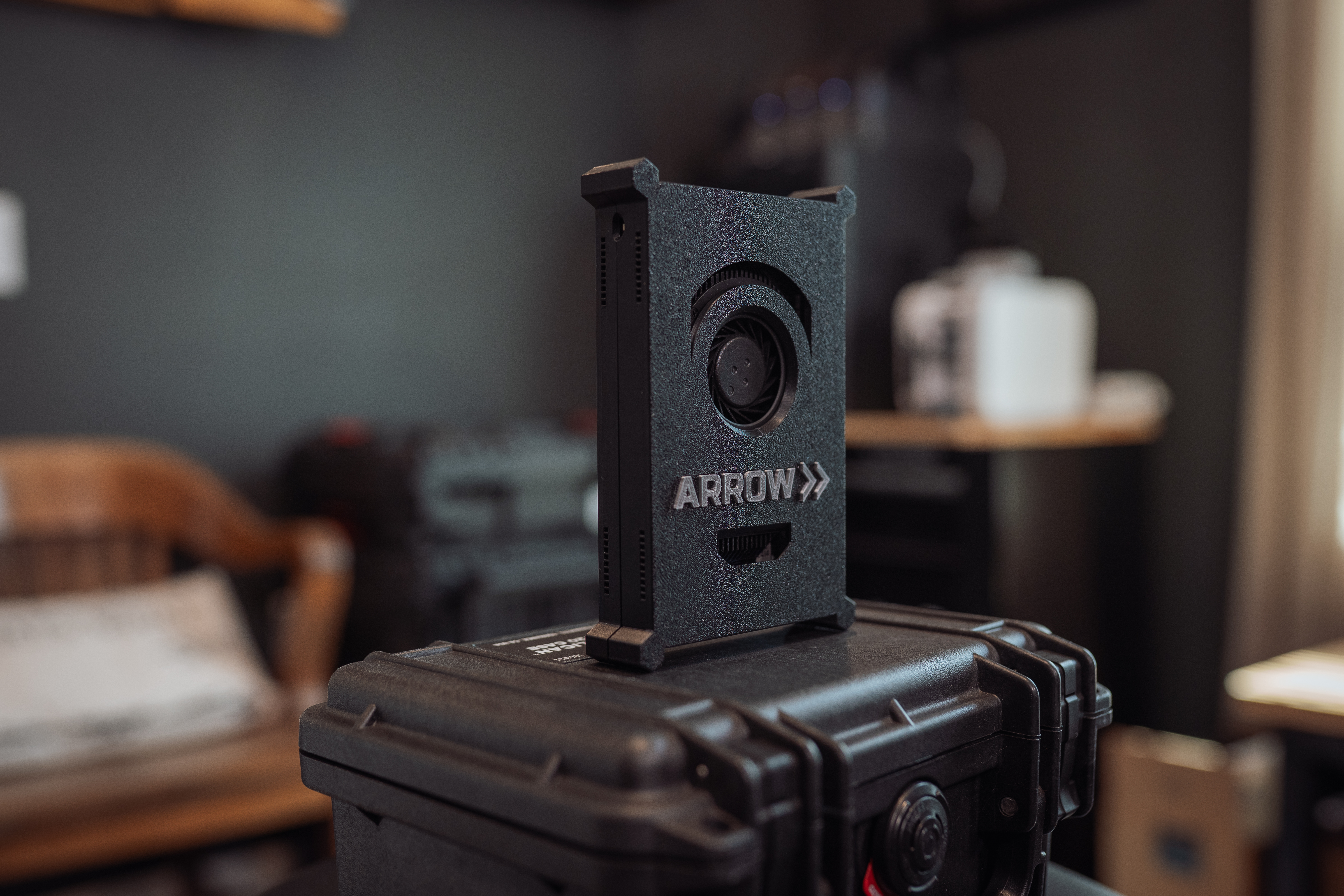
Front view with ARROW branding and cooling vent
Front view with ARROW branding and cooling vent
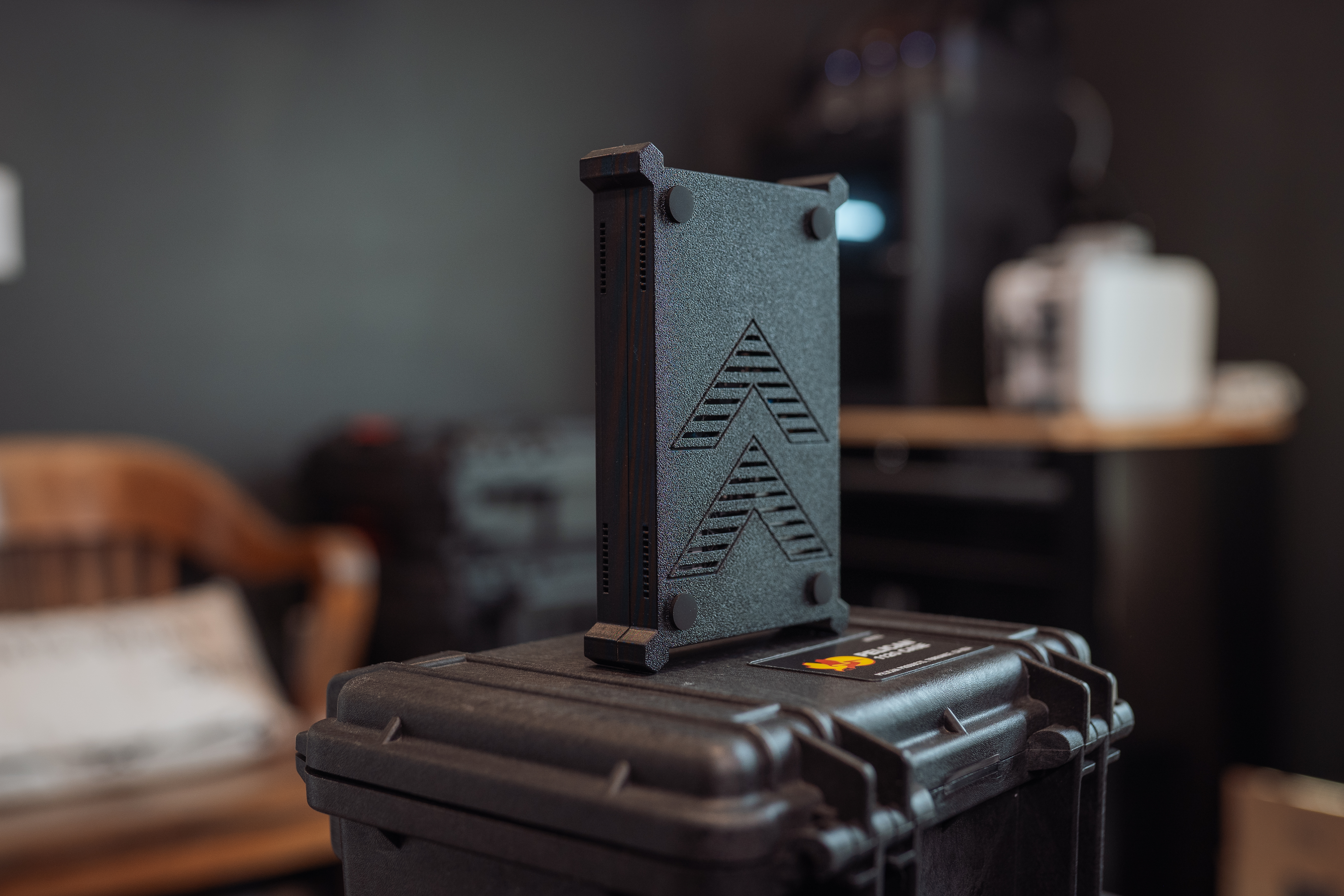
Back view with chevron pattern design
Back view with chevron pattern design
Overview
Section titled “Overview”The ARROW is the flagship hardware device in the ARROW platform ecosystem. It’s a custom-built Linux-based computer optimized for:
- Penetration Testing - Full Kali Linux environment with pre-installed tools
- Remote Network Access - Always-on VPN with cellular failover
- Field Operations - Rugged design for deployment in diverse environments
- Secure Communications - Hardware-encrypted storage and secure boot
Technical Specifications
Section titled “Technical Specifications”The ARROW device is built on the LattePanda 3 Delta platform with custom modifications by VTEM Labs.
Processing & Memory
Section titled “Processing & Memory”| Component | Specification |
|---|---|
| Processor | Intel Celeron N5105 Quad-Core (2.0GHz base, 2.9GHz burst) |
| Architecture | 11th Gen Intel (Jasper Lake) |
| RAM | 8GB LPDDR4 2933MHz |
| Base Storage | 64GB eMMC 5.1 |
| Added Storage | 1TB NVMe SSD (LUKS encrypted) |
| Graphics | Intel UHD Graphics (up to 800MHz) |
| TPM | TPM 2.0 (built-in) |
Connectivity
Section titled “Connectivity”| Interface | Details |
|---|---|
| Ethernet | 1x Gigabit Ethernet (RJ45) |
| USB | 2x USB 3.2 Gen1 Type-A, 1x USB 3.2 Gen2 Type-A, 1x USB-C (PD/DP/USB 2.0) |
| Cellular | Sierra Wireless EM7455 LTE-Advanced Cat 6 (300/50 Mbps, built-in antenna) |
| LTE Bands | B1, B2, B3, B4, B5, B7, B8, B12, B13, B20, B25, B26, B29, B30, B41 |
| 3G Fallback | UMTS/HSPA+ B1, B2, B3, B4, B5, B8 |
| Wi-Fi | Intel AX201 Wi-Fi 6 (802.11ax, 2.4GHz/5GHz 160MHz) |
| Bluetooth | Bluetooth 5.2 |
| GNSS | GPS, GLONASS, BeiDou, Galileo (via LTE modem) |
Video Output
Section titled “Video Output”| Interface | Details |
|---|---|
| HDMI | HDMI 2.0b (up to 4096×2160 @ 60Hz HDR) |
| DisplayPort | DP 1.4 via USB-C (up to 4096×2160 @ 60Hz HDR) |
| eDP | Internal connector (up to 1920×1080) |
| Multi-Display | Supports triple display output |
Physical Specifications
Section titled “Physical Specifications”| Attribute | Value |
|---|---|
| Dimensions | 5.1” × 4.5” × 1.6” (130 × 115 × 40 mm) |
| Weight | 0.9 lbs (420g) without enclosure |
| Enclosure | Custom ARROW aluminum case with heatsink |
| Cooling | Active (redesigned cooling fan) |
| Operating Temp | 32°F to 113°F (0°C to 45°C) |
| Power Input | 12V DC via barrel jack or USB-C PD |
| TDP | 10W typical |
Expansion & I/O
Section titled “Expansion & I/O”| Interface | Details |
|---|---|
| M.2 M Key | PCIe 3.0 x2 (NVMe SSD - 1TB installed) |
| M.2 B Key | PCIe 3.0 x1 + USB (LTE modem installed) |
| Arduino | Integrated ATmega32U4 coprocessor |
| GPIO | 12 analog inputs, up to 23 digital I/O (7 PWM) |
| Serial | RS232 header (COM port) |
| Audio | 2-channel output with 2W amplifier |
Software
Section titled “Software”| Feature | Details |
|---|---|
| Operating System | Kali Linux (custom ARROW image) |
| VPN | NetBird client (always-on) |
| Management | ARROW Control agent |
| Encryption | LUKS2 full-disk encryption (1TB NVMe) |
| Secure Boot | UEFI Secure Boot enabled |
What’s in the Box
Section titled “What’s in the Box”When you receive your ARROW device, the package includes:
- 1x ARROW device unit (with built-in LTE antenna)
- 1x 36W power adapter with regional plug
- 1x Ethernet cable (1m Cat6)
- 1x Quick start guide
- 1x Carrying case (foam-padded)
Optional additions (if requested):
- ALFA AWUS036AXM WiFi 6E adapter - For wireless security testing
- ALFA AWUS036ACH wireless adapter
- VESA mounting bracket
Initial Setup
Section titled “Initial Setup”1. Physical Connections
Section titled “1. Physical Connections”Step 1: Connect the power adapter to the DC input jack (or USB-C PD).
Step 2: (Optional) Connect an Ethernet cable for wired internet during setup.
Step 3: Press the power button. The LED will turn blue when the device is booting.
Note: The LTE antenna is built-in. The device will automatically connect via cellular if no Ethernet is available.
2. First Boot
Section titled “2. First Boot”Your ARROW device ships fully pre-configured by VTEM Labs. On first boot, the device will automatically:
- Boot with encryption enabled - LUKS encryption is pre-configured with your organization’s recovery key
- Connect to VPN - The NetBird client automatically connects to your organization’s network
- Register with ARROW Manager - The device appears in your ARROW portal within minutes
Zero Configuration Required Unlike traditional hardware, your ARROW device requires no initial setup. Simply power it on, and it’s ready to use. The device is provisioned specifically for your engagement before shipping.
3. Verifying Connectivity
Section titled “3. Verifying Connectivity”After powering on, verify the device is connected:
From ARROW Portal (Recommended):
- Log in to portal.arrow.vtemlabs.com
- Navigate to Devices
- Find your device in the list
- Status should show “Online” with a green indicator
From ARROW Control:
- Click Open Control on your device in the portal
- The ARROW Control interface confirms connectivity
- Use the built-in terminal to run diagnostics if needed
Connecting to Your ARROW Device
Section titled “Connecting to Your ARROW Device”Via ARROW Control (Recommended)
Section titled “Via ARROW Control (Recommended)”ARROW Control provides a web-based interface for device management:
- Log in to the ARROW Portal
- Navigate to Devices and select your ARROW device
- Click Open Control to launch ARROW Control
- Access terminal, file manager, and system monitoring
Via SSH over VPN
Section titled “Via SSH over VPN”For command-line access:
# Connect using the device's VPN IPssh arrowuser@<device-vpn-ip>
# Or use the device hostnamessh arrowuser@arrow-<device-id>.netbird.cloud
Note SSH access requires your NetBird VPN to be connected on your local machine.
Via Direct Console
Section titled “Via Direct Console”If you have physical access:
- Connect a monitor via HDMI
- Connect a USB keyboard
- Log in with your configured credentials
Network Configuration
Section titled “Network Configuration”Cellular Failover
Section titled “Cellular Failover”The ARROW device automatically fails over to cellular when:
- Primary Ethernet loses connectivity
- Wi-Fi signal drops below threshold
- Manual failover is triggered
Failover typically completes in under 10 seconds.
Static IP Configuration
Section titled “Static IP Configuration”To configure a static IP:
- Open ARROW Control → Network Settings
- Select the interface (eth0, eth1)
- Choose “Manual” configuration
- Enter IP address, subnet, gateway, and DNS
Firewall Rules
Section titled “Firewall Rules”The ARROW device includes ufw with these default rules:
| Rule | Description |
|---|---|
| Allow SSH (22) | Inbound SSH access |
| Allow ARROW Control (8080) | Web management interface |
| Allow VPN | NetBird WireGuard tunnel |
| Deny all other inbound | Default deny policy |
Troubleshooting
Section titled “Troubleshooting”Physical Device Issues
Section titled “Physical Device Issues”Device won’t power on:
- Verify the power adapter is connected and the outlet has power
- Try a different power source or outlet
- Check for damage to the power cable or connector
- If using USB-C PD, ensure the charger supports 20V output
Device is unresponsive / frozen:
- Soft restart: Press and hold the power button for 4 seconds, then release
- Hard restart: Press and hold the power button for 10+ seconds until the device powers off
- Wait 10 seconds, then press the power button to restart
- If still unresponsive, disconnect power for 30 seconds, then reconnect
LED Indicators:
| LED State | Meaning |
|---|---|
| Off | No power - check power connection |
| Solid blue | Normal operation |
| Blinking blue | Booting / activity |
| Solid amber | Standby / sleep mode |
| Blinking amber | Error - contact support |
Overheating:
- Ensure the device has adequate ventilation (don’t cover vents)
- Check that the fan is spinning (you should hear it during heavy use)
- Move away from heat sources or direct sunlight
- If overheating persists, power off and contact support
Device Not Appearing in Portal
Section titled “Device Not Appearing in Portal”- Verify power is connected and LED is solid blue
- Check cellular signal (antenna properly connected)
- Verify SIM card is activated and has data plan
- Check VPN status:
netbird status
No Internet Connectivity
Section titled “No Internet Connectivity”- Check Ethernet cable connection
- Verify cellular signal strength
- Test DNS resolution:
nslookup google.com - Restart networking:
sudo systemctl restart NetworkManager
Encryption Recovery
Section titled “Encryption Recovery”Your ARROW device ships with LUKS encryption pre-configured. If you need to recover access:
- Contact VTEM Labs support at [email protected]
- VTEM Labs maintains recovery keys for all devices
- Remote recovery can typically be performed via ARROW Control
Maintenance
Section titled “Maintenance”Software Updates
Section titled “Software Updates”Updates are managed through ARROW Manager:
- Navigate to Devices → select your device
- Click Software Updates
- Available updates are listed with changelogs
- Click Install to apply updates
Factory Reset
Section titled “Factory Reset”To reset the device to factory defaults:
- Open ARROW Control → System → Factory Reset
- Confirm the reset action
- Device will reboot and require re-provisioning
Warning Factory reset erases all data including encryption keys. Ensure you have backups of any important files.
ALFA AWUS036AXM WiFi Adapter
Section titled “ALFA AWUS036AXM WiFi Adapter”The ALFA AWUS036AXM is an optional high-performance WiFi 6/6E USB adapter available upon request. It’s designed for wireless security testing and provides tri-band connectivity with external antenna support.
When to Request This Adapter
Section titled “When to Request This Adapter”Request the AWUS036AXM when your engagement requires:
- WiFi 6/6E penetration testing - Full 802.11ax support including 6 GHz band
- Extended range testing - Replaceable high-gain antennas for increased coverage
- Monitor mode / packet injection - Linux-compatible chipset for security testing tools
- Bluetooth 5.2 testing - Integrated Bluetooth support for wireless assessments
Specifications
Section titled “Specifications”| Component | Details |
|---|---|
| Chipset | MediaTek MT7921AUN |
| Standards | IEEE 802.11 a/b/g/n/ac/ax |
| Frequency Bands | 2.4 GHz / 5 GHz / 6 GHz (tri-band) |
| Max Data Rate | 3000 Mbps (600 + 1200 + 1200 Mbps) |
| Bluetooth | v5.2 with integrated antenna |
| USB Interface | USB 3.2 Gen 1 Type-A |
| WiFi Antenna | 2x RP-SMA connectors with dual-band dipole antennas |
| Power | 2.7W max |
| Dimensions | 87.4 × 28.5 × 12 mm |
| OS Support | Windows 10/11, Linux |
Product Link: ALFA AWUS036AXM
- Connect the AWUS036AXM to any USB 3.0 port on the ARROW device
- Attach both included high-gain antennas to the RP-SMA connectors
- The adapter is automatically detected by Linux - no driver installation required
- Verify with:
ip link showoriwconfig
Common Use Cases
Section titled “Common Use Cases”Wireless Network Discovery:
# Put adapter in monitor modesudo airmon-ng start wlan1
# Scan for networks across all bandssudo airodump-ng wlan1mon
WiFi 6E Testing:
# Scan 6 GHz band specificallysudo iw dev wlan1 scan freq 5955-7115Related Documentation
Section titled “Related Documentation”- Device Requests - How to request an ARROW device
- Device Management - Managing devices in the portal
- VPN Management - VPN configuration and access
- ARROW Control Overview - Web-based device management
- Troubleshooting - General troubleshooting guide